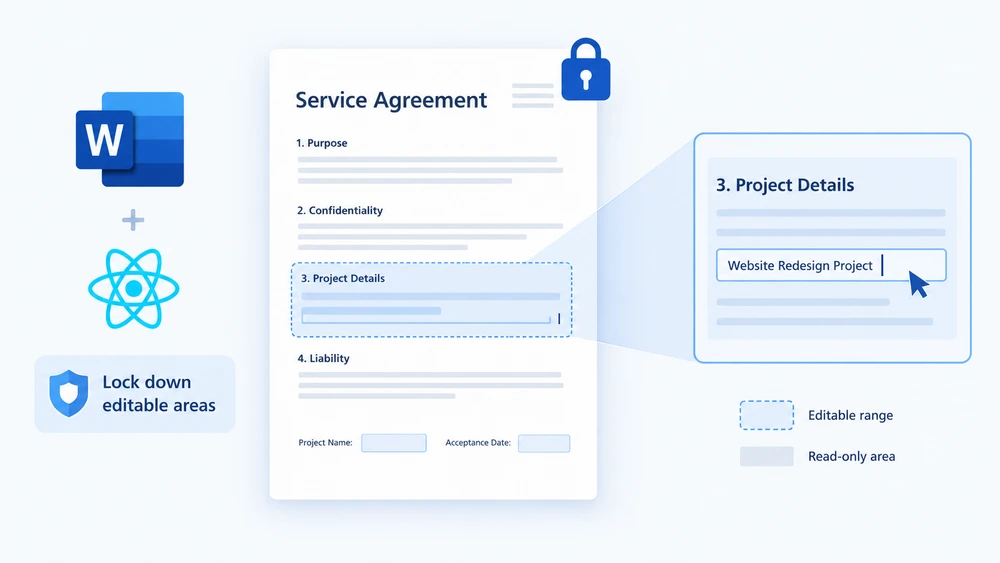
Picture a contract template that gets sent to dozens of clients. The legal team has carefully drafted every clause, and the only things each recipient should touch are the signature block, the project name, and the acceptance date. Hand them a fully editable Word file and someone will inevitably reword a penalty clause or delete a liability section. Lock the entire document and nobody can fill in the fields at all. What you really need is selective editing — a way to say "these specific paragraphs are fair game, everything else is frozen."
That is exactly what editable ranges give you. You protect the whole document as read-only, then drop a pair of permission markers around the paragraphs you want to keep open. Anyone opening the file in Word can type inside the marked region but cannot alter a single character outside it. Spire.Doc for JavaScript brings this capability to the browser through WebAssembly, so you can generate protected documents from a React app with no server round-trip — fonts and input files are managed through an in-memory virtual file system (VFS).
This guide walks through both halves of the workflow:
- Set an editable range — protect the document and mark the open area
- Remove an editable range — strip the markers and lift the restriction
If you have not yet wired Spire.Doc into your project, start with Integrating Spire.Doc for JavaScript in a React Project. The snippets below assume the WebAssembly module is loaded and ready.
Set an Editable Range
The process has three stages. First, pull the font files and the target Word document into the WASM virtual file system with FetchFileToVFS. Next, instantiate a Document, load the file, call Protect to lock the entire document as read-only, and then create a PermissionStart / PermissionEnd pair that shares the same id — these two markers bracket the paragraph you want to leave editable. Finally, save the file, read it back from VFS, wrap it in a Blob, and trigger a download.
function App() {
  const SetEditableRange = async () => {
    const docModule = window.wasmModule?.spiredoc;
    if (!docModule) {
      alert('Spire.Doc is not ready yet');
      return;
    }

    // Load the input document into VFS
    const inputFileName = "SetEditableRange.docx";
    await window.spire.FetchFileToVFS(inputFileName, "", `${process.env.PUBLIC_URL}static/data/`);

    // Create a document object and load the document
    const doc = new docModule.Document();
    doc.LoadFromFile(inputFileName);

    // Protect the whole document: everything outside the editable range is read-only
    doc.Protect({ type: docModule.ProtectionType.AllowOnlyReading, password: "password" });

    // Create the permission markers: a start and an end with the same id form one editable range
    const start = new docModule.PermissionStart(doc, "testID");
    const end = new docModule.PermissionEnd(doc, "testID");

    // Insert the markers into the first paragraph: the start at the beginning, the end appended at the end
    doc.Sections.get_Item(0).Paragraphs.get_Item(0).ChildObjects.Insert(0, start);
    doc.Sections.get_Item(0).Paragraphs.get_Item(0).ChildObjects.Add(end);

    // Save the document
    const outputFileName = "Set Editable Range.docx";
    doc.SaveToFile({ fileName: outputFileName, fileFormat: docModule.FileFormat.Docx2013 });
    doc.Dispose();

    const modifiedFileArray = window.dotnetRuntime.Module.FS.readFile(outputFileName);
    const blob = new Blob([modifiedFileArray], { type: 'application/vnd.openxmlformats-officedocument.wordprocessingml.document' });
    const url = URL.createObjectURL(blob);
    const a = document.createElement('a');
    a.href = url;
    a.download = outputFileName;
    a.click();
    URL.revokeObjectURL(url);
  };

 return (
    <div style={{ textAlign: 'center', height: '300px' }}>
      <h1>Set Editable Range in a Word Document</h1>
      <button onClick={SetEditableRange}>
        Generate
      </button>
    </div>
  );
}
export default App;
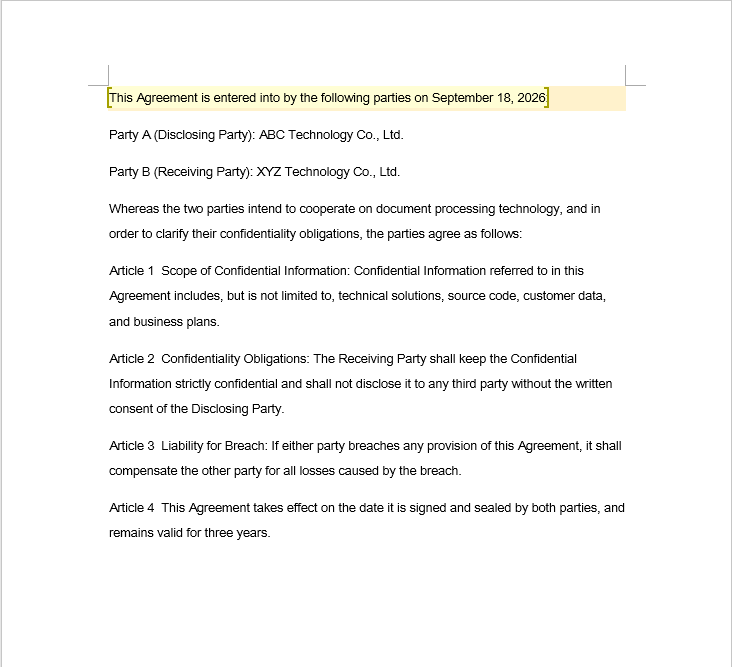
In the sample file, the fields a reviewer is allowed to fill in carry light shading — that is purely a visual cue for the reader and has no bearing on how the editable range is defined in code. Once the markers are in place, Word treats the shaded paragraph as editable and every other paragraph as locked.
Remove an Editable Range
Stripping the editable range is a single traversal: loop through every section and every paragraph, inspect each object in the paragraph's ChildObjects collection, and yank out anything that is a PermissionStart or PermissionEnd.
One subtlety catches people off guard: ChildObjects.Remove shrinks the collection on the spot, so every element after the removed one slides forward by one index. If you increment your loop counter while deleting, each removal causes the very next marker to be skipped — and the more markers you have, the more survivors you leave behind.
function App() {
  const RemoveEditableRange = async () => {
    const docModule = window.wasmModule?.spiredoc;
    if (!docModule) {
      alert('Spire.Doc is not ready yet');
      return;
    }

      // Load the input document into VFS
      const inputFileName = "RemoveEditableRange.docx";
      await window.spire.FetchFileToVFS(inputFileName, "", `${process.env.PUBLIC_URL}static/data/`);

      // Create a document object and load the document
      const doc = new docModule.Document();
      doc.LoadFromFile(inputFileName);

      // Iterate over every section and paragraph and delete the permission markers
      for (let i = 0; i < doc.Sections.Count; i++) {
        const section = doc.Sections.get_Item(i);
        for (let j = 0; j < section.Body.Paragraphs.Count; j++) {
          const paragraph = section.Body.Paragraphs.get_Item(j);

          // Remove on a match; the collection shrinks, so the index is not incremented
          for (let k = 0; k < paragraph.ChildObjects.Count;) {
            const obj = paragraph.ChildObjects.get_Item(k);
            if (obj instanceof docModule.PermissionStart || obj instanceof docModule.PermissionEnd) {
              paragraph.ChildObjects.Remove(obj);
            } else {
              k++;
            }
          }
        }
      }

      // Save the document
      const outputFileName = "Remove Editable Range.docx";
      doc.SaveToFile({ fileName: outputFileName, fileFormat: docModule.FileFormat.Docx2013 });

    // Release resources
    doc.Dispose();

    const modifiedFileArray = window.dotnetRuntime.Module.FS.readFile(outputFileName);
    const blob = new Blob([modifiedFileArray], { type: 'application/vnd.openxmlformats-officedocument.wordprocessingml.document' });
    const url = URL.createObjectURL(blob);
    const a = document.createElement('a');
    a.href = url;
    a.download = outputFileName;
    a.click();
    URL.revokeObjectURL(url);
  };

 return (
    <div style={{ textAlign: 'center', height: '300px' }}>
      <h1>Remove Editable Ranges from a Word Document</h1>
      <button onClick={RemoveEditableRange}>
        Generate
      </button>
    </div>
  );
}
export default App;
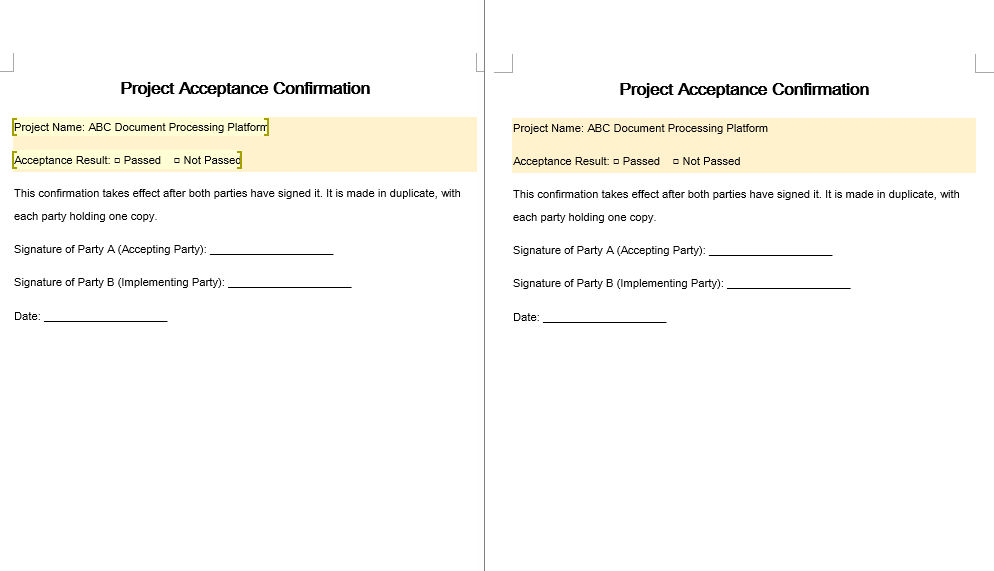
Deleting the markers only redraws the boundary of what is editable — the text itself and all formatting remain untouched.
The Complete Protection Lifecycle
In a real approval workflow you rarely do just one thing. A typical round-trip looks like this:
-
Protect — Call
doc.ProtectwithAllowOnlyReading(orAllowOnlyFormFields) and a password. The entire document is now locked. -
Mark — Wrap each reviewer-editable paragraph in a
PermissionStart/PermissionEndpair sharing one id. Those regions become the only places a reviewer can type. - Unmark — When the review round is over, walk the document and remove every permission marker. The regions rejoin the read-only body.
-
Unprotect — Call
doc.Unprotect("password")to release the document entirely, returning it to a fully editable state for the next stage of processing.
The key insight is that protection and editable ranges are two independent layers. Protection decides whether the document is locked at all; the marker pair decides which slivers are exempt from that lock. You can add and remove markers as many times as you like without touching the protection state, and you can toggle protection on or off without disturbing the markers — but the markers only have teeth while protection is active.
FAQ
The editable range is set, but the content inside it still cannot be edited
Why it happens: Permission markers are inert on their own. They only carve out exceptions to a document-wide restriction, so if Protect was never called, there is no restriction to be exempt from and the markers do nothing. A second requirement is that the PermissionStart and PermissionEnd must carry the same id string — Word treats them as a pair only when the ids match.
Fix: Turn on the editing restriction first, then create both markers with an identical id:
// Enable protection first so that the markers mean something
document.Protect({ type: wasmModule.ProtectionType.AllowOnlyReading, password: "password" });

// The start and the end must use the same id
const start = new wasmModule.PermissionStart(document, "testID");
const end = new wasmModule.PermissionEnd(document, "testID");
Some markers are missed when removing editable ranges
Why it happens: Each call to ChildObjects.Remove collapses the collection by one, shifting every subsequent element's index down. If the loop counter advances on the same iteration as a removal, the element that slid into the current position is never examined — it gets bypassed, and the problem compounds with every additional marker.
Fix: Either hold the index steady while removing (advance it only when no removal occurred), or gather the target objects first and delete them in reverse order:
for (let k = 0; k < paragraph.ChildObjects.Count;) {
  const obj = paragraph.ChildObjects.get_Item(k);
  if (obj instanceof wasmModule.PermissionStart || obj instanceof wasmModule.PermissionEnd) {
    paragraph.ChildObjects.Remove(obj);
    // Do not increment k here: check the new object at the current index
  } else {
    k++;
  }
}
The document is still read-only after the markers are removed
Why it happens: The markers only define which areas are exempt from the lock — they are not the lock itself. Removing them simply removes the exemptions; the underlying protection that Protect established is still in force, so the whole document stays read-only.
Fix: Once the markers are gone and you no longer need the restriction, call Unprotect with the original password:
document.Unprotect("password");