Anyone who has formatted a long Word document in the browser knows the pain: a section heading sits orphaned at the bottom of a page while its body text begins on the next, or content pasted from another file drags along a chain of unwanted blank pages. Both problems almost always trace back to page breaks — either absent where they should be, or left behind where they should not.
Spire.Doc for JavaScript runs entirely in the browser through WebAssembly, using a virtual file system (VFS) to handle file I/O. That means you can insert and remove page breaks without any backend round-trip. This guide covers both operations and tackles two edge cases that frequently surface with real-world documents:
- Insert a page break at a specific paragraph
- Remove all page breaks in one pass
- Fix the extra blank line that appears after inserting a break
- Fix the document that still paginates after breaks are removed
For installation and project setup, refer to Integrating Spire.Doc for JavaScript in a React Project. The examples below assume the WASM module is already initialized.
Insert a Page Break at a Specific Paragraph
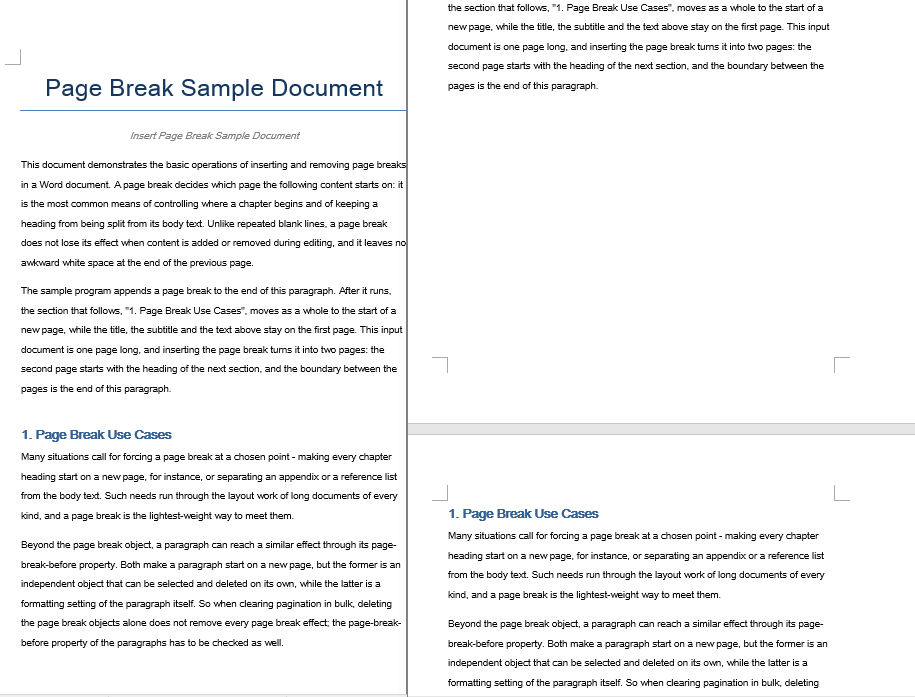
The workflow is three steps: load the target document into the WASM virtual file system via FetchFileToVFS, open it as a Document object, then locate the paragraph where you want the split to happen and call AppendBreak with BreakType.PageBreak. The break is appended as a child object at the end of that paragraph, so everything after it flows onto the next page. Finally, read the saved file from VFS, wrap it as a Blob, and trigger a browser download.
function App() {
  const InsertPageBreak = async () => {
    const docModule = window.wasmModule?.spiredoc;
    if (!docModule) {
      alert('Spire.Doc is not ready yet');
      return;
    }

    // Load the target Word document into VFS
    const inputFileName = "Template_Docx_1.docx";
    await window.spire.FetchFileToVFS(inputFileName, "", `${process.env.PUBLIC_URL}static/data/`);

    // Create a Document instance and load the document
    const doc = new docModule.Document();
    doc.LoadFromFile(inputFileName);

    // Locate the fourth paragraph of the first section and append a page break to its end
    doc.Sections.get_Item(0).Paragraphs.get_Item(3).AppendBreak(docModule.BreakType.PageBreak);

    // Define the output file name
    const outputFileName = "InsertPageBreak_out.docx";

    // Save the document to VFS
    doc.SaveToFile({ fileName: outputFileName, fileFormat: docModule.FileFormat.Docx2013 });

    doc.Dispose();

    const modifiedFileArray = window.dotnetRuntime.Module.FS.readFile(outputFileName);
    const blob = new Blob([modifiedFileArray], { type: 'application/vnd.openxmlformats-officedocument.wordprocessingml.document' });
    const url = URL.createObjectURL(blob);
    const a = document.createElement('a');
    a.href = url;
    a.download = outputFileName;
    a.click();
    URL.revokeObjectURL(url);
  };

 return (
    <div style={{ textAlign: 'center', height: '300px' }}>
      <h1>Insert a Page Break into a Word Document</h1>
      <button onClick={InsertPageBreak}>Generate</button>
    </div>
  );
}
export default App;
The document after a page break is appended to the end of the fourth paragraph
Remove All Page Breaks in One Pass
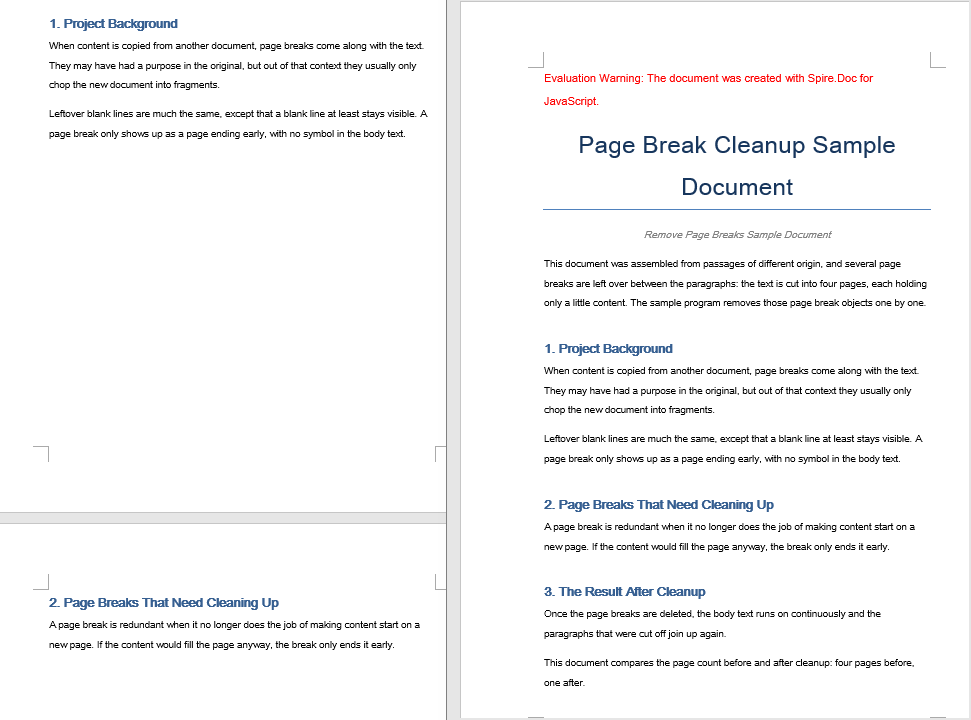
When a document collects page breaks from repeated edits or copy-paste operations, you often need to strip them all out and let the content reflow naturally. The approach: iterate over every paragraph in the target section and inspect each child object. When a child is identified as a Break with BreakType.PageBreak, remove it via ChildObjects.Remove.
A critical detail in the inner loop — the child objects are traversed backwards, from the last index down to zero. Removing an element from a forward-traversed collection shifts the indices of every subsequent element, which can cause skipped items or out-of-bounds access. Reverse traversal sidesteps this problem entirely because each removal only affects indices you have already processed.
function App() {
  const RemovePageBreaks = async () => {
    const docModule = window.wasmModule?.spiredoc;
    if (!docModule) {
      alert('Spire.Doc is not ready yet');
      return;
    }

    // Load the target Word document into VFS
    const inputFileName = "Template_Docx_4.docx";
    await window.spire.FetchFileToVFS(inputFileName, "", `${process.env.PUBLIC_URL}static/data/`);

    // Create a Document instance and load the document
    const doc = new docModule.Document();
    doc.LoadFromFile(inputFileName);

    // Get the first section
    const section = doc.Sections.get_Item(0);

    // Walk through every paragraph in the section
    for (let j = 0; j < section.Paragraphs.Count; j++) {
        const p = section.Paragraphs.get_Item(j);

        // Walk the paragraph's child objects backwards, so that removing an element does not shift the indices still to come
        for (let i = p.ChildObjects.Count - 1; i >= 0; i--) {
            const obj = p.ChildObjects.get_Item(i);

            // Test whether the object is a page break
            if (obj.DocumentObjectType == docModule.DocumentObjectType.Break
                && obj.BreakType == docModule.BreakType.PageBreak) {
                // Remove the page break from the paragraph
                p.ChildObjects.Remove(obj);
            }
        }
    }

    // Define the output file name
    const outputFileName = "RemovePageBreaks_out.docx";

    // Save the document to VFS
    doc.SaveToFile({ fileName: outputFileName, fileFormat: docModule.FileFormat.Docx2013 });
    doc.Dispose();

    const modifiedFileArray = window.dotnetRuntime.Module.FS.readFile(outputFileName);
    const blob = new Blob([modifiedFileArray], { type: 'application/vnd.openxmlformats-officedocument.wordprocessingml.document' });
    const url = URL.createObjectURL(blob);
    const a = document.createElement('a');
    a.href = url;
    a.download = outputFileName;
    a.click();
    URL.revokeObjectURL(url);
  };

 return (
    <div style={{ textAlign: 'center', height: '300px' }}>
      <h1>Remove Page Breaks from a Word Document</h1>
      <button onClick={RemovePageBreaks}>Generate</button>
    </div>
  );
}
export default App;
The document after every page break has been removed
Extra Blank Line After Inserting a Page Break
After calling AppendBreak, you may spot an unwanted blank strip at the top of the new page. This occurs because AppendBreak attaches the break to the end of the target paragraph, and that paragraph's "space after" setting carries over to the beginning of the next page. When automatic spacing is enabled, the gap even scales with the font size — making it especially visible after large headings.
The fix is to neutralize the paragraph's trailing spacing before appending the break:
const para = document.Sections.get_Item(0).Paragraphs.get_Item(3);

// Turn off automatic spacing after the paragraph and set the space after it to 0
para.Format.AfterAutoSpacing = false;
para.Format.AfterSpacing = 0;

// Then insert the page break
para.AppendBreak(wasmModule.BreakType.PageBreak);
Setting AfterAutoSpacing to false and AfterSpacing to 0 ensures the paragraph contributes no vertical gap after the break, so the new page starts flush at the top margin.
Document Still Paginated After Removing Breaks
Even after successfully stripping every page break object, the document may still split at the same positions. The reason: pagination can also originate from a paragraph-level property called "page break before." When this flag is set on a paragraph, that paragraph always starts on a new page — regardless of whether a Break object exists. The removal loop above only targets break objects, so paragraphs carrying this flag remain untouched.
To fully eliminate forced pagination, reset the PageBreakBefore flag on every paragraph alongside the break-object cleanup:
const section = document.Sections.get_Item(0);

for (let j = 0; j < section.Paragraphs.Count; j++) {
  const p = section.Paragraphs.get_Item(j);

  // Clear the page-break-before property set on the paragraph
  if (p.Format.PageBreakBefore) {
    p.Format.PageBreakBefore = false;
  }
}
You can run this loop in the same pass as the break-object removal or as a separate step afterward — the order does not matter because the two operations target independent properties.
FAQ
How do I get a free license for Spire.Doc for JavaScript?
Spire.Doc for JavaScript offers a 30-day full-featured free trial license with no functional limitations. You can apply here to evaluate the product before purchasing.