
Assembling a polished PDF from scattered source files is a routine yet fiddly task: a cover page needs to sit at the front of a project brief, pricing pages belong inside their contract, a quarterly summary stitches together charts from a dozen reports. Doing this by hand means juggling multiple PDF readers and hoping the page order comes out right, with mismatched page sizes compounding the problem.
Spire.PDF for JavaScript moves the entire operation into the browser. Powered by WebAssembly, it loads, manipulates, and saves PDF documents entirely client-side through a virtual file system (VFS), meaning no file is ever uploaded to a backend server. This article walks through four distinct techniques for copying PDF pages between documents — three that relocate whole pages and one that extracts page content as a reusable template — with complete React code examples for each.
For project setup and installation instructions, see Integrating Spire.PDF for JavaScript in a React Project. The examples below assume Spire.PDF is installed and the WebAssembly module has been initialized.
Four Ways to Copy PDF Pages at a Glance
Before examining each method individually, the table below provides a quick comparison. The first three techniques move intact pages and automatically carry over the source page's dimensions, rotation, and margins. The fourth decouples content from page geometry, handing you full control over the target page size and drawing position.
| Method | API Call | What Gets Copied | Page Size | Typical Use Case |
|---|---|---|---|---|
| Insert a single page | InsertPage |
One page at a position you choose | Inherits from source | Adding a cover or title page to the front |
| Insert a page range | InsertPageRange |
A consecutive block of pages | Inherits from source | Appending a specific section like pricing tables |
| Append a whole document | AppendPage |
Every page of the source document | Inherits from source | Concatenating full documents end-to-end |
| Draw page content as a template |
CreateTemplate + DrawTemplate
|
Page content only, drawn onto any page | You decide the target size | Reusing content on different page sizes or repeating it multiple times |
The first three methods are straightforward page moves — pick the source, pick the destination, and the library handles the rest. The template approach is more advanced and opens up possibilities that simple page copying cannot address, such as scaling content to fit a different page size or stamping the same content onto multiple pages. We will cover the three page-move methods first, then explore the template technique in depth.
Copy a Single Page to a Specific Position
The most precise of the four methods, PdfDocument.InsertPage, copies one page from a source document and places it at an exact index in the target. The resultPageIndex parameter controls where the copy lands: pass 0 to prepend it, pass the target's current page count to append it, or supply any index in between to insert at that position. Omit resultPageIndex entirely and the page defaults to the end.
function App() {
  const copyPageAtPosition = async () => {
    // Get the Spire.PDF WASM module
    const pdfModule = window.wasmModule?.spirepdf;

    // Check whether the module is ready
    if (!pdfModule) {
      alert('Spire.PDF is not ready yet');
      return;
    }

    // Load both the source and the target document into the VFS
    const sourceFileName = 'SourceDocument.pdf';
    const targetFileName = 'TargetDocument.pdf';
    await window.spire.FetchFileToVFS(sourceFileName, "", `${process.env.PUBLIC_URL}/data/`);
    await window.spire.FetchFileToVFS(targetFileName, "", `${process.env.PUBLIC_URL}/data/`);

    // Load the two documents
    const sourceDoc = new pdfModule.PdfDocument();
    sourceDoc.LoadFromFile(sourceFileName);
    const targetDoc = new pdfModule.PdfDocument();
    targetDoc.LoadFromFile(targetFileName);

    // Copy page 1 of the source document to the front of the target document
    // pageIndex comes from the source document, resultPageIndex is where the copy lands
    targetDoc.InsertPage({ ldDoc: sourceDoc, pageIndex: 0, resultPageIndex: 0 });

    // Save the result document
    const outputFileName = 'CopyPageAtPosition.pdf';
    targetDoc.SaveToFile(outputFileName);
    sourceDoc.Close();
    targetDoc.Close();

    // Read the generated file from the VFS and trigger the download
    const fileArray = window.dotnetRuntime.Module.FS.readFile(outputFileName);
    const blob = new Blob([fileArray], { type: 'application/pdf' });
    const url = URL.createObjectURL(blob);
    const a = document.createElement('a');
    a.href = url;
    a.download = outputFileName;
    a.click();
    URL.revokeObjectURL(url);
  };

  return (
    <div style={{ textAlign: 'center', height: '300px' }}>
      <h1>Copy Page at Position</h1>
      <button onClick={copyPageAtPosition}>
        Start
      </button>
    </div>
  );
}

export default App;
Among all four copy methods,
resultPageIndexis the only parameter that lets you choose the insertion point. Setting it to 0 places the page first, 1 places it second, and passing the target document's current page count produces the same effect as appending.
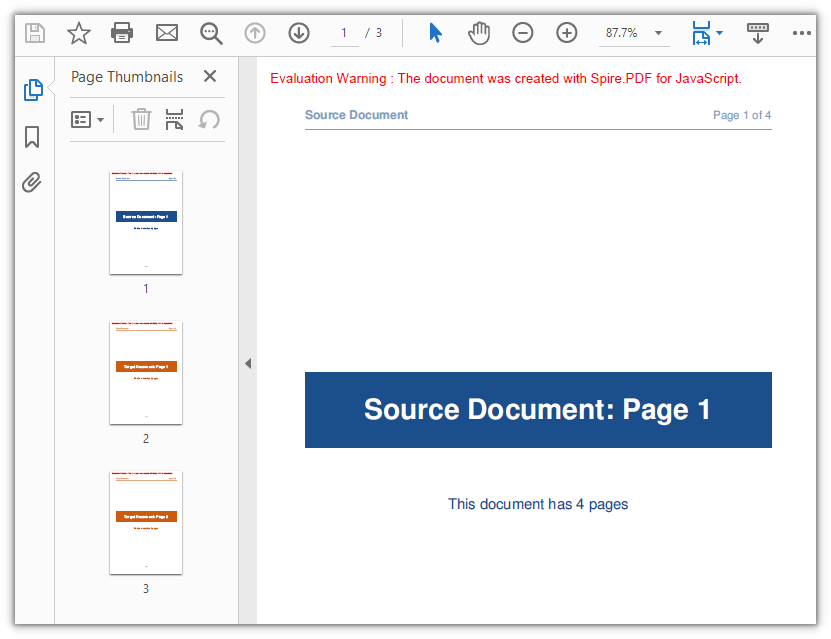
The target document grows from two pages to three, with the source document's first page now occupying the leading position:
Copy a Range of Pages to the End
When you need more than one page but less than an entire document, PdfDocument.InsertPageRange copies a contiguous block of pages defined by a start and end index. Unlike InsertPage, this method accepts positional arguments rather than an options object, and it always appends the copied pages to the end of the target — there is no parameter for choosing the insertion position. The end index is inclusive, so passing (sourceDoc, 1, 2) copies pages 2 and 3 (zero-indexed).
function App() {
  const appendPageRange = async () => {
    // Get the Spire.PDF WASM module
    const pdfModule = window.wasmModule?.spirepdf;

    // Check whether the module is ready
    if (!pdfModule) {
      alert('Spire.PDF is not ready yet');
      return;
    }

    // Load both the source and the target document into the VFS
    const sourceFileName = 'SourceDocument.pdf';
    const targetFileName = 'TargetDocument.pdf';
    await window.spire.FetchFileToVFS(sourceFileName, "", `${process.env.PUBLIC_URL}/data/`);
    await window.spire.FetchFileToVFS(targetFileName, "", `${process.env.PUBLIC_URL}/data/`);

    // Load the two documents
    const sourceDoc = new pdfModule.PdfDocument();
    sourceDoc.LoadFromFile(sourceFileName);
    const targetDoc = new pdfModule.PdfDocument();
    targetDoc.LoadFromFile(targetFileName);

    // Append pages 2 to 3 of the source document to the end of the target document
    // Note: these are positional arguments, not an object; endIndex is inclusive
    targetDoc.InsertPageRange(sourceDoc, 1, 2);

    // Save the result document
    const outputFileName = 'CopyPageRange.pdf';
    targetDoc.SaveToFile(outputFileName);
    sourceDoc.Close();
    targetDoc.Close();

    // Read the generated file from the VFS and trigger the download
    const fileArray = window.dotnetRuntime.Module.FS.readFile(outputFileName);
    const blob = new Blob([fileArray], { type: 'application/pdf' });
    const url = URL.createObjectURL(blob);
    const a = document.createElement('a');
    a.href = url;
    a.download = outputFileName;
    a.click();
    URL.revokeObjectURL(url);
  };

  return (
    <div style={{ textAlign: 'center', height: '300px' }}>
      <h1>Copy Page Range</h1>
      <button onClick={appendPageRange}>
        Copy pages 2-3
      </button>
    </div>
  );
}

export default App;
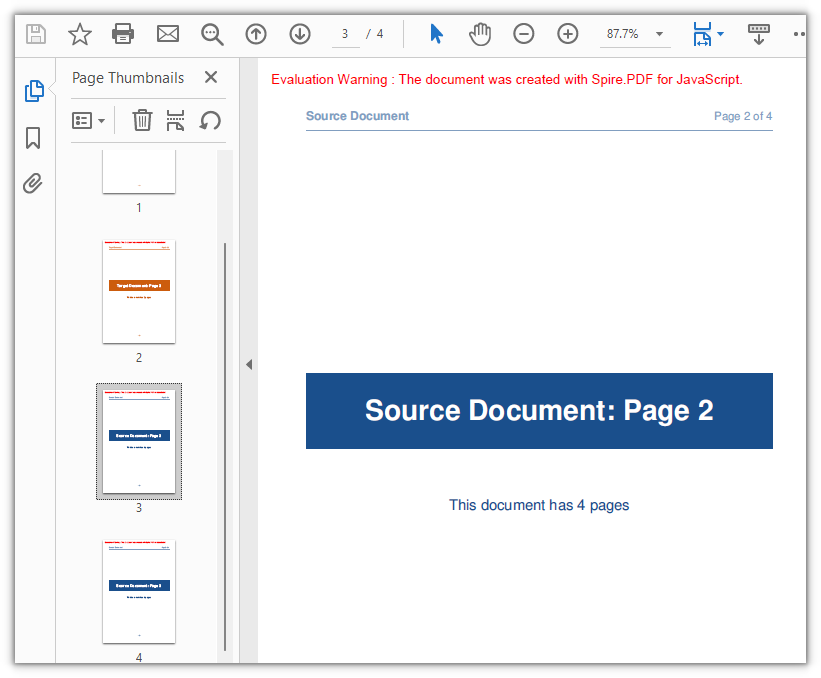
The target document picks up two additional pages, bringing its total from two to four:
Append an Entire Document
For the simplest case — moving every page of one document into another — PdfDocument.AppendPage removes the need to calculate indices at all. Pass the source document object and all of its pages are appended to the target in their original sequence. To concatenate multiple documents together, call AppendPage repeatedly with each source document in turn.
function App() {
  const appendWholeDocument = async () => {
    // Get the Spire.PDF WASM module
    const pdfModule = window.wasmModule?.spirepdf;

    // Check whether the module is ready
    if (!pdfModule) {
      alert('Spire.PDF is not ready yet');
      return;
    }

    // Load both the source and the target document into the VFS
    const sourceFileName = 'SourceDocument.pdf';
    const targetFileName = 'TargetDocument.pdf';
    await window.spire.FetchFileToVFS(sourceFileName, "", `${process.env.PUBLIC_URL}/data/`);
    await window.spire.FetchFileToVFS(targetFileName, "", `${process.env.PUBLIC_URL}/data/`);

    // Load the two documents
    const sourceDoc = new pdfModule.PdfDocument();
    sourceDoc.LoadFromFile(sourceFileName);
    const targetDoc = new pdfModule.PdfDocument();
    targetDoc.LoadFromFile(targetFileName);

    // Use AppendPage when the whole document has to be copied; all pages are appended in order
    targetDoc.AppendPage({ doc: sourceDoc });

    // Save the result document
    const outputFileName = 'CopyAllPages.pdf';
    targetDoc.SaveToFile(outputFileName);
    sourceDoc.Close();
    targetDoc.Close();

    // Read the generated file from the VFS and trigger the download
    const fileArray = window.dotnetRuntime.Module.FS.readFile(outputFileName);
    const blob = new Blob([fileArray], { type: 'application/pdf' });
    const url = URL.createObjectURL(blob);
    const a = document.createElement('a');
    a.href = url;
    a.download = outputFileName;
    a.click();
    URL.revokeObjectURL(url);
  };

  return (
    <div style={{ textAlign: 'center', height: '300px' }}>
      <h1>Copy Whole Document</h1>
      <button onClick={appendWholeDocument}>
        Start
      </button>
    </div>
  );
}

export default App;
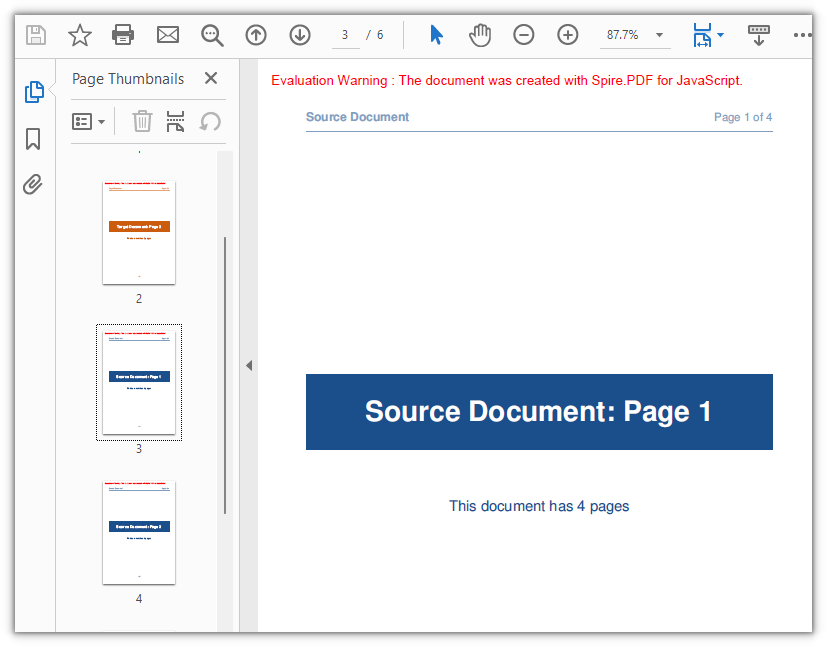
All four pages from the source document join the target, expanding it from two pages to six:
Copy Page Content with a Template
The three methods above treat a page as an indivisible unit: it moves with its size, rotation, and margins preserved. But real-world document assembly often demands finer control — placing a page's content onto a differently sized page, scaling it up or down, or stamping the same content onto multiple pages. This is where PdfPageBase.CreateTemplate enters the picture.
CreateTemplate extracts a page's visual content into a PdfTemplate object. You then draw that template onto any page using Canvas.DrawTemplate, specifying the position and size of the drawing area. The template is decoupled from the original page's geometry, so you can render it at any scale, at any position, on any page size — and you can draw the same template as many times as you need.
This makes templates especially useful for scenarios like:
- Placing an A5 cover's content centered on an A4 page without a white border
- Creating a watermark or background pattern from an existing page
- Duplicating a form layout across multiple new pages at different scales
function App() {
  const copyPageWithTemplate = async () => {
    // Get the Spire.PDF WASM module
    const pdfModule = window.wasmModule?.spirepdf;

    // Check whether the module is ready
    if (!pdfModule) {
      alert('Spire.PDF is not ready yet');
      return;
    }

    // Load the PDF file to work on into the VFS
    const inputFileName = 'SourceDocument.pdf';
    await window.spire.FetchFileToVFS(inputFileName, "", `${process.env.PUBLIC_URL}/data/`);

    // Load the document
    const doc = new pdfModule.PdfDocument();
    doc.LoadFromFile(inputFileName);

    // Take the page to be reused and turn it into a template: read the content once, draw it many times
    const sourcePage = doc.Pages.get_Item(0);
    const template = sourcePage.CreateTemplate();

    // First placement: insert an A4 page at position 2, a different size from the source,
    // and draw the content scaled to 297.6 x 421.6 at (80, 80)
    const page1 = doc.Pages.Insert(1, new pdfModule.SizeF(595.0, 842.0), new pdfModule.PdfMargins({ margin: 0.0 }));
    page1.Canvas.DrawTemplate(template, new pdfModule.PointF(80.0, 80.0), new pdfModule.SizeF(297.6, 421.6));

    // Second placement: insert another A4 page, drawing the same template smaller in the lower right
    const page2 = doc.Pages.Insert(2, new pdfModule.SizeF(595.0, 842.0), new pdfModule.PdfMargins({ margin: 0.0 }));
    page2.Canvas.DrawTemplate(template, new pdfModule.PointF(320.0, 460.0), new pdfModule.SizeF(200.0, 283.3));

    // Save the result document
    const outputFileName = 'CopyPageWithTemplate.pdf';
    doc.SaveToFile(outputFileName);
    doc.Close();

    // Read the generated file from the VFS and trigger the download
    const fileArray = window.dotnetRuntime.Module.FS.readFile(outputFileName);
    const blob = new Blob([fileArray], { type: 'application/pdf' });
    const url = URL.createObjectURL(blob);
    const a = document.createElement('a');
    a.href = url;
    a.download = outputFileName;
    a.click();
    URL.revokeObjectURL(url);
  };

  return (
    <div style={{ textAlign: 'center', height: '300px' }}>
      <h1>Copy Page with Template</h1>
      <button onClick={copyPageWithTemplate}>
        Start
      </button>
    </div>
  );
}

export default App;
A few details worth noting about DrawTemplate:
- Size argument: When the third argument (target size) is omitted, the template renders at its original dimensions without scaling. On a larger target page, the content occupies only a portion of the available space.
-
Page creation: The target page's dimensions and margins come from
Pages.Insert, not from the template. In the example, zero margins on all sides make the drawing origin coincide with the page's top-left corner. -
Multiple drawings: The same
templateobject is drawn twice onto two separate pages at different positions and scales, demonstrating the reuse capability.
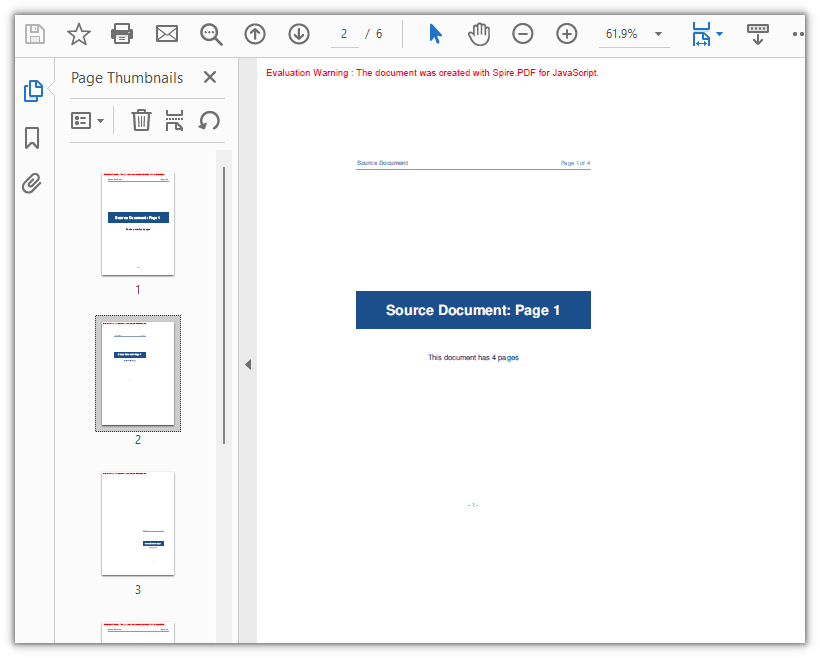
Page 1's content now appears on two newly inserted A4 pages at different scales and positions, growing the document from four pages to six:
FAQ
Creating a page with new PdfMargins(0.0) throws Arg_NullReferenceException
Cause: The PdfMargins constructor interprets a bare numeric argument as an internal handle rather than a margin value. Calling new pdfModule.PdfMargins(0.0) therefore produces an object that does not represent valid margins — accessing its Left or Top property triggers Arg_NullReferenceException, and passing it to page creation yields unexpected results.
Solution: Always pass margins as a configuration object. For uniform zero margins, use { margin: 0.0 }; for individual side values, specify each side explicitly:
// Zero margins on all four sides
const margins = new pdfModule.PdfMargins({ margin: 0.0 });

// Or set each side separately
const custom = new pdfModule.PdfMargins({ left: 20.0, top: 20.0, right: 20.0, bottom: 20.0 });
An out-of-range or reversed-range error is thrown when copying pages
Cause: Page indices are zero-based, and endIndex in InsertPageRange is inclusive. The valid range therefore runs from 0 to Pages.Count - 1. Supplying an index outside this range raises Index out of range, while setting startIndex higher than endIndex raises The start index is greater then the end index.
Solution: Guard the upper bound by clamping it against Pages.Count before calling the method:
// To copy pages 2 to 4: start = 1, end = 3, with the page count as the upper bound
const start = 1;
const end = Math.min(3, sourceDoc.Pages.Count - 1);
targetDoc.InsertPageRange(sourceDoc, start, end);
A rotated page comes out with the wrong orientation after copying
Cause: CreateTemplate() captures the page's drawn content but not its rotation angle (the /Rotate entry). When the source page carries a rotation, the template's coordinate system misaligns with the target page — drawing it directly places content outside the visible area, and the resulting copy has a Rotation of 0.
Solution: For rotated source pages, prefer a whole-page copy so the rotation angle travels with the content:
// Whole-page copy: the rotation angle comes with the page
targetDoc.InsertPage({ ldDoc: sourceDoc, pageIndex: 0, resultPageIndex: 1 });
If the template approach is unavoidable, temporarily clear the source page's rotation before extracting the template, then restore the original angle on both the source and the new page:
const rotation = sourcePage.Rotation.value;

// Zero it temporarily so the template exports at the page's real coordinates
sourcePage.Rotation = 0;
const newPage = doc.Pages.Insert(1, sourcePage.Size, new pdfModule.PdfMargins({ margin: 0.0 }));
newPage.Canvas.DrawTemplate(sourcePage.CreateTemplate(), new pdfModule.PointF(0.0, 0.0));

// Restore the source page and give the copy the same angle
sourcePage.Rotation = rotation;
newPage.Rotation = rotation;
To remove the evaluation watermark from output documents or unlock full feature access, contact sales for a temporary 30-day license.