PDF has long been the universal standard for sharing fixed-format professional documents worldwide. However, its static design often brings a common pain point: you cannot easily change font sizes, styles, or colors in a PDF without the right tools.
Whether you need to fix inconsistent text formatting, update brand fonts, adjust font sizes for readability, or refine typography for printing and presentations, mastering how to change fonts in PDF is an essential skill for students, professionals, and business owners alike.
In this guide, we break down step-by-step methods to change PDF font using:
- Professional software (Adobe Acrobat Pro)
- Desktop workaround (Microsoft Word)
- Free online PDF editors
- Programmatic automation (C#/.NET)
We also elaborate on PDF font limitations, industry best practices, and FAQs to solve all your PDF font editing issues once and for all.
Understanding PDF Font Challenges
Before modifying PDF fonts, it’s critical to understand why PDFs are hard to edit:
| Challenge | Explanation |
|---|---|
| Embedded vs. non-embedded fonts | Some PDFs embed only subsets of fonts, limiting editing options. |
| Scanned PDFs (image-based) | These have no editable text layer, and OCR is required to convert images to editable text. |
| Missing system fonts | If a font isn’t installed on your device, text may appear garbled or be substituted automatically. |
| Fixed Text Boxes | PDF text is divided into independent text blocks. Changing font size on PDF may cause line breaks, text overflow, or layout shift. |
| Permission restrictions | Some PDFs are locked by the creator; you may need to remove permissions before editing. |
Method 1: Edit PDF Font with Adobe Acrobat Pro
Adobe Acrobat Pro is the most reliable tool for editing native PDF fonts. It delivers lossless font customization, full typography control, and built-in OCR for scanned documents, compatible with both Windows and Mac.
Steps to change font on Adobe Acrobat:
(1) Open your PDF in Adobe Acrobat Pro.
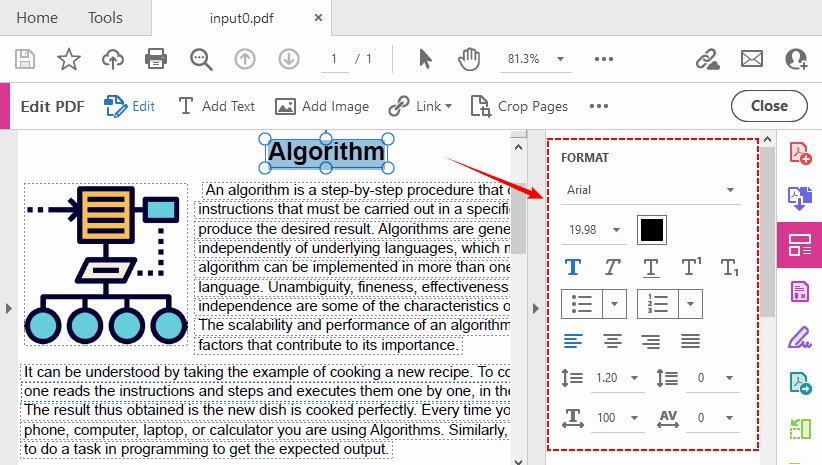
(2) Enter Edit Mode: Click the “Edit” button on the top global bar to activate PDF editing panel.
(3) Select your text: Select the specific text block you want to reformat with your mouse cursor.
(4) Change the font: In the “FORMAT TEXT” section on the left panel:
- Choose a new font from the dropdown list
- Adjust font size (preset values or custom input)
- Change PDF font color via the color picker
- Toggle bold, italic, underline text styles
- Set text alignment: left, center, right, justify
- Customize line spacing and character spacing
(5) Click outside the text box to apply your changes and save the PDF.
Pro Tip for Scanned PDFs
If your PDF comes from a scanned document, Acrobat automatically runs OCR (Optical Character Recognition) to create an editable text layer. This is crucial for changing fonts in scanned PDF documents.
Method 2: Change PDF Font with Microsoft Word
If you don’t have premium PDF software, use Microsoft Word as a workaround to change font in a PDF document on Windows and Mac. It converts PDFs to editable Word documents, supports full font editing, and re-exports to PDF.
(1) Launch Microsoft Word and click “File” > “Open” to select your PDF file.
(2) A pop-up will appear confirming PDF conversion. Click “OK” to convert the PDF to an editable Word document.
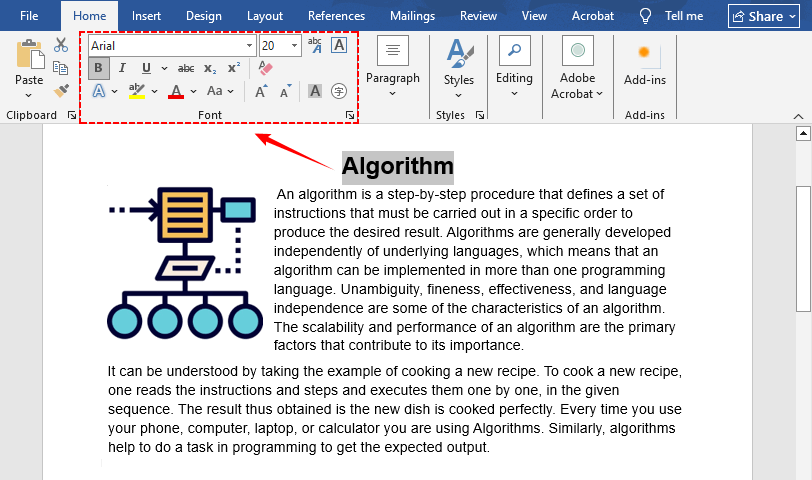
(3) Select text and use the Word top font toolbar to change font family, size, color, and bold/italic style.
(4) Fix any layout shifts (note that complex elements may be lost or misaligned. Word works best with simple text-based PDFs).
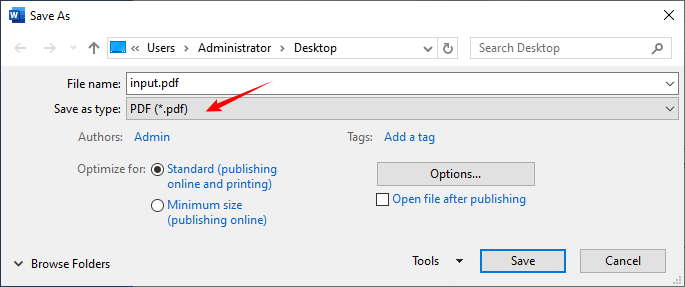
(5) Go to “File” > “Save As” and choose “PDF” as the export format to save your updated file.
After refining PDF fonts and formatting, you can compress the finalized PDF file size while preserving font and layout integrity.
Method 3: Free Online PDF Editors
For one‑off, simple font changes, free online PDF editors let you edit font on PDF directly in your browser. We recommend Soda PDF and Sejda, two trusted tools offering free PDF font-editing features.
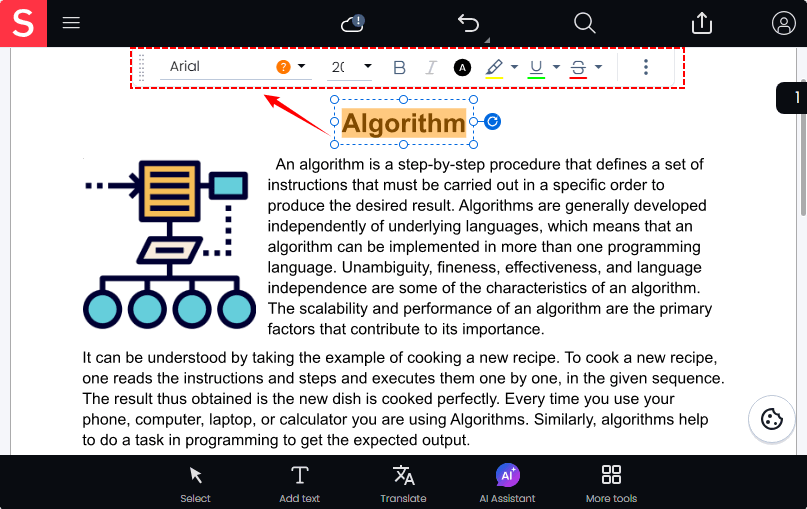
Change Font in PDF Online Using Soda PDF
Soda PDF offers a web-based editing tool that makes it easy to edit PDF font online. Without any installation, you can receive a PDF file with the desired font.
(1) Open Soda PDF’s Edit PDF tool and upload your PDF.
(2) Select existing text to modify font family, adjust font size, set bold/italic styles, or change font color in PDF.
(3) After editing, save and download your final PDF file.
Method 4: Programmatically Change PDF Font with C#
For developers, IT teams, or users needing to perform batch processing, Free Spire.PDF for .NET is a free library that lets you change all fonts in a PDF with just a few lines of C# code.
Key Benefits
- Free for commercial & non-commercial use
- Batch change ALL fonts in a PDF in seconds
- No manual editing; ideal for automated workflows
- Preserves PDF layout and formatting
Step-by-Step C# Code Example
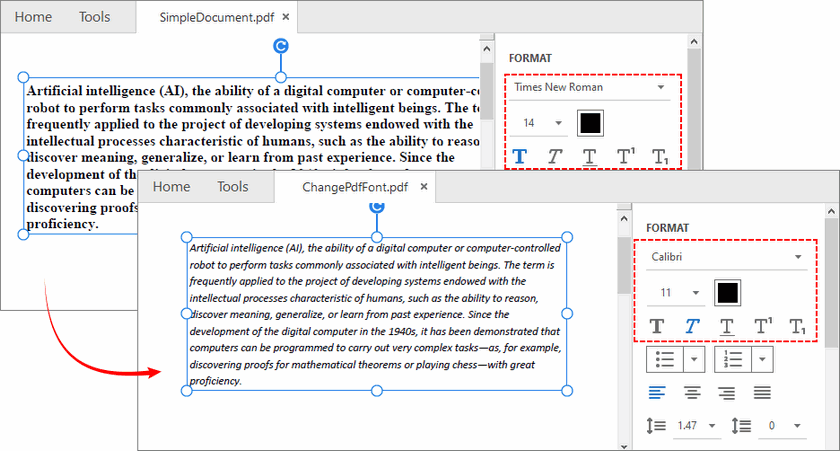
The following code loads a PDF, retrieves every font used in the document, and replaces them all with a new font (Calibri, Italic, 11pt).
using Spire.Pdf;
using Spire.Pdf.Graphics;
using Spire.Pdf.Graphics.Fonts;

namespace Replace_font_in_PDF
{
    class Program
    {
        static void Main(string[] args)
        {
            // 1. Load the PDF document
            PdfDocument pdf = new PdfDocument();
            pdf.LoadFromFile(@"C:\SimpleDocument.pdf");

            // 2. Get all fonts used in the PDF
            PdfUsedFont[] fonts = pdf.UsedFonts;

            // 3. Create a new TrueType font
            PdfTrueTypeFont newfont = new PdfTrueTypeFont("Calibri", 11f, PdfFontStyle.Italic, true);

            // 4. Replace every existing font with the new font
            foreach (PdfUsedFont font in fonts)
            {
                font.Replace(newfont);
            }

            // 5. Save the modified PDF
            pdf.SaveToFile("ChangePdfFont.pdf");
        }
    }
}
The code uses two core members:
- pdf.UsedFonts: Retrieves an array of every font used in the PDF (including subsets).
- font.Replace(newfont): Replaces the original font with the new font.
Example Output:
⚠️ Note: Free Spire.PDF currently only supports replacing standard Type‑1 fonts and non‑embedded TrueType fonts.
Preserving Font Size & Style
In real-world scenarios, replacing PDF fonts with a fixed size or style often causes layout issues such as text overlap, content truncation, and broken line wrapping. To avoid document distortion, you can retain the original font size and style while only swapping the font family.
//Replace each font while preserving its original size and style
PdfUsedFont[] fonts = pdf.UsedFonts;
foreach (PdfUsedFont font in fonts)
{
   float originalSize = font.Size;               // Keep original font size
   PdfFontStyle originalStyle = font.Style;      // Keep original style (bold, italic, etc.)

   // Create a new TrueType font with the same size and style
PdfTrueTypeFont newfont = new PdfTrueTypeFont("Calibri", originalSize, originalStyle, true);

   // Replace the old font with the new one
   font.Replace(newfont);
}
Customizing the PDF Font
You can modify the font constructor to suit your needs:
// using different font families
PdfFont newfont = new PdfFont(PdfFontFamily.Helvetica, 12f, PdfFontStyle.Bold);
PdfFont newfont = new PdfFont(PdfFontFamily.Courier, 10f, PdfFontStyle.Regular);

// Using a specific system font by name (TrueType)
PdfTrueTypeFont newfont = new PdfTrueTypeFont("Arial", 11f, PdfFontStyle.Regular, true);
Building on batch font replacement, you can also search and replace text strings in PDF using C# with Free Spire.PDF.
Best Practices for Changing PDF Fonts
- Use web-safe fonts: Use Arial, Calibri, Helvetica, or Times New Roman to ensure consistent display across all devices and operating systems.
- Avoid over-editing scanned PDFs: For heavy typography changes, recreate the document in Word/Google Docs and export to PDF for cleaner results.
- Embed custom fonts: If using brand-specific fonts, enable font embedding during saving to prevent missing font errors on other devices.
- Use desktop/programmatic tools for professional documents: For business, legal, or batch PDFs, prioritize Adobe Acrobat, Word, or C# (Free Spire.PDF) over free online tools for better quality control.
Wrap‑Up
Learning how to change font in PDF eliminates the limitations of static PDF formatting, letting you polish documents for professional use, business branding, or automated workflows. For professional results, Adobe Acrobat Pro remains the gold standard. If you already have Microsoft Word, it offers a clever free workaround for Word users. For quick, browser‑based edits, free online editors work well.
And for developers and power users, Free Spire.PDF for .NET opens up a world of automation. With just a few lines of C# code, you can replace every font in a PDF with consistency and precision. Always confirm if your PDF is editable or scanned first to choose the fastest, most effective editing method.
FAQs About Changing Fonts in PDFs
Q: Can I change font in a PDF for free?
A: Yes. You can use Microsoft Word, free online tools, or the C# Free Spire.PDF method to change PDF fonts at no cost. Premium tools are only required for advanced/unlimited edits.
Q: Why can’t I edit text in my PDF?
A: Your file is most likely a scanned/image-based PDF. These files have no editable text layer—you need OCR software to convert the image to editable text before modifying fonts.
Q: Does changing font in a PDF affect the document's layout?
A: Yes, potentially. Different fonts have different character widths, which can shift line breaks and page layouts. Each text box is independent, so text does not automatically reflow to the next page.
Q: Can I use custom fonts for PDF editing?
A: Yes. Install the custom font on your Windows/Mac device first; then you can select it in Acrobat, Word, online editors, or reference it via file path in Free Spire.PDF C# code. Remember to embed the font when saving to avoid display errors on other devices.
Q: Will changing a font increase the PDF file size?
A: Possibly. If you replace a non‑embedded font with an embedded one, the font data is added to the PDF, increasing file size. To avoid larger PDF files, use standard web-safe fonts and enable embedding only when required.