Imagine this: You finally locate the exact research report, business contract, or data-filled whitepaper you need, but it's trapped in a PDF. When you try to copy and paste its content, you’re met with jumbled formatting, unselectable text, or frustrating content protection blocks. The question is universal: how to extract text from PDF files without manual retyping or costly software?
In this comprehensive guide, we will explore the best ways to extract text from PDF for free (including scanned PDFs with OCR). Whether you are a student, a business professional, or a developer, you will find the perfect method to extract PDF text accurately and efficiently.
- Why Extracting PDF Text Can Be Tricky?
- The Simplest Trick – Copy and Paste
- Top Free Online Tools to Extract Text from PDF
- PDF24 Creator Free Desktop PDF Text Extraction Tools
- Free Developer Tool to Extract PDF Text in C#
- Frequently Asked Questions (FAQ)
Why Extracting PDF Text Can Be Tricky?
PDFs store text in a way that prioritizes visual consistency. This means the text might be stored as fragmented blocks, in an unusual order, or worse, as part of an image. There are two main types of PDFs, each with unique extraction challenges:
- Digital PDFs: These contain selectable text, but complex layouts like multi-column articles or tables can confuse simple copy-paste actions.
- Scanned PDFs: These are essentially images of pages. To extract text from scanned PDF, you need OCR (Optical Character Recognition) technology, which analyzes the image and recognizes the shapes of letters.
Thankfully, the free tools below handle both types with ease.
The Simplest Trick – Copy and Paste
If you have a simple, digital PDF and only need a small section of text, don't overlook the basics. It's the fastest way to get text from PDF for small tasks.
- Open the PDF: Use a standard viewer like Adobe Acrobat Reader, a web browser (like Chrome or Edge), or a preview app.
- Select and Copy: Highlight the text you want, right-click and select "Copy", or use the keyboard shortcuts “Ctrl+C” (Windows) or “Command+C” (Mac).
- Paste: Open a text editor (like Notepad or TextEdit) or a Word document and paste the text with “Ctrl+V” or “Command+V”.
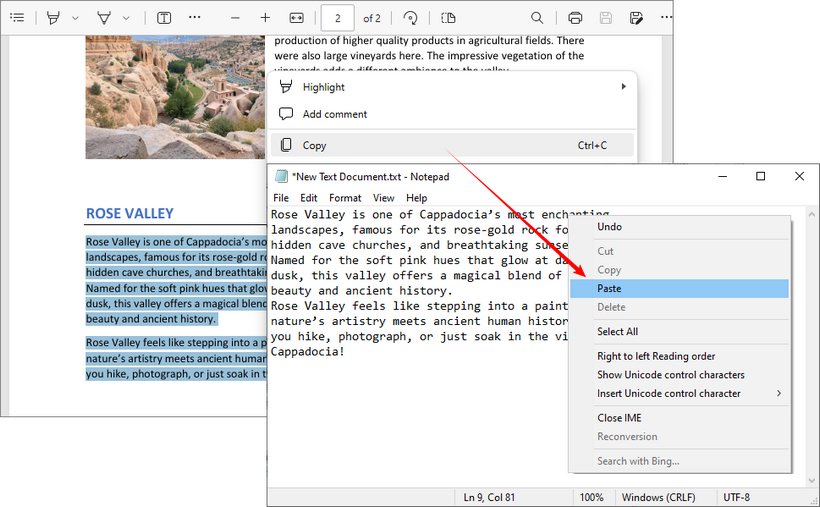
The Catch: This method fails for scanned documents, protected PDFs, or when you need to preserve complex formatting. For these, use the dedicated free tools below or see our guide on how to copy text from a secured PDF.
Top Free Online Tools to Extract Text from PDF
For most users, free online tools are the quickest and easiest way to extract text from PDF for free. They work directly in your browser, require no installation, and many now include powerful OCR features. Below are the two top picks for different use cases—from basic text extraction to multilingual OCR.
CLOUDXDOCS - Simplest Free Tool for Digital PDFs
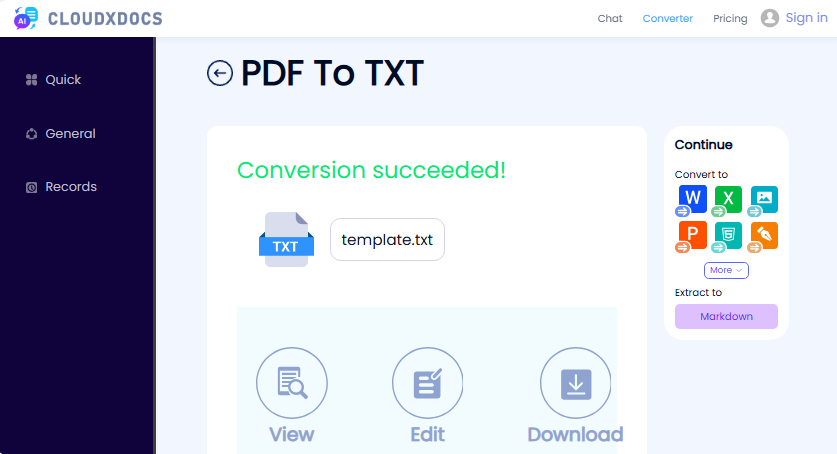
If you need a no-frills, ad-free tool for extracting text from text-based PDFs (not scanned), CLOUDXDOCS is ideal. It’s 100% free, requires no registration, and works in one click—perfect for grabbing text from PDF files in seconds.
Steps to extract text from PDF online:
- Visit the CLOUDXDOCS Free PDF to Text Converter.
- Upload your PDF file by dragging and dropping or clicking to browse.
- Wait for the tool to process your file.
- Download the extracted text as a TXT file.
✔ Pros: No sign-up, no ads, simple interface.
✘ Cons: No OCR (won’t work for scanned PDFs).
i2OCR - Free OCR Tool for Scanned PDFs
i2OCR is a free online tool that specializes in OCR for images and scanned PDFs, supporting a whopping 100+ languages—perfect for non-English PDFs. It’s free for single-page use and offers multiple output formats.
Steps to extract text from scanned PDF online free:
- Visit the i2OCR PDF OCR tool.
- Select your recognition language and preferred OCR engine.
- Click “Select PDF” to upload your scanned PDF.
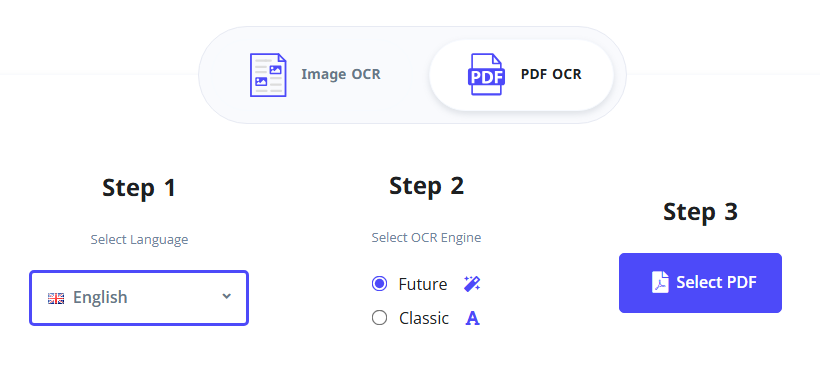
- Click “Start OCR” and wait for the tool to process the scan.
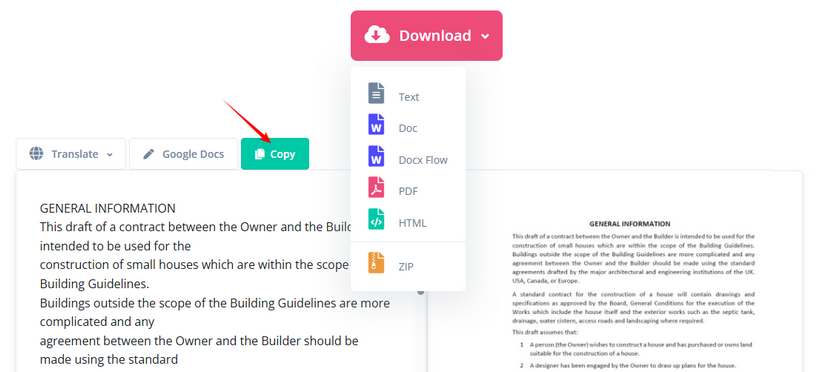
- Copy the extracted text or download it as TXT, Word, or HTML.
✔ Pros: 100+ language support, free OCR, multiple output formats, no sign-up.
✘ Cons: Free plan only supports one page at a time.
Besides text, PDFs often contain valuable images, charts, or diagrams—discover how to extract images embedded in your PDF document.
PDF24 Creator Free Desktop PDF Text Extraction Tools
If you work with PDFs frequently, need offline access, or have bulk files to process, PDF24 Creator is the ideal choice. This free Windows-exclusive desktop tool offers comprehensive PDF handling capabilities—including text extraction, OCR for scanned PDFs, and bulk processing—all while keeping your files local for maximum privacy.
Extract Text from a Digital (Selectable) PDF
- Go to the official PDF24 Creator download page and download the appropriate version for your Windows system.
- Install and launch PDF24. You will see the PDF24 Toolbox (a dashboard with many PDF tools).
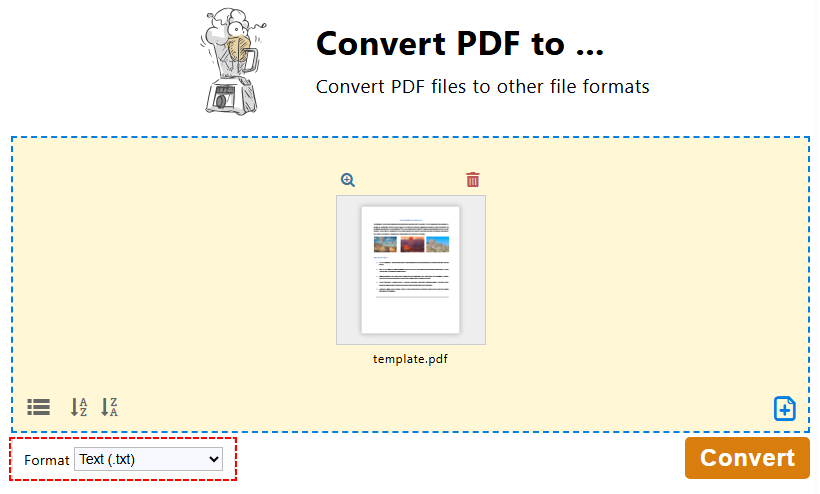
- In the PDF24 Toolbox, click "Convert PDF to…".
- Click the "Choose files" or drag and drop to upload your PDF file.
- Choose “Text (.txt)” as the output format and click "Convert".
- Save the extracted text file to your device.
Extract Text from a Scanned PDF (Using OCR)
For scanned/image-based PDFs, use PDF24’s built-in OCR to recognize text from pdf scans and convert them to editable text or searchable PDFs:
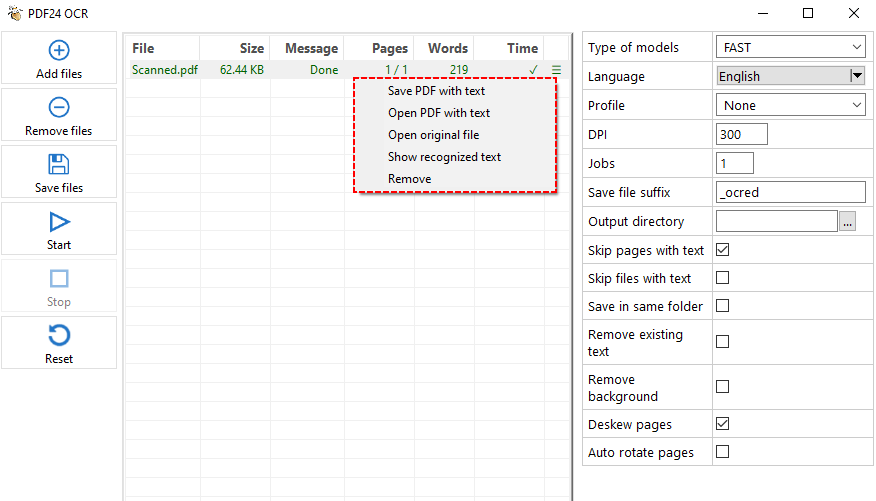
- In the PDF24 Toolbox, click "PDF OCR".
- Click "Add file(s)" and select your scanned PDF.
- On the right settings panel, select the text recognition mode, language, DPI, output directory, etc.
- Click the "Start" button to process the PDF.
- PDF24 will process each page, recognize the text, and save it to a text file or a searchable PDF.
Pro Tip for Adobe Users:
If you have Adobe Acrobat Pro (paid), you can extract text by going to the “Export PDF” tool and selecting “Text (Plain)” as the output format. Acrobat will save the file as a .txt document instantly.
Free Developer Tool to Extract PDF Text in C#
If you’re a developer, Free Spire.PDF for .NET is a free, zero-dependency library to read text from PDF programmatically. It’s fast, lightweight, and perfect for integrating PDF text extraction into your projects.
C# Code to Extract Text from PDF
The code iterates through each page in a digital PDF file and extracts all text from the PDF. Core text extraction classes & methods include:
- PdfTextExtractor: A specialized utility class that pulls text from a single PDF page (one page at a time).
- PdfTextExtractOptions: A configuration class for text extraction. Sets rules such as whether to extract all text.
- ExtractText(): Executes text extraction on the PDF page and returns the extracted text string.
using Spire.Pdf;
using Spire.Pdf.Texts;
using System.IO;
using System.Text;

namespace ExtractAllTextFromPDF
{
    internal class Program
    {
        static void Main(string[] args)
        {
            // Create a PDF document instance
            PdfDocument pdf = new PdfDocument();
            // Load the PDF file
            pdf.LoadFromFile("SamplePDF.pdf");

            // Initialize a StringBuilder to hold the extracted text
            StringBuilder extractedText = new StringBuilder();
            // Loop through each page in the PDF
            foreach (PdfPageBase page in pdf.Pages)
            {
                // Create a PdfTextExtractor for the current page
                PdfTextExtractor extractor = new PdfTextExtractor(page);
                // Set extraction options
                PdfTextExtractOptions option = new PdfTextExtractOptions
                {
                    IsExtractAllText = true
                };
                // Extract text from the current page
                string text = extractor.ExtractText(option);
                // Append the extracted text to the StringBuilder
                extractedText.AppendLine(text);
            }

            // Save the extracted text to a text file
            File.WriteAllText("ExtractedText.txt", extractedText.ToString());
            // Close the PDF document
            pdf.Close();
        }
    }
}
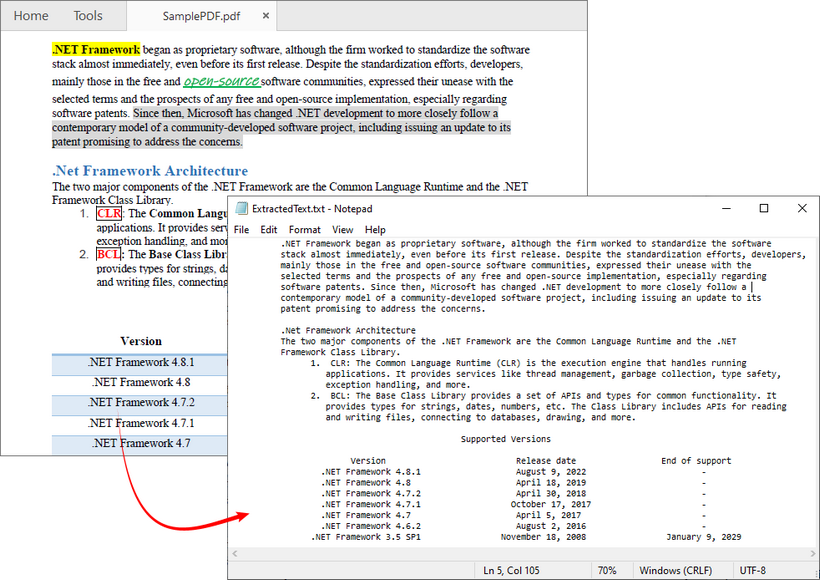
Beyond extracting all text, Free Spire.PDF also allows you to extract text from a single page or a specified area. The extraction result is shown below:
Pro Tip: To extract text from a scanned PDF in C#, follow the official guide: Perform OCR on Scanned PDFs in C# for Text Extraction
Frequently Asked Questions (FAQ)
Q1: How can I extract text from a scanned PDF for free?
A: Tools like the i2OCR, PDF24 all offer free OCR options. Simply upload your scanned PDF and enable the OCR setting before extracting.
Q2: Do free tools support bulk text extraction?
A: Yes, but the method matters. Most online free tools have bulk limits, but you can use an offline desktop tool like PDF24 Creator or a programmatic solution to bulk process multiple PDFs.
Q3: What is the best way to extract tables from a PDF?
A: Extracting tables to plain text is notoriously difficult, as the tabular structure is lost. Your best bet is to use a tool that can convert the PDF to Excel (XLSX) or CSV. This will attempt to place the data into cells, preserving the structure.
Q4: How do I extract text from a PDF and keep the formatting?
A: Plain text (.txt) cannot preserve formatting like bold, italics, or font sizes. To keep formatting, you should convert your PDF to a Word document (.docx).
Summary
This article presents several reliable ways to extract text from PDF for free, regardless of your technical skill level or the complexity of the document.
For a quick, one-off task, a reliable online tool like CLOUDXDOCS is your best bet. For recurring work or sensitive information, turn to offline software like PDF24. And if you're looking to build a cutting-edge, automated content pipeline, exploring a code solution like Free Spire.PDF can revolutionize your workflow.
With this guide, you are now equipped to unlock the text hidden in any PDF and put it to work for you.
See Also
- Convert PDF Tables to CSV: Manual, Online & Automated
- How to Unsecure a PDF (With or Without a Password)
- How to Extract Pages from a PDF for Free — No Adobe Needed
- Extract Text from PDF in Python: A Complete Guide with Practical Code Samples
- PDF to Text in Java: Extract Text from PDFs (Text-Based & Scanned)