BMP (Bitmap) is one of the oldest and simplest image formats. It stores image data without complex compression, making it suitable for screenshots, scanned documents, and image processing workflows. However, BMP files are often much larger than other image formats and are not always convenient for sharing, printing, or archiving.
PDF, on the other hand, is widely supported across operating systems and devices. Converting BMP images to PDF can make files easier to distribute, print, and organize, especially when you need to combine multiple images into a single document.
In this guide, we'll explore five practical ways to convert BMP to PDF, ranging from built-in Windows tools to automated Python solutions.
Methods covered:
- Method 1: Print BMP to PDF via Windows Built-in PDF Printer
- Method 2: Convert BMP to PDF Using Microsoft Word
- Method 3: Convert BMP to PDF via Online Converter
- Method 4: Merge Multiple BMP Images into One PDF with PDF24
- Method 5: Convert BMP to PDF Using Python
Method 1: Print BMP to PDF via Windows Built-in PDF Printer
If you only need to convert a single BMP image, Windows already provides a quick built-in solution. The Microsoft Print to PDF feature allows you to turn any image into a PDF without installing additional software. It is ideal for simple, one-off conversions.
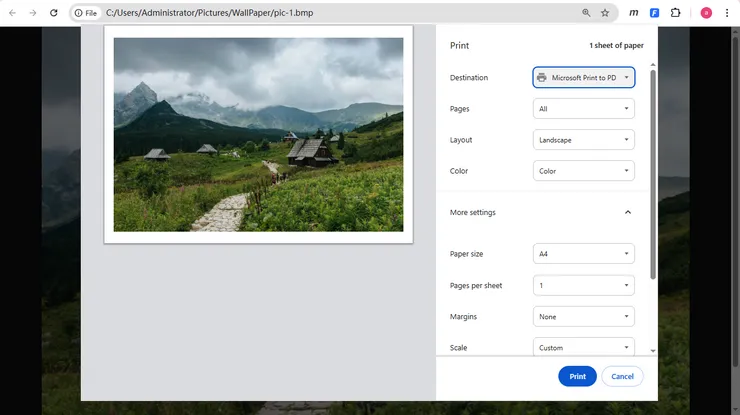
To use this method:
- Open the BMP image in Paint, Photos, or any modern browser.
- Press Ctrl + P or select Print from the menu.
- Choose Microsoft Print to PDF as the printer.
- Configure page size and orientation if needed.
- Click Print and save the resulting PDF file.
This approach requires no additional software and works on most modern Windows systems.
Pros
- Built into Windows
- No installation required
- Fast and easy for occasional use
Cons
- Not ideal for multiple images
- Limited control over PDF layout
If you're converting only a few BMP files from time to time, this may be the quickest solution available.
Method 2: Convert BMP to PDF Using Microsoft Word
Microsoft Word can also be used to convert BMP images into PDF format while offering more layout control. You can insert one or multiple images into a document and adjust their positioning freely. This method is particularly useful when you want to add captions, notes, or additional content alongside your images.
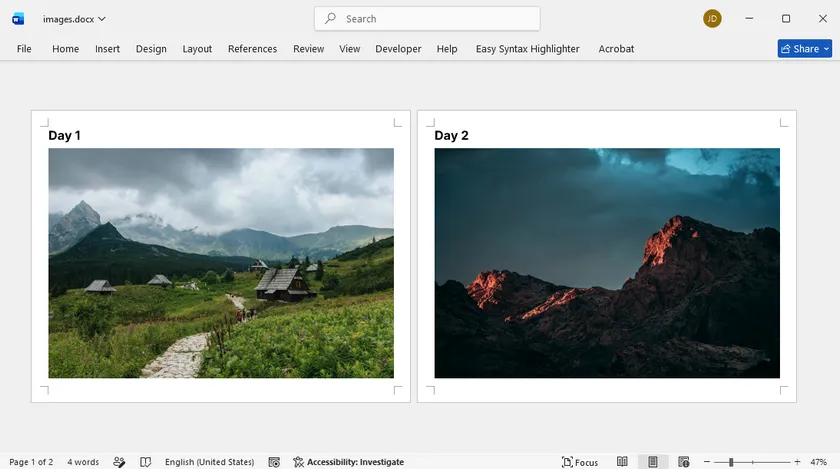
Steps:
- Open a blank Word document.
- Insert the BMP image(s) using Insert > Pictures .
- Adjust the image size and position as needed.
- Select File > Save As .
- Choose PDF as the output format.
Unlike the Windows print method, Word allows you to arrange multiple images across pages and combine them with text content before exporting.
Pros
- Easy to organize images
- Supports multiple BMP files
- Allows additional document formatting
Cons
- Requires Microsoft Word
- More steps than direct conversion
This method is a good choice when the BMP image is part of a larger report, presentation, or document.
Method 3: Convert BMP to PDF via Online Converter
Online converters provide a fast and convenient way to convert BMP files without installing any software. Most tools support drag-and-drop uploads and can process multiple images at once. However, they are best suited for non-sensitive files due to privacy considerations.
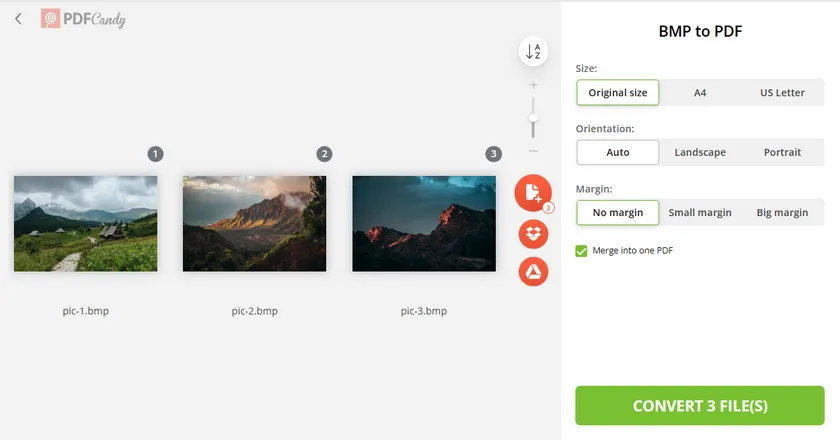
Most online tools follow the same workflow:
- Open a BMP-to-PDF conversion website like PDFCandy.
- Upload one or more BMP files.
- Configure options such as size, orientation, and margins.
- Check the Merge into One PDF option if you want to combine multiple BMP files in a single PDF.
- Start the conversion process.
- Download the generated PDF.
Many services support drag-and-drop uploads and can combine multiple images into a single PDF automatically.
Pros
- Works from any device
- No installation required
- Simple user experience
Cons
- Requires an internet connection
- Uploading sensitive files may raise privacy concerns
- File size limits may apply
Online tools are best suited for quick conversions involving non-confidential images. For business documents or large batches of files, offline solutions are often preferable.
Method 4: Merge Multiple BMP Images into One PDF with PDF24
PDF24 Toolbox offers a simple desktop solution for combining multiple BMP images into one PDF file. You can drag and drop images, rearrange their order, and generate a single output document in just a few steps. This makes it ideal for scanned pages, photo sets, or image-based documents.
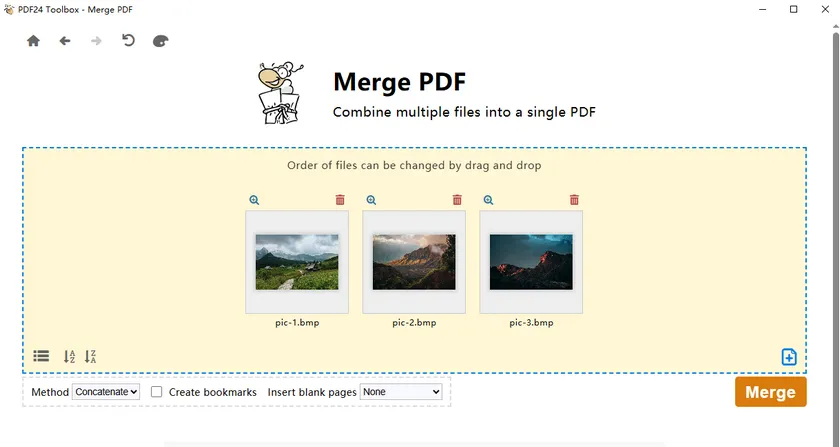
Follow these steps:
- Download and install PDF24 Creator. A PDF24 Toolbox desktop shortcut will be generated automatically once the installation finishes.
- Launch PDF24 Toolbox.
- Choose the Merge PDF tool.
- Drag and drop your BMP image files into the working area.
- Adjust the sequence of images as needed.
- Export and save the combined file in PDF format.
One advantage of this method is that you can visually adjust the sequence of images before generating the final document. This is particularly useful for scanned pages, image-based reports, photo collections, and document archives.
Pros
- Supports batch processing
- Easy drag-and-drop workflow
- Allows page reordering
Cons
- Requires software installation
- Limited control over PDF layout
For users who regularly work with image collections but do not need programming-based automation, PDF24 provides a practical middle ground between basic tools and custom code.
Method 5: Convert BMP to PDF Using Python
For developers and IT teams, automation is often the most efficient approach. Python allows you to integrate BMP-to-PDF conversion into larger workflows, scheduled jobs, document management systems, or data processing pipelines.
In this example, we'll use Spire.PDF for Python to convert a BMP image to PDF while preserving the original image dimensions.
Install Spire.PDF for Python
pip install Spire.PDF
Convert a Single BMP to PDF
from spire.pdf.common import *
from spire.pdf import *

# Create PDF document
doc = PdfDocument()

# Load BMP image
image = PdfImage.FromFile("sample.bmp")

# Create page matching image size
page = doc.Pages.Add(SizeF(
    image.PhysicalDimension.Width,
    image.PhysicalDimension.Height
))

# Draw image
page.Canvas.DrawImage(
    image,
    0,
    0,
    image.PhysicalDimension.Width,
    image.PhysicalDimension.Height
)

# Save PDF
doc.SaveToFile("BMPtoPDF.pdf")
doc.Dispose()
The code creates a PDF page that matches the image dimensions and places the BMP image at the top-left corner. This helps maintain the original appearance without scaling or cropping.
Batch Conversion Logic
If you need to process multiple BMP files, you can place the conversion logic inside a loop and iterate through all images in a folder.
For example:
for file in bmp_files:
    image = PdfImage.FromFile(file)

    # create page
    # draw image
    # save output
This approach allows you to automatically convert entire directories of BMP images, making it suitable for enterprise workflows and large-scale document processing tasks.
Pros
- Fully automated
- Suitable for batch processing
- Easy to integrate into applications and services
Cons
- Requires Python knowledge
- Initial setup takes longer than GUI tools
For organizations that regularly process image files, automation can save significant time compared with manual conversion methods. Beyond simple BMP-to-PDF conversion, Spire.PDF for Python also provides a wide range of PDF processing features that can be integrated into the same workflow.
For example, you can add headers or blank pages, insert text or image watermarks, apply password protection and encryption, or perform additional post-processing before saving the final PDF. These capabilities make it well suited for building customized document workflows, whether you're generating reports, archiving scanned images, or creating secure PDFs for business use.
Comparison Table: Which Method Should You Choose?
Choosing the right BMP to PDF conversion method depends on your specific needs, such as speed, batch processing, and whether you prefer online or offline tools. The table below summarizes the key differences to help you decide quickly.
| Method | Best For | Pros | Cons |
|---|---|---|---|
| Windows Print to PDF | Single BMP conversion | Built-in, fast, no installation | Not suitable for multiple files |
| Microsoft Word | Document-style layouts | Flexible formatting, supports multiple images | Requires Word, more manual steps |
| Online Converter | Quick, occasional use | No installation, easy to use | Privacy concerns, file size limits |
| PDF24 Toolbox | Multiple BMP files | Batch processing, drag-and-drop, free | Requires software installation |
| Python (Spire.PDF) | Automation & large-scale tasks | Fully automated, scalable, customizable | Requires coding knowledge |
Conclusion
There is no single best way to convert BMP to PDF—the right choice depends on your specific requirements.
- Use Microsoft Print to PDF for quick single-image conversions.
- Use Microsoft Word when images need to be combined with text content.
- Use an online converter for occasional conversions without software installation.
- Use PDF24 Toolbox when combining multiple BMP images into one PDF manually.
- Use Python and Spire.PDF when you need automation, scalability, and integration with existing workflows.
Whether you're converting a single image or thousands of files, these methods provide flexible options for turning BMP images into PDF documents efficiently.
BMP to PDF FAQs
Does converting BMP to PDF reduce image quality?
No, converting BMP to PDF does not necessarily reduce image quality. Most methods simply embed the original image into a PDF container without compression. However, some online tools may apply compression, so the output quality depends on the tool you use.
Can I convert multiple BMP files into one PDF?
Yes, several methods support combining multiple BMP images into a single PDF. You can use tools like PDF24 Toolbox, Microsoft Word, or automated scripts in Python. These methods allow you to reorder images and generate a single multi-page PDF file.
Is there a free way to convert BMP to PDF?
Yes, there are multiple free options available. Windows includes a built-in “Print to PDF” feature, and online converters also allow free usage for basic tasks. Additionally, tools like PDF24 Toolbox offer free desktop-based conversion.
What is the easiest way to convert BMP to PDF?
The easiest method depends on your needs. For a single image, the Windows Print to PDF feature is the fastest. For multiple images, PDF24 Toolbox provides a simple drag-and-drop solution without requiring technical skills.
How can I automate BMP to PDF conversion?
You can automate the process using Python libraries such as Spire.PDF. By writing a simple script, you can loop through all BMP files in a folder and generate PDFs automatically. This is especially useful for batch processing or enterprise workflows.
Can I convert BMP to PDF without installing software?
Yes, online converters allow you to convert BMP files directly in your browser without installation. However, they are best used for small or non-sensitive files due to upload and privacy limitations.