White backgrounds in PDFs are not always ideal. They can cause eye strain during long reading sessions, look unappealing in branded documents, or highlight imperfections in scanned files.
In this guide, you’ll learn three practical ways to change PDF background color, including permanent changes using Adobe Acrobat Pro, quick online edits, and Python automation for batch processing. A bonus section also shows how to enable dark mode viewing in Adobe Acrobat without modifying the file.
On this page:
- Why Change PDF Background Color?
- Method 1 — Using Acrobat Pro (Professional Editing)
- Method 2 — Using Online Tool (Quick & Free)
- Method 3 — Using Python with Spire.PDF (Batch Processing)
- Best Practices for Maintaining Readability
- Bonus — Dark Mode Viewing in Adobe Acrobat (Viewer-Level)
- Conclusion
- FAQs
Why Change PDF Background Color?
Changing the background color of a PDF can:
- Improve readability with softer or darker backgrounds.
- Enhance visual appeal for presentations or corporate branding.
- Correct scanned PDFs that have yellow or gray backgrounds.
- Reduce eye strain for on-screen reading.
However, simply changing the background isn’t always enough — text contrast must be preserved for readability.
Method 1 — Using Acrobat Pro (Professional Editing)
Adobe Acrobat Pro allows you to permanently modify the PDF background color, creating a true file-level change that applies for all readers. This method is ideal for changing white backgrounds to light gray, soft beige, or other colors while keeping black or dark text fully readable.
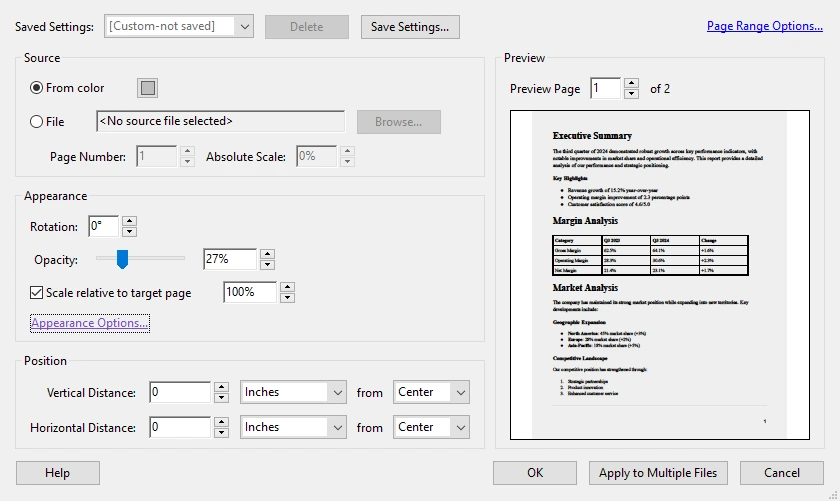
Steps to Change PDF Background Color Using Adobe
- Launch Adobe Acrobat Pro on your computer.
- Click Tools in the top menu and select Edit PDF .
- In the secondary toolbar, click More → Background → Add/Update .
- Click Color , then choose your desired background color (e.g., light gray).
- Apply the changes to all pages or select specific pages.
- Click OK , then save the document to preserve the new background.
Pros
- Intuitive, user-friendly interface.
- Maintains text readability.
- Precise color selection per page.
Cons
- Paid software required.
- Not suitable for batch processing.
Method 2 — Using Online Tool (Quick & Free)
Online PDF tools offer a fast and convenient way to change backgrounds without installing software. They’re ideal for simple edits like presentations or branding updates, though most do not adjust text color automatically.
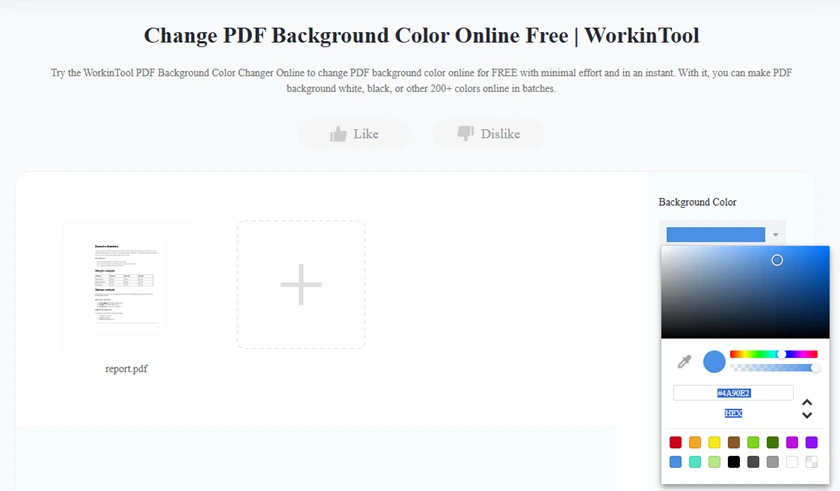
Steps to Change PDF Background Color Online
- Open a trusted online PDF tool such as WorkinTool.
- Click Upload PDF and select the file from your device.
- Locate the Background Color tool in the interface.
- Select a new background color from the palette or enter a custom hex code.
- Apply the color change to all pages.
- Download the updated PDF and review the result to ensure readability.
Pros
- No installation required.
- Quick for small edits.
- Works on any device.
Cons
- Often has file size limitation.
- May not be suitable for confidential documents.
Method 3 — Using Python with Spire.PDF (Batch Processing)
For developers and businesses managing multiple documents, Spire.PDF offers an efficient, scalable Python solution for programmatic PDF editing. This library supports background changes and batch processing without the need for Adobe Acrobat.
This method allows you to apply a consistent background color across hundreds of documents, saving time and ensuring uniformity.
Steps
- Install Spire.PDF for Python in your environment (pip install spire.pdf).
- Prepare the PDF files you want to process and place them in a folder.
- Open your Python editor and create a script to loop through each PDF file.
- For each page, set the background color to your desired shade.
- Save the modified PDF to a new folder to preserve the originals.
Example Python Code (Batch Processing)
from spire.pdf.common import *
from spire.pdf import *
import os

# Input and output folders
input_folder = "C:\\Users\\Administrator\\Desktop\\PDFs"
output_folder = "C:\\Users\\Administrator\\Desktop\\Output"

# Loop through all PDF files in the input folder
for filename in os.listdir(input_folder):
    if filename.endswith(".pdf"):
        file_path = os.path.join(input_folder, filename)

        # Load the PDF
        doc = PdfDocument()
        doc.LoadFromFile(file_path)

        # Change background color for all pages
        for i in range(doc.Pages.Count):
            page = doc.Pages.get_Item(i)
            page.BackgroundColor = Color.get_LightYellow()

        # Save updated PDF to output folder
        output_path = os.path.join(output_folder, filename)
        doc.SaveToFile(output_path)
Pros
- Automates bulk processing.
- Consistent results across multiple PDFs.
- Ideal for branding or workflow automation.
Cons
- Cannot automatically recolor existing text.
- Requires basic Python knowledge.
Tip: Use this method for batch updates, but for true dark mode readability, text color adjustments are needed.
Read Further : Set a Background Color or Image for PDF Using Python
Best Practices for Maintaining Readability
When changing PDF backgrounds, follow these guidelines:
- Use high-contrast combinations: dark text on light backgrounds or light text on dark backgrounds.
- Avoid pure black (#000000) for the background to reduce eye strain.
- Keep text colors readable after background changes.
- Test documents on different devices or PDF readers to ensure consistency.
- For scanned PDFs, consider noise reduction and contrast enhancement before applying background color.
Tip: Subtle shades like light gray (#f2f2f2) work well in professional contexts without overwhelming the reader or making text difficult to scan.
Bonus — Dark Mode Viewing in Adobe Acrobat (Viewer-Level)
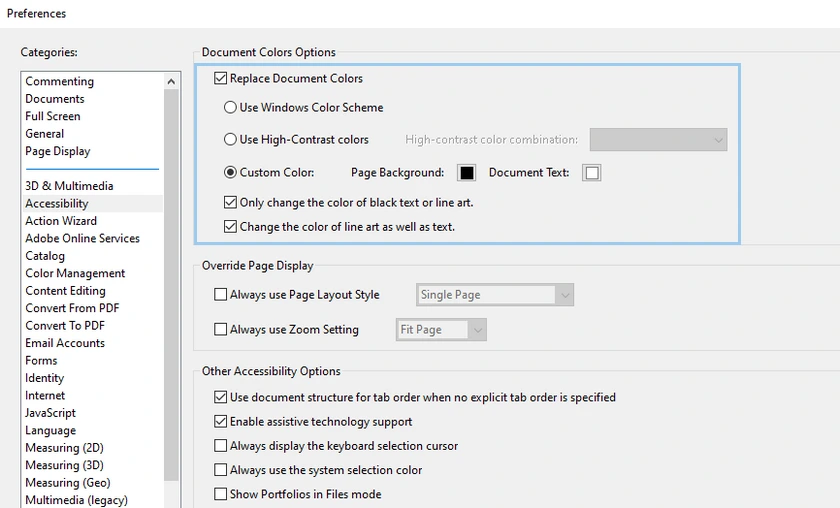
If your goal is comfortable on-screen reading, Adobe Acrobat offers a viewer-level dark mode. This method does not modify the PDF file, but simulates dark mode by changing background and text colors in the reader.
Steps
- Launch Adobe Acrobat on your computer.
- Go to Edit → Preferences → Accessibility .
- Enable Replace Document Colors .
- Select Custom Color , then set:
- Page Background → dark gray
- Document Text → light gray or white
- Click OK and view your PDF in dark mode.
Note: Changes apply only in your Acrobat Reader. The original PDF file remains unchanged.
Conclusion
Changing the background color of PDFs enhances both readability and aesthetics. Selecting the right method depends on your goals:
- Adobe Acrobat Pro: Best for users who want an easy-to-use, professional interface to edit backgrounds with precise control.
- Online Tools: Quick and convenient for one-off edits or presentation files.
- Python (Spire.PDF): Ideal for batch processing, automation, and ensuring consistent styling across multiple documents.
- Bonus Viewer-Level Dark Mode: Useful for personal comfort reading without altering the PDF file.
For scanned PDFs, adjusting the background color alone may not be sufficient — consider combining background changes with contrast enhancement or noise removal for optimal results. By choosing the appropriate method and applying best practices, you can create PDFs that are both visually appealing and easy to read across devices and environments.
FAQs
Q1. Can I change PDF background color for free?
Yes, online tools can do this for free, but they often have limitations in quality and features.
Q2. How do I make a PDF dark mode permanently?
Most tools don’t support true permanent dark mode. You would need to modify both background and text colors, which is not easily achievable with standard tools.
Q3. Why does my text become hard to read after changing background?
Because the text color remains unchanged. Black text on a dark background reduces contrast.
Q4. Can I batch change PDF background color?
Yes, using Python libraries like Spire.PDF is the most efficient way to process multiple files.