Knowing how to remove highlights from PDF files is a vital skill, especially when you're cleaning up a draft. While highlighting helps emphasize key points, cluttered markups can hinder readability. In this guide, we explore the most effective ways to delete all highlights in a PDF at once or selectively clear specific markups using online tools, Adobe Acrobat, and Python automation.
- Remove Highlights from PDF Online
- Remove Highlight from PDF in Adobe Acrobat
- Automate with Spire.PDF for Python
- Comparison Table of Three Methods
- Conclusion
Remove Highlights from PDF Online Free: The Quick Web Fix
For users who need to remove PDF highlights without Acrobat, online platforms are the fastest solutions to clean a PDF file. These tools are ideal for one-off tasks without installing software on your device.
One of the most intuitive ways to handle this is via Smallpdf. It treats highlights as interactive objects, making the highlights removal process seamless.
Quick Steps to Clear Highlights Online:
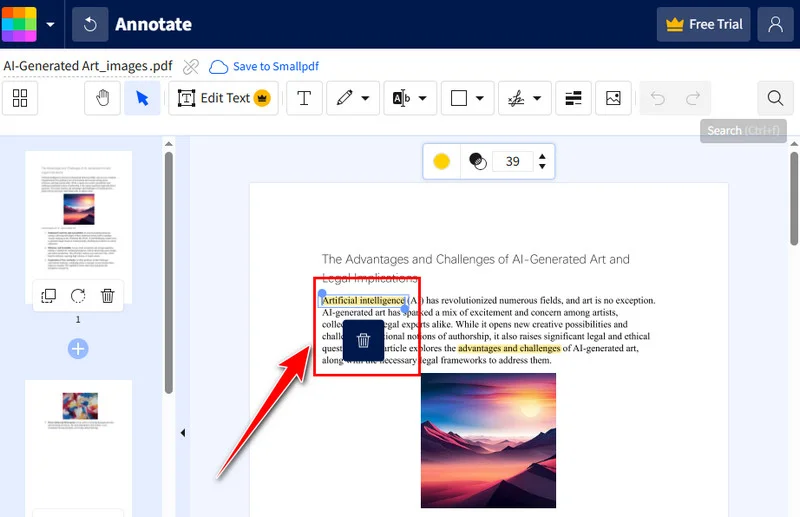
- Access the Editor: Navigate to the PDF Editor tool on the Smallpdf homepage.
- Upload Your File: Drag and drop your document from your device or cloud storage.
- Select the Markup: Click directly on the yellow highlight to activate the selection box.
- Execute Deletion: Once selected, simply hit the Delete key on your keyboard or click the trash icon appearing above text.
- Finish and Export: Click Download to save the file immediately. Alternatively, select Finish to enter the preview mode, where you can then choose to Download or Export As other formats like Microsoft Word or Excel.
Pro Tip: Troubleshooting "Stubborn" Highlights
If you find that a highlight won't select, ensure your editor is specifically toggled to "Annotation Mode". For scanned documents where the highlight is flattened into the image itself, you can use a white shape overlay to manually mask the highlight color.
Note: Security & Storage Always download your copy immediately, as most online free tools have a limited session window for file storage. Additionally, be cautious with sensitive or confidential data; since these services may upload your file to a third-party server, local methods like Free Spire.PDF and Adobe Acrobat are preferred for privacy.
Professional Precision: How to Remove Highlight from PDF in Adobe Acrobat
For complex legal documents, Adobe Acrobat Pro is the industry standard. It provides the precision needed to manage intricate text markups. It supports managing all annotations in a dedicated "Comments" pane .
This method is perfect when you need to distinguish between a highlight and a background fill that might have been added during the original document creation.
Step-by-Step Instructions:
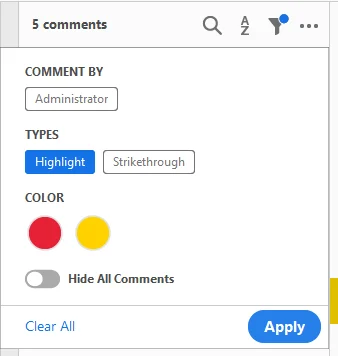
- Open the Comments Pane: On the right-hand toolbar, select the Comments tool. This will list every markup in chronological order.
- Filter and Find: You can sort by type, author, or color. This is particularly helpful if you only want to remove the highlight from the PDF while keeping other annotations intact.
-
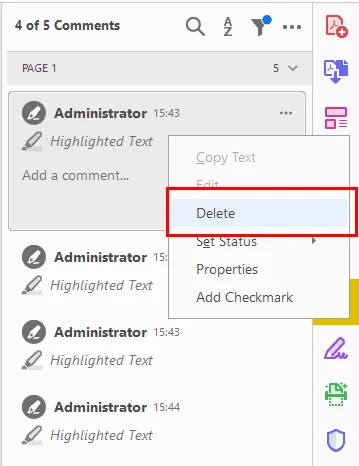
Batch or Single Delete:
- To remove one: Right-click the highlight on the page or in the list and select Delete.
- To delete all highlights in PDF at once: Hold the Ctrl key and manually click each comment in the list you wish to remove, then right-click and select Delete.
- System Alternatives: If you are on a Mac, you can achieve basic removal via Mac Preview by selecting the highlight and hitting backspace, or even via Chrome's PDF viewer for very simple annotation layers.
Note: Ensure you "Save As" a new version after editing to preserve the original document's metadata if needed.
Also read: How to Highlight Text in a PDF: 5 Easy Methods
Developer’s Choice: Automate with Free Spire.PDF for Python
For developers handling high volumes of data, manual clicking is inefficient. Using a library like Free Spire.PDF for Python, you can programmatically remove highlights from PDF files across entire directories in seconds.
Basic Implementation: Clear All Markups at Once
Free Spire.PDF provides access to the Annotations collection, where highlighters are stored as PdfTextMarkupAnnotationWidget objects. Since this class also encompasses other text markups like strikethroughs and underlines, our implementation includes a specific check for the TextMarkupAnnotationType to ensure only highlights are targeted and removed.
Here's a code example showing how to delete all highlights from a PDF all at once:
from spire.pdf.common import *
from spire.pdf import *

# Initialize the PdfDocument object
pdf = PdfDocument()
# Load the PDF file
pdf.LoadFromFile("/input/sample.pdf")

# Iterate through each page in the document
for i in range(pdf.Pages.Count):
    page = pdf.Pages[i]
    # Access the collection of annotations for the current page
    annotations = page.Annotations

    # Iterate through annotations in reverse order
    for j in range(annotations.Count - 1, -1, -1):
        annot = annotations[j]

        # Check if the annotation is a text markup type (highlights, underlines, etc.)
        if isinstance(annot, PdfTextMarkupAnnotationWidget):
            # Verify if the specific markup type is a Highlight
            if annot.TextMarkupAnnotationType == PdfTextMarkupAnnotationType.Highlight:
                # Remove the highlight annotation from the collection
                annotations.RemoveAt(j)

# Save the modified document
pdf.SaveToFile("/output/HighlightsRemoved.pdf")
pdf.Close()
Here's the preview of the original PDF and the cleaned PDF:
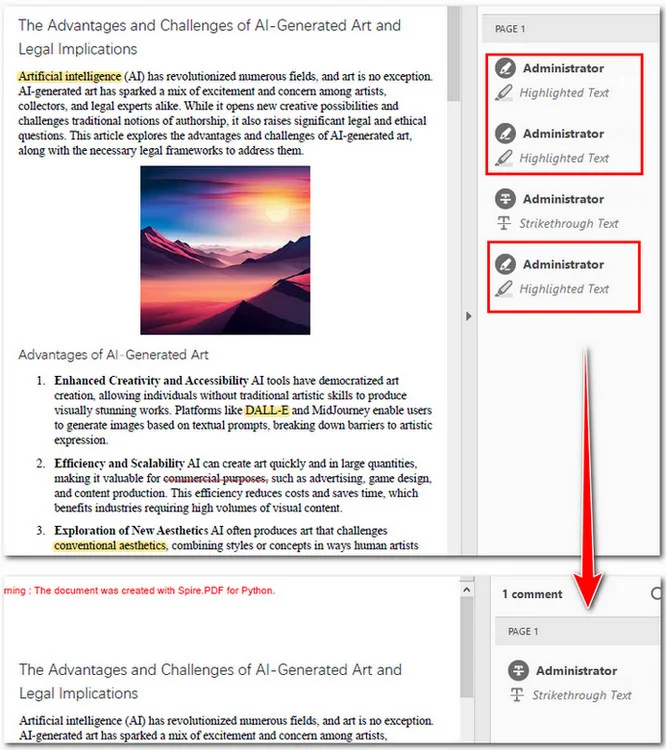
You can see that the three highlights in the PDF have been deleted, and the strikethrough was preserved.
Advanced Control: Selective Removal by Index or Attribute
Sometimes, a total wipe is unnecessary. You might only want to remove specific annotations, such as the second highlight on a page, or filter highlights based on their metadata, like author or content.
By first filtering the annotations into a list, you can target specific instances. Below is the implementation for removing the second highlight found on the first page:
from spire.pdf.common import *
from spire.pdf import *

# Create a PdfDocument object and load a PDF file
doc = PdfDocument()
doc.LoadFromFile("/input/sample.pdf")

# Get the annotations collection of the first page
annotations = doc.Pages[0].Annotations

# Loop through annotations collection and get the highlights
highlights = []
for i in range(annotations.Count):
    if isinstance(annotations[i], PdfTextMarkupAnnotationWidget):
        highlights.append(annotations[i])

# Remove the second highlight
annotations.Remove(highlights[1])

# Save the document
doc.SaveToFile("/output/RemoveSecondHighlight.pdf")
doc.Close()
Here's the preview of the original PDF and the output file:
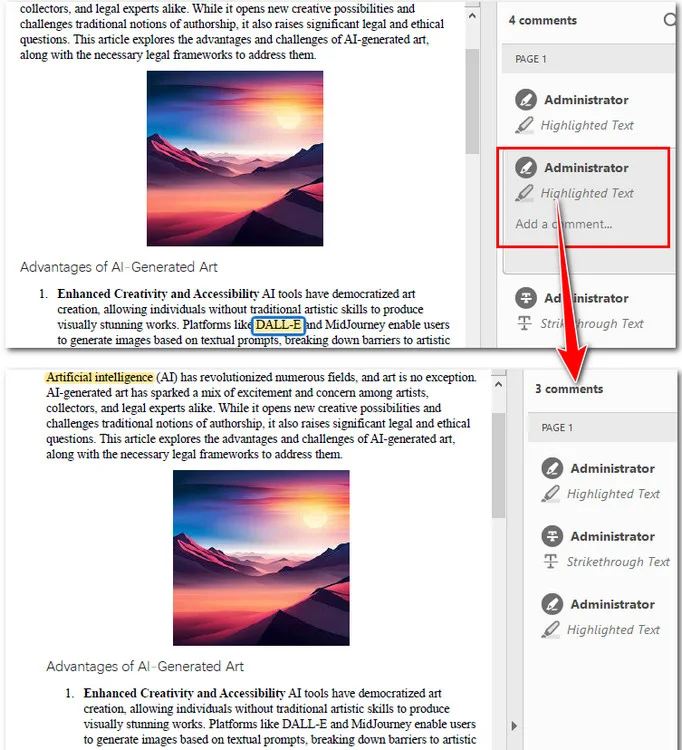
Note: Programming libraries can only detect "Annotation" layers. If the highlight is flattened into the content stream, you will need to OCR the PDF or use coordinate-based white-out techniques.
Final Comparison: Which Method Should You Choose?
As we have explored, the ideal way to remove highlights from PDF files depends on your specific workflow, the volume of documents, and your technical level. The following table provides a side-by-side breakdown to help you select the most efficient tool for your needs.
| Feature | Online Tools | Adobe Acrobat | Free Spire.PDF (Python) |
|---|---|---|---|
| Effort | Low (One-off) | Medium (Manual) | High (Initial Setup) |
| Speed | Fast | Slow for Batch | Lightning Fast for Batch |
| Cost | Free (Usually) | Paid Subscription | Free |
| Privacy | Low (Cloud) | High (Local) | Highest (Local/Encrypted) |
Conclusion
In this guide, we explained three ways to remove highlights from PDF files. Online tools like Smallpdf are perfect for quick tasks, while Adobe Acrobat offers the manual precision required for professional document management. For developers, Free Spire.PDF for Python is ideal for high-volume automation and data privacy.
By understanding these different approaches, you can transform a cluttered, marked-up document into a clean, professional PDF in seconds. Experiment with the method that best fits your workflow to stay productive and organized.