SVG files are widely used in web and design workflows because they are lightweight, scalable, and resolution-independent. However, when it comes to printing, sharing, or archiving documents, PDF is often the preferred format due to its universal compatibility.
In this guide, you’ll learn four practical ways to convert SVG to PDF, including online tools, free desktop software, browser-based conversion, and a powerful Python automation method for single and batch processing.
Method overview:
- Method 1 — Convert SVG to PDF Online (Fast & No Installation)
- Method 2 — Convert SVG to PDF with Inkscape (Free & Open Source)
- Method 3 — Convert SVG to PDF Using Browser Print Feature
- Method 4 — Convert SVG to PDF Using Python (Batch & Merge)
Method 1 — Convert SVG to PDF Online (Fast & No Installation)
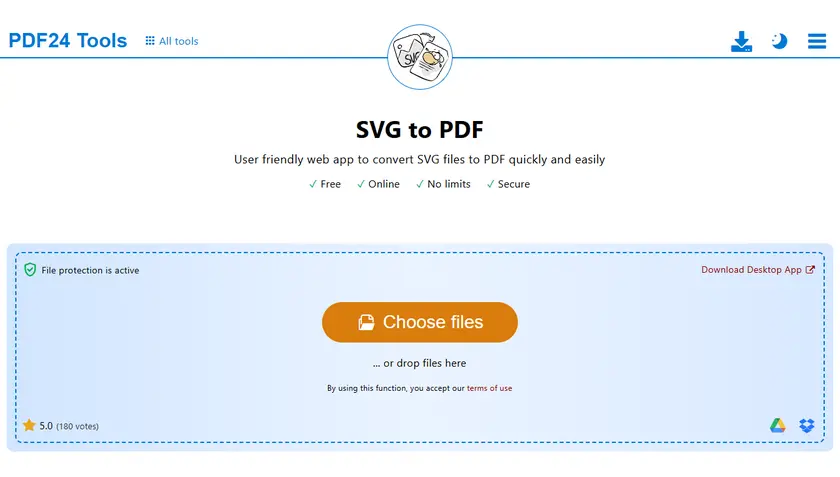
Online SVG to PDF converters are the fastest way to handle occasional conversion tasks without installing any software. These tools are especially useful when you’re working across devices or need a quick result on the go. With just a few clicks, you can upload your SVG file and download a ready-to-use PDF.
Best for: Quick one-time conversions
Steps:
- Upload your SVG file to an online converter (e.g. PDF24).
- Click Convert, then download the result.
Pros:
- No installation required.
- Works on any device.
- Fast and convenient.
Cons:
- File size limitations.
- Not suitable for sensitive files.
- Limited customization options.
Method 2 — Convert SVG to PDF with Inkscape (Free & Open Source)
Inkscape provides a powerful and reliable way to convert SVG files to PDF while preserving vector quality. As a dedicated vector graphics editor, it gives you more control over layout, scaling, and export settings compared to online tools. This makes it a great choice for designers or users who need consistent, high-quality output.
Best for: Designers and offline conversion needs
Steps:
- Download Inkscape and install it on your computer.
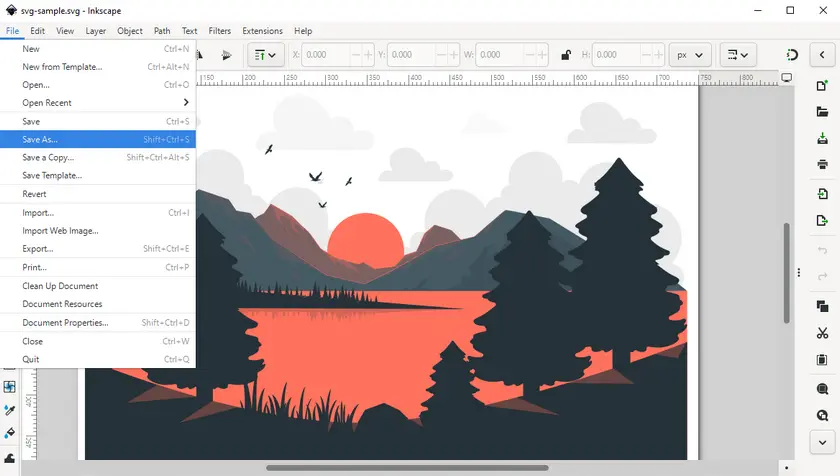
- Open the SVG file in Inkscape.
- Go to File → Save As.
- Select PDF format.
- Adjust export settings if needed.
- Save the file.
Pros:
- Completely free.
- High-quality vector output.
- Works offline.
Cons:
- Slight learning curve.
- Interface may feel complex for beginners.
Method 3 — Convert SVG to PDF Using Browser Print Feature
Modern web browsers can render SVG files directly, making them a surprisingly effective tool for quick PDF conversion. By using the built-in print feature, you can export SVG content as a PDF without any additional software. While it’s not the most precise method, it’s extremely convenient for simple use cases.
Best for: Instant and lightweight conversion
Steps:
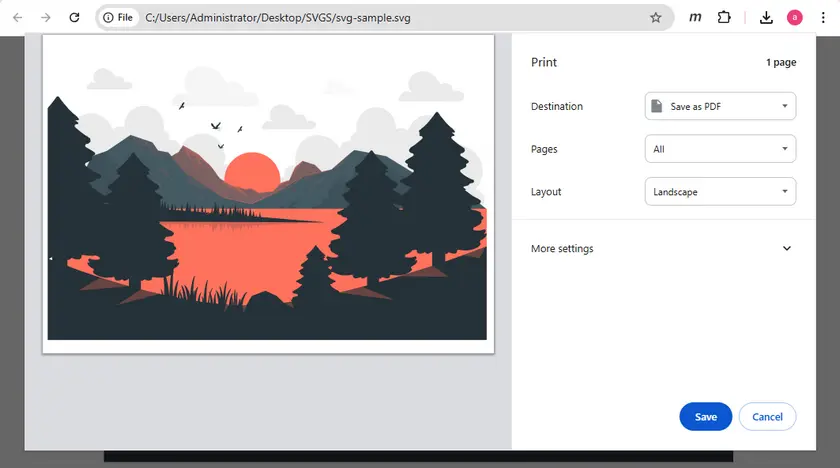
- Open the SVG file in your browser.
- Press Ctrl + P (or Cmd + P on Mac).
- Choose Save as PDF.
- Adjust scale or margins if needed.
- Save the file.
Pros:
- Extremely simple.
- No additional tools required.
- Works instantly.
Cons:
- Limited layout control.
- Output may vary across browsers.
Method 4 — Convert SVG to PDF Using Python (Batch & Merge)
For developers or teams handling large volumes of files, Python offers a highly efficient and scalable solution. This approach allows you to automate SVG to PDF conversion and integrate it into backend systems or workflows. It’s especially useful when you need to process multiple files or merge them into a single PDF programmatically.
Best for: Developers, automation, and bulk processing
In this scenario, we’ll use Spire.PDF for Python, a professional library for creating and manipulating PDF documents in Python. Before getting started, install it from PyPI:
pip install spire.pdf
Example 1. Convert a Single SVG to PDF
from spire.pdf.common import *
from spire.pdf import *

document = PdfDocument()
document.LoadFromSvg("svg-sample.svg")
document.SaveToFile("ToPdf.pdf", FileFormat.PDF)
document.Dispose()
How it works:
- LoadFromSvg() loads the SVG file into a PDF document object.
- SaveToFile() exports it as a PDF.
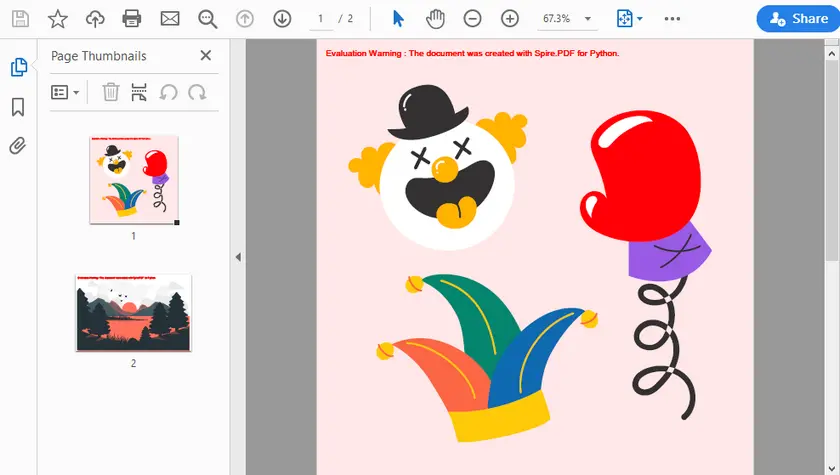
Example 2. Merge Multiple SVG Files into One PDF
import os
from spire.pdf import *
from spire.pdf.common import *

svg_folder = r"C:\Users\Administrator\Desktop\SVGS"

# 1. Get sorted SVG files
svg_files = sorted(f for f in os.listdir(svg_folder) if f.endswith(".svg"))

pdf_streams = []

# 2. Convert SVG → PDF Stream (in memory)
for f in svg_files:
    pdf = PdfDocument()
    pdf.LoadFromSvg(os.path.join(svg_folder, f))

    s = Stream()
    pdf.SaveToStream(s)
    pdf.Close()

    pdf_streams.append(s)

# 3. Merge PDF streams directly
merged = PdfDocument.MergeFiles(pdf_streams)

# 4. Save final PDF
output_path = os.path.join(svg_folder, "MergedSVG.pdf")
merged.Save(output_path, FileFormat.PDF)
merged.Close()
How it works:
- All SVG files are read from the folder and sorted to keep a consistent order.
- Each SVG is loaded into a PdfDocument and converted into a PDF in memory.
- All PDF streams are passed directly into MergeFiles().
- The final merged PDF is saved to disk.
Output:
Why use Python for SVG to PDF conversion?
- Fully automated workflow.
- Supports batch processing.
- Easy integration into backend systems.
- Ideal for report generation pipelines.
In addition to converting SVG files to PDF, you can also explore converting PDF to SVG, which is useful when you need to extract and reuse vector graphics from existing PDF documents. You may also want to try adding text to PDF, which allows you to insert labels, or dynamic content into generated files. These additional features help extend your document workflow beyond simple format conversion.
Compare the Methods
| Method | Ease of Use | Quality | Batch Conversion (Multi → Multi) | Merge (Multi → One PDF) | Best For |
|---|---|---|---|---|---|
| Online Tools | ★★★★★ | ★★★★ | ✔ | ✘ | Quick tasks |
| Inkscape | ★★★ | ★★★★★ | ✘ | ✘ | Designers |
| Browser | ★★★★★ | ★★★ | ✘ | ✘ | Simple exports |
| Python | ★★★ | ★★★★★ | ✔ | ✔ | Automation |
Conclusion
Converting SVG to PDF is simple and can be done in multiple ways depending on your needs. Online tools and browsers are great for quick tasks, while Inkscape offers a free offline solution. For developers and advanced users, Python stands out as the most powerful and scalable approach, especially for batch processing and automation.
SVG to PDF FAQs
1. Will SVG lose quality when converting to PDF?
No. Both SVG and PDF are vector-based formats, so quality is preserved.
2. Can I merge multiple SVG files into one PDF?
Yes. You can use Python or advanced tools to combine multiple SVGs into a single PDF document.
3. Is online conversion safe?
It is generally safe for non-sensitive files, but desktop or local methods are recommended for confidential data.
4. Which method is best overall?
- Quick use → Online tools
- Free offline use → Inkscape
- Simple export → Browser
- Automation → Python