PDFs are everywhere—from business contracts and academic papers to marketing brochures and legal documents. But beyond the visible text and images, every PDF contains hidden information called metadata. This behind-the-scenes data offers critical details about the document’s origin, author, creation date, and more. Whether you’re a content creator, developer, legal professional, or just someone looking to organize files, knowing how to extract metadata from PDF is a valuable skill.
This guide will walk you through the most effective methods to extract PDF metadata, from simple built-in tools to advanced programming libraries.
- Why Bother Extracting Metadata?
- 4 Proven Methods to Extract PDF Metadata
- Critical Notes for PDF Metadata Processing
- Frequently Asked Questions (FAQ)
Why Bother Extracting Metadata?
PDF Metadata is far more useful than you might think, with core value across multiple scenarios:
| Use Case | Why It Matters |
|---|---|
| Digital forensics | Track document origin and changes; detect forged files |
| Legal e-discovery | Metadata timestamps are court‑admissible evidence |
| Content management | Auto‑tag thousands of PDFs by author, date, or keyword |
| SEO & search visibility | Google uses the PDF title/subject in search snippets |
| Privacy protection | Find and remove hidden personal data before sharing |
| Workflow automation | Extract invoice numbers and report dates without manual reading |
| Library archiving | Build searchable PDF databases for research |
Even for a single document, knowing how to read PDF metadata helps you verify authenticity and avoid leaking sensitive information.
Also read: How to Edit PDF Metadata (4 Methods)
4 Proven Methods to Extract PDF Metadata (From Beginner to Pro)
Depending on how comfortable you are with tools and how many files you’re dealing with, you’ve got several options to get metadata from PDF, covering no‑code, online, programming, and command‑line approaches.
1. Adobe Acrobat Pro (Windows/Mac)
Adobe Acrobat Pro is the industry standard for PDF work. It provides a clean, graphical interface to view and export both standard and advanced metadata.
Here’s how to use it:
- Open your PDF in Adobe Acrobat Pro.
- Click “File” > “Properties” (or press Ctrl+D/Command+D).
- The “Description” tab displays standard metadata (title, author, subject, etc.). The “Advanced” tab shows deeper XMP data (e.g., PDF creation software version).
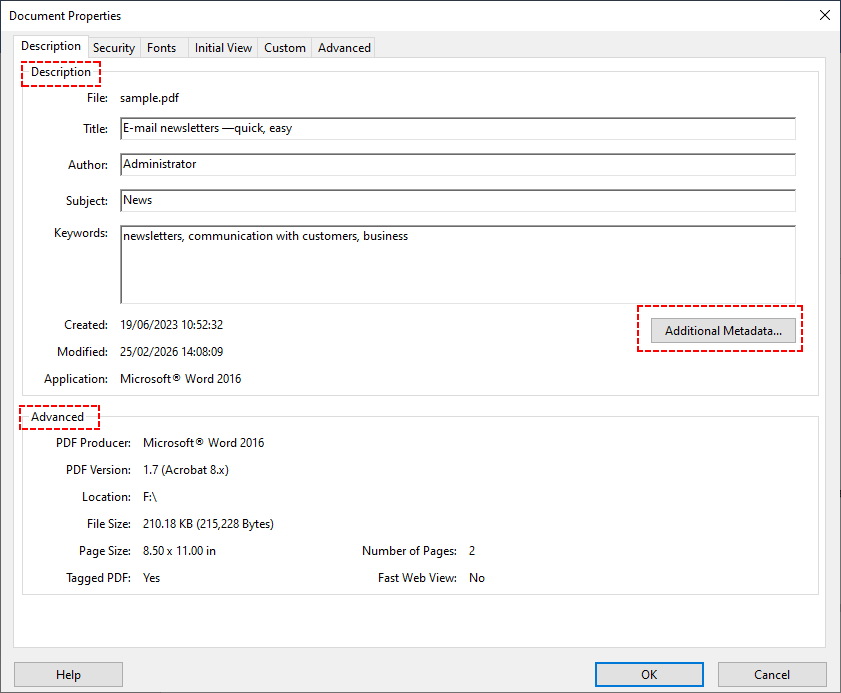
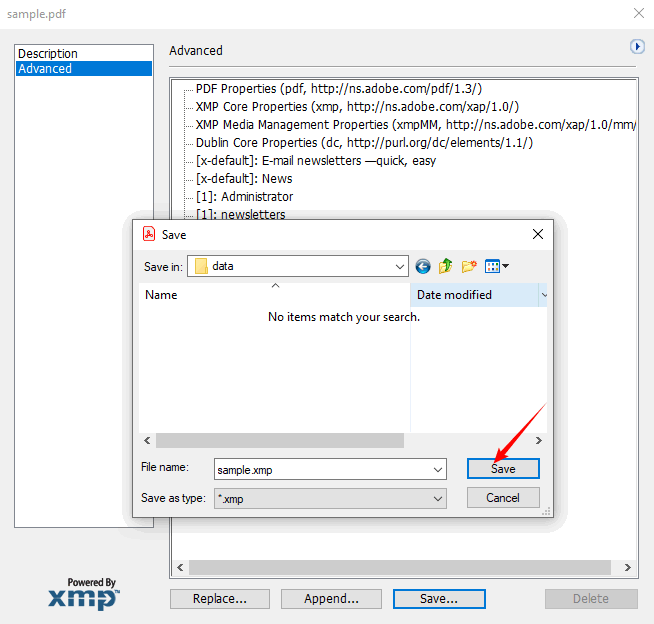
- For even more custom fields, click “Additional Metadata” to browse all XMP properties.
- Select “Export” to save as an XMP file. This file can be imported into other Adobe tools or read by custom scripts.
Downside: Requires a subscription. Suitable for professionals who already have Acrobat Pro, but overkill for a quick one‑file check.
Many secured PDFs restrict access to metadata, so removing PDF permissions unlocks full access to metadata and document content, allowing you to extract, modify, or export metadata from password-protected or restricted files without limitations.
2. Free Online Metadata Extractors (Quick and Easy)
A quick Google search turns up dozens of sites that let you upload a PDF and view its metadata. Popular examples like Metadata2Go and GroupDocs PDF Metadata Extractor are incredibly convenient—no installation, no payment, and they work on any device.
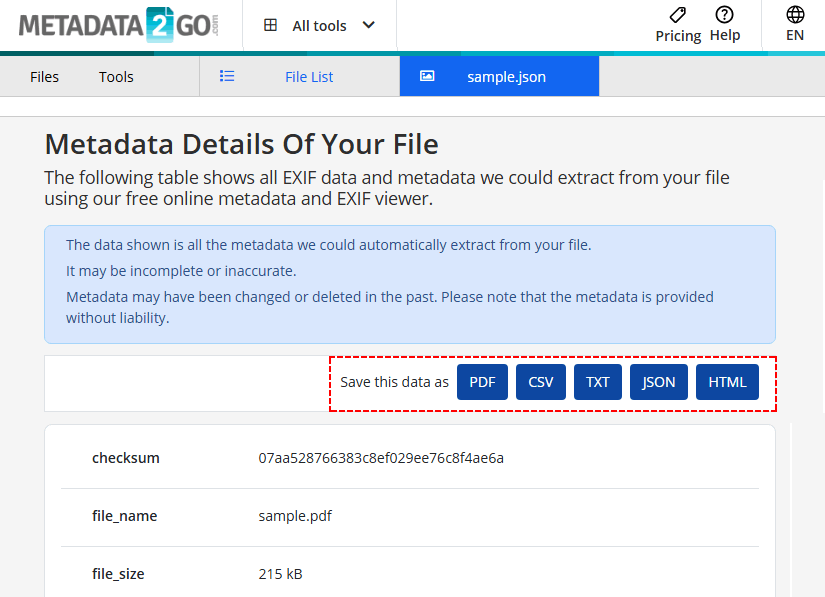
Get PDF metadata online using Metadata2Go:
- Go to the tool’s View Metadata page.
- Upload the PDF via drag-and-drop or click “Choose file”.
- Wait for the tool to extract metadata from your PDF file.
- Export results to CSV/TXT/JSON/HTML as needed.
Security Risk: Never upload sensitive or confidential documents to a free online tool.
3. Programmatically Extract PDF Metadata (For Developers)
If you need to extract metadata from hundreds of PDFs or integrate metadata extraction into your own application, programming is the way to go. Below is a detailed example using C# and the Free Spire.PDF for .NET library.
Step 1 - Install the library via NuGet
Install-Package FreeSpire.PDF
Step 2 – Write C# code to read PDF metadata
using Spire.Pdf;
using System.IO;
using System.Text;

namespace ExtractPDFMetadata

{
    class Program
    {
        static void Main(string[] args)
        {
            // Create a PdfDocument object
            PdfDocument pdf = new PdfDocument();

            // Load the PDF file (change path to your file)
            pdf.LoadFromFile("F:\\sample.pdf");

            // Access document information
            PdfDocumentInformation info = pdf.DocumentInformation;

            // Build metadata string
            StringBuilder content = new StringBuilder();
            content.AppendLine("PDF Metadata Extraction Results");
            content.AppendLine("================================");
            content.Append("Title: " + info.Title + "\r\n");
            content.Append("Author: " + info.Author + "\r\n");
            content.Append("Creator: " + info.Creator + "\r\n");
            content.Append("Subject: " + info.Subject + "\r\n");
            content.Append("Keywords: " + info.Keywords + "\r\n");
            content.Append("PDF Producer: " + info.Producer + "\r\n");

            // Write the result to a TXT file
            File.WriteAllText("ExtractPDFMetadata.txt", content.ToString());
        }
    }
}
The code loads a PDF file, gets its standard metadata fields, and writes them to a text file.
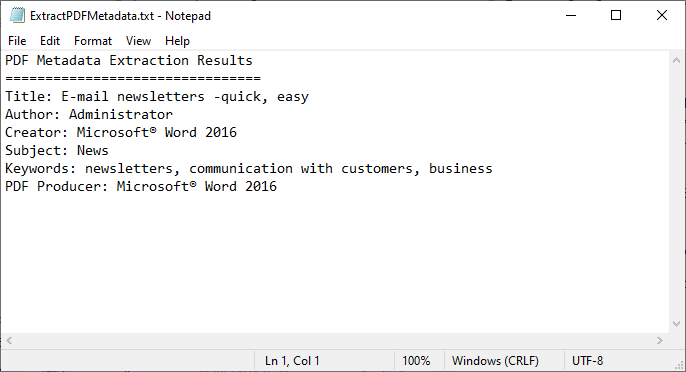
Batch processing: To extract metadata from multiple files, loop through all PDFs in a folder:
foreach (string file in Directory.GetFiles(@"C:\Invoices\", "*.pdf"))
{
    // process each file
}
Pro Tip: Beyond basic metadata, Free Spire.PDF also supports the extraction of other elements, such as extracting images, hyperlinks, form fields values, etc.
4. Command Line with ExifTool (For Advanced Users)
If you’re comfortable with a terminal or command prompt, ExifTool is a powerful metadata extraction tool. It’s free, cross‑platform (Windows, macOS, Linux), and reads metadata from almost any file type, not just PDFs.
Install
On Windows, download the executable from the official site.
Basic usage – view metadata of a single PDF:
exiftool sample.pdf
This prints a long list of tag-value pairs directly in the terminal.
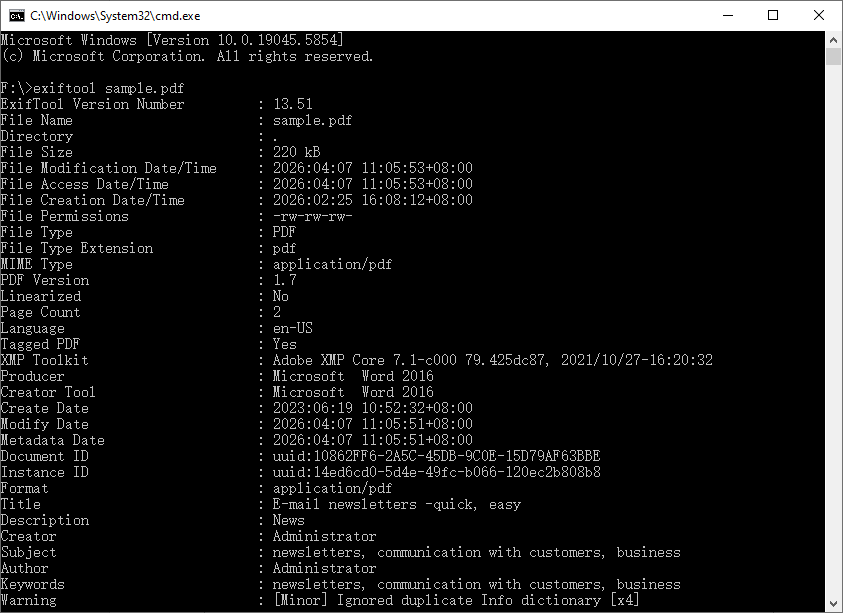
Batch export to CSV (ideal for analysis in Excel):
exiftool -csv *.pdf > metadata.csv
This command audits hundreds of PDFs at once and produces a CSV you can open in Excel or Google Sheets, giving you a searchable catalog.
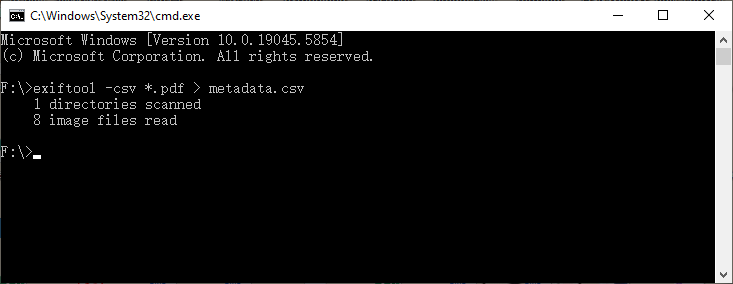
When to use this: Large‑scale batch audits, forensic analysis, or when you prefer command‑line efficiency.
Metadata removal is a critical security feature that works alongside extraction. After reviewing extracted metadata, you can remove all hidden sensitive metadata from PDFs to prevent privacy leaks before sharing files externally.
Critical Notes for PDF Metadata Processing
- Metadata can be edited or faked.
Just because a PDF says “Author: John Doe” doesn’t mean John Doe actually wrote it. It provides helpful context but is not forensic proof without deeper analysis.
- Scanned PDFs are different.
If someone scanned a physical document and saved it as a PDF, the only metadata you’ll usually get is scanner info and a creation date. There’s no “author” or “keywords” unless someone adds them later.
- SEO tip.
If you put PDFs on your website, fill in the Title and Subject fields. Google often uses those for the title and description in search results, which beats showing a random filename.
Wrapping Up
Extracting metadata from PDFs is a practical skill that saves time, protects privacy, and sometimes uncovers exactly the detail you were looking for. Whether you use Acrobat’s Properties window for a quick check, a free online tool for public documents, a C# script to process thousands of invoices, or ExifTool for bulk command‑line audits, the right method depends on how many files you’re dealing with and how deep you need to go.
Next time you download a PDF or prepare one for sharing, take a moment to look at its metadata. You might be surprised what’s attached and you’ll now know exactly how to extract it.
Frequently Asked Questions (FAQ)
Q1: Can I extract metadata from scanned PDFs?
Scanned PDFs (which are just images) usually have no metadata. You’ll need to use OCR software to convert the image to text first, then add metadata manually.
Q2: Is metadata the same as file properties?
Not exactly. File properties (like file size, creation date) are managed by the operating system. PDF metadata is embedded inside the PDF itself and travels with the document.
Q3: Can I edit or delete PDF metadata?
Yes. Use Adobe Acrobat Pro (graphical) or ExifTool (command-line) to edit/delete metadata; programming libraries also support modification.
Q4: Does metadata affect PDF file size?
No. Metadata is lightweight text data and has no noticeable impact on file size.