Need to convert an XPS file to PDF? You’re not alone. From businesses archiving documents to individuals sharing reports, converting XPS to PDF ensures your files are accessible, compatible, and professional-looking.
In this article, we’ll walk you through four reliable ways to convert XPS to PDF, including built-in tools, online converters, command-line options, and Python-based batch processing, so you can pick the method that best fits your needs.
Quick Navigation:
- Method 1 - Using XPS Viewer + Microsoft Print to PDF
- Method 2 - Using Online Converters
- Method 3 - Using Command-Line Tools
- Method 4 - Using Python Libraries (Batch Processing)
XPS vs PDF: What’s the Difference?
PDF is Adobe’s long-standing, cross-platform standard. It’s feature-rich—supporting forms, annotations, encryption, digital signatures, and advanced print and archival profiles—and is backed by a vast ecosystem of viewers, editors, and professional tools. PDF ensures reliable rendering, accessibility, and robust security across devices and industries.
XPS is Microsoft’s XML-based, ZIP-packaged fixed-layout format, mainly used in certain Windows printing workflows. Its feature set and third-party support are limited compared with PDF, resulting in weaker interoperability and fewer tools. Because PDF offers superior compatibility, features, and industry adoption, converting XPS to PDF is often necessary.
Method 1 - Using XPS Viewer + Microsoft Print to PDF
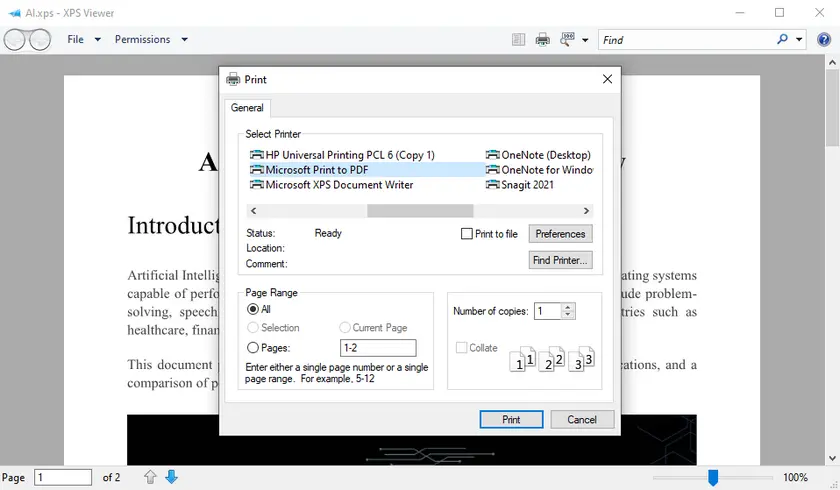
For Windows users, the simplest way to convert an XPS file is through the built-in XPS Viewer and Microsoft Print to PDF. This method requires no extra software and is ideal for one-off conversions or occasional use. By leveraging the system’s print-to-PDF functionality, you can quickly generate a PDF without compromising basic layout.
Steps:
- Open your XPS file using XPS Viewer.
- Click Print in the toolbar.
- Select Microsoft Print to PDF as the printer.
- Choose the output location and save your PDF.
Pros:
- Free and requires no installation.
- Simple interface for casual users.
Cons:
- Cannot process multiple files at once.
- Complex formatting may shift slightly.
Method 2 - Using Online Converters
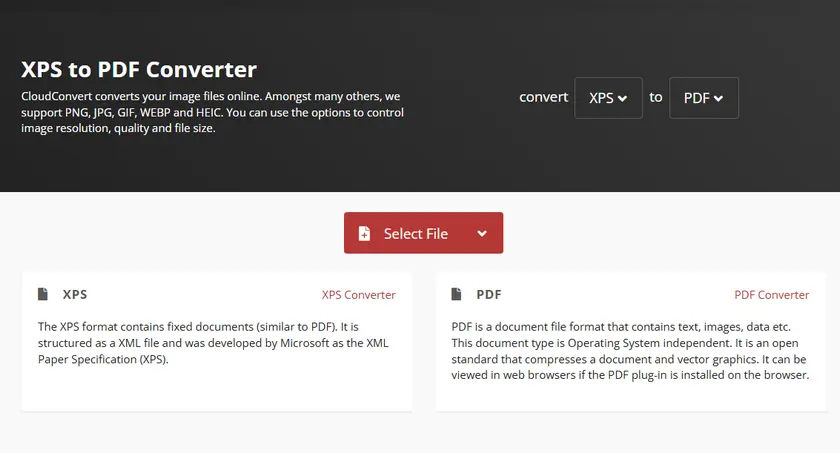
Online converters offer a convenient way to convert XPS to PDF without installing software. They are particularly useful if you need a quick conversion or are using a non-Windows platform. Most online tools are as simple as uploading your file, selecting PDF as the output format, and downloading the result.
Steps:
- Visit a reputable online converter, such as CloudConvert.
- Upload your XPS file.
- Choose PDF as the target format.
- Click Convert and download the resulting PDF.
Pros:
- Works on any platform (Windows, Mac, mobile).
- No software installation needed.
- Quick drag-and-drop interface.
Cons:
- File size limits may apply.
- Internet connection required.
- Potential privacy concerns for sensitive files.
Method 3 - Using Command-Line Tools (MuPDF)
For advanced users or automation workflows, command-line tools offer flexible conversion options. MuPDF provides a lightweight command-line utility ( mutool ) that can convert XPS files to PDF, either individually or in batch scripts. This method is ideal for developers or IT administrators who need consistent results across multiple files.
Steps:
-
Download MuPDF.
- Go to the official MuPDF website: https://mupdf.com/downloads/
- Download the MuPDF tools package for your operating system (Windows, macOS, or Linux)
- Extract the package to a folder, e.g., C:\MuPDF
-
Open a Command Prompt / Terminal.
- Windows: Press Win + R, type cmd, press Enter
- macOS/Linux: Open Terminal
-
Navigate to your XPS file folder.
Use the cd command to change the directory to where your XPS file is located. Example:
cd C:\Users\Administrator\Desktop\XPSFiles -
Run the conversion command.
Use mutool convert with the -o option to specify the output PDF:
C:\MuPDF\mutool.exe convert -o output.pdf input.xpsExplanation:
- convert → tells MuPDF to convert file formats
- -o output.pdf → specifies the PDF output file name
- input.xps → your XPS file
On Linux/macOS, it might look like:
./mutool convert -o output.pdf input.xps -
Check the output PDF in your target folder.
Pros:
- Automatable and scriptable for bulk processing.
- Cross-platform (Windows, Mac, Linux).
Cons:
- Requires technical knowledge.
- Setup and syntax may be complex for beginners.
Method 4 - Using Python Libraries (Batch Processing with Spire.PDF)
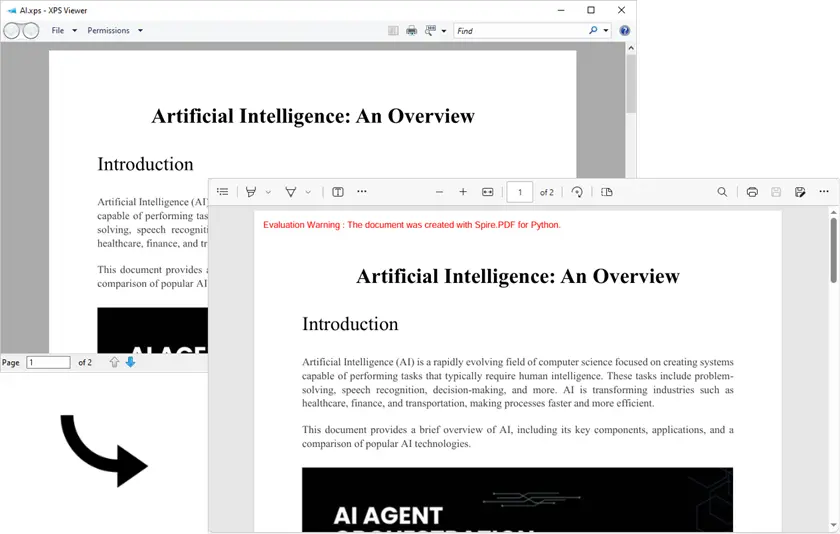
For developers or businesses needing batch processing, Python libraries provide an efficient solution. Using Spire.PDF for Python , you can convert multiple XPS files into PDFs programmatically while preserving high-quality images and layout integrity. This approach is ideal for automating large workflows or integrating into backend systems.
Steps:
- Install the required library.
- Use the following script to convert a single XPS to a PDF file.
pip install spire.pdffrom spire.pdf.common import *
from spire.pdf import *
# Load an XPS file
doc = PdfDocument()
doc.LoadFromFile("Input.xps", FileFormat.XPS)
# Preserve images' quality
doc.ConvertOptions.SetXpsToPdfOptions(True)
# Save to PDF
doc.SaveToFile("XpsToPdf.pdf", FileFormat.PDF)
doc.Dispose()
Output:
Batch Processing Example:
import os
from spire.pdf.common import *
from spire.pdf import *

folder = r"C:\path\to\your\folder"

for name in os.listdir(folder):
    if not name.lower().endswith(".xps"):
        continue
    in_path = os.path.join(folder, name)
    out_path = os.path.join(folder, os.path.splitext(name)[0] + ".pdf")

    doc = PdfDocument()
    doc.LoadFromFile(in_path, FileFormat.XPS)
    doc.ConvertOptions.SetXpsToPdfOptions(True)
    doc.SaveToFile(out_path, FileFormat.PDF)
    doc.Dispose()
Pros:
- Full control over batch conversion.
- High fidelity preservation of layout and images.
- Easily integrates into automated workflows.
Cons:
- Requires coding knowledge.
- Library installation needed.
In addition to converting XPS to PDF, Spire.PDF for Python also lets you programmatically apply watermarks, add annotations, and encrypt PDF documents. You can explore these features to enhance or secure your PDF files directly from your code, making it a versatile solution for many PDF automation tasks.
Comparison – Which Method Should You Choose?
| Method | Ease of Use | Batch Support | Platform | Pros | Cons |
|---|---|---|---|---|---|
| XPS Viewer | ★★★★ | ✗ | Windows | Free, simple | Single file, formatting issues |
| Online Converters | ★★★★ | ✗ | Any | No installation, fast | Privacy, file size limits |
| MuPDF | ★★ | ✓ | Windows / Mac / Linux | Automatable | Technical setup required |
| Python / Spire.PDF | ★★ | ✓ | Cross-platform | Batch processing, high fidelity | Requires coding knowledge |
Conclusion
Choosing the right method depends on your needs: casual users may prefer XPS Viewer or online converters, while developers and businesses handling multiple files will benefit from MuPDF or Python/Spire.PDF for batch processing. For high-quality, automated, and scalable conversion, Spire.PDF is a robust solution that ensures your PDF output maintains the integrity of the original XPS files.
FAQs
Q1: Can I convert multiple XPS files at once?
Yes, batch conversion is possible using command-line tools like MuPDF or Python libraries such as Spire.PDF.
Q2: Are online converters safe for confidential documents?
It depends on the platform. For sensitive files, it’s recommended to use offline tools like XPS Viewer or Spire.PDF.
Q3: Can Python convert XPS to PDF on Mac/Linux?
Yes, Spire.PDF for Python supports cross-platform conversion, and the command-line tool provided by MuPDF is also compatible with Mac and Linux.
Q4: Will the PDF retain the original layout and images?
Most methods preserve the layout, but batch and programmatic solutions like Spire.PDF provide the highest fidelity, especially for complex XPS files.