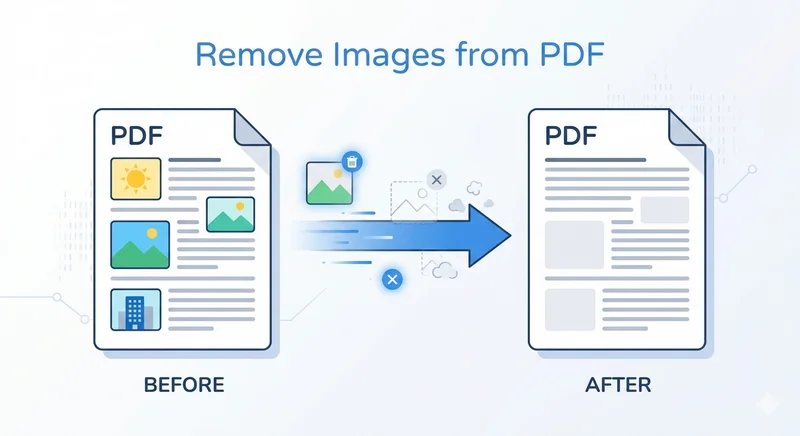
Sometimes a PDF that looks perfectly fine becomes difficult to share because of large embedded images. You might face email attachment limits, slow uploads, or unnecessary file bloat when working with reports or scanned documents. In these cases, knowing how to remove images from PDF documents can help you quickly reduce file size and simplify content.
In this guide, we’ll walk you through practical ways to delete images from PDF files, from manual tools to automated Python solutions.
- Remove Images from PDF Files with Adobe Acrobat
- Delete Images from PDF with Online PDF Tools
- Remove All Images from PDF Automatically with Python
- Troubleshooting & FAQs
- Conclusion
Method 1: Remove Images from PDF Files with Adobe Acrobat
When it comes to removing images from PDF documents, the first tool that may come to your mind is Adobe Acrobat. As a professional PDF editor, it offers an authoritative and secure environment, meaning you don't have to trust your sensitive data to third-party installations or unknown web servers. Adobe Acrobat provides precise control over PDF elements, ensuring that when you remove images from PDF files, the original text and layout stay perfectly intact.
Here are the steps to remove an image from a PDF using Adobe Acrobat:
- Step 1. Open your file and navigate to the Edit PDF tool in the right-hand pane.
- Step 2. Click on the image you want to get rid of. A bounding box will appear.
- Step 3. Hit the Delete key on your keyboard.
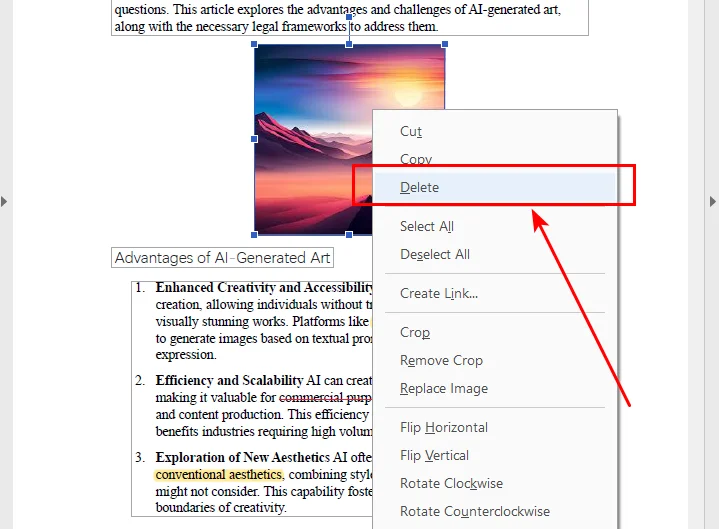
- Step 4. Save your document.
While Adobe Acrobat is the most trusted tool for PDF processing, it requires a premium subscription, which might not be ideal for a one-time fix. If you're looking for professional results without the Adobe ecosystem, tools like Nitro PDF or Foxit Editor offer similar edit modes that are perfect for manual inspection. But if you're looking for a more cost-effective or automated way to delete images from PDF files, the online tools and Python solutions discussed below may be a more suitable option.
Method 2: Delete Images from PDF with Online PDF Tools
If you only need to process a file occasionally, there’s no need to subscribe to Adobe Acrobat for a single task. Instead, free online PDF editors offer a much more convenient alternative. Platforms like Sejda provide powerful editing features right in your browser without installation. Simply upload your document, and you can remove images from PDF files instantly while on the go.
Here is how to remove an image from a PDF online using Sejda as an example:
- Step 1. Upload your document to the Sejda online editor.
- Step 2. Click the dropdown arrow next to the Images button in the top toolbar.
- Step 3. Select the Delete existing image option from the list.
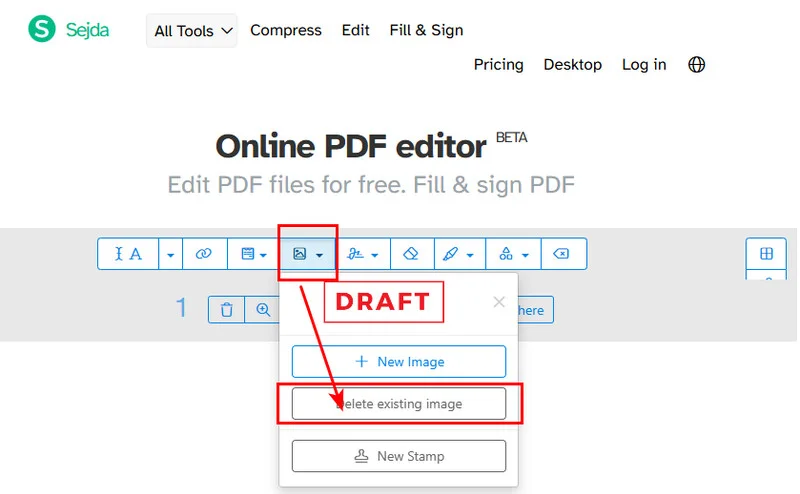
- Step 4. Locate the image you want to remove and click the Delete icon that appears in its top-left corner.
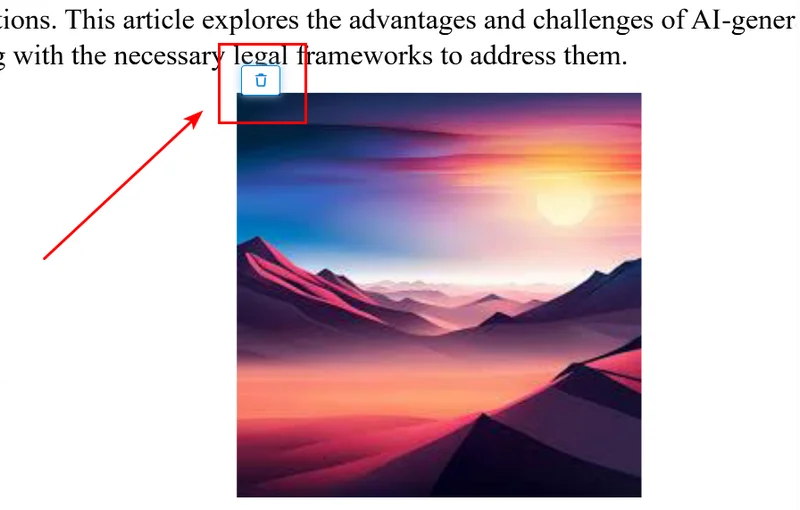
While Sejda is powerful, it does have its limitations. The free version restricts you to three tasks per day and has limits on file size and page counts. For users handling high volumes of documents or highly confidential data, these online constraints and privacy risks might make the automated Python solution below a better fit.
Tip: If your goal isn't to get rid of these images but to save them for other projects, check out our guide on how to extract PDF images using the best free tools available.
Method 3: Remove All Images from PDF Automatically with Python
If you are dealing with hundreds of files, manual clicking is a waste of time. You can learn how to remove all images from PDF documents programmatically using Python. We will use the Free Spire.PDF for Python library because it is powerful and handles complex PDF resources efficiently without Adobe Acrobat.
Environment Setup
First, install the library using pip:
pip install Spire.Pdf.Free
How the Script Works
The Python script removes images from PDF files by calling the PdfImageHelper class to scan the internal resource dictionary of every page. This method identifies image objects and removes them completely from the document. We delete these objects in reverse order to ensure the document's internal indexing remains stable until the page is completely cleared.
The Python Code
from spire.pdf.common import *
from spire.pdf import *

# Create a PdfDocument instance
doc = PdfDocument()

# Load the PDF document
doc.LoadFromFile("/input/Sample.pdf")

# Initialize the Image Helper
image_helper = PdfImageHelper()

# Iterate through each page in the document
for i in range(doc.Pages.Count):
    page = doc.Pages.get_Item(i)

    # Get all image information from the current page
    image_infos = image_helper.GetImagesInfo(page)

    # If images are found, delete them in reverse order
    if image_infos:
        for j in range(len(image_infos) - 1, -1, -1):
            image_helper.DeleteImage(image_infos[j])

# Save the result to a new file
doc.SaveToFile("/output/no images.pdf", FileFormat.PDF)
doc.Dispose()
Here's the preview of the original file and the output PDF file:
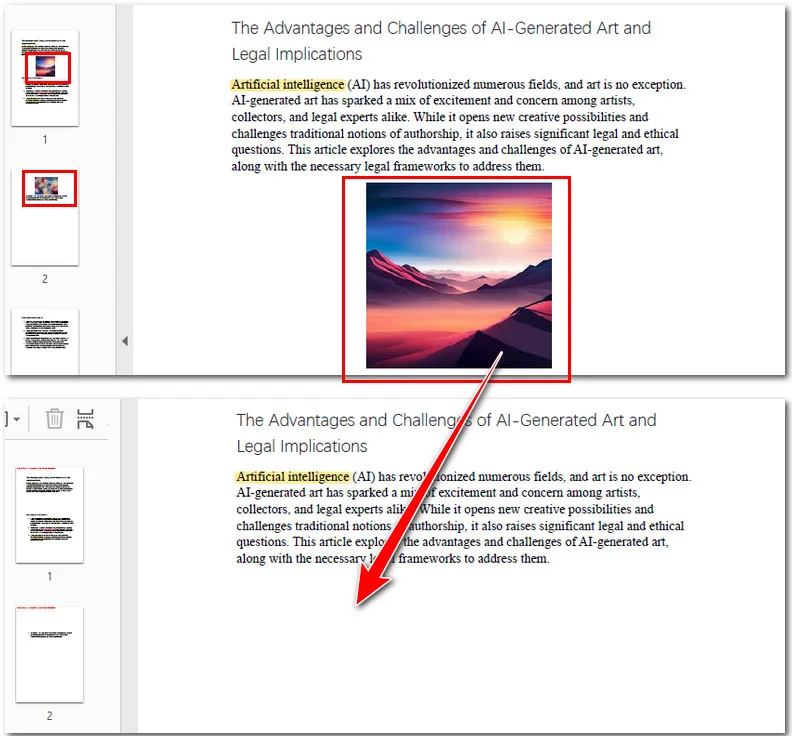
This programmatic approach is ideal for enterprise-level workflows where you need to process massive volumes of files with high speed and consistency. By integrating this into your work, you can automate the generation of text-only document versions in just a few seconds.
You may like: Python: Set the Transparency of PDF Images
Troubleshooting & FAQs
Q: Why is there a blank white space where the image was?
A: PDFs are built in layers. When you delete an image, you are removing the object, but the text doesn't automatically "flow" upward to fill the gap like it does in a Word doc.
Q: Why can't I select the image?
A: If you can't click it, the "image" might actually be part of a scanned page (the whole page is one big picture) or a vector graphic made of thousands of tiny paths.
Q: Will removing images affect the text formatting?
A: Generally, no. As long as you use a proper PDF editor or the Python method above, the text coordinates remain fixed.
Conclusion
Choosing the right tool to remove images from PDF files ultimately depends on your specific needs for precision, speed, and volume. For one-off tasks requiring accuracy, Adobe Acrobat remains the professional choice, while Sejda offers a convenient, no-install alternative for quick edits on the go. However, for tasks involving massive file batches, Python automation via Free Spire.PDF provides unmatched speed and data privacy. By selecting the method that fits your workflow, you can efficiently shrink file sizes and protect sensitive information in seconds.