PDFs are the most widely used document format for sharing work, contracts, reports, and personal files. But hidden metadata in PDFs can expose sensitive information you never intended to share. Whether you’re a professional, student, or casual user, knowing how to remove metadata from PDF is essential for privacy and security.
In this complete guide, we’ll explain what PDF metadata is, why it matters, and walk you through 5 free & easy methods to clean metadata from PDF.
- What is PDF Metadata?
- Why You Should Delete Metadata from PDF Files
- 5 Best Methods to Remove Metadata from PDF
- FAQ About Removing PDF Metadata
What is PDF Metadata?
Metadata is often described as "data about data." When applied to a PDF, it refers to the embedded information hidden within the file that describes its properties and origins.
PDF metadata includes:
- Author name, creator, and editor
- Date created/modified
- Software used (e.g., Word, Adobe Acrobat, Canva)
- Document title, subject, keywords
- Location, device info, and editing history
- Hidden comments, bookmarks, and form data
This metadata travels with the PDF file whenever you share it online or via email, potentially exposing more than you bargained for.
Why You Should Delete Metadata from PDF Files
Cleaning metadata protects you and your documents in 4 key ways:
- Privacy Protection: Hide your name, email, device, and location from unintended viewers.
- Security: Prevent competitors or bad actors from tracking your editing process or tools.
- Professionalism: Remove messy auto-generated info for client or public documents.
- Smaller File Size: Stripping metadata often reduces PDF size for faster sharing.
Failing to erase metadata can lead to accidental data leaks—even if the visible content looks clean.
5 Best Methods to Remove Metadata from PDF
We’ve tested the most reliable free and paid ways to clear metadata from PDF files. Choose the method that fits your device and needs.
Method 1: Free Online PDF Metadata Removers
Online tools are the fastest option for one-off files. They work in any browser on Windows, Mac, or mobile. If you are cleaning a non-sensitive document, services like Metadata2Go offer metadata removal features.
Steps to delete metadata from PDF online:
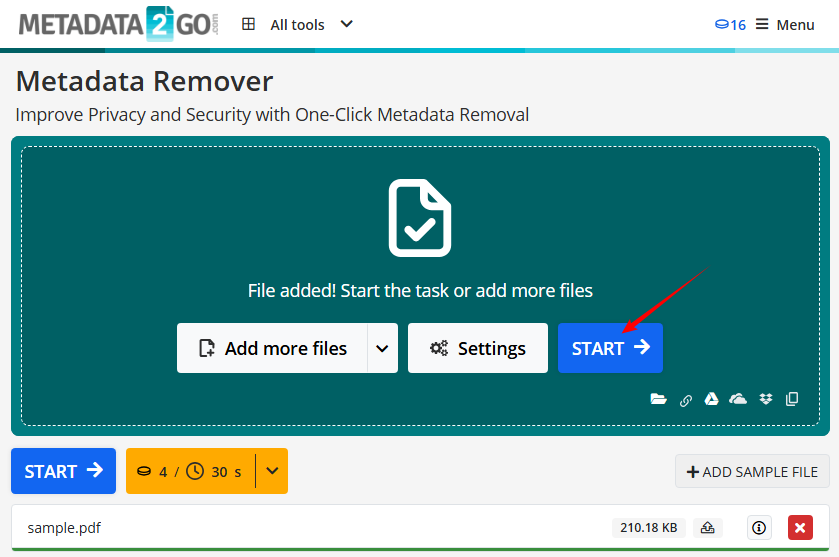
- Navigate to Metadata2Go Metadata Remover Tool.
- Click “Choose file” or drag & drop to upload your PDF.
- Click “Start” or equivalent button to erase metadata from PDF.
- Download the cleaned PDF.
✔ Pros: Free, no installation required, easy to use.
✘ Cons: Not recommended for highly sensitive files (use desktop apps for privacy).
For direct control over visible metadata fields, you can edit PDF metadata to modify title, author, subject, and keywords.
Method 2: Built-in Desktop Metadata Cleaner Tools
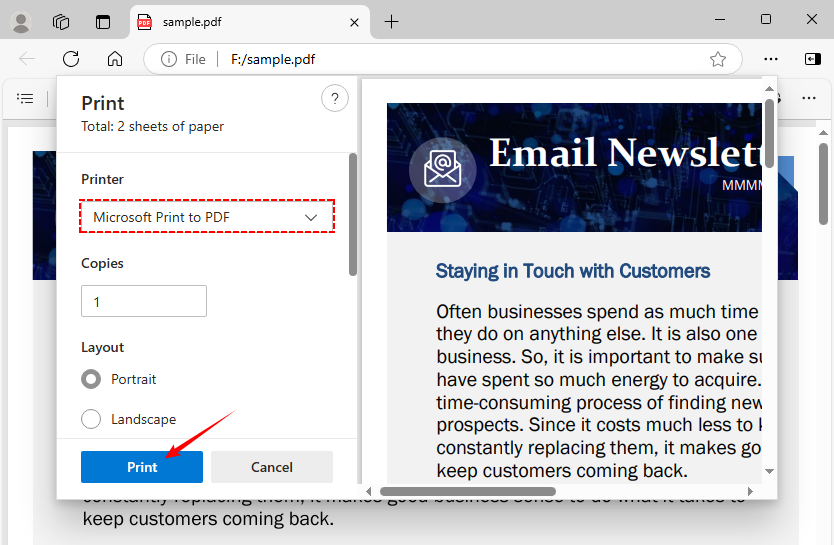
For Windows users, use the Print to PDF feature to remove metadata without installing any new software. This method works by "flattening" the file and discarding the original metadata.
- Open the PDF in any reader (Edge, Chrome).
- Go to “File > Print”.
- Select “Microsoft Print to PDF”.
- Click “Print” and save the new file.
- For Mac: Open the PDF in Preview > Tools > Show Inspector > More Info (i) > Delete all text in metadata fields.
✔ Pros: Free, secure (file stays local), no third-party tools.
✘ Cons: The "Print to PDF" method can remove interactive elements like links. Manual deletion in Preview only removes basic fields, not deeper hidden data.
Method 3: Adobe Acrobat Remove Metadata
Adobe Acrobat Pro is the most thorough PDF properties remover tool, ideal for enterprise users, legal teams, or anyone needing a complete scrub of hidden data (not just basic metadata). It’s the gold standard for secure, professional document cleaning.
Step-by-step for full metadata removal:
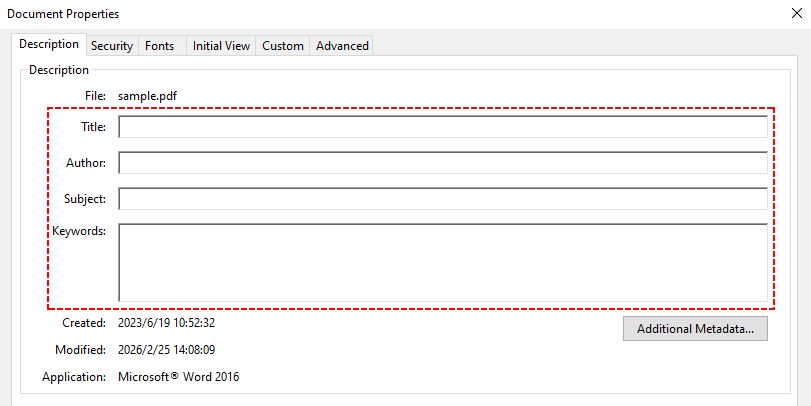
- Open the PDF in Acrobat Pro.
- Basic cleanup: Go to “File > Properties > Description” and manually delete all metadata from PDF (title, author, subject, keywords).
-
Thorough sanitization (recommended for sensitive files):
- Go to “Tools > Redact”.
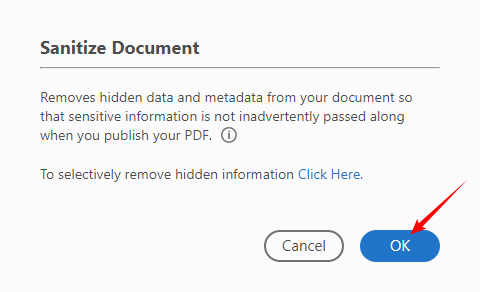
- Click “Sanitize Document” in the Redact toolbar.
- In the Sanitize Document dialog, click “OK” to remove all metadata and hidden information
✔ Pros: Complete cleanup, batch processing support, enterprise-grade security.
✘ Cons: Requires a paid subscription.
Pro Tip: To clean metadata from interactive elements, you can flatten PDF form fields to delete editable form data and its associated metadata.
Method 4: Command Line Tools to Clean PDF Metadata
For tech users, command-line tools like ExifTool offer a powerful way to remove metadata, especially for batch processing. It is a cross-platform Perl library for reading/writing/editing metadata in all file formats (including PDFs).
- Download ExifTool and unzip it.
- Open Command Prompt (Windows) or Terminal (Mac/Linux).
- Navigate to your PDF folder.
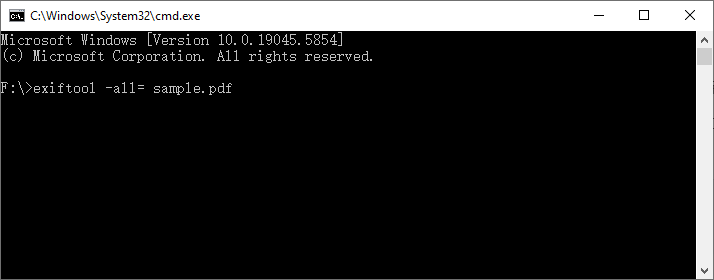
- Run the ExifTool command to remove all metadata from PDF**:**
exiftool -all= your-file.pdf
(This command creates a backup of the original file. You can add -overwrite_original to prevent this.)
✔ Pros: Free, batch processing, works on any platform.
✘ Cons: Requires basic command-line knowledge; not intuitive for casual users.
Method 5: Automate PDF Metadata Removal in C#
If you’re a .NET developer building custom PDF processing workflows (e.g., for your app, business tool, or internal systems), Free Spire.PDF for .NET is a powerful free library that lets you integrate metadata removal directly into your C#/VB.NET code. It’s ideal for developers needing to automate PDF metadata cleaning at scale.
C# Code Example: Remove PDF Metadata
This complete C# example loads a PDF, clears all metadata fields (author, title, creator, etc.), and saves the cleaned file:
using Spire.Pdf;

namespace PDFProperties
{
    class Properties
    {
        static void Main(string[] args)
        {
            // 1. Load a sample PDF document
            PdfDocument pdf = new PdfDocument();
            pdf.LoadFromFile("sample.pdf");

            // 2. Access document metadata
            PdfDocumentInformation docInfo = pdf.DocumentInformation;

            // 3. Clear core metadata fields
            docInfo.Author = string.Empty;
            docInfo.Creator = string.Empty;
            docInfo.Title = string.Empty;
            docInfo.Subject = string.Empty;
            docInfo.Keywords = string.Empty;
            docInfo.Producer = string.Empty;

            // 4. Save the cleaned PDF
            pdf.SaveToFile("ClearMetadata.pdf");
            pdf.Close();
        }
    }
}
The PdfDocumentInformation class holds the metadata of a PDF document. By assigning blank strings to its core properties, the PDF metadata can be removed effectively. For complete privacy protection, it is equally important to remove PDF attachments, since embedded files often carry extra metadata that basic metadata removal may not delete.
✔ Pros: Integrate with .NET workflows, supports batch processing, no reliance on third-party tools/APIs.
✘ Cons: Requires basic C#/.NET programming knowledge; 10-page limit in the free version.
Final Thoughts
Removing metadata from PDF is a simple but critical step to protect your privacy and professionalism. Whether you need a quick online tool, a secure desktop method, batch processing, or a programmable solution for development, there’s an option tailored to your needs.
Choose the approach that matches your technical comfort and security requirements, and make metadata removal a standard step before sharing PDFs to prevent accidental data leaks.
FAQ About Removing PDF Metadata
Q: Does removing metadata break the PDF?
A: No. Metadata is separate from the visible content. Removing it does not alter the text, images, or layout of your document.
Q: Can I remove metadata from a password-protected PDF?
A: You must unlock the PDF first to edit or delete metadata (Spire.PDF also requires unlocking before metadata edits).
Q: Which method is best for batch removing metadata from PDF?
A: For bulk processing, use ExifTool (command line) (free for all users) or Free Spire.PDF for .NET (for developers building automated workflows). Adobe Acrobat Pro also supports bulk sanitization for paid subscribers.
Q: Will removing metadata affect PDF form fields or signatures?
A: Yes, in some cases. Stripping metadata—especially using "Print to PDF" methods—can flatten forms and break interactive fields or digital signatures. For documents with fillable forms or digital signatures, use dedicated tools like Adobe Acrobat's Sanitize feature or Spire.PDF programmatically to preserve functionality.