
Watermarks are widely used in Excel files to indicate document status or ownership, such as Confidential, Draft, Sample, or a company logo. They are especially useful when sharing reports internally or distributing files to external stakeholders.
Unlike Microsoft Word, Excel does not provide a dedicated “Watermark” feature. However, there are several practical ways to achieve the same effect using built-in tools or programmatic solutions.
In this article, you’ll learn four easy and effective ways to add watermarks to Excel, ranging from manual techniques to automated watermarking using Python.
Method overview:
- Method 1: Add a Watermark Using Header & Footer
- Method 2: Insert a Background Image as a Watermark
- Method 3: Insert WordArt or Shapes as a Watermark
- Method 4: Add Watermarks to Excel Programmatically Using Python
Method 1: Add a Watermark Using Header & Footer
Using the Header & Footer feature is the most widely accepted way to add a watermark in Excel, particularly for documents that will be printed or exported as PDFs.
Because the watermark is placed outside the worksheet grid, it does not interfere with cell content while remaining consistent across pages.
This method works well for adding logos or “draft” images to formal reports and official documents.
Steps
-
Open your Excel file.
-
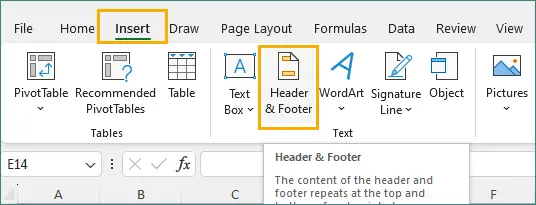
Go to Insert → Header & Footer.
-
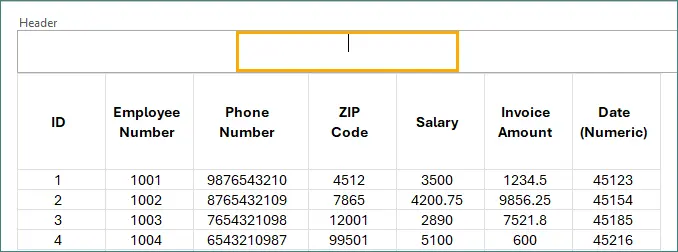
Click the center section of the header.
-
Click Picture under Header & Footer section to insert an image watermark, or type text directly.
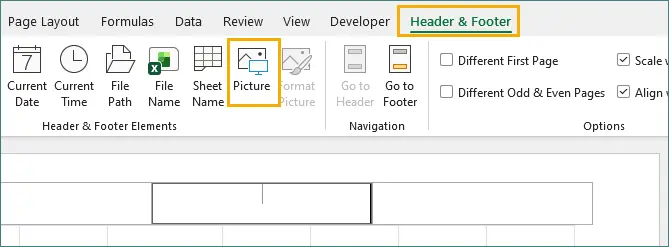
Note: An image watermark is recommended, as header text often makes it difficult to achieve an effective watermark appearance.
-
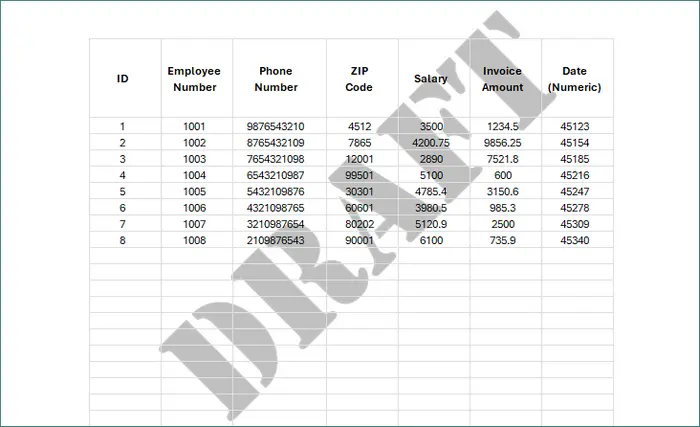
Tap anywhere outside the header to see the watermark.
Pros
- Printable.
- Clean and professional appearance.
- Suitable for logos and document labels.
Cons
- Not visible in Normal view.
- Limited formatting flexibility.
Best Use Case
This method is best suited for formal or shareable Excel documents where the watermark needs to appear in print, Print Preview, or exported PDFs without interfering with worksheet data.
Method 2: Insert a Background Image as a Watermark
Excel allows you to insert an image as a worksheet background, which can serve as a watermark. This watermark remains visible in Normal view, making it useful for on-screen review, internal sharing, or template files.
However, background images are designed purely for visual reference and will not appear when printing or exporting to PDF.
Steps
-
Open your Excel file.
-
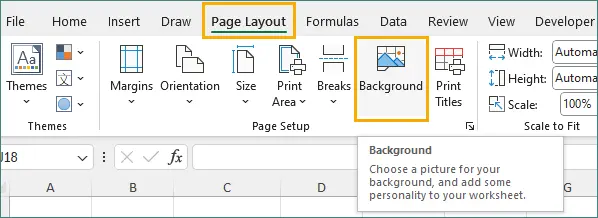
Go to Page Layout → Background.
-
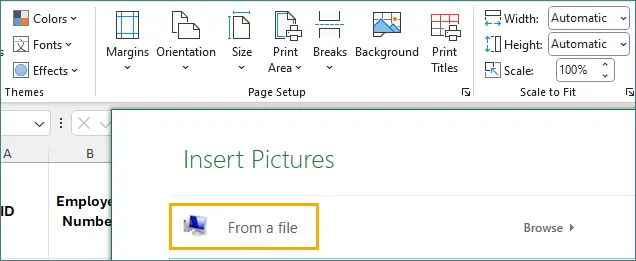
Select an image file.
-
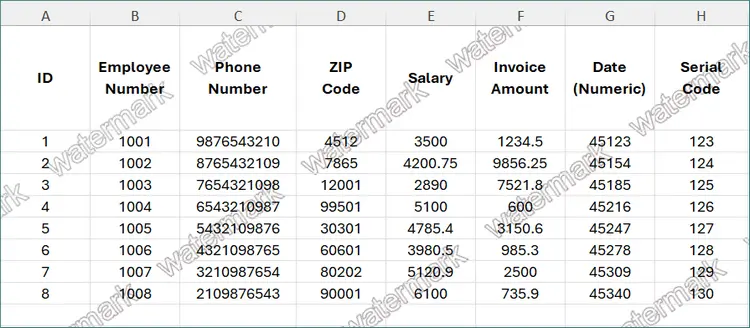
The image will repeat across the worksheet.
Pros
- Visible in Normal view.
- Simple to apply.
- Applies to the entire worksheet.
Cons
- Not printable.
- Limited customization.
Best Use Case
This method is best suited for internal documents or working templates where visibility during editing is more important than print output.
Method 3: Insert WordArt or Shapes as a Watermark
Inserting a WordArt, Text Box, or Shape provides the most control over a watermark’s appearance.
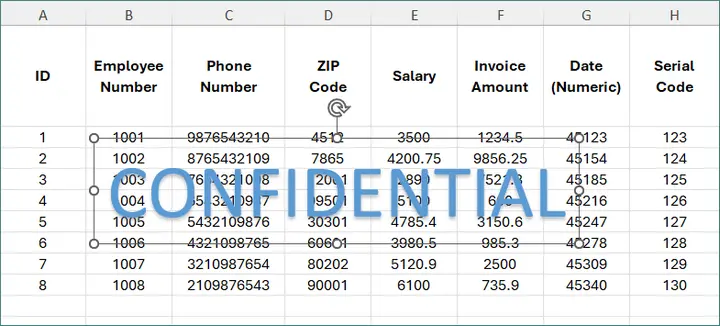
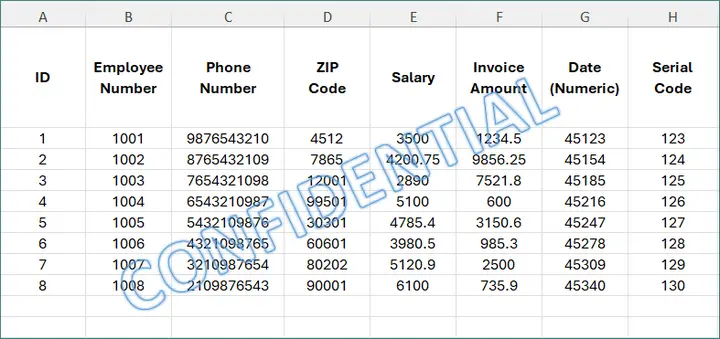
Because the watermark is a regular worksheet object, it remains visible in Normal view and can be freely resized, rotated, and styled.
This approach is ideal when you need custom text-based watermarks or different watermark styles on individual sheets.
Steps
-
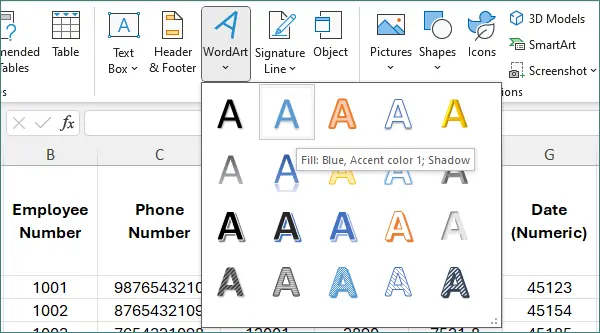
Go to Insert → WordArt.

-
Select a predefined style from the drop-down menu.
-
Enter the watermark text (for example, “CONFIDENTIAL”).
-
Rotate the shape and adjust the appearance (size, color, or style) of text as needed.
Pros
- Fully customizable.
- Visible in Normal view.
- Easy to edit or remove.
Cons
- May move when rows or columns are resized.
- Requires manual setup per worksheet.
Best Use Case
This method is best suited for on-screen review scenarios where the watermark must remain visible in Normal view and where flexible text styling or sheet-specific labeling is required.
Method 4: Add Watermarks to Excel Programmatically Using Python
When watermarking needs to be applied repeatedly or across multiple files, programmatic automation is the most efficient approach.
Using Spire.XLS for Python, you can add watermarks programmatically in the same ways as the manual methods described earlier, including header/footer watermarks, background image watermarks, and shape-based watermarks.
This ensures consistent results while reducing manual effort, especially in report generation or document distribution workflows.
Example: Add an Image Watermark via Header & Footer
The following example adds an image watermark to the center header of every worksheet. This method is equivalent to Method 1 and produces a watermark that appears in Page Layout view, Print Preview, and exported PDFs.
from spire.xls import *
from spire.xls.common import *

# Create a Workbook object
workbook = Workbook()

# Load an Excel document
workbook.LoadFromFile("C:\\Users\\Administrator\\Desktop\\Input.xlsx")

# Load the watermark image
stream = Stream("C:\\Users\\Administrator\\Desktop\\confidential.png")

# Apply the watermark to all worksheets
for i in range(workbook.Worksheets.Count):
    worksheet = workbook.Worksheets[i]
    worksheet.PageSetup.CenterHeader = "&G"
    worksheet.PageSetup.CenterHeaderImage = stream

# Save the result
workbook.SaveToFile("output/AddWatermark.xlsx", ExcelVersion.Version2016)

# Release resources
workbook.Dispose()
Typical Use Cases
- You need to watermark multiple Excel files or worksheets.
- Watermarks must be applied consistently and automatically.
- Excel files are generated as part of a reporting or export pipeline.
To explore additional Excel automation capabilities and API usage details, see the Spire.XLS Programming Guide. The guide covers practical examples that can help you extend watermarking logic and build more flexible Excel processing solutions.
Comparison of Watermark Methods
| Method | Printable | Visible in Normal View | Customizable | Automation |
|---|---|---|---|---|
| Header & Footer | ✔ | ✖ | Limited | ✔ |
| Background Image | ✖ | ✔ | ✖ | ✔ |
| WordArt / Shape | ✔ | ✔ | ✔ | Limited |
| Python Automation | ✔ / ✖ | ✔ / ✖ | Controlled | ✔✔ |
Final Thoughts
Although Excel does not provide a built-in watermark feature, it offers multiple reliable ways to achieve the same result. The best approach depends on how the file will be used and distributed.
- Use Header & Footer watermarks for professional documents that will be printed or exported to PDF.
- Use Background images or WordArt when watermark visibility during on-screen editing is the priority.
- Use Python automation with Spire.XLS when watermarks must be applied consistently across multiple files or as part of an automated workflow.
By choosing the method that matches your visibility and output requirements, you can add clear, effective watermarks to Excel without disrupting data readability or document structure.
FAQs About Adding Watermarks to Excel
Q1. Does Excel have a built-in watermark feature?
No. Excel does not offer a dedicated watermark button, but several effective alternatives are available.
Q2. Why doesn’t my watermark appear in Normal view?
Header and footer watermarks are only visible in Page Layout or Print Preview.
Q3. Can I add different watermarks to different sheets?
Yes. This can be done manually or programmatically by applying settings per worksheet.
Q4. What’s the best way to watermark Excel files in bulk?
Using Python automation with Spire.XLS is the most efficient and scalable approach.