Creating Excel files in Python is a common requirement in data-driven applications. When application data needs to be delivered in a format that business users can easily review and share, Excel remains one of the most practical and widely accepted choices.
In real projects, generating an Excel file with Python is often the starting point of an automated process. Data may come from databases, APIs, or internal services, and Python is responsible for turning that data into a structured Excel file that follows a consistent layout and naming convention.
This article shows how to create Excel files in Python, from generating a workbook from scratch, to writing data, applying basic formatting, and updating existing files when needed. All examples are presented from a practical perspective, focusing on how Excel files are created and used in real automation scenarios.
Table of Contents
- Typical Scenarios for Creating Excel Files in Python
- Environment Setup
- Creating a New Excel File from Scratch in Python
- Writing Structured Data to an XLSX File Using Python
- Formatting Excel Data for Real-World Reports in Python
- Reading and Updating Existing Excel Files in Python
- Combining Read and Write Operations in a Single Workflow
- Choosing the Right Python Approach for Excel File Creation
- Common Issues and Solutions
- Frequently Asked Questions
1. Typical Scenarios for Creating Excel Files with Python
Creating Excel files with Python usually happens as part of a larger system rather than a standalone task. Common scenarios include:
- Generating daily, weekly, or monthly business reports
- Exporting database query results for analysis or auditing
- Producing Excel files from backend services or batch jobs
- Automating data exchange between internal systems or external partners
In these situations, Python is often used to generate Excel files automatically, helping teams reduce manual effort while ensuring data consistency and repeatability.
2. Environment Setup: Preparing to Create Excel Files in Python
In this tutorial, we use Free Spire.XLS for Python to demonstrate Excel file operations. Before generating Excel files with Python, ensure that the development environment is ready.
Python Version
Any modern Python 3.x version is sufficient for Excel automation tasks.
Free Spire.XLS for Python can be installed via pip:
pip install spire.xls.freeYou can also download Free Spire.XLS for Python and include it in your project manually.
The library works independently of Microsoft Excel, which makes it suitable for server environments, scheduled jobs, and automated workflows where Excel is not installed.
3. Creating a New Excel File from Scratch in Python
This section focuses on creating an Excel file from scratch using Python. The goal is to define a basic workbook structure, including worksheets and header rows, before any data is written.
By generating the initial layout programmatically, you can ensure that all output files share the same structure and are ready for later data population.
Example: Creating a Blank Excel Template
from spire.xls import Workbook, FileFormat

# Initialize a new workbook
workbook = Workbook()

# Access the default worksheet
sheet = workbook.Worksheets[0]
sheet.Name = "Template"

# Add a placeholder title
sheet.Range["B2"].Text = "Monthly Report Template"

# Save the Excel file
workbook.SaveToFile("template.xlsx", FileFormat.Version2016)
workbook.Dispose()
The preview of the template file:
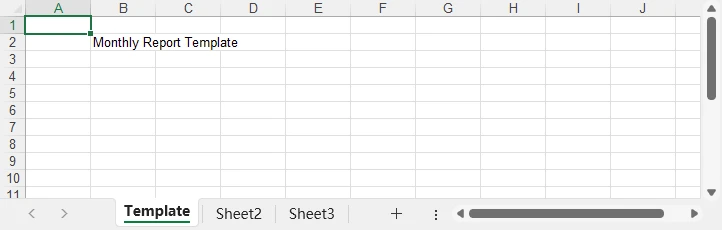
In this example:
- Workbook() creates a new Excel workbook that already contains three default worksheets.
- The first worksheet is accessed via Worksheets[0] and renamed to define the basic structure.
- The Range[].Text property writes text to a specific cell, allowing you to set titles or placeholders before real data is added.
- The SaveToFile() method saves the workbook to an Excel file. And FileFormat.Version2016 specifies the Excel version or format to use.
Creating Excel Files with Multiple Worksheets in Python
In Python-based Excel generation, a single workbook can contain multiple worksheets to organize related data logically. Each worksheet can store a different data set, summary, or processing result within the same file.
The following example shows how to create an Excel file with multiple worksheets and write data to each one.
from spire.xls import Workbook, FileFormat

workbook = Workbook()

# Default worksheet
data_sheet = workbook.Worksheets[0]
data_sheet.Name = "Raw Data"

# Remove the second default worksheet
workbook.Worksheets.RemoveAt(1)

# Add a summary worksheet
summary_sheet = workbook.Worksheets.Add("Summary")

summary_sheet.Range["A1"].Text = "Summary Report"

workbook.SaveToFile("multi_sheet_report.xlsx", FileFormat.Version2016)
workbook.Dispose()
This pattern is commonly combined with read/write workflows, where raw data is imported into one worksheet and processed results are written to another.
Excel File Formats in Python Automation
When creating Excel files programmatically in Python, XLSX is the most commonly used format and is fully supported by modern versions of Microsoft Excel. It supports worksheets, formulas, styles, and is suitable for most automation scenarios.
In addition to XLSX, Spire.XLS for Python supports generating several common Excel formats, including:
- XLSX – the default format for modern Excel automation
- XLS – legacy Excel format for compatibility with older systems
- CSV – plain-text format often used for data exchange and imports
In this article, all examples use the XLSX format, which is recommended for report generation, structured data exports, and template-based Excel files. You can check the FileFormat enumeration for a complete list of supported formats.
4. Writing Structured Data to an XLSX File Using Python
In real applications, data written to Excel rarely comes from hard-coded lists. It is more commonly generated from database queries, API responses, or intermediate processing results.
A typical pattern is to treat Excel as the final delivery format for already-structured data.
Python Example: Generating a Monthly Sales Report from Application Data
Assume your application has already produced a list of sales records, where each record contains product information and calculated totals. In this example, sales data is represented as a list of dictionaries, simulating records returned from an application or service layer.
from spire.xls import Workbook

workbook = Workbook()
sheet = workbook.Worksheets[0]
sheet.Name = "Sales Report"

headers = ["Product", "Quantity", "Unit Price", "Total Amount"]
for col, header in enumerate(headers, start=1):
    sheet.Range[1, col].Text = header

# Data typically comes from a database or service layer
sales_data = [
    {"product": "Laptop", "qty": 15, "price": 1200},
    {"product": "Monitor", "qty": 30, "price": 250},
    {"product": "Keyboard", "qty": 50, "price": 40},
    {"product": "Mouse", "qty": 80, "price": 20},
    {"product": "Headset", "qty": 100, "price": 10}
]

row = 2
for item in sales_data:
    sheet.Range[row, 1].Text = item["product"]
    sheet.Range[row, 2].NumberValue = item["qty"]
    sheet.Range[row, 3].NumberValue = item["price"]
    sheet.Range[row, 4].NumberValue = item["qty"] * item["price"]
    row += 1

workbook.SaveToFile("monthly_sales_report.xlsx")
workbook.Dispose()
The preview of the monthly sales report:

In this example, text values such as product names are written using the CellRange.Text property, while numeric fields use CellRange.NumberValue. This ensures that quantities and prices are stored as numbers in Excel, allowing proper calculation, sorting, and formatting.
This approach scales naturally as the dataset grows and keeps business logic separate from Excel output logic. For more Excel writing examples, please refer to the How to Automate Excel Writing in Python.
5. Formatting Excel Data for Real-World Reports in Python
In real-world reporting, Excel files are often delivered directly to stakeholders. Raw data without formatting can be difficult to read or interpret.
Common formatting tasks include:
- Making header rows visually distinct
- Applying background colors or borders
- Formatting numbers and currencies
- Automatically adjusting column widths
The following example demonstrates how these common formatting operations can be applied together to improve the overall readability of a generated Excel report.
Python Example: Improving Excel Report Readability
from spire.xls import Workbook, Color, LineStyleType

# Load the created Excel file
workbook = Workbook()
workbook.LoadFromFile("monthly_sales_report.xlsx")

# Get the first worksheet
sheet = workbook.Worksheets[0]

# Format header row
header_range = sheet.Range.Rows[0] # Get the first used row
header_range.Style.Font.IsBold = True
header_range.Style.Color = Color.get_LightBlue()

# Apply currency format
sheet.Range["C2:D6"].NumberFormat = "$#,##0.00"

# Format data rows
for i in range(1, sheet.Range.Rows.Count):
    if i % 2 == 0:
        row_range = sheet.Range[i, 1, i, sheet.Range.Columns.Count]
        row_range.Style.Color = Color.get_LightGreen()
    else:
        row_range = sheet.Range[i, 1, i, sheet.Range.Columns.Count]
        row_range.Style.Color = Color.get_LightYellow()

# Add borders to data rows
sheet.Range["A2:D6"].BorderAround(LineStyleType.Medium, Color.get_LightBlue())

# Auto-fit column widths
sheet.AllocatedRange.AutoFitColumns()

# Save the formatted Excel file
workbook.SaveToFile("monthly_sales_report_formatted.xlsx")
workbook.Dispose()
The preview of the formatted monthly sales report:

While formatting is not strictly required for data correctness, it is often expected in business reports that are shared or archived. Check How to Format Excel Worksheets with Python for more advanced formatting techniques.
6. Reading and Updating Existing Excel Files in Python Automation
Updating an existing Excel file usually involves locating the correct row before writing new values. Instead of updating a fixed cell, automation scripts often scan rows to find matching records and apply updates conditionally.
Python Example: Updating an Excel File
from spire.xls import Workbook

workbook = Workbook()
workbook.LoadFromFile("monthly_sales_report.xlsx")
sheet = workbook.Worksheets[0]

# Locate the target row by product name
for row in range(2, sheet.LastRow + 1):
    product_name = sheet.Range[row, 1].Text
    if product_name == "Laptop":
        sheet.Range[row, 5].Text = "Reviewed"
        break

sheet.Range["E1"].Text = "Status"

workbook.SaveToFile("monthly_sales_report_updated.xlsx")
workbook.Dispose()
The preview of the updated monthly sales report:

7. Combining Read and Write Operations in a Single Workflow
When working with imported Excel files, raw data is often not immediately suitable for reporting or further analysis. Common issues include duplicated records, inconsistent values, or incomplete rows.
This section demonstrates how to read existing Excel data, normalize it, and write the processed result to a new file using Python.
In real-world automation systems, Excel files are often used as intermediate data carriers rather than final deliverables.
They may be imported from external platforms, manually edited by different teams, or generated by legacy systems before being processed further.
As a result, raw Excel data frequently contains issues such as:
- Multiple rows for the same business entity
- Inconsistent or non-numeric values
- Empty or incomplete records
- Data structures that are not suitable for reporting or analysis
A common requirement is to read unrefined Excel data, apply normalization rules in Python, and write the cleaned results into a new worksheet that downstream users can rely on.
Python Example: Normalizing and Aggregating Imported Sales Data
In this example, a raw sales Excel file contains multiple rows per product.
The goal is to generate a clean summary worksheet where each product appears only once, with its total sales amount calculated programmatically.
from spire.xls import Workbook, Color

workbook = Workbook()
workbook.LoadFromFile("raw_sales_data.xlsx")

source = workbook.Worksheets[0]
summary = workbook.Worksheets.Add("Summary")

# Define headers for the normalized output
summary.Range["A1"].Text = "Product"
summary.Range["B1"].Text = "Total Sales"

product_totals = {}

# Read raw data and aggregate values by product
for row in range(2, source.LastRow + 1):
    product = source.Range[row, 1].Text
    value = source.Range[row, 4].Value

    # Skip incomplete or invalid rows
    if not product or value is None:
        continue

    try:
        amount = float(value)
    except ValueError:
        continue

    if product not in product_totals:
        product_totals[product] = 0

    product_totals[product] += amount

# Write aggregated results to the summary worksheet
target_row = 2
for product, total in product_totals.items():
    summary.Range[target_row, 1].Text = product
    summary.Range[target_row, 2].NumberValue = total
    target_row += 1
# Create a total row
summary.Range[summary.LastRow, 1].Text = "Total"
summary.Range[summary.LastRow, 2].Formula = "=SUM(B2:B" + str(summary.LastRow - 1) + ")"

# Format the summary worksheet
summary.Range.Style.Font.FontName = "Arial"
summary.Range[1, 1, 1, summary.LastColumn].Style.Font.Size = 12
summary.Range[1, 1, 1, summary.LastColumn].Style.Font.IsBold = True
for row in range(2, summary.LastRow + 1):
    for column in range(1, summary.LastColumn + 1):
        summary.Range[row, column].Style.Font.Size = 10
summary.Range[summary.LastRow, 1, summary.LastRow, summary.LastColumn].Style.Color = Color.get_LightGray()
summary.Range.AutoFitColumns()

workbook.SaveToFile("normalized_sales_summary.xlsx")
workbook.Dispose()
The preview of the normalized sales summary:
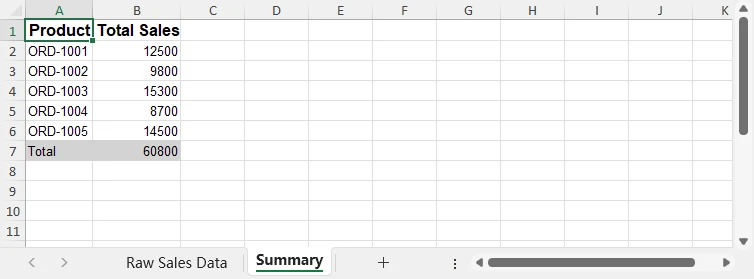
Python handles data validation, aggregation, and normalization logic, while Excel remains the final delivery format for business users—eliminating the need for manual cleanup or complex spreadsheet formulas.
Choosing the Right Python Approach for Excel File Creation
Python offers multiple ways to create Excel files, and the best approach depends on how Excel is used in your workflow.
Free Spire.XLS for Python is particularly well-suited for scenarios where:
- Excel files are generated or updated without Microsoft Excel installed
- Files are produced by backend services, batch jobs, or scheduled tasks
- You need precise control over worksheet structure, formatting, and formulas
- Excel is used as a delivery or interchange format, not as an interactive analysis tool
For data exploration or statistical analysis, Python users may rely on other libraries upstream, while using Excel generation libraries like Free Spire.XLS for producing structured, presentation-ready files at the final stage.
This separation keeps data processing logic in Python and presentation logic in Excel, improving maintainability and reliability.
For more detailed guidance and examples, see the Spire.XLS for Python Tutorial.
8. Common Issues When Creating and Writing Excel Files in Python
When automating Excel generation, several practical issues are frequently encountered.
-
File path and permission errors
Always verify that the target directory exists and that the process has write access before saving files.
-
Unexpected data types
Explicitly control whether values are written as text or numbers to avoid calculation errors in Excel.
-
Accidental file overwrites
Use timestamped filenames or output directories to prevent overwriting existing reports.
-
Large datasets
When handling large volumes of data, write rows sequentially and avoid unnecessary formatting operations inside loops.
Addressing these issues early helps ensure Excel automation remains reliable as data size and complexity grow.
9. Conclusion
Creating Excel files in Python is a practical solution for automating reporting, data export, and document updates in real business environments. By combining file creation, structured data writing, formatting, and update workflows, Excel automation can move beyond one-off scripts and become part of a stable system.
Spire.XLS for Python provides a reliable way to implement these operations in environments where automation, consistency, and maintainability are essential. You can apply a temporary license to unlock the full potential of Python automation in Excel file processing.
FAQ: Creating Excel Files in Python
Can Python create Excel files without Microsoft Excel installed?
Yes. Libraries such as Spire.XLS for Python operate independently of Microsoft Excel, making them suitable for servers, cloud environments, and automated workflows.
Is Python suitable for generating large Excel files?
Python can generate large Excel files effectively, provided that data is written sequentially and unnecessary formatting operations inside loops are avoided.
How can I prevent overwriting existing Excel files?
A common approach is to use timestamped filenames or dedicated output directories when saving generated Excel reports.
Can Python update Excel files created by other systems?
Yes. Python can read, modify, and extend Excel files created by other applications, as long as the file format is supported.