Excel is a powerful tool for managing and analyzing data, but sharing spreadsheets in blogs, documentation, or cross-platform note-taking apps often causes formatting issues and compatibility problems. Converting Excel to Markdown preserves table structure, making your data lightweight, readable, and easy to share across platforms.
In this guide, we'll walk you through 4 practical ways to convert Excel to Markdown, including online tools, editor plugins or extensions, and Python automation. Whether you're a student, blogger, or developer, you'll find the method that fits your workflow.
Why Convert Excel to Markdown?
Converting Excel to Markdown is especially useful when you need to publish or share structured data in a clean, readable format—without relying on spreadsheet files.
Here are some common scenarios where this conversion makes sense:
- Writing technical blogs: Convert Excel tables into Markdown to embed clean, formatted tables directly into blog posts without screenshots or file downloads.
- Creating GitHub README files: Markdown tables work natively on GitHub, making it easier to present datasets, comparisons, or configurations.
- Maintaining documentation: Use Markdown tables in documentation systems or knowledge bases for consistent formatting across platforms.
- Working with version control: Markdown files can be tracked in Git, allowing teams to monitor data changes over time.
- Sharing lightweight data: Markdown is plain text, which makes it easier to share, edit, and reuse compared to Excel files.
Can You Convert Excel to Markdown Directly?
No, Microsoft Excel does not provide a built-in option to export data as Markdown format. This is because Markdown tables use a plain-text structure based on pipes (|) and separator rows, while Excel stores data in a structured spreadsheet format.
To convert Excel to Markdown, you can use one of the following methods:
- Convert Excel to Markdown Online Quickly (No Installation)
- Use Obsidian Excel to Markdown Table Plugin
- Convert Excel to Markdown in VS Code with Extensions
- Automate Excel to Markdown Conversion with Python
Now, let's break down each method step-by-step.
Method 1: Convert Excel to Markdown Online Quickly (No Installation)
One of the fastest methods to convert Excel to Markdown is to use online converters. These tools work across any platform (Windows, Mac, Linux), require no installation, and are ideal for users who want a quick, browser-based solution.
Popular Online Free Excel to Markdown Converters:
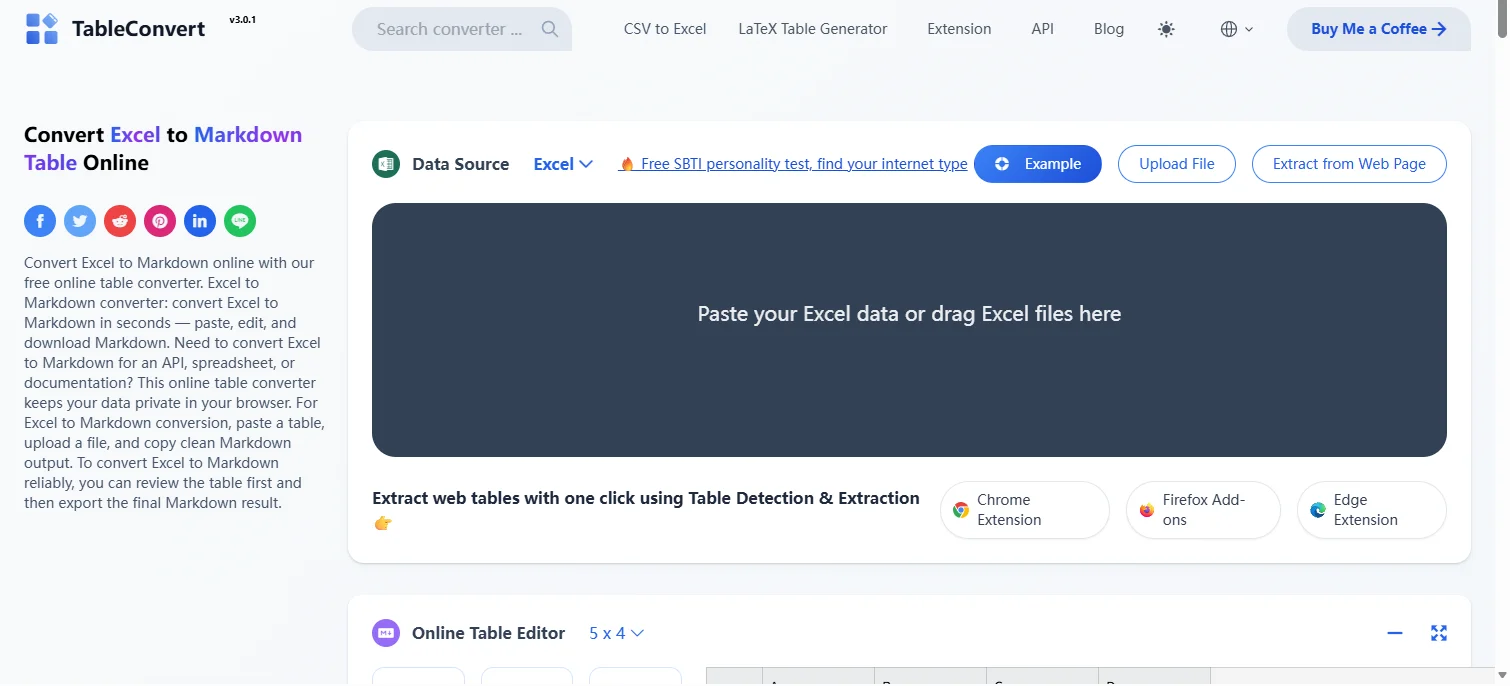
- TableConvert: Supports uploading .xlsx files or pasting Excel data, with a built-in editor for preview and edits.
- Table to Markdown: A simple interface where you paste copied Excel tables to generate a formatted Markdown table.
- CloudxDocs: Useful for converting entire Excel files into downloadable Markdown files.
Steps to Convert Excel to Markdown Online:
-
Go to the website of your chosen online converter, like TableConvert.
-
Drag your .xlsx file or paste your Excel data into the designated area.
-
Select Markdown as the output format. The tool will automatically convert your Excel file or data.
-
Copy the generated Markdown code and paste it into your Markdown file.
After conversion, your Excel data will appear as a Markdown table like this:
| Product | Price | Stock |
|---------|-------|-------|
| Apple | 1.2 | 50 |
| Orange | 0.8 | 100 |
Tip: Some online tools may have file size or table length limits. If necessary, you can split Excel sheets into smaller parts before uploading.
Security Warning: Online Excel to Markdown tools require uploading your data to third-party servers. Avoid using them for sensitive or confidential data—consider using an offline method instead.
When to Use: Suitable for quick, one-off conversions, especially for small tables or when no installation is preferred.
If you need to convert Markdown back to Excel, see our guide on how to convert Markdown to Excel.
Method 2: Use Obsidian Excel to Markdown Table Plugin
Obsidian is a free, cross-platform (Windows, macOS, and Linux) Markdown note-taking app. With its community plugin Excel to Markdown Table, you can quickly convert and paste Excel data as standard Markdown tables for seamless integration into your notes.
Step-by-Step Guide:
-
Download and install Obsidian from the official website for your operating system (Windows, Mac, or Linux).
-
Install the Excel to Markdown Table plugin:
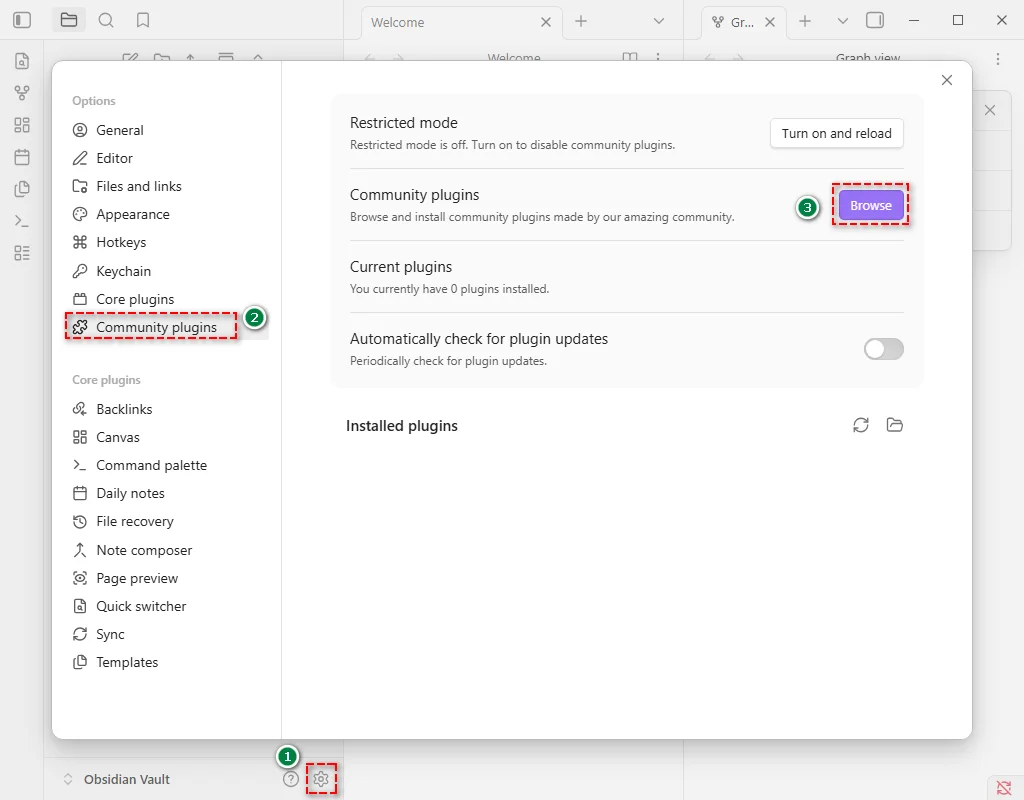
- Open Obsidian and go to Settings > Community Plugins > Browse.
- Search for Excel to Markdown Table.
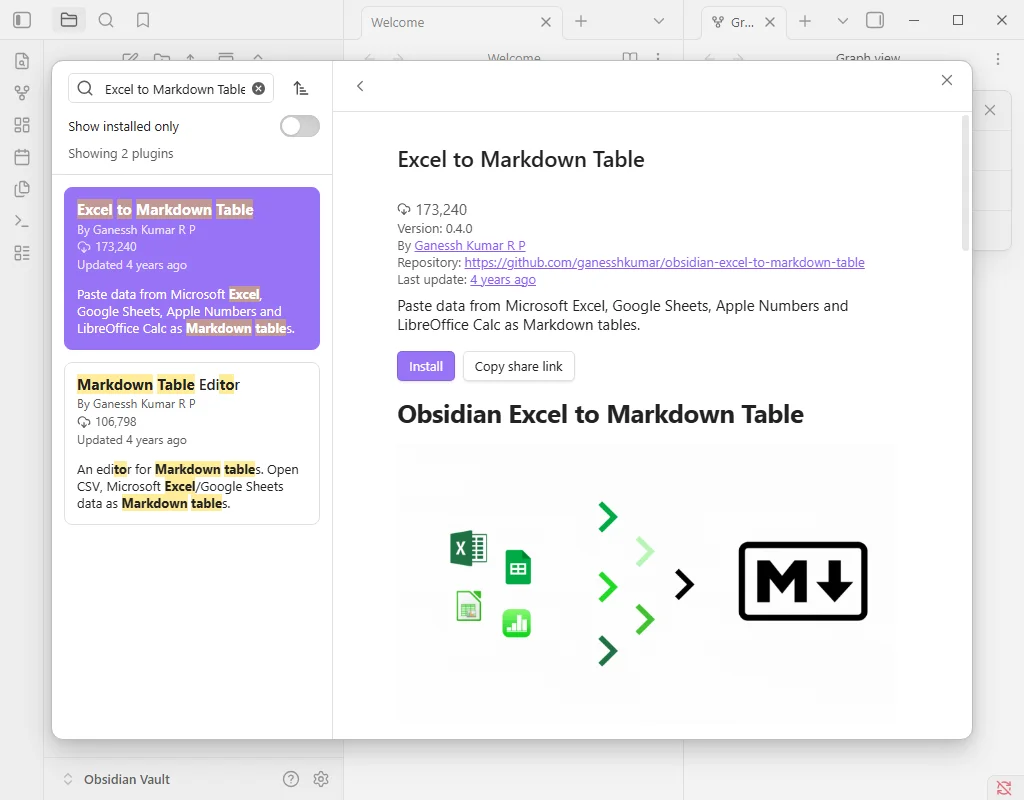
- Click Install and then Enable.
-
Copy your Excel table using Ctrl+C (Windows) or Cmd+C (Mac).
-
Paste into your Obsidian note using Ctrl+V (Windows) or Cmd+V (Mac). The plugin will automatically format it as a Markdown table.
-
Adjust alignment or formatting in Obsidian if needed.
Tips and Notes:
- This plugin focuses on converting table structures. It may not perfectly carry over complex formatting within Excel cells (like bold or italic). After conversion, verify and make manual adjustments if needed.
- Keep the plugin updated via the Obsidian community plugins directory for best performance and security.
When to Use: Ideal for embedding Excel tables directly into Markdown notes for blogs, documentation, or knowledge bases.
Method 3: Convert Excel to Markdown in VS Code with Extensions
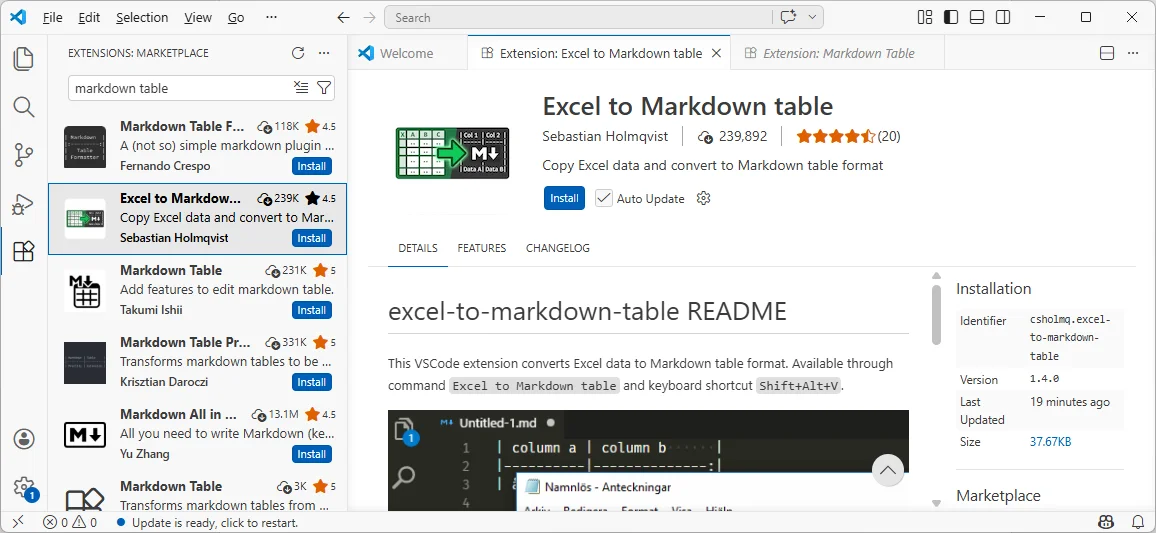
For developers or power users using Visual Studio Code (VS Code), the Excel to Markdown Table extension provides a fast and integrated way to convert Excel data into Markdown without leaving your development environment.
Step-by-Step Instructions:
-
Open VS Code, go to Extensions (Ctrl+Shift+X), search for Excel to Markdown Table, and click Install.
-
Copy the Excel data (Ctrl+C / Cmd+C).
-
Open your .md file in VS Code and press Shift + Alt + V to paste the table in Markdown format.
-
Optional: Adjust table alignment using header prefixes:
- ^l - left align
- ^c - center align
- ^r - right align
-
Copy or use the Markdown table as needed.
Tips:
- The extension handles Excel cell line breaks by automatically inserting <br> tags into the Markdown table.
- Manual tweaks may be needed if data formatting is inconsistent.
When to Use: Ideal for developers or power users working within VS Code who want a faster, integrated workflow.
Method 4: Automate Excel to Markdown Conversion with Python
For programmers and businesses who need a fast, efficient, and batch solution, Python automation provides a scalable solution for Excel to Markdown conversion. By using libraries like Spire.XLS for Python, you can quickly transform dozens or hundreds of Excel files into clean, structured Markdown tables while preserving formatting.
Why Spire.XLS for Python
Spire.XLS is a robust Python library that simplifies Excel automation and Markdown conversion:
- Preserves formatting: Maintains text styles and links during Excel to Markdown conversion.
- Supports multiple Excel formats: Handle .xls, .xlsx, and .xlsm files seamlessly.
- Create and write Excel files easily: Create new Excel files or modify existing ones programmatically.
- Cross-platform: Works on Windows, Mac, and Linux.
- Independence: Does not require Microsoft Excel to be installed on the machine.
Installation
To get started, install Spire.XLS for Python from PyPI by running the following command:
pip install spire.xls
Python Script for Batch Excel to Markdown Conversion
Here's a simple example of how to convert multiple Excel files to Markdown tables:
import os
from spire.xls import *

# Specify input and output folder paths
input_folder = "path/to/your/excel_folder"  # Replace with your folder containing Excel files
output_folder = "path/to/output_markdown"   # Replace with your desired output folder for Markdown files

# Get all the Excel files from the input folder
excel_files = [f for f in os.listdir(input_folder) if f.endswith('.xlsx')]

# Check if the output folder exists, if not, create it
if not os.path.exists(output_folder):
    os.makedirs(output_folder)

# Process each Excel file in the folder
for file in excel_files:
    input_file_path = os.path.join(input_folder, file)

    # Create a Workbook instance and load the Excel file
    workbook = Workbook()
    workbook.LoadFromFile(input_file_path)

    # Extract the file name without extension
    file_name_without_extension = os.path.splitext(file)[0]

    # Generate the output Markdown file path
    output_file_path = os.path.join(output_folder, f"{file_name_without_extension}.md")

    # Save the Excel file as a .md file
    workbook.SaveToMarkdown(output_file_path)

    # Dispose of the workbook object to release resources
    workbook.Dispose()
    print(f"Converted {file} to {output_file_path}")
This script scans all .xlsx files in the specified input folder and saves them as Markdown files in the output folder.
Tips for Customization
-
Customizing Markdown Rendering Options:
You can customize how the Markdown file is converted by adjusting rendering options like this:
# Create MarkdownOptions markdownOptions = MarkdownOptions() # Control how images are stored markdownOptions.SavePicInRelativePath = False # Control how hyperlinks are rendered markdownOptions.SaveHyperlinkAsRef = True # Save as Markdown workbook.SaveToMarkdown(output_file_path, markdownOptions) -
Processing .xls Files:
The script can be modified to process .xls files by simply adding a check for both .xlsx and .xls extensions:
excel_files = [f for f in os.listdir(input_folder) if f.endswith(('.xlsx', '.xls'))]
When to Use: Best for developers, data engineers, or teams needing automated batch processing of multiple Excel files.
Excel to Markdown Method Comparison
To help you choose the right method for converting Excel to Markdown, here's a quick comparison of the four approaches:
| Method | Best For | Speed | Customization | Skill Level |
|---|---|---|---|---|
| Online Tools | Quick, one-off conversions | Fast | Limited | Beginner |
| Obsidian Plugin | Notes & documentation | Medium | Medium | Beginner |
| VS Code Extension | Developer workflow | Fast | Medium | Intermediate |
| Python Automation | Batch processing | Very Fast | High | Advanced |
Recommendations:
- Need a quick, no-setup solution? Online tools are the fastest option.
- For note-taking workflows, Obsidian plugin provides a smooth and intuitive experience.
- Already working in a VS Code development environment? VS Code extensions reduce friction and improve efficiency.
- For large datasets or repetitive tasks, Python automation is the most scalable approach.
In most cases, developers and teams handling frequent conversions will benefit more from automation, while casual users can rely on simpler tools.
Troubleshooting Common Excel to Markdown Issues
Even though converting Excel to Markdown is usually straightforward, you may encounter some common problems. Here are practical solutions:
| Issue | Solution |
|---|---|
| One cell turns into multiple rows | Line breaks in Excel cells are treated as new rows in Markdown. Replace them with <br> tags before converting (find Ctrl+J, replace with <br>). |
| Data shifts after conversion (columns moved) | Merged cells in Excel break the table structure. Unmerge all cells first, then fill missing values so each row is complete. |
| Empty cells show as NaN | Some converters replace empty values with NaN. Use Find & Replace after conversion to remove or replace them with blanks. |
| Extra rows or columns appear unexpectedly | Hidden rows or columns in Excel are included. Unhide or delete them before conversion. |
Pro Tip: Always preview your Markdown table after conversion to check alignment and formatting.
Frequently Asked Questions about Excel to Markdown
Q1: Can I convert Excel to Markdown for free?
A1: Yes, online tools like TableConvert allow free Excel to Markdown conversion, though they may have limitations on file size or features.
Q2: Can I convert Excel formulas to Markdown?
A2: No, Markdown only supports static values. Formulas are converted to their calculated results.
Q3: Can I convert multiple Excel files at once?
A3: Yes, you can use Python with libraries like Spire.XLS to batch convert multiple Excel files efficiently.
Q4: Can I keep images when converting Excel to Markdown?
A4: Markdown uses image links instead of embedding Excel images directly.
Q5: What is the easiest way to convert Excel to Markdown?
A5: Using an online converter is the easiest method since it requires no installation.