Converting XML to XLSX is a common requirement in data processing, reporting workflows, and system integration tasks. XML remains one of the most commonly used formats for structured or semi-structured data, but Excel’s XLSX format is far more convenient for analysis, filtering, visualization, and sharing with non-technical users.
Although the basic idea of transforming XML files into XLSX files sounds simple, real-world XML files vary widely in structure. Some resemble clean database tables, while others contain deeply nested nodes, attributes, or mixed content.
This guide provides a detailed, practical explanation of how to convert XML to XLSX using online tools, Microsoft Excel, and Python automation. It also discusses how to handle complex scenarios such as large datasets, nested elements, optional fields, and reverse conversion from XLSX back to XML.
Methods Overview:
- Online XML to XLSX Converters
- Excel XML Import Features
- Convert XML to XLSX Using Python Automation
- Custom Scripts or APIs for Enterprise Workflows
1. Understanding XML to XLSX Conversion
XML (Extensible Markup Language) is a simple text format that stores data using tags, forming a tree-like structure where parent elements contain children, and information may appear as either elements or attributes. XLSX, by contrast, is strictly row-and-column based, so converting XML to XLSX means flattening this tree into a table while keeping the data meaningful.
For straightforward XML—for example, a file with repeated <item> nodes—each node naturally becomes a row and its children become columns. But real-world XML often contains:
- nested details
- nodes that appear only in some records
- data stored in attributes
- namespaces used in enterprise systems
Such variations require decisions on how to flatten the hierarchy. Some tools do this automatically, while others need manual mapping. This guide covers both simple and complex cases, including how to convert XML to XLSX without opening Excel, which is common in automated workflows.
2. Method 1: Convert XML to XLSX Online
Online XML-to-XLSX converters—such as Convertion Tools, AConvert, or DataConverter.io—are convenient when you need a quick transformation without installing software. The process is typically very simple:
-
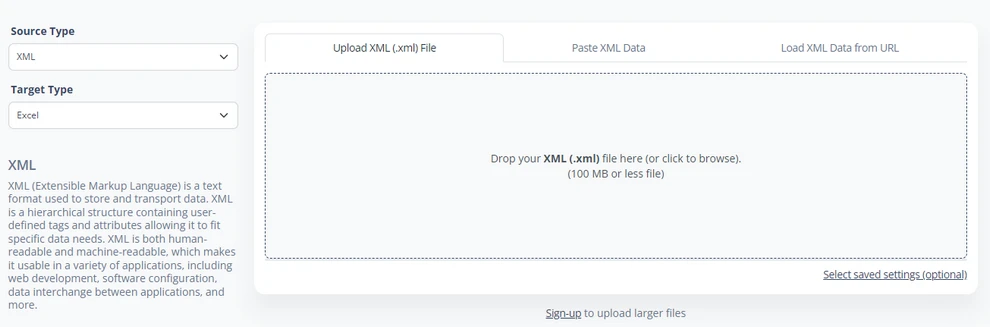
Visit a website that supports XML-to-XLSX conversion(such as DataConverter.io).
-
Upload your XML file or paste the XML string.
-
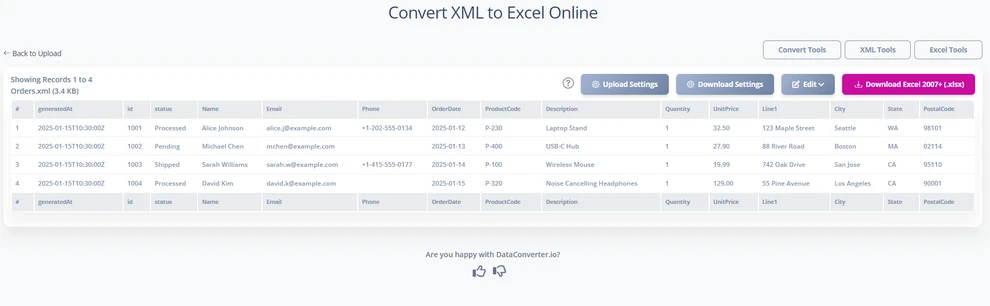
Some converter allow you to edit the mapping before conversion.
-
Click Download to download the generated .xlsx file.
This method works well for one-time tasks and for XML files with straightforward structures where automatic mapping is usually accurate.
Advantages
- Fast, no installation required.
- Suitable for simple or moderate XML structures.
- Ideal for one-time or occasional conversions.
Limitations
- Limited understanding of schemas, namespaces, and nested hierarchies.
- Deep XML may be flattened incorrectly, produce generic column names, or lose optional fields.
- Upload size limits and possible browser freezes with large files.
Despite these constraints, online tools remain a practical choice for quick, small-scale XML-to-XLSX conversions.
You may also like: How to Convert CSV to Excel Files.
3. Method 2: Convert XML to XLSX in Excel
Excel provides native support for XML import, and for many users, this is the most transparent and controllable method. When used properly, Excel can read XML structures, apply customizable mappings, and save the converted result directly as an XLSX file.
3.1 Opening XML Directly in Excel
When you open an XML file through File → Open, Excel attempts to infer a schema and convert the data into a table. The correct sequence for this method is:
-
Go to File → Open and select the XML file.
-
When prompted, choose “As an XML table”.

-
Excel loads the XML and automatically maps child nodes to columns.
This works well for “flat” XML structures, where each repeating element corresponds neatly to a row. However, hierarchical XML often causes issues: nested nodes may be expanded into repeated columns, or Excel may prompt you to define an XML table manually if it cannot determine a clear mapping.
This direct-open method remains useful when the XML resembles a database-style list of records and you need a fast way to inspect or work with the data.
3.2 Importing XML via Excel’s Data Tab
For structured XML files—especially those based on XSD schemas—Excel provides a more user-friendly import method through the Data tab. This approach gives you control over how XML elements are mapped to the worksheet without manually using the XML Source pane.
Steps:
-
Open an Excel workbook or create a new one.
-
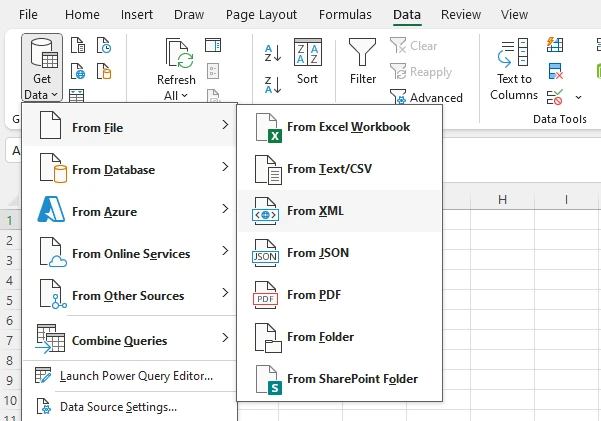
Go to Data → Get Data → From File → From XML.
-
Select your XML file and click Import.
-
Click Transform Data in the pop-up window.
-
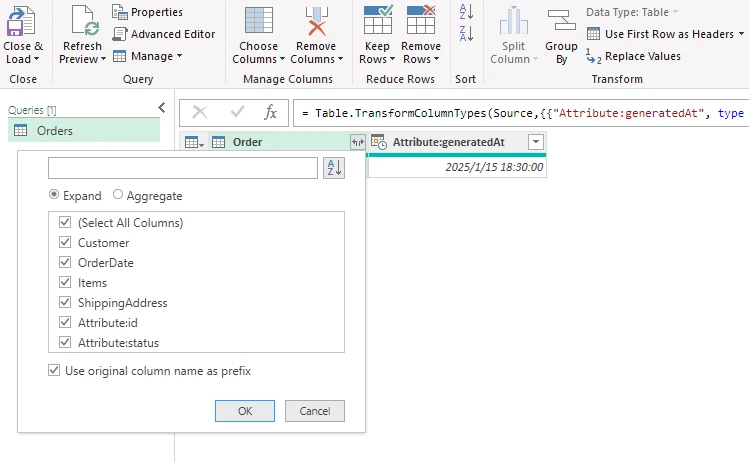
In the Power Query Editor window, select the elements or tables you want to load.
-
Click Close & Load to save the changes, and the converted data will appear in a new worksheet.
This method allows Excel to automatically interpret the XML structure and map it into a table. It works well for hierarchical XML because you can select which sections to load, keeping optional fields and relationships intact.
This approach is especially useful for:
- Importing government e-form data
- Working with ERP/CRM exported XML
- Handling industry-specific standards such as UBL or HL7
By using this workflow, you can efficiently control how XML data is represented in Excel while minimizing manual mapping steps.
3.3 Saving the Imported XML Data as an XLSX File
Once the XML data has been successfully imported—whether by directly opening the XML file or using Data → Get Data → From XML—the final step is simply saving the workbook in Excel’s native .xlsx format. At this stage, the data behaves like any other Excel table, meaning you can freely adjust column widths, apply filters, format cells, or add formulas.
To save the converted XML as an XLSX file:
- Go to File → Save As.
- Choose Excel Workbook (*.xlsx) as the file type.
- Specify a location and click Save.
Below is a preview of the Excel table imported from XML:
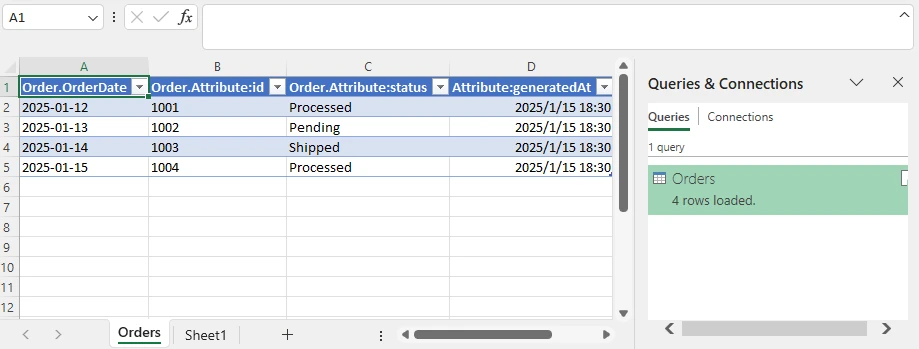
If the XML file is based on an XSD schema and the mapping is preserved, Excel can even export the modified worksheet back to XML. However, for deeply nested XML structures, some preprocessing or manual adjustments might still be required before export.
4. Method 3: Convert XML to XLSX Using Python
Python is an excellent choice for converting XML to XLSX when you require automation, large-scale processing, or the ability to perform XML to XLSX conversion without opening Excel. Python scripts can run on servers, schedule tasks, and handle hundreds or thousands of XML files consistently.
4.1 Parsing XML in Python
Parsing XML is the first step in the workflow. Python’s xml.etree.ElementTree or lxml libraries provide event-based or tree-based parsing. They allow you to walk through each node, extract attributes, handle namespaces, and process deeply nested data.
The main challenge is defining how each XML node maps to an Excel row. Most workflows use either:
- a predefined mapping (e.g., a “schema” defined in code), or
- an auto-flattening logic that recursively converts nodes into columns.
Core XML Parsing Example:
The following Python code demonstrates how to parse an XML file and flatten it into a list of dictionaries, which can be used to generate an XLSX file.
import xml.etree.ElementTree as ET

xml_file = "Orders.xml"

# Recursively flatten an XML element into a flat dictionary
def flatten(e, prefix=""):
    r = {}
    # Add attributes
    for k, v in e.attrib.items():
        r[prefix + k] = v
    # Add children
    for c in e:
        key = prefix + c.tag
        # Scalar node (no children, has text)
        if len(c) == 0 and c.text and c.text.strip():
            r[key] = c.text.strip()
        else:
            # Nested node → recurse
            r.update(flatten(c, key + "_"))
    return r

# Parse XML
root = ET.parse(xml_file).getroot()

# Flatten all <Order> elements
rows = [flatten(order) for order in root.iter("Order")]

# Collect headers
headers = sorted({k for row in rows for k in row})
This snippet illustrates how to recursively flatten XML nodes and attributes into a structure suitable for Excel. For complex XML, this ensures that no data is lost and that each node maps to the correct column.
4.2 Generating XLSX Files from Parsed XML
Once the XML is parsed and flattened, the next step is writing the data into an Excel .xlsx file. Python libraries such as Free Spire.XLS for Python enable full spreadsheet creation without needing Excel installed, which is ideal for Linux servers or cloud environments.
Install Free Spire.XLS for Python:
pip install spire.xls.free
Steps for generating XLSX:
- Create a new workbook.
- Write headers and rows from the flattened data.
- Optionally, apply styles for better readability.
- Save the workbook as
.xlsx.
Python Example:
This example demonstrates how to generate an XLSX file from the parsed XML data.
from spire.xls import Workbook, BuiltInStyles

xlsx_output = "output/XMLToExcel1.xlsx"

wb = Workbook()
ws = wb.Worksheets.get_Item(0)

# Header row
for col, h in enumerate(headers, 1):
    ws.Range.get_Item(1, col).Value = h

# Data rows
for row_idx, row in enumerate(rows, 2):
    for col_idx, h in enumerate(headers, 1):
        ws.Range.get_Item(row_idx, col_idx).Value = row.get(h, "")

# Apply styles (optional)
ws.AllocatedRange.Rows.get_Item(0).BuiltInStyle = BuiltInStyles.Heading2
for row in range(1, ws.AllocatedRange.Rows.Count):
    if row % 2 == 0:
        ws.AllocatedRange.Rows.get_Item(row).BuiltInStyle = BuiltInStyles.Accent2_20
    else:
        ws.AllocatedRange.Rows.get_Item(row).BuiltInStyle = BuiltInStyles.Accent2_40

# Save to XLSX
wb.SaveToFile(xlsx_output)
print("Done!")
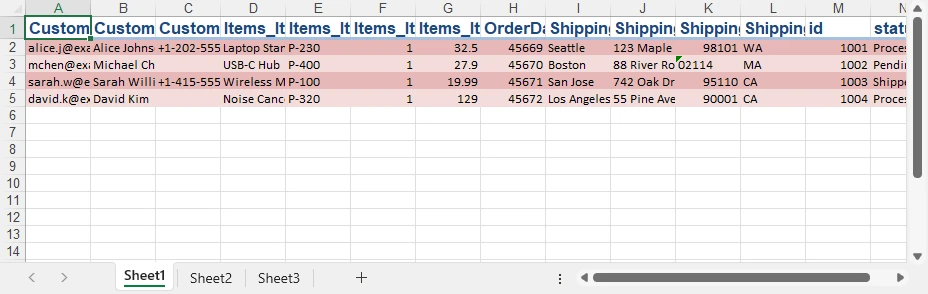
After running the script, each XML node is flattened into rows, with columns representing attributes and child elements. This approach supports multiple worksheets, custom column names, and integration with further data transformations.
Below is the preview of the generated XLSX file:
For more examples of writing different types of data to Excel files using Python, see our Python write data to Excel guide.
4.3 Handling Complex XML
Business XML often contains irregular patterns. Using Python, you can:
- recursively flatten nested elements
- promote attributes into normal columns
- skip irrelevant elements
- create multiple sheets for hierarchical sections
- handle missing or optional fields by assigning defaults
The example above shows a single XML file; the same logic can be extended to handle complex structures without data loss.
If you are working with Office Open XML (OOXML) files, you can also directly load them and save as XLSX files using Free Spire.XLS for Python. Check out How to Convert OOXML to XLSX conversion with Python.
4.4 Batch Conversion
Python’s strength becomes especially clear when converting large folders of XML files. A script can:
- scan directories,
- parse each file using the same flattening logic,
- generate consistent XLSX files automatically.
This eliminates manual work and ensures reliable, error-free conversion across projects or datasets.
The following snippet illustrates a simple approach for batch converting multiple XML files to XLSX.
import os

input_dir = "xml_folder"
output_dir = "xlsx_folder"

for file_name in os.listdir(input_dir):
    if file_name.endswith(".xml"):
        xml_path = os.path.join(input_dir, file_name)

        # Parse XML and generate XLSX (using previously defined logic)
        convert_xml_to_xlsx(xml_path, output_dir)
5. Method 4: Custom Scripts or APIs for Enterprise Workflows
While the previous methods are suitable for one-time or batch conversions, enterprise environments often require automated, standardized, and scalable solutions for XML to XLSX conversion. Many business XML formats follow industry standards, involve complex schemas with mandatory and optional fields, and are integrated into broader data pipelines.
In these cases, companies typically develop custom scripts or API-based workflows to handle conversions reliably. For example:
- ERP or CRM exports: Daily XML exports containing invoices or orders are automatically converted to XLSX and fed into reporting dashboards.
- ETL pipelines: XML data from multiple systems is validated, normalized, and converted during Extract-Transform-Load processes.
- Cloud integration: Scripts or APIs run on cloud platforms (AWS Lambda, Azure Functions) to process large-scale XML files without manual intervention.
Key benefits of this approach include:
- Ensuring schema compliance through XSD validation.
- Maintaining consistent mapping rules across multiple systems.
- Automating conversions as part of regular business processes.
- Integrating seamlessly with cloud services and workflow automation platforms.
This workflow is ideal for scenarios where XML conversion is a recurring task, part of an enterprise reporting system, or required for compliance with industry data standards.
Tools like Spire.XLS for Python can also be integrated into these workflows to generate XLSX files programmatically on servers or cloud functions, enabling reliable, Excel-free conversion within automated enterprise pipelines.
6. Troubleshooting XML to XLSX Conversion
Depending on the method you choose—online tools, Excel, or Python—different issues may arise during XML conversion. Understanding these common problems helps ensure that your final XLSX file is complete and accurate.
Deeply Nested or Irregular XML
Nested structures may be difficult to flatten into a single sheet.
- Excel may require manual mapping or splitting into multiple sheets.
- Python allows recursive flattening or creating multiple sheets programmatically.
Missing or Optional Elements
Not all XML nodes appear in every record. Ensure column consistency by using blank cells for missing fields, rather than skipping them, to avoid misaligned data.
Attributes vs. Elements
Decide which attributes should become columns and which can remain internal.
- Excel may prompt for mapping.
- Python can extract all attributes flexibly using recursive parsing.
Encoding Errors
Incorrect character encoding can cause parsing failures.
- Ensure the XML declares encoding correctly (
UTF-8,UTF-16, etc.). -
Python tip:
ET.parse(xml_file, parser=ET.XMLParser(encoding='utf-8'))helps handle encoding explicitly.
Large XML Files
Very large XML files may exceed browser or Excel limits.
- Online tools might fail or freeze.
- Excel may become unresponsive.
-
Python can use streaming parsers like
iterparseto process large files with minimal memory usage.
7. Frequently Asked Questions
Here are some frequently asked questions about XML to XLSX conversion:
1. How to convert XML file to XLSX?
You can convert XML to XLSX using Excel, online tools, or Python automation, depending on your needs.
- For quick, simple files, online tools are convenient (see Section 2).
- For files with structured or nested XML, Excel’s Data import offers control (see Section 3).
- For large-scale or automated processing, Python provides full flexibility (see Section 4).
2. How do I open an XML file in Excel?
Excel can import XML as a table. Simple XML opens directly, while complex or hierarchical XML may require mapping via the Data tab → Get Data → From XML workflow (see Section 3.2).
3. How can I convert XML to other formats?
Besides XLSX, XML can be converted to CSV, JSON, or databases using Python scripts or specialized tools. Python libraries such as xml.etree.ElementTree or lxml allow parsing and transforming XML into various formats programmatically.
4. How to convert XML to Excel online for free?
Free online converters can handle straightforward XML-to-XLSX conversions without installing software. They are ideal for small or moderate files but may struggle with deeply nested XML or large datasets (see Section 2).
8. Conclusion
XML to XLSX conversion takes multiple forms depending on the structure of your data and the tools available. Online converters offer convenience for quick tasks, while Excel provides greater control with XML mapping and schema support. When automation, large datasets, or custom mapping rules are required, Python is the most flexible and robust solution.
Whether your workflow involves simple XML lists, deeply nested business data, or large-scale batch processing, the methods in this guide offer practical and reliable ways to convert XML to XLSX and manage the data effectively across systems.