
Managing massive spreadsheets often feels like looking for a needle in a haystack. Whether you are cleaning raw data or preparing a financial summary, one of the most fundamental tasks is knowing how to count cells with text in Excel. While it sounds simple, the presence of numbers, hidden spaces, and formula-generated empty strings can easily lead to inaccurate results. In this guide, we will break down the most reliable Excel formulas for text counting and show you how to automate these solutions effortlessly.
- Essential Excel Formulas to Count Cells with Text
- Count Cells with Text in Microsoft Excel
- Count Cells with Text in Excel Automatically
- Dealing with Edge Cases: Common Pitfalls
Core Concepts: Essential Excel Formulas to Count Cells with Text
To master data validation, you first need to understand the mechanics of the COUNTIF function. It is the most intuitive tool when it comes to counting cells with text in an Excel file, but its true power lies in how you define your criteria.
The Foundation: Using COUNTIF for Quick Counting
The basic syntax, =COUNTIF(range, criteria), allows you to scan a dataset for specific patterns. When dealing with generic text, we use wildcards to tell Excel exactly what qualifies as "content."
Four Common Scenarios for Counting Text
Excel files often contain multiple types of data, so you may need to use one or more of the following four specialized approaches:
Scenario 1: The Standard Way (General Text)
-
Formula:
=COUNTIF(range, "*") - Analysis: This is the most common Excel formula to count cells with text. The asterisk (*) acts as a wildcard that matches any text string, so only text values are counted, for example, cells containing "Apple", "Banana", or "Text123" will be included, while cells with only numbers are excluded.
Scenario 2: The Data Cleaning Way (Excluding Pseudo-Blanks)
-
Formula:
=COUNTIFS(range, "*", range, "<> ") -
Analysis: Some cells may appear empty but actually contain a single space character. By combining multiple criteria with
COUNTIFS, this formula counts cells that contain text while excluding values that are exactly one space. For example, entries like "Apple" or "Text123" are included, while cells containing " " are ignored. However, this approach does not exclude cells that contain two or more spaces, so it can be combined with other formulas for more precise results.
Scenario 3: The Technical Way (Strict Text-Only)
-
Formula:
=SUMPRODUCT(--ISTEXT(range)) - Analysis: When a worksheet contains a mix of dates, error values (#N/A), and logical values (TRUE/FALSE), ISTEXT provides a strict way to identify text. It checks the underlying data type rather than the displayed characters, so values like "Apple" or "Text123" are counted, while dates, booleans, and errors are excluded.
Scenario 4: The Advanced Way (Specific Substrings)
-
Formula:
=COUNTIF(range, "*keyword*") - Analysis: This approach is useful for log analysis or keyword tagging. By using wildcards on both sides, the formula counts cells that contain a specific substring anywhere within the text, for example, values like "error_404" or "login_error" are included when searching for "error".
How to Count Cells with Text in Microsoft Excel
Using these formulas directly in Excel offers several practical advantages. Most users already have Excel installed and are familiar with its interface, making it easy to enter formulas, navigate sheets, and quickly validate results. Applying Conditional Formatting can serve as a visual sanity check, helping you verify which cells meet the text criteria.
Steps to Count Text in Excel Using COUNTIF
-
Select a range, for example, B1:B10.
-
Enter the appropriate formula in any blank cell:
-
=COUNTIF(B1:B10, "*") -
=COUNTIF(B1:B10, "*keyword*")(optional) -
=COUNTIFS(B1:B10, "*", B1:B10, "<> ")(optional)
-
-
Press Enter and the cell shows the counting result.
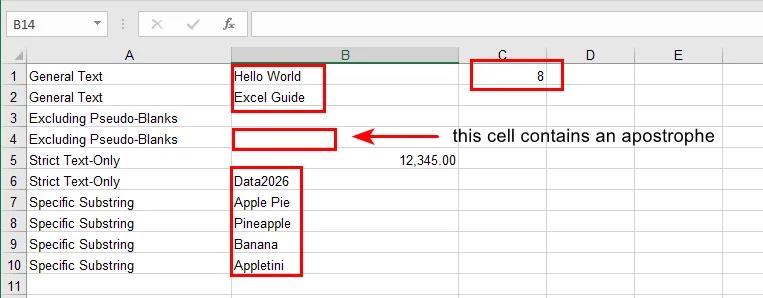
Tip: If you want to see which cells are counted, you can use conditional formatting with a formula like =ISTEXT(B1) to highlight the text cells. This makes it easy to visually identify the counted entries.
How to Count Cells with Text in Excel Automatically Using Free Spire.XLS
Manual formatting is fine for one-off tasks, but what if you have 500 workbooks? This is where Free Spire.XLS shines. It allows you to inject these professional text counting logics directly into your Excel files programmatically.
Why Automate?
Automation eliminates human error and saves hours of repetitive clicking. With Free Spire.XLS, you can apply complex count formulas in Excel cells with text logic across thousands of rows in seconds.
Step-by-Step Implementation (Python Example)
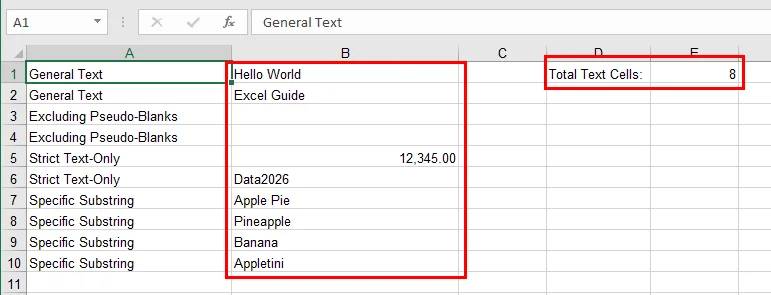
Free Spire.XLS makes it easy to apply COUNTIF formulas programmatically. In this example, we count the number of text cells in a specified range and write the result directly to the worksheet.
from spire.xls import *

# Create a Workbook and load an Excel file
workbook = Workbook()
workbook.LoadFromFile("/sample.xlsx")

# Get the first worksheet
sheet = workbook.Worksheets[0]

# Specify the cell range for counting
source_range = "B1:B10"

# Count cells with text using COUNTIF
sheet.Range["D1"].Text = "Total Text Cells:"
sheet.Range["E1"].Formula = f'=COUNTIF({source_range}, "*")'

# Save the modified Excel file
workbook.SaveToFile("/Text_Count_Simple.xlsx", ExcelVersion.Version2016)
workbook.Dispose()
Here's the counting result:
Dealing with Edge Cases: Common Pitfalls
Even experienced Excel users can get tripped up by subtle data quirks. When counting text with COUNTIF, keep the following points in mind:
- Empty Strings:
Cells containing formulas like ="" return empty strings rather than true blanks. Although COUNTIF(range, "*") does not count these cells, they can still cause confusion when visually inspecting data or when using functions such as COUNTA. If necessary, LEN(A2)>0 can be used to explicitly test for non-empty text.
- Hidden Characters:
Data copied from web pages or external systems often includes non-breaking spaces (CHAR(160)), which are not removed by TRIM(). In such cases, combining SUBSTITUTE(A2, CHAR(160), "") with TRIM() helps ensure that only meaningful text is counted. You may also find converting numbers to text in Excel useful when preparing data for consistent counting.
- Incorrect Ranges:
Miscounted results are often caused by selecting the wrong cell range rather than using an incorrect formula. Always double-check the starting and ending cells, especially when comparing manual Excel results with automated outputs.
- Performance:
Using built-in Excel formulas such as COUNTIF allows Free Spire.XLS to rely on Excel’s native formula engine for calculation. This approach is significantly more efficient than iterating through each cell in code to evaluate its value, particularly when working with large worksheets.
Conclusion
Learning how to count cells with text in Excel is a small skill that yields massive dividends in data accuracy. By moving from manual formulas to Free Spire.XLS automation, you transform a tedious chore into a scalable, error-free workflow. Whether you're managing simple lists or complex databases, these tools ensure your insights are always based on clean, well-categorized data.
Ready to take your spreadsheet game to the next level? Try Free Spire.XLS and start automating your data validation with ease!