- Quick Selection Guide
- Method 1: Hide Formulas Using Excel’s Protect Sheet Feature
- Method 2: Convert Formulas to Static Values
- Method 3: Hide Formulas by Disabling the Formula Bar
- Method 4: Use VBA to Hide Excel Formulas Automatically
- Method 5: Programmatically Hide Excel Formulas with C#
- Common Issues and Quick Fixes
- Conclusion
- Frequently Asked Questions (FAQs)
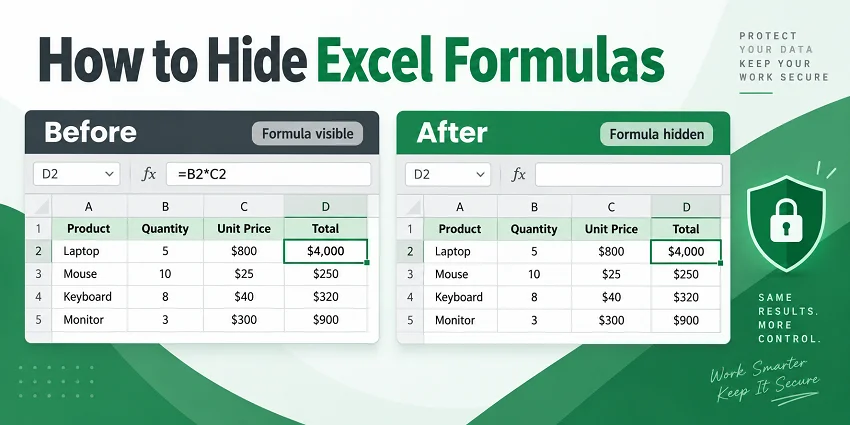
If you share financial reports, business templates, or data analysis worksheets, you may not want other users to easily view or modify the formulas behind the results. Hiding formulas helps keep the underlying calculations out of view while still displaying their results.
In this article, you will learn five practical ways to hide Excel formulas, from built-in options for quick manual fixes to VBA and C# for automated processing.
Quick Selection Guide
Excel provides several ways to hide formulas depending on your goal. Use the table below to choose the most suitable method:
| What you want to do | Recommended Method | Limitation |
|---|---|---|
| Hide formulas but keep calculations working | Protect Sheet | Input cells must be unlocked before protection |
| Remove formulas before sharing a final file | Convert to Values | Original formulas cannot be restored |
| Temporarily hide formulas during live presentation | Disable Formula Bar | Only hides formulas on your screen |
| Automate formula hiding or removal inside Excel | VBA Macro | Requires a macro-enabled (.xlsm) file |
| Programmatically process Excel formulas without Microsoft Office | C# Automation | Requires programming knowledge |
Method 1: Hide Formulas Using Excel’s Protect Sheet Feature
Best for: Worksheets where users need to input data, but you want to prevent them from viewing the underlying formulas or editing the formula cells.
Step-by-Step Instructions
-
Select the formula cells you want to hide.
Pro-Tip: Press Ctrl + G > Special > check Formulas > OK to select all formula cells instantly. -
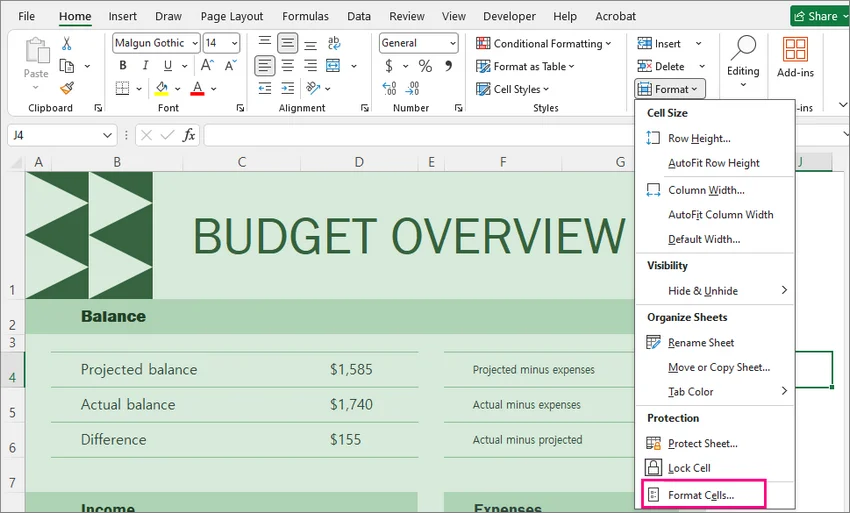
Go to Home > Format > Format Cells or press Ctrl + 1 to open Format Cells.
-
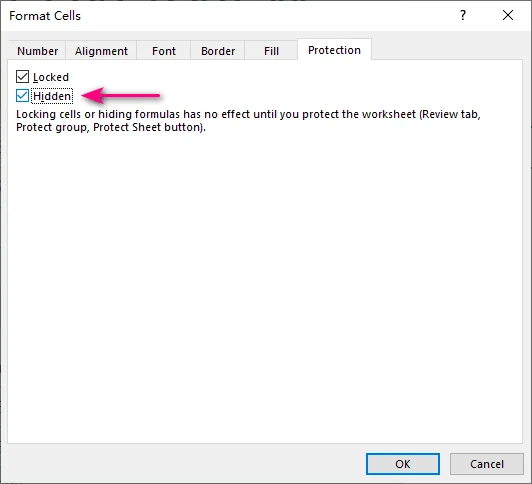
Under the Protection tab, check Hidden, then click OK.
-
Go to Review > Protect Sheet, set a password (optional), and click OK.
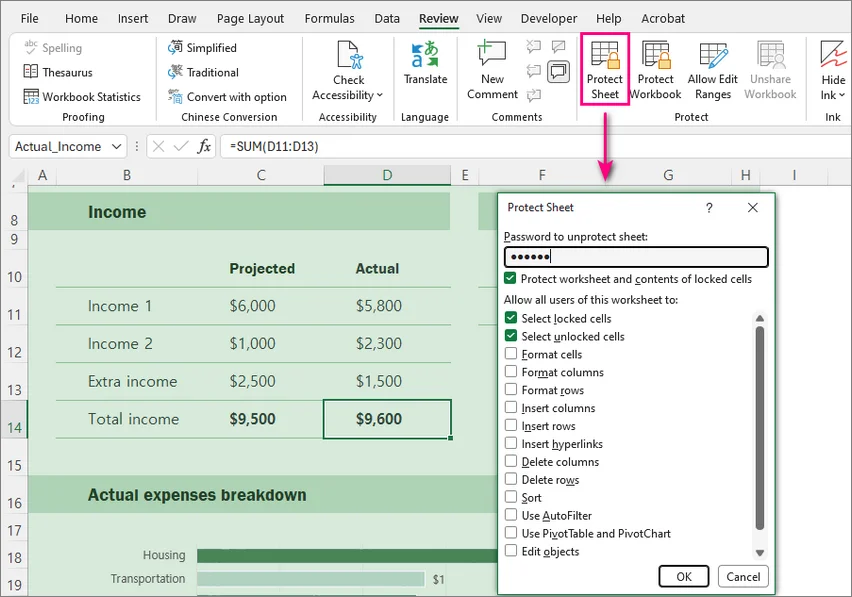
Once the sheet is protected, the calculated values remain visible, but the Formula Bar is blank when a hidden formula cell is selected.
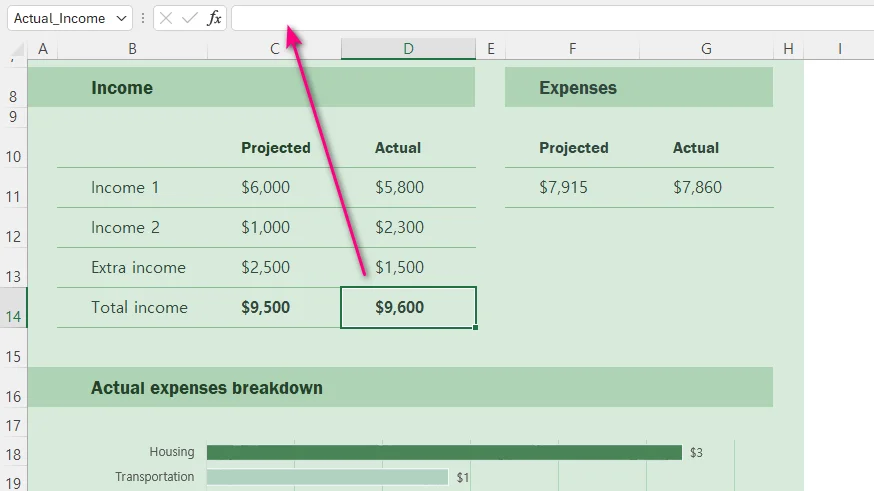
⚠️ Note:
-
Protecting a sheet in Excel locks all cells by default. If your clients need to enter data in specific non-formula cells, select those input cells before protecting the sheet, then press Ctrl + 1 to open Format Cells, switch to the Protection tab, and uncheck Locked.
-
Worksheet protection is intended to control worksheet editing and formula visibility rather than provide strong file encryption.
Method 2: Convert Formulas to Static Values
Best for: Finalized reports where calculations are complete, and users no longer need live, dynamic updates.
Step-by-Step Instructions
-
Select the formula cells you want to convert.
-
Copy the cells by pressing Ctrl + C.
-
Right-click the same selected area.
-
Under Paste Options, select the Values icon (looks like a clipboard with 123).
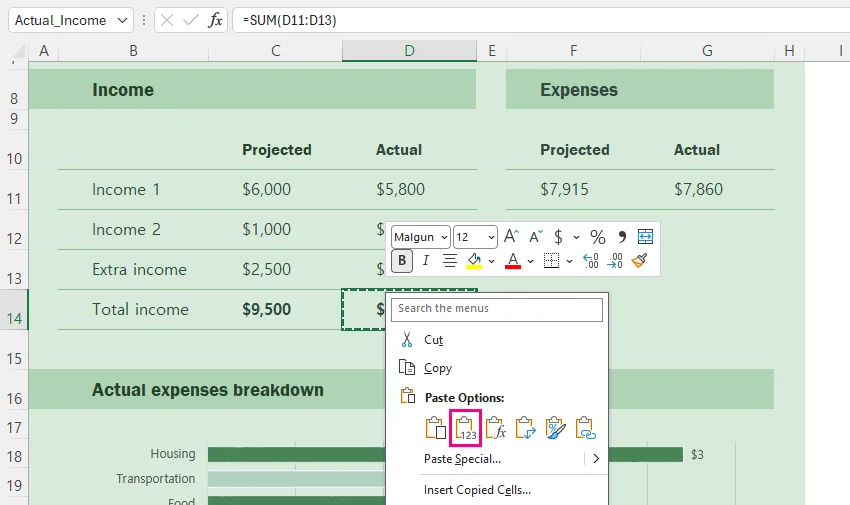
You can also use the keyboard shortcut:
Ctrl + C > Ctrl + Alt + V > V > Enter
After conversion, the displayed results remain the same, but the formulas are removed.
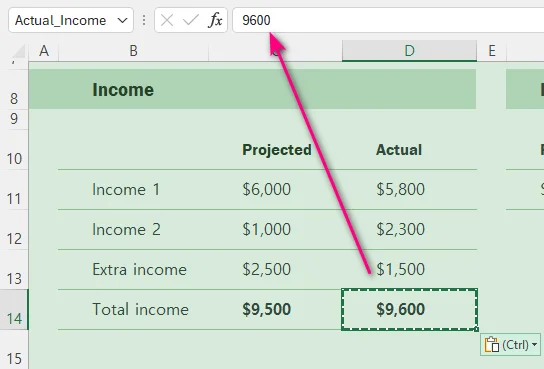
⚠️ Note: This method permanently deletes the formulas from the selected cells and leaves only their current values. If the workbook may need to be recalculated later, keep an original copy before replacing the formulas.
Method 3: Hide Formulas by Disabling the Formula Bar
Best for: Temporarily hide formula strings from view during screen shares, live presentations, or video recordings without changing sheet protection or cell properties.
Steps
-
Click the View tab on the top ribbon.
-
Uncheck Formula Bar.
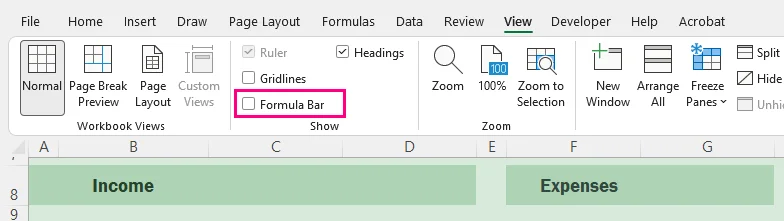
Note that this actually does not hide the formulas stored in the workbook. It only changes the Excel interface on your computer. If you share the workbook, other users can still view the formulas by enabling the Formula Bar again.
Method 4: Use VBA to Hide Excel Formulas Automatically
Best for: Automating formula hiding or formula removal tasks directly inside Excel without manually updating each worksheet.
Setup Steps
-
Press Alt + F11 to open the VBA Editor.
-
Click Insert > Module in the top menu.
-
Add one of the following macros into the module window.
-
Press F5 to run the macro.
-
Save the workbook as a Macro-Enabled Workbook (.xlsm) if you need to keep the macros.
Option A: Hide formulas and protect all worksheets
Sub HideFormulasAllSheets()

    Dim ws As Worksheet

    For Each ws In ActiveWorkbook.Worksheets
        ws.Cells.FormulaHidden = True
        ws.Protect Password:="YourPasswordHere"
    Next ws

End Sub
This hides formulas while keeping them functional.
Option B: Convert Formulas to Values
Because this operation cannot be undone after the workbook is saved and closed, work on a copy if you may need the original formulas later.
Sub ConvertFormulasToValues()

    Dim ws As Worksheet

    For Each ws In ActiveWorkbook.Worksheets
        ws.UsedRange.Value = ws.UsedRange.Value
    Next ws

End Sub
This permanently replaces formulas with their calculated values.
Method 5: Programmatically Hide Excel Formulas with C#
Best for: Developers who need to automate Excel formula hiding, removal, or workbook processing without installing Microsoft Office.
Prerequisites
The following examples use Free Spire.XLS for .NET to manipulate Excel workbooks programmatically without relying on Microsoft Office or Excel Interop.
Install the package through the NuGet Package Manager Console before running the examples:
Install-Package FreeSpire.XLS
Option A: Hide Formulas and Protect Worksheets
The following example shows how to hide formulas and protect worksheets in C#:
using Spire.Xls;

namespace HideFormulas
{
    class Program
    {
        static void Main(string[] args)
        {
            using (Workbook workbook = new Workbook())
            {
                workbook.LoadFromFile("Report.xlsx");

                foreach (Worksheet sheet in workbook.Worksheets)
                {
                    sheet.AllocatedRange.IsFormulaHidden = true;
                    sheet.Protect("YourPassword");
                }

                workbook.SaveToFile("Report_Protected.xlsx", ExcelVersion.Version2016);
            }
        }
    }
}
Option B: Replace formulas with calculated values
The following example shows how to remove formulas while keeping calculated values in C#:
using System;
using Spire.Xls;

namespace ReplaceFormulas
{
    class Program
    {
        static void Main(string[] args)
        {
            using (Workbook workbook = new Workbook())
            {
                workbook.LoadFromFile("FinancialModel.xlsx");

                // Recalculate all formulas before replacing them with static values
                workbook.CalculateAllValue();

                foreach (Worksheet sheet in workbook.Worksheets)
                {
                    foreach (CellRange cell in sheet.AllocatedRange)
                    {
                        if (cell.HasFormula)
                        {
                            // Store the calculated result
                            Object value = cell.FormulaValue;
                            // Remove the formula while preserving formatting
                            cell.Clear(ExcelClearOptions.ClearContent);
                            // Write the calculated value back to the cell
                            cell.Value2 = value;
                        }
                    }
                }

                workbook.SaveToFile("FinancialModel_Flattened.xlsx", ExcelVersion.Version2016);
            }
        }
    }
}
Note: The free version can be used for basic Excel processing scenarios. For advanced features like converting large Excel workbooks to PDF, check the full Spire.XLS package.
Common Issues and Quick Fixes
-
The Hidden box is checked, but formulas are still visible:
Go to Review > Protect Sheet. The Hidden property does not take effect until sheet protection is actively enabled. -
Users cannot enter data after protecting the sheet:
Unprotect the sheet via Review > Unprotect Sheet, select your input cells, press Ctrl + 1 to open Format Cells > Protection, and uncheck Locked. If the Unprotect Sheet button is unavailable, turn off the Shared Workbook feature. -
Formulas are still visible after sharing the workbook:
Hiding the Formula Bar only toggles your local view settings. Protect the sheet or convert formulas to static values before sharing externally.
Wrapping Up
Hiding formulas in Excel lets you display calculated results while keeping underlying logic hidden from the Formula Bar.
Remember that the Hidden cell property only takes effect after worksheet protection is enabled. If formulas are no longer needed, they can instead be converted to static values.
For repeated processing across worksheets or files, the same tasks can be automated with VBA or C#.
Frequently Asked Questions (FAQs)
Q: Will hiding formulas affect Excel calculations?
A: No. Hidden formulas continue working normally in the background. Excel will still calculate equations, update outputs, and display updated values when input cells change.
Q: How do I show hidden formulas again in Excel?
A: To restore formula visibility:
-
Go to the Review tab on the top ribbon.
-
Select Unprotect Sheet and enter your password if prompted.
-
Select your formula cells and press Ctrl + 1 to open Format Cells.
-
Go to the Protection tab, uncheck the Hidden box, and click OK.
Q: Can I hide formulas without protecting a worksheet?
A: Not with Excel's cell-level Hidden setting. The Hidden property only takes effect after worksheet protection is enabled. You can hide the Formula Bar without protecting the sheet, but this only changes the local Excel interface and does not protect the formulas.
Q: Can Excel formulas be hidden without removing them?
A: Yes. Excel formulas can be hidden without removing their functionality. The most common method is to use Protect Sheet with the Hidden option enabled. If you need to permanently remove formulas, you can convert them to static values instead.