While Excel is primarily built for numbers and tables, it's also a surprisingly common container for images, charts, logos, and product photos. Whether you've inherited a workbook packed with embedded graphics or you've built a dashboard filled with charts, knowing how to export images from Excel is an essential skill.
In this guide, we walk you through practical ways to extract images from Excel. You will learn quick manual tricks for one-off exports, no-code batch workflows for bulk extraction, and automated Python solutions for large‑scale processing. Whether you only need a single chart snapshot or want to unpack every graphic from an entire workbook, there is a solution for you.
- 1. Export Single Images/Charts Directly (Quickest Method)
- 2. Export Cell Ranges as Images (Copy as Picture)
- 3. Export All Images via "Save as HTML" (Batch, No Code)
- 4. Extract Images from Excel Using Python (Fully Automated)
- 5. Online Image Extractors (No Installation Required)
Why Proper Image Export Matters
Taking screenshots is the easiest way to capture an image from Excel, but it often leads to fuzzy resolution, distorted proportions, and unwanted background elements. Proper Excel image export gives you original-quality images with correct dimensions, crisp edges, and standard file formats such as PNG, JPG, and EMF.
Typical real‑world scenarios include:
- Saving Excel charts for presentations, blogs, or social media posts
- Extracting product images from inventory spreadsheets
- Exporting table previews for client reports
- Archiving embedded diagrams and logos from legacy Excel files
- Creating high-resolution print-ready visuals
1. Export Single Images/Charts Directly (Quickest Method)
Use this method if you only need to export one or a few individual images or charts from your Excel worksheet. It works for all embedded pictures, shapes, and charts and takes less than 10 seconds per asset.
Step-by-step instructions:
- Open your Excel spreadsheet and click to select the image, chart, or shape you want to export.
- Right-click the selected graphic object.
- Choose Save as Picture from the drop-down menu.
- In the save window, select your preferred file format (PNG, JPEG, BMP, GIF).
- Name the image file, choose a save folder, and click Save.
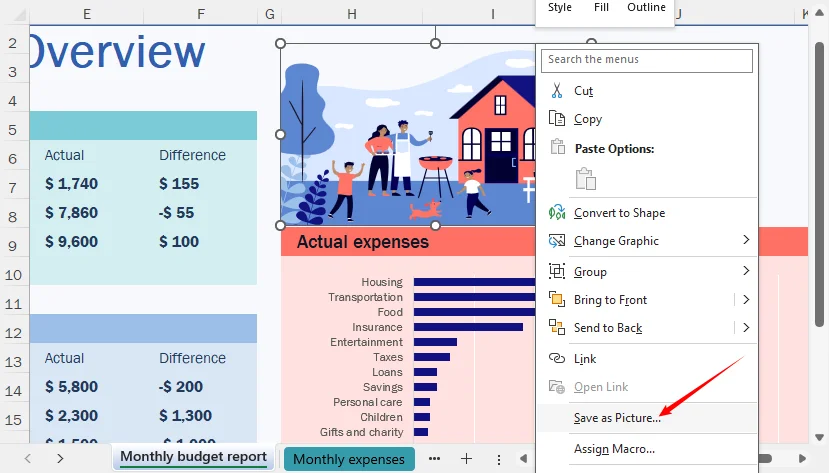
Limitation: You can only export one object at a time, and the exported image captures only the selected object, not surrounding cells.
ALSO READ: Convert Excel to PNG: 4 Easy Methods (Free & Batch Solutions)
2. Export Cell Ranges as Images (Copy as Picture)
Many users want to save an entire table, data range, or custom cell selection as an image rather than just standalone pictures. Excel’s built-in Copy as Picture function addresses this exact requirement.
How to use Copy as Picture:
- Click and drag to select the exact cell range you want to convert into an image.
- Navigate to the Home tab on the top ribbon.
- Click the small drop-down arrow under the Copy button.
- Select Copy as Picture.

- A configuration pop-up window will appear:
- Select As shown on screen for digital‑use previews
- Select As shown when printed for print‑optimized layout rendering
- Set format to Picture
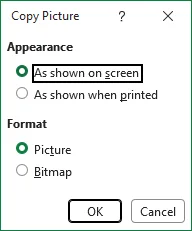
- Click OK, then paste (Ctrl+V) the image into Paint, Word, or PowerPoint.
- Right-click the pasted image and select Save as Picture to export it as PNG, JPG, or another format.
Alternative: If you don’t see “Copy as Picture,” copy the range normally, then use Paste Special > Picture/Picture (Enhanced Metafile) in Word or PowerPoint.
3. Export All Images via "Save as HTML" (Batch, No Code)
When you have multiple images embedded in an Excel file, saving each one manually is impractical. A clever workaround is to save the workbook as an HTML file. Excel automatically extracts all embedded images into a companion folder.
Steps:
- Open your source Excel file and go to File > Save As.
- In the "Save as type" dropdown, select Web Page (.htm; .html).
- Choose a location and click Save.
- Navigate to the saved folder. You will see an HTML file and a companion folder named “
_[FileName]_files”. - Open the folder. All embedded Excel images will be exported as individual PNG/JPG files. You may also see supporting files such as “filelist.xml”, “stylesheet.css”, “tabstrip.htm”, and “sheet001.htm”.
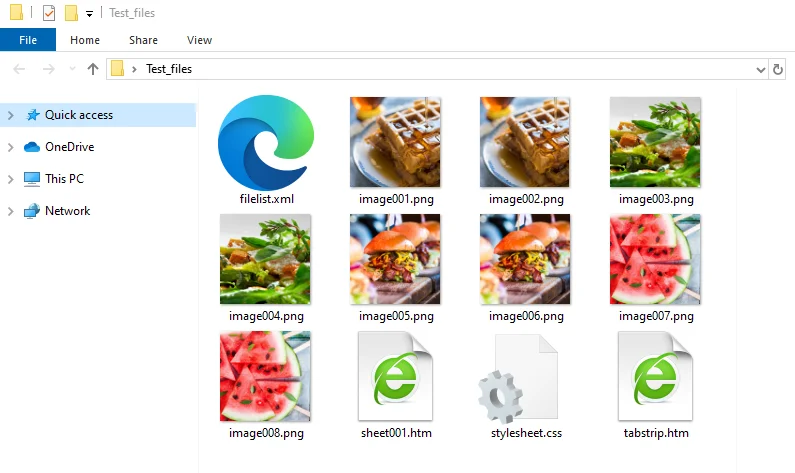
Important caveats: Images inserted as objects (e.g., embedded OLE objects or certain linked images) may not be extracted this way. If some images are missing after the HTML export, they were likely embedded as objects rather than as pictures.
4. Extract Images from Excel Using Python (Fully Automated)
If you need to extract images without opening Excel — for example, in a server-side automation pipeline — Python is an excellent choice. The Free Spire.XLS for Python library can read both .xls/.xlsx files and access embedded images.
Python Code to Extract All Images from a Worksheet
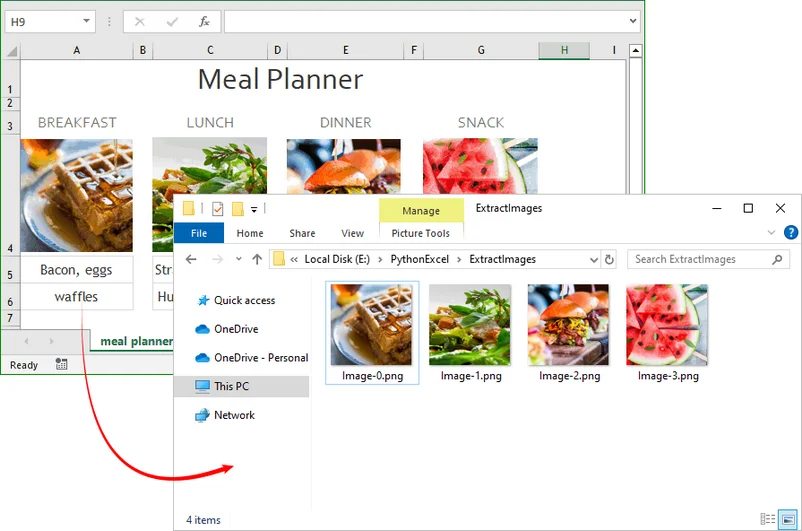
This script loops through every picture object and saves each image as a PNG file automatically.
from spire.xls import *
from spire.xls.common import *

# Create a Workbook instance
workbook = Workbook()

# Load an Excel file
workbook.LoadFromFile("Test.xlsx")

# Get the first worksheet
sheet = workbook.Worksheets[0]

os.makedirs("ExtractImages", exist_ok=True)

# Get all images in the worksheet
for i in range(sheet.Pictures.Count):
    pic = sheet.Pictures[i]
    pic.Picture.Save(os.path.join("ExtractImages", f"Image-{i}.png"))

workbook.Dispose()
How it works
-
sheet.Picturesgets a collection of all pictures in the worksheet. -
pic.Picture.Save()writes the image to disk. - The output format is determined by the file extension in the save path. To save in another format, change the extension to
.jpg,.bmp, etc.
Result:
Key benefits of this Python approach
- Fully automated, no manual clicking
- Works for bulk processing dozens or hundreds of Excel files
- Integrates into Python scripts, data pipelines, and backend workflows
- Preserves original image quality when exporting
Pro Tip: Instead of extracting pictures from Excel, Free Spire.XLS also allows you to export a specific cell range to an image in Python.
5. Online Image Extractors (No Installation Required)
If you prefer not to install software or write code, several free online tools can extract images from Excel files. They require zero setup and work in any browser.
General steps:
- Search for and select a reputable online Excel image extractor in your browser.
- Upload your Excel file (.xlsx, .xls, etc.).
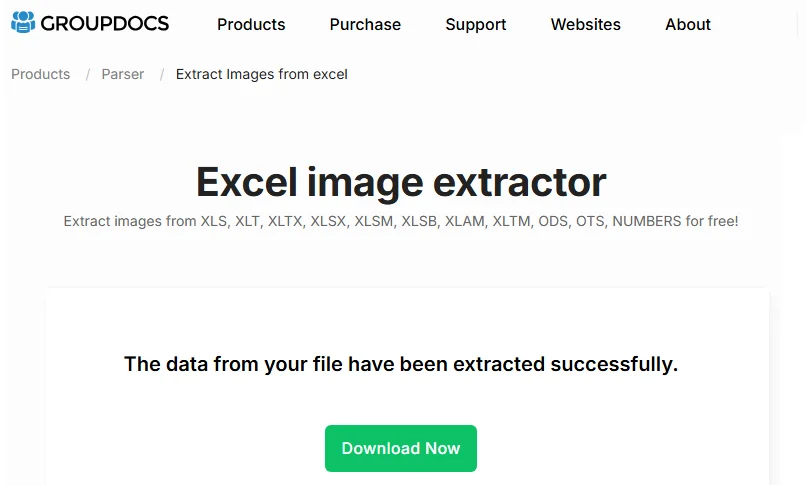
- The service parses the workbook and extracts embedded images.
- Download the results as a ZIP file.
An example of using GroupDocs:
Security Consideration: You're uploading your file to a third-party server, which may be a concern for sensitive or proprietary data.
Best File Formats for Exported Excel Images
Choosing the right format ensures optimal quality and file size for your use case.
| Format | Best For | Key Features | When to Avoid |
|---|---|---|---|
| PNG | Charts, logos, diagrams | Supports transparency, crisp edges, no quality loss | Large photos where file size matters |
| JPG | Photos, large image galleries | Small file size, perfect for web sharing | Images needing transparency or sharp text |
| EMF | Professional printing, resizing | Vector format, no pixelation when scaled | Web use where compatibility matters |
| BMP | Uncompressed editing | High quality, no compression artifacts | Web sharing due to large file size |
| GIF | Simple graphics, animations | Small size, supports transparency | Photos or gradients |
Final Thoughts
Exporting images from Excel is more about matching the method to your workload. For a quick one-off export, Save as Picture or Copy as Picture is fastest. For bulk extraction without code, Save as HTML is a reliable workaround. For automation, server-side processing, or large batches, Python with Free Spire.XLS offers the most scalable and repeatable solution. Online extractors can be convenient, but they should only be used when data privacy is not a concern.
Whichever approach you choose, avoid screenshots if quality matters. Native export methods preserve the original resolution, dimensions, and transparency of embedded visuals. Pair that with the right file format—PNG for charts and logos, JPG for photos, EMF for print-ready resizing—and you can turn any Excel workbook into a clean, reusable source of high-quality images.
Frequently Asked Questions (FAQs)
Q: Can I export all images from Excel at once?
A: Yes. Use the Save as Web Page method for quick manual bulk export, or use the Python Spire.XLS script if you need to automate the task for many files. For a no-installation option, try a reputable online extractor.
Q: Does Excel have a built-in "Export All Images" button?
A: No. Excel does not provide a one-click batch export feature. The closest built-in option is saving as HTML, which extracts embedded pictures.
Q: How do I export an image with a transparent background?
A: For charts, set the chart area fill to No Fill. For shapes, remove the fill. Then save as PNG. For embedded pictures, transparency is preserved if the original image had it.
Q: Will exported images lose quality when I save them from Excel?
A: If you use native export methods instead of screenshots, the original embedded image resolution is preserved. Screenshots will degrade quality. For resizing after export, choose vector EMF format to avoid pixelation.