Excel drop-down lists are essential for data entry consistency, preventing typos and standardizing inputs. But when restructuring spreadsheets, removing outdated validation rules, or simplifying workbooks for casual users, you’ll need to know how to remove drop-down list in Excel.
In this guide, we will walk you through the simple method to delete drop-down list in Excel without breaking your data, from deleting a single drop-down to batch-removing them across entire worksheets and automating the cleanup for dozens of files using Python.
Quick Navigation:
- What is a Drop-Down List in Excel?
- Standard Method: Remove Drop Down List via Data Validation
- Full Deletion: Delete Drop Down + Cell Content/Formatting
- Batch Removal: Clear Drop Down using a VBA Macro
- Advanced Method: Remove Excel Drop Down Lists with Python
- Frequently Asked Questions (FAQ)
What is a Drop-Down List in Excel?
In Excel, a drop-down list is created using a feature called Data Validation. This feature restricts the type of data (or the specific values) that can be entered into a cell.
When you remove a drop-down list, you are essentially clearing the Data Validation rules applied to that cell or range.
Standard Method: Remove Drop-Down List via Data Validation
The Data Validation method is the official, most reliable way to eliminate drop-down list in Excel while keeping all existing cell values intact. This method works for single cells, adjacent ranges, or non-adjacent cells.
Step-by-Step Instructions:
- Open your Excel worksheet and select the cell (or range of cells) that contains the drop-down list you want to remove.
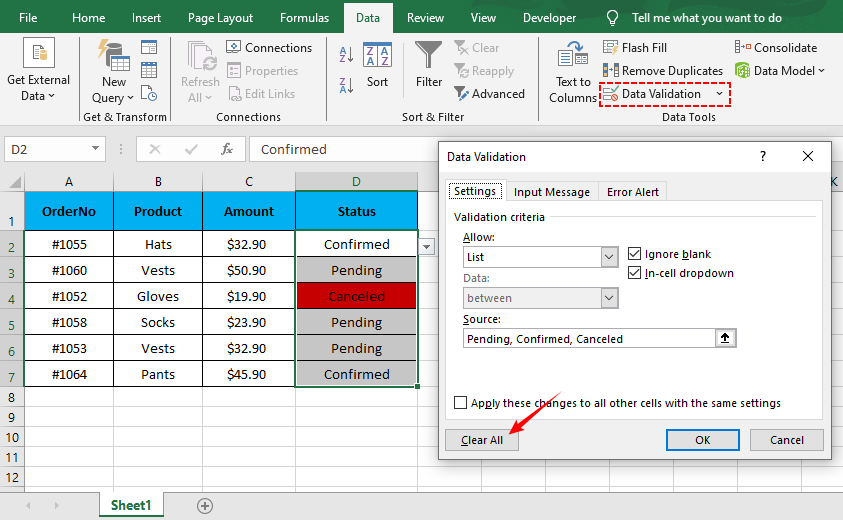
- Navigate to the Data tab on the Excel Ribbon.
- In the Data Tools group, click on the Data Validation button.
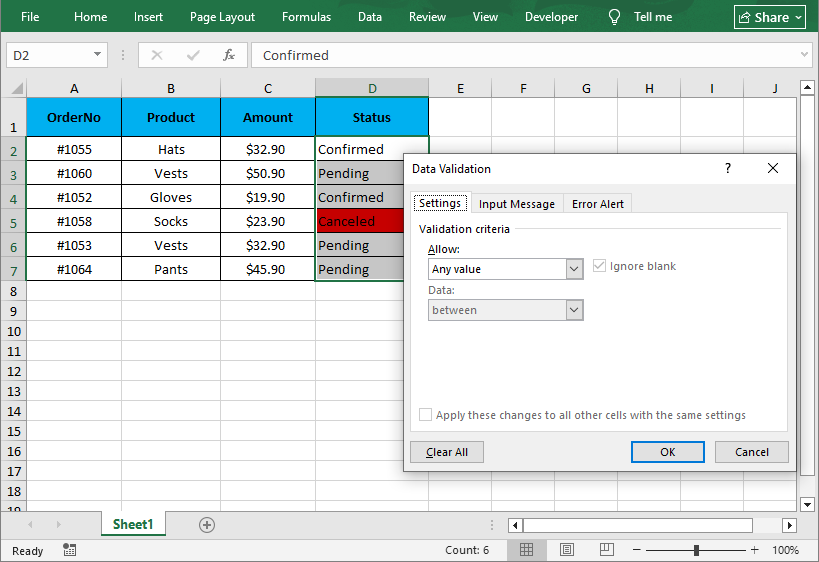
- In the Data Validation dialog box, go to the Settings tab.
- Click the Clear All button to erase all validation rules (including the drop-down list, input messages, and error alerts).
- Click OK to apply changes. The drop-down arrow will disappear instantly, and your cell data remains unchanged.
Now that you've learned how to remove unwanted drop-down lists, you might be interested in creating them from scratch. Our guide on How to Create a Drop-Down List in Excel walks you through setting up data validation rules using both static lists and dynamic ranges.
Full Deletion: Delete Drop-Down + Cell Content/Formatting
If you don't need the cell data, formatting, or the drop-down list, use Excel’s Clear tools to wipe everything in one step. This is ideal for resetting cells or deleting unused sections of a spreadsheet.
Step-by-Step Instructions:
- Select the cells with the drop-down list you want to delete.
- Go to the Home tab > Editing group > click Clear (eraser icon).
- Select the Clear All option to delete drop-down, cell data, formatting, and comments at once.
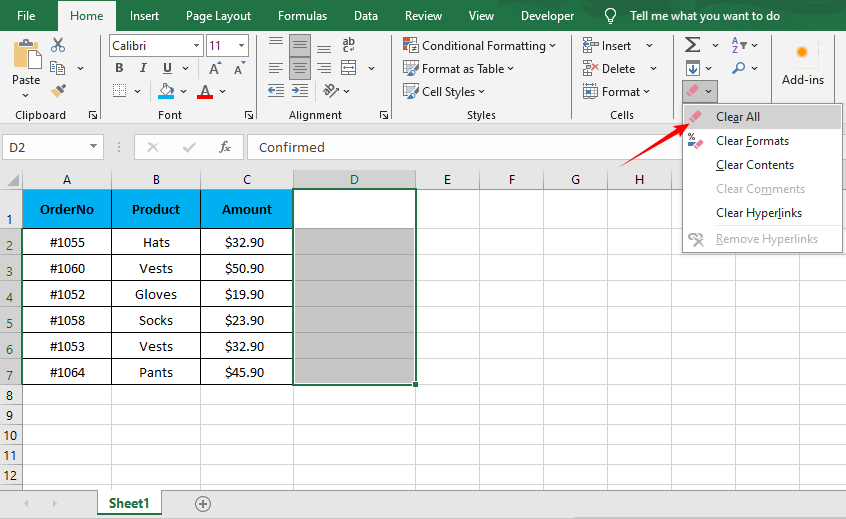
Warning: Use this only if you want the cell completely empty and plain. For partial clears (e.g., just content, not formatting), use the other Clear sub-options (Clear Contents, Clear Formats).
Batch Removal: Clear Drop-Down using a VBA Macro
If your workbook has dozens of sheets and you need to remove every single drop-down menu, a simple VBA macro is the most efficient solution. This method deletes all Data Validation rules (and drop-downs) across the entire workbook in seconds—no manual cell selection required.
How to do it:
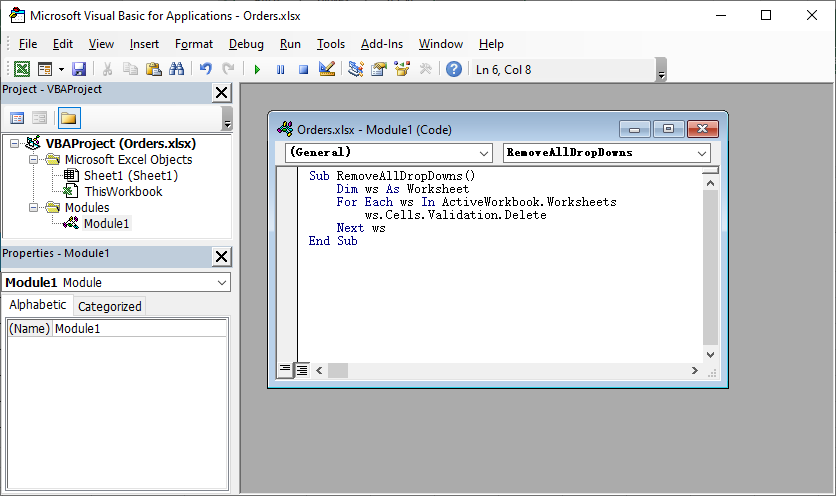
- Press Alt + F11 to open the VBA editor.
- Go to Insert > Module.
- Paste the following code:
Sub RemoveAllDropDowns()
    Dim ws As Worksheet
    For Each ws In ActiveWorkbook.Worksheets
        ws.Cells.Validation.Delete
    Next ws
End Sub
- Press F5 to run it.
This macro loops through every worksheet in your active workbook and deletes all Data Validation lists.
Once your drop-down lists are removed and data entry is freed up, you may want to clean up duplicate entries that users have entered. Learn how to remove duplicates in Excel to keep your records neat and organized.
Advanced Method: Remove Excel Drop-Down Lists with Python
For users who need to automate drop-down removal across multiple Excel files or integrate this into a script, Free Spire.XLS for Python is a free, powerful library that lets you manipulate Excel files programmatically—no Excel desktop app required.
Install the Free Python Library
Run this command in your command prompt/terminal to install the library via pip:
pip install Spire.Xls.Free
Python Code to Remove Drop-Down Lists (Data Validation)
This code will:
- Open an Excel file
- Remove all drop-down lists from a specific cell range
- Save the modified file (preserving all other data/formatting)
from spire.xls import *
from spire.xls.common import *

# Create a Workbook object to load the Excel file
workbook = Workbook()

# Load your Excel file (replace with your file path)
workbook.LoadFromFile("input.xlsx")

# Get the first worksheet
worksheet = workbook.Worksheets[0]

# Create a list of rectangles to define the cell range for removal
# Rectangle.FromLTRB(Left, Top, Right, Bottom) — all values are 0-indexed
rects= []
rects.append(Rectangle.FromLTRB(0,0,3,6)) # Range A1:D7

# Remove data validation (drop-down lists) from the specified cell range
worksheet.DVTable.Remove(rects)

# Save the modified file
workbook.SaveToFile("RemoveDropdowns.xlsx")
workbook.Dispose()
Customizing the Range
To remove validation from a different range, simply adjust the Rectangle.FromLTRB coordinates. For example:
- To cover columns B to D (indices 1 to 3) and rows 2 to 10 (indices 1 to 9), use Rectangle.FromLTRB(1, 1, 3, 9).
- To remove validation from multiple separate ranges, add multiple rectangles to the rects list.
Result:
While drop-down lists control what users can enter, conditional formatting controls how data appears. The Free Spire.XLS library also enables you to apply conditional formatting in Excel to automatically highlight cells based on their values after you've removed validation restrictions.
Frequently Asked Questions (FAQ)
Q1. Why can’t I just press the Delete key to remove a drop-down list?
A: Pressing the Delete key (or Backspace) only removes the value inside the cell. It does not remove the underlying Data Validation rule. The drop-down arrow will still appear when you select the cell again.
Q2. How do I remove the arrow but keep the list active?
A: Technically, you cannot remove the arrow while keeping the list functional, as the arrow is the primary user interface for the drop-down. However, you can hide the arrow by unchecking the "In-cell dropdown" checkbox in the Data Validation settings.
- Result: The cell will still restrict entries to your list. Users must type the allowed value manually; the arrow will not appear.
Q3. Will removing the drop-down delete the data in the cell?
A: No, as long as you use the Clear All button in the Data Validation menu first, the text will stay.
Q4. Can I remove drop-downs from multiple Excel files at once?
A: Yes. There are two ways:
- Python (Recommended): Use the Free Spire.XLS script provided above, but wrap it in a loop that iterates over files in a folder using os.listdir().
- VBA Macro: Create a macro that opens each file in a folder, clears validation, saves, and closes it (best for Excel power users).
Summary
Learning how to remove a drop-down list in Excel is a basic but essential Excel skill that keeps your spreadsheets flexible and clutter-free. The Data Validation method is the gold standard for safe, targeted removal; VBA macros streamline large-scale edits; and Python automation lets you clear drop-downs from precise cell ranges, ideal for automated workflows.
By following this guide, you can take full control of your Excel sheets, removing restrictions whenever you need to. For more Excel automation tips with Python, check out our other tutorials for data validation, formatting, and spreadsheet optimization.