
Java (485)
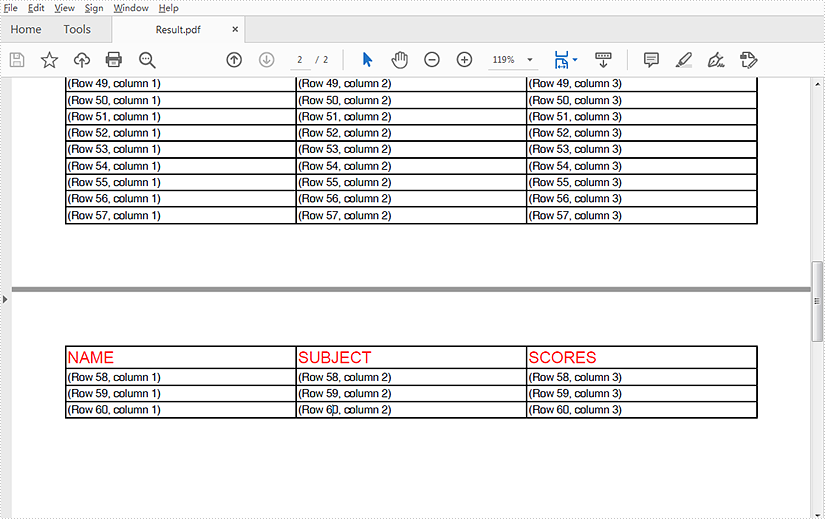
This article demonstrates how to repeat table header rows across pages in PDF using Spire.PDF for Java.
import com.spire.pdf.*;
import com.spire.pdf.graphics.*;
import com.spire.pdf.grid.PdfGrid;
import com.spire.pdf.grid.PdfGridRow;

import java.awt.*;

public class RepeatTableHeaderRow {
    public static void main(String[] args) {
        //Create a new PDF document
        PdfDocument pdf = new PdfDocument();

        //Add a page
        PdfPageBase page = pdf.getPages().add();

        //Instantiate a PdfGrid class object
        PdfGrid grid = new PdfGrid();

        //Set cell padding
        grid.getStyle().setCellPadding(new PdfPaddings(1,1,1,1));

        //Add columns
        grid.getColumns().add(3);

        //Add header rows and table data
        PdfGridRow[] pdfGridRows = grid.getHeaders().add(1);
        for (int i = 0; i < pdfGridRows.length; i++)
        {
            pdfGridRows[i].getStyle().setFont(new PdfTrueTypeFont(new Font("Arial", Font.PLAIN,12), true));//Designate a font
            pdfGridRows[i].getCells().get(0).setValue("NAME");
            pdfGridRows[i].getCells().get(1).setValue("SUBJECT");
            pdfGridRows[i].getCells().get(2).setValue("SCORES");
            pdfGridRows[i].getStyle().setTextBrush(PdfBrushes.getRed());
        }

        //Repeat header rows (when across pages)
        grid.setRepeatHeader(true);

        //Add values to the table
        for (int i = 0; i < 60; i++)
        {
            PdfGridRow row = grid.getRows().add();
            for (int j = 0; j < grid.getColumns().getCount();j++)
            {
                row.getCells().get(j).setValue("(Row " + (i+1) + ", column " + (j+1) + ")");
            }
        }

        // Draw a table in PDF
        grid.draw(page,0,40);

        //Save the document
        pdf.saveToFile("Result.pdf");
        pdf.dispose();
    }
}
Output
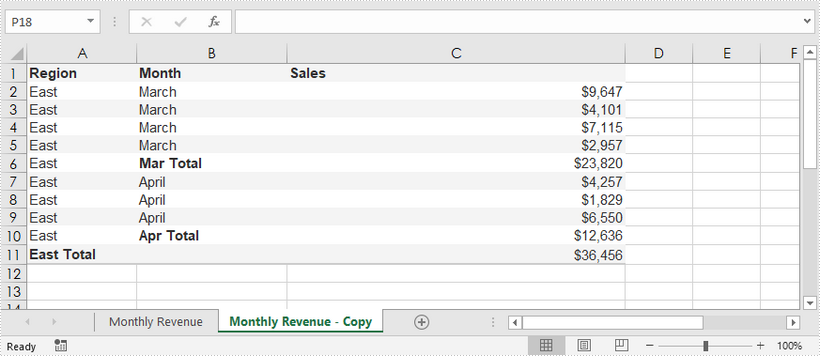
This article shows you how to duplicate a worksheet inside a workbook using Spire.XLS for Java.
import com.spire.xls.Workbook;
import com.spire.xls.Worksheet;

public class DuplicateSheetWithinWorkbook {
    public static void main(String[] args) {

        //Create a Workbook object
        Workbook workbook = new Workbook();

        //Load the sample Excel file
        workbook.loadFromFile("C:\\Users\\Administrator\\Desktop\\sample.xlsx");

        //Get the first worksheet
        Worksheet originalSheet = workbook.getWorksheets().get(0);

        //Add a new worksheet
        Worksheet newSheet = workbook.getWorksheets().add(originalSheet.getName()+" - Copy");

        //Copy the worksheet to new sheet
        newSheet.copyFrom(originalSheet);

        //Save to file
        workbook.saveToFile("DuplicateSheet.xlsx");
    }
}
A PDF portfolio allows multiple files to be assembled into a single interactive PDF container. The files in a PDF portfolio can be text documents, spreadsheets, presentations, images, videos, audio files, and more. By creating PDF portfolios, you can consolidate all of the relevant materials for a project into one unified package, making it easier to manage and distribute files. This article will demonstrate how to programmatically create a PDF portfolio and add files and folders to it using Spire.PDF for Java.
Install Spire.PDF for Java
First of all, you're required to add the Spire.Pdf.jar file as a dependency in your Java program. The JAR file can be downloaded from this link. If you use Maven, you can easily import the JAR file in your application by adding the following code to your project's pom.xml file.
<repositories>
    <repository>
        <id>com.e-iceblue</id>
        <name>e-iceblue</name>
        <url>https://repo.e-iceblue.com/nexus/content/groups/public/</url>
    </repository>
</repositories>
<dependencies>
    <dependency>
        <groupId>e-iceblue</groupId>
        <artifactId>spire.pdf</artifactId>
        <version>12.7.0</version>
    </dependency>
</dependencies>
Create a PDF Portfolio and Add Files to It in Java
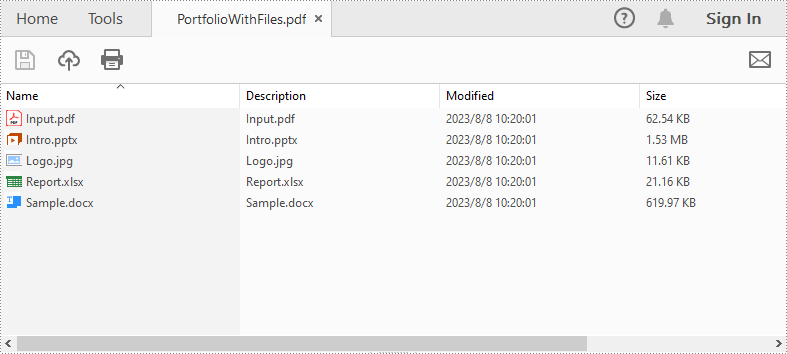
As a PDF portfolio is a collection of files, Spire.PDF for Java allows you to create it easily using the PdfDocument.getCollection() method. Then you can add files to the PDF portfolio using the PdfCollection.addFile() method. The detailed steps are as follows:
- Specify the files that need to be added to the PDF portfolio.
- Create a PdfDocument instance.
- Create a PDF portfolio and add files to it using PdfDocument.getCollection().addFile() method.
- Save the result file using PdfDocument.saveToFile() method.
- Java
import com.spire.pdf.FileFormat;
import com.spire.pdf.PdfDocument;

public class CreatePortfolioWithFiles {
    public static void main(String []args){

        // Specify the files
        String[] files = new String[] { "Input.pdf", "Sample.docx", "Report.xlsx","Intro.pptx","Logo.jpg" };

        //Create a PdfDocument instance
        PdfDocument pdf = new PdfDocument();

        //Create a PDF Portfolio and add files to it
        for (int i = 0; i < files.length; i++)
        {
            pdf.getCollection().addFile(files[i]);
        }

        //Save the result file
        pdf.saveToFile("PortfolioWithFiles.pdf", FileFormat.PDF);
        pdf.dispose();
    }
}
Create a PDF Portfolio and Add Folders to It in Java
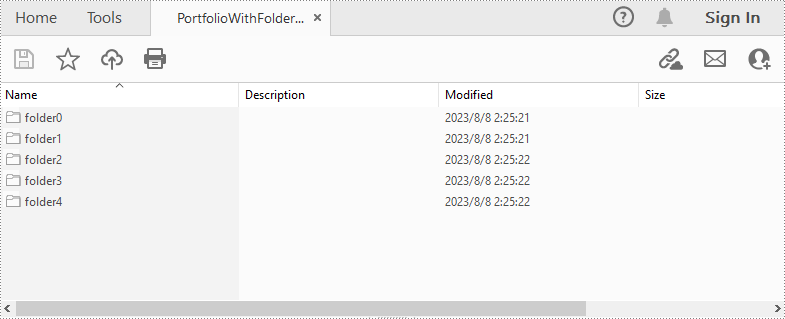
After creating a PDF portfolio, Spire.PDF for Java also allows you to create folders within the PDF portfolio to further manage the files. The detailed steps are as follows:
- Specify the files that need to be added to the PDF portfolio.
- Create PdfDocument instance.
- Create a PDF portfolio using PdfDocument.getCollection() method.
- Add folders to the PDF portfolio using PdfCollection.getFolders().createSubfolder() method, and then add files to the folders using PdfFolder.addFile() method.
- Save the result file using PdfDocument.saveToFile() method.
- Java
import com.spire.pdf.FileFormat;
import com.spire.pdf.PdfDocument;
import com.spire.pdf.collections.PdfFolder;

public class CreatePortfolioWithFolders {
    public static void main(String []args){

        // Specify the files
        String[] files = new String[] { "Input.pdf", "Sample.docx", "Report.xlsx","Intro.pptx","Logo.jpg" };

        //Create a PdfDocument instance
        PdfDocument pdf = new PdfDocument();

        //Create a portfolio and add folders to it
        for (int i = 0; i < files.length; i++)
        {
            PdfFolder folder = pdf.getCollection().getFolders().createSubfolder("folder" + i);

            //Add files to the folders
            folder.addFile(files[i]);
        }

        //Save the result file
        pdf.saveToFile("PortfolioWithFolders.pdf", FileFormat.PDF);
        pdf.dispose();
    }
}
Apply for a Temporary License
If you'd like to remove the evaluation message from the generated documents, or to get rid of the function limitations, please request a 30-day trial license for yourself.
