
Java (485)
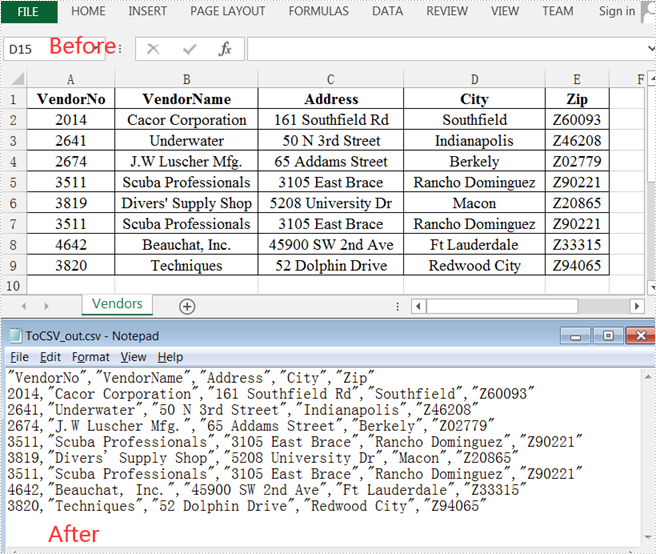
As its name suggests, a Comma Separated Values (CSV) file is a plain text file containing only numbers and letters, usually separated by commas. It can be used for exchanging data between applications. This article demonstrates how to convert Excel to CSV and convert CSV to Excel using Spire.XLS for Java.
Install Spire.XLS for Java
First of all, you're required to add the Spire.Xls.jar file as a dependency in your Java program. The JAR file can be downloaded from this link. If you use Maven, you can easily import the JAR file in your application by adding the following code to your project's pom.xml file.
<repositories>
    <repository>
        <id>com.e-iceblue</id>
        <name>e-iceblue</name>
        <url>https://repo.e-iceblue.com/nexus/content/groups/public/</url>
    </repository>
</repositories>
<dependencies>
    <dependency>
        <groupId>e-iceblue</groupId>
        <artifactId>spire.xls</artifactId>
        <version>16.8.4</version>
    </dependency>
</dependencies>
Convert Excel to CSV
Spire.XLS for Java supports converting Excel to CSV with only several lines of codes. To get started, follow these steps.
- Create a Workbook instance.
- Load a sample Excel document using Workbook.loadFromFile() method.
- Get a specific worksheet of the document using Workbook.getWorksheets().get() method.
- Save the worksheet to CSV using Worksheet.saveToFile() method.
- Java
import com.spire.xls.*;
import java.nio.charset.Charset;

public class ExcelToCSV {
    public static void main(String[] args) {

        //Create a workbook
        Workbook workbook = new Workbook();

        //Load a sample excel file
        workbook.loadFromFile("C:\\Users\\Test1\\Desktop\\sample.xlsx");

        //Calculate formulas if any
        workbook.calculateAllValue();

        //Get the first sheet
        Worksheet sheet = workbook.getWorksheets().get(0);

        //Save the document to CSV
        sheet.saveToFile("output/ToCSV_out.csv", ",", Charset.forName("UTF-8"));
    }
}
Convert CSV to Excel
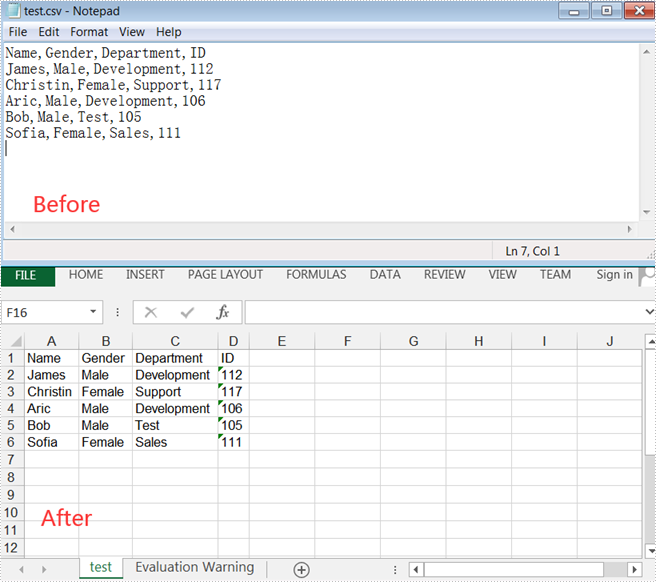
The following are detailed steps to convert CSV to Excel.
- Create a Workbook instance and load a sample CSV file using Workbook.loadFromFile() method.
- Get a specific worksheet using Workbook.getWorksheets().get() method.
- Specify the cell range using Worksheet.getCellRange() method and ignore errors when setting numbers in the cells as text using CellRange.setIgnoreErrorOptions (java.util.EnumSet ignoreErrorOptions) method.
- Automatically adjust the height of rows and width of columns using methods provided by CellRange class.
- Save the document to an XLSX file using Workbook.saveToFile() method.
- Java
import com.spire.xls.*;
import java.util.EnumSet;

public class CSVToExcel {
    public static void main(String[] args) {
        //Create a workbook
        Workbook workbook = new Workbook();
        //Load a sample CSV file
        workbook.loadFromFile("C:\\Users\\Test1\\Desktop\\test.csv", ",", 1, 1);

        //Get the first worksheet
        Worksheet sheet = workbook.getWorksheets().get(0);

        //Specify the cell range and ignore errors when setting numbers in the cells as text
        sheet.getCellRange("A1:D6").setIgnoreErrorOptions(EnumSet.of(IgnoreErrorType.NumberAsText));

        //Automatically adjust the height of the rows and width of the columns
        sheet.getAllocatedRange().autoFitColumns();
        sheet.getAllocatedRange().autoFitRows();

        //Save the document to an XLSX file
        workbook.saveToFile("output/CSVToExcel_out.xlsx", ExcelVersion.Version2013);
    }
}
Apply for a Temporary License
If you'd like to remove the evaluation message from the generated documents, or to get rid of the function limitations, please request a 30-day trial license for yourself.
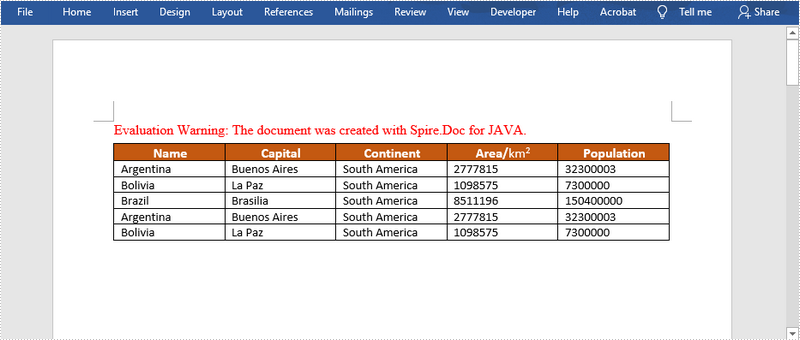
When you run mail merge with a region, all merge fields within the region are repeated for each record in the data source. This is useful when you want to dynamically add rows to a Word table. In this article, you will learn how to perform mail merge with a region using Spire.Doc for Java.
Install Spire.Doc for Java
First of all, you're required to add the Spire.Doc.jar file as a dependency in your Java program. The JAR file can be downloaded from this link. If you use Maven, you can easily import the JAR file in your application by adding the following code to your project's pom.xml file.
<repositories>
    <repository>
        <id>com.e-iceblue</id>
        <name>e-iceblue</name>
        <url>https://repo.e-iceblue.com/nexus/content/groups/public/</url>
    </repository>
</repositories>
<dependencies>
    <dependency>
        <groupId>e-iceblue</groupId>
        <artifactId>spire.doc</artifactId>
        <version>14.8.4</version>
    </dependency>
</dependencies>
Create a Template
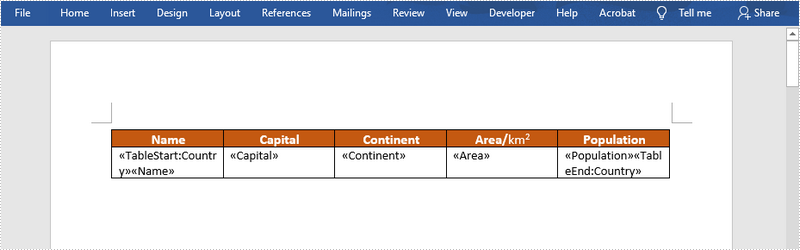
To create a mail merge region, you need to specify the start point and the end point of the region. For example, the following Word template contains the region "Country" which is marked by «TableStart:Country» and «TableEnd:Country». Mail Merge will repeat that region for each record in the data source.
The following is the sample XML file that will be used as the data source.
- Package Manager
<?xml version="1.0" encoding="UTF-8"?>
<Data>
	<Country>
		<Capital>Buenos Aires</Capital>
		<Name>Argentina</Name>
		<Continent>South America</Continent>
		<Area>2777815</Area>
		<Population>32300003</Population>
	</Country>
	<Country>
		<Capital>La Paz</Capital>
		<Name>Bolivia</Name>
		<Continent>South America</Continent>
		<Area>1098575</Area>
		<Population>7300000</Population>
	</Country>
	<Country>
		<Capital>Brasilia</Capital>
		<Name>Brazil</Name>
		<Continent>South America</Continent>
		<Area>8511196</Area>
		<Population>150400000</Population>
	</Country>
	<Country>
		<Capital>Buenos Aires</Capital>
		<Name>Argentina</Name>
		<Continent>South America</Continent>
		<Area>2777815</Area>
		<Population>32300003</Population>
	</Country>
	<Country>
		<Capital>La Paz</Capital>
		<Name>Bolivia</Name>
		<Continent>South America</Continent>
		<Area>1098575</Area>
		<Population>7300000</Population>
	</Country>
</Data>
Preform Mail Merge with a Region
The following are the steps to preform mail merge with a region.
- Create a Document object.
- Load the Word template file using Document.loadFromFile() method.
- Execute mail merge with a region using Document.getMailMerge().executeWidthRegion() method.
- Save the changes to another file using Document.saveToFile() method.
- Java
import com.spire.doc.Document;
import com.spire.doc.FileFormat;

public class MailMergeWithRegions {

    public static void main(String[] args) throws Exception {

        //Create a Document object
        Document doc = new Document();

        //Load the Word template file
        doc.loadFromFile("C:\\Users\\Administrator\\Desktop\\MailMergeTemplate.docx");

        //Execute mail merge with a region
        doc.getMailMerge().executeWidthRegion("C:\\Users\\Administrator\\Desktop\\Data.xml");

        //Save the changes to another file
        doc.saveToFile("output/MailMergeWithRegions.docx", FileFormat.Docx_2013);
    }
}
Apply for a Temporary License
If you'd like to remove the evaluation message from the generated documents, or to get rid of the function limitations, please request a 30-day trial license for yourself.
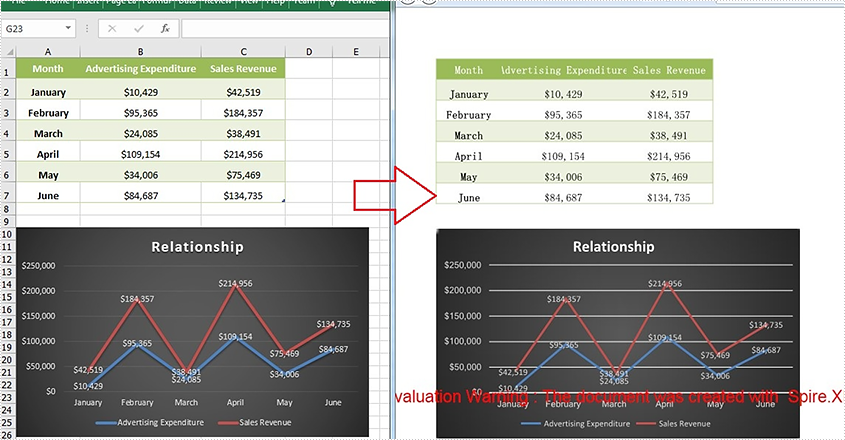
XPS (XML Paper Specification) is a fixed-layout document format designed for sharing and publishing purposes. The format was originally created as an attempt to take the place of PDF file format, but it failed for a number of reasons. Regardless, the XPS file format is still being used in some occasions, and sometimes you may need to convert your Excel files to XPS files. This article will introduce how to accomplish this task using Spire.XLS for Java.
Install Spire.XLS for Java
First of all, you're required to add the Spire.Xls.jar file as a dependency in your Java program. The JAR file can be downloaded from this link. If you use Maven, you can easily import the JAR file in your application by adding the following code to your project's pom.xml file.
<repositories>
    <repository>
        <id>com.e-iceblue</id>
        <name>e-iceblue</name>
        <url>https://repo.e-iceblue.com/nexus/content/groups/public/</url>
    </repository>
</repositories>
<dependencies>
    <dependency>
        <groupId>e-iceblue</groupId>
        <artifactId>spire.xls</artifactId>
        <version>16.8.4</version>
    </dependency>
</dependencies>
Convert Excel to XPS
The Workbook.saveToFile() method offered by Spire.XLS for Java enables you to easily convert Excel files to XPS with just a few lines of code. The detailed steps are as follows.
- Create a Workbook instance.
- Load a sample Excel document using Workbook.loadFromFile() method.
- Save the document to XPS file format using Workbook.saveToFile() method.
- Java
import com.spire.xls.*;

public class toXPS {
    public static void main(String[] args) {
        //Create a Workbook instance
        Workbook workbook = new Workbook();

        //Load an Excel document
        workbook.loadFromFile("test.xlsx");

        //Convert Excel to XPS
        workbook.saveToFile("ToXPS.xps", FileFormat.XPS);
    }
}
Apply for a Temporary License
If you'd like to remove the evaluation message from the generated documents, or to get rid of the function limitations, please request a 30-day trial license for yourself.
