
Java (485)
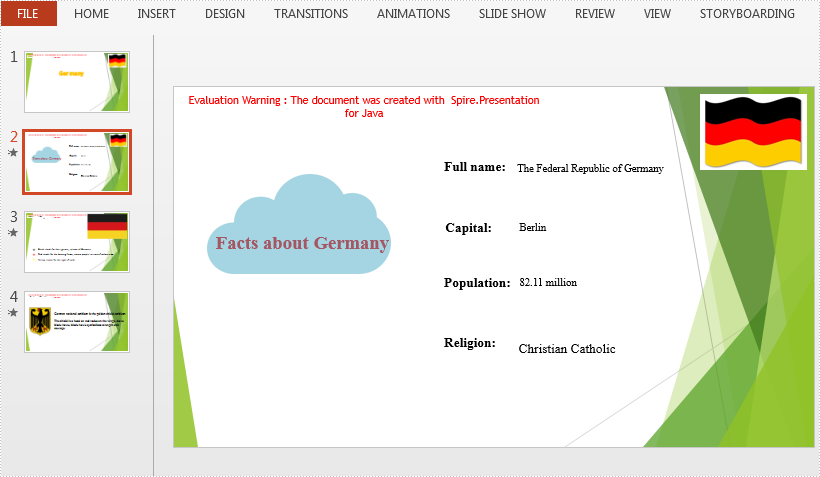
When an image appears over the text, the text will be covered by the image and will be unable to be displayed. At this point, you can set the transparency of the picture in order to show the text above the image. This article is to demonstrate how to insert an image into a specific slide position in PowerPoint and set its transparency using Spire.Presentation for Java.
Install Spire.Presentation for Java
First of all, you're required to add the Spire.Presentation.jar file as a dependency in your Java program. The JAR file can be downloaded from this link. If you use Maven, you can easily import the JAR file in your application by adding the following code to your project's pom.xml file.
- Package Manager
<repositories>
    <repository>
        <id>com.e-iceblue</id>
        <name>e-iceblue</name>
        <url>https://repo.e-iceblue.com/nexus/content/groups/public/</url>
    </repository>
</repositories>
<dependencies>
    <dependency>
        <groupId>e-iceblue</groupId>
        <artifactId>spire.presentation</artifactId>
        <version>11.7.2</version>
    </dependency>
</dependencies>
Set Transparency for Images in PowerPoint
A number of classes and methods are involved in this code example, so a table shown as below is provided to make it easier for you to learn about them.
| Name | Description |
| IAutoShape Interface | Represents a shape. |
| ShapeList Class | Represents a collection of shapes. |
| PictureFillFormat Class | Represents a picture fill style. |
| ShapeList.appendShape(ShapeType.shapeType, Rectangle2D.Double) Method | Adds a new shape to list. |
| IAutoShape.getLine().setFillType(FillFormatType.value) Method | Sets the fill format type of the line. |
| IAutoShape.getFill().setFillType(FillFormatType.value) Method | Sets the fill format type of a shape. |
| IAutoShape.getFill().getPictureFill() Method | Gets the picture fill format. |
| PictureFillFormat.setFillType(PictureFillType.value) Method | Sets the picture fill mode. |
| PictureFillFormat.getPicture().setUrl(java.lang.String value) Method | Sets the image's URL for a picture fill. |
| PictureFillFormat.getPicture().setTransparency() Method | Sets the transparency of a picture fill. |
The following are some steps to set transparency for images in PowerPoint:
- Create a Presentation instance and load a PowerPoint sample document using Presentation.loadFromFile() method.
- Get a specified slide using Presentation.getSlides().get() method, and insert a shape to the specified position of the slide using ShapeList.appendShape(ShapeType.shapeType, Rectangle2D.Double) method.
- Fill the shape with an image and set the fill format type using IAutoShape.getFill().setFillType(FillFormatType.value) method.
- Get the picture fill format using IAutoShape.getFill().getPictureFill() method.
- Set the picture fill mode using PictureFillFormat.setFillType(PictureFillType.value) method, set the image’s URL using PictureFillFormat.getPicture().setUrl(java.lang.String value) method, and set the transparency of the image using PictureFillFormat.getPicture().setTransparency() method.
- Save the document using Presentation.saveToFile() method.
- Java
import com.spire.presentation.*;
import com.spire.presentation.drawing.*;
import java.awt.geom.Rectangle2D;

public class SetImageTransparency {
    public static void main(String[] args) throws Exception {
        //Create a Presentation instance
        Presentation presentation = new Presentation();

        //Load a PowerPoint sample document
        presentation.loadFromFile("C:\\Users\\Test1\\Desktop\\sample.pptx");

        //Insert a shape to the specified position of the first slide
        Rectangle2D.Double rect1 = new   Rectangle2D.Double(50, 130, 275, 150);
        IAutoShape shape =  presentation.getSlides().get(1).getShapes().appendShape(ShapeType.RECTANGLE, rect1);

        //Fill the shape with an image
        shape.getLine().setFillType(FillFormatType.NONE);//Sets the fill format type
        shape.getFill().setFillType(FillFormatType.PICTURE);//Sets the type of filling
        shape.getFill().getPictureFill().getPicture().setUrl("https://cdn.e-iceblue.com/C:\\Users\\Test1\\Desktop\\Picture.png");//Sets the linked image's URL
        shape.getFill().getPictureFill().setFillType(PictureFillType.STRETCH);//Sets the picture fill mode

        //Set transparency of the image
        shape.getFill().getPictureFill().getPicture().setTransparency(50);

        //Save the document to file
        presentation.saveToFile("output/SetImageTransparency_result.pptx", FileFormat.PPTX_2010);
    }
}
Apply for a Temporary License
If you'd like to remove the evaluation message from the generated documents, or to get rid of the function limitations, please request a 30-day trial license for yourself.
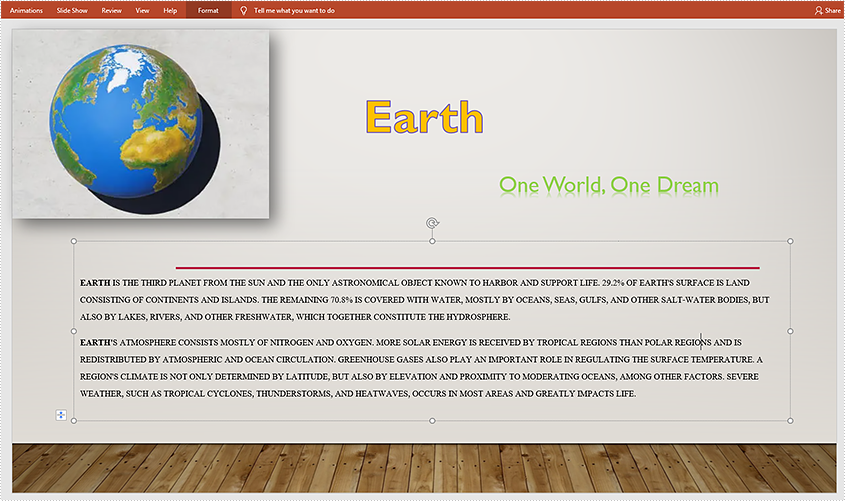
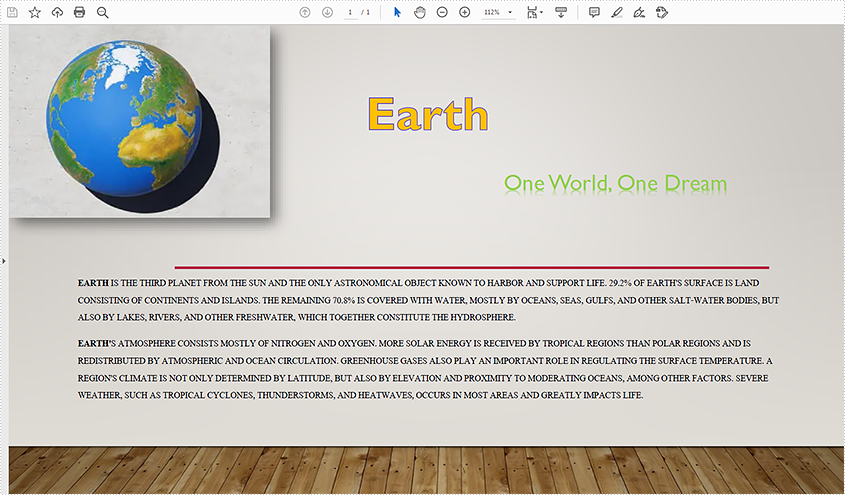
The OpenDocument Presentation Document Format, commonly referred to as ODP, is one of the file extensions of an Open Document Format file and is designed to serve as an open-source display format for slideshow presentations. Sometimes you may need to convert an ODP file to PDF to ensure the document's formatting remains intact. In this article, you will learn how to achieve this function using Spire.Presentation for Java.
Install Spire.Presentation for Java
First of all, you're required to add the Spire.Presentation.jar file as a dependency in your Java program. The JAR file can be downloaded from this link. If you use Maven, you can easily import the JAR file in your application by adding the following code to your project's pom.xml file.
<repositories>
    <repository>
        <id>com.e-iceblue</id>
        <name>e-iceblue</name>
        <url>https://repo.e-iceblue.com/nexus/content/groups/public/</url>
    </repository>
</repositories>
<dependencies>
    <dependency>
        <groupId>e-iceblue</groupId>
        <artifactId>spire.presentation</artifactId>
        <version>11.7.2</version>
    </dependency>
</dependencies>
Convert ODP to PDF
You can convert ODP to PDF using Spire.Presentation for Java in an easy and quick manner by following the steps listed below.
- Create a Presentation object.
- Load a sample ODP document using Presentation.loadFromFile() method.
- Save the document as PDF using Presentation.saveToFile() method.
- Java
import com.spire.presentation.*;

public class ODPtoPDF {
    public static void main(String[] args) throws Exception {

        //Create a Presentation instance
        Presentation presentation = new Presentation();

        //Load a sample ODP file
        presentation.loadFromFile("toPDF.odp",FileFormat.ODP);

        //Save it as PDF
        presentation.saveToFile("output/Result.pdf", FileFormat.PDF);
    }
}
The original file:
The generated file:
Apply for a Temporary License
If you'd like to remove the evaluation message from the generated documents, or to get rid of the function limitations, please request a 30-day trial license for yourself.
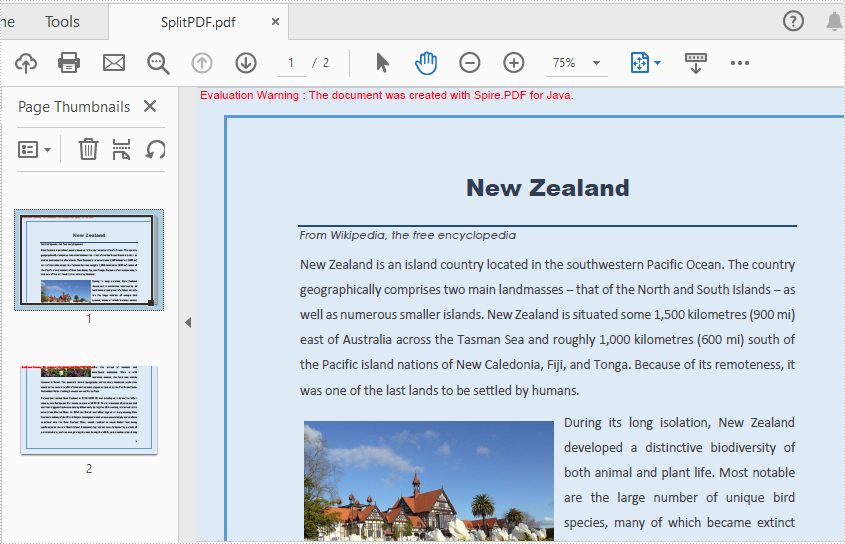
Spire.PDF for java offers PdfDocument.split() method to split one PDF document to multiple files by pages. In this article, we will demonstrate how to horizontally or vertically split a single PDF page into multiple pages in Java by using Spire.PDF for Java.
Install Spire.PDF for Java
First of all, you need to add the Spire.PDF.jar file as a dependency in your Java program. The JAR file can be downloaded from this link. If you use Maven, you can easily import the JAR file by adding the following code to your project's pom.xml file.
<repositories>
    <repository>
        <id>com.e-iceblue</id>
        <name>e-iceblue</name>
        <url>https://repo.e-iceblue.com/nexus/content/groups/public/</url>
    </repository>
</repositories>
<dependencies>
    <dependency>
        <groupId>e-iceblue</groupId>
        <artifactId>spire.pdf</artifactId>
        <version>12.7.0</version>
    </dependency>
</dependencies>
Split a PDF Page into multiple Pages
Spire.PDF for Java offers PdfPageBase.createTemplate().draw() method to draw the content of a source page on a new PDF page. Splitting a page into multiple pages actually means that the content of the source page will be drew on multiple smaller pages. The following are the main steps to split the first page into two pages:
- Create an object of PdfDocument class and load a sample PDF document using PdfDocument.loadFromFile() method.
- Get the desired page of PDF using PdfDocument.getPages().get() method.
- Create a new PDF document and set the page margins to 0.
- Set the page size of the new PDF to half or a fraction of that of the original.
- Add a new page to the new PDF document using PdfDocument.getPages().add() method.
- Draw content of source page on the new page using PdfPageBase.createTemplate().draw() method.
- Save the document to another file using PdfDocument.saveToFile() method.
- Java
import com.spire.pdf.*;
import com.spire.pdf.graphics.*;
import java.awt.geom.Point2D;

public class SplitPDF {
    public static void main(String[] args) throws Exception {

        //Create an object of PdfDocument class.
        PdfDocument pdf = new PdfDocument();

        //Load the sample PDF document
        pdf.loadFromFile("Sample.pdf");

        //Get the first page of PDF
        PdfPageBase page = pdf.getPages().get(0);

        //Create a new PDF document and remove page margins
        PdfDocument newPdf = new PdfDocument();
        newPdf.getPageSettings().getMargins().setAll(0);

        //Horizontally Split
        newPdf.getPageSettings().setWidth((float) page.getSize().getWidth());
        newPdf.getPageSettings().setHeight((float) page.getSize().getHeight()/2);

        ////Vertically Split
        //newPdf.getPageSettings().setWidth((float) page.getSize().getWidth()/2);
        //newPdf.getPageSettings().setHeight((float) page.getSize().getHeight());

        // Add a new page to the new PDF document
        PdfPageBase newPage = newPdf.getPages().add();

        //Set the PdfLayoutType to Paginate to make the content paginated automatically
        PdfTextLayout layout = new PdfTextLayout();
        layout.setBreak(PdfLayoutBreakType.Fit_Page);
        layout.setLayout(PdfLayoutType.Paginate);

        //Draw the content of source page in the new page
        page.createTemplate().draw(newPage, new Point2D.Float(0, 0), layout);

        //Save the Pdf document
        newPdf.saveToFile("SplitPDF.pdf");
        newPdf.close();

    }
}
Apply for a Temporary License
If you'd like to remove the evaluation message from the generated documents, or to get rid of the function limitations, please request a 30-day trial license for yourself.
