
Java (485)
Spire.Doc for Java allows developers to convert Word documents to password-protected PDF documents by using the Document.saveToFile(String, ToPdfParameterList) method. The ToPdfParameterList parameter controls how a Word document will be converted to PDF, for example, whether to encrypt the document while converting.
Install Spire.Doc for Java
First of all, you're required to add the Spire.Doc.jar file as a dependency in your Java program. The JAR file can be downloaded from this link. If you use Maven, you can easily import the JAR file in your application by adding the following code to your project's pom.xml file.
<repositories>
    <repository>
        <id>com.e-iceblue</id>
        <name>e-iceblue</name>
        <url>https://repo.e-iceblue.com/nexus/content/groups/public/</url>
    </repository>
</repositories>
<dependencies>
    <dependency>
        <groupId>e-iceblue</groupId>
        <artifactId>spire.doc</artifactId>
        <version>14.7.0</version>
    </dependency>
</dependencies>
Convert Word to Password-Protected PDF
The following are the steps to convert a Word document to password-protected PDF:
- Create a Document instance.
- Load a Word document using Document.loadFromFile() method.
- Create a ToPdfParameterList instance.
- Set open password and permission password for PDF using ToPdfParameterList.getPdfSecurity().encrypt() method.
- Save the Word document to PDF with password using Document.saveToFile(String, ToPdfParameterList) method.
- Java
import com.spire.doc.Document;
import com.spire.doc.ToPdfParameterList;
import com.spire.pdf.security.PdfEncryptionKeySize;
import com.spire.pdf.security.PdfPermissionsFlags;

public class ConvertWordToPasswordProtectedPDF {
    public static void main(String[] args){

        //Create a Document instance
        Document document = new Document(false);
        //Load a Word document
        document.loadFromFile("Sample.docx");

        //Create a ToPdfParameterList instance
        ToPdfParameterList toPdf = new ToPdfParameterList();
        //Set open password and permission password for PDF
        String password = "password";
        toPdf.getPdfSecurity().encrypt(password, password, PdfPermissionsFlags.None, PdfEncryptionKeySize.Key_128_Bit);

        //Save the Word document to PDF with password
        document.saveToFile("ToPdfWithPassword.pdf", toPdf);
    }
}

Apply for a Temporary License
If you'd like to remove the evaluation message from the generated documents, or to get rid of the function limitations, please request a 30-day trial license for yourself.
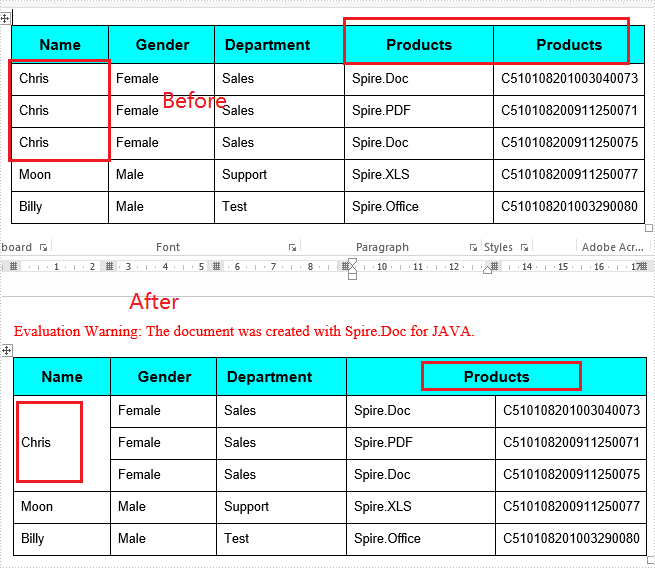
Spire.Doc offers Table.applyVerticalMerge() method to merge table cells vertically and Table.applyHorizontalMerge() method to merge table cells horizontally. By default, the merged cells will have repeated values if the cells to be merged contain the same value. This article will demonstrate how to remove repeated values in the merged cells using a customized method with Spire.Doc for Java.
Install Spire.Doc for Java
First of all, you're required to add the Spire.Doc.jar file as a dependency in your Java program. The JAR file can be downloaded from this link. If you use Maven, you can easily import the JAR file in your application by adding the following code to your project's pom.xml file.
<repositories>
    <repository>
        <id>com.e-iceblue</id>
        <name>e-iceblue</name>
        <url>https://repo.e-iceblue.com/nexus/content/groups/public/</url>
    </repository>
</repositories>
<dependencies>
    <dependency>
        <groupId>e-iceblue</groupId>
        <artifactId>spire.doc</artifactId>
        <version>14.7.0</version>
    </dependency>
</dependencies>
Remove Duplicate Values When Merging Cells
The following are the steps to remove the duplicate values in the merged cells in a Word table.
- Create an object of Document class and load the sample document using Document.loadFromFile() method.
- Use Document.getSections() method to get the section collection, and then get the specific section using SectionCollection.get() method.
- Use Section.getTables() method to get the table collection, and then get the desired table using TableCollection.get() method
- Invoke mergeCell(Table table, boolean isHorizontalMerge, int index, int start, int end) method to merge table cells vertically or horizontally. This method will determine whether the cells to be merged have the same value, and will preserve only one value in the merged cell.
- Save the document to file using Document.saveToFile() method.
- Java
import com.spire.doc.*;
import com.spire.doc.interfaces.ITable;

    public class MergeCells {
    public static void main(String[] args) throws Exception {

        //Create an object of Document class and load the sample document.
        Document document = new Document();
        document.loadFromFile("Sample.docx");

        //Get the first section
        Section section = document.getSections().get(0);

        //Get the first table
        Table table = section.getTables().get(0);

        //Invoike mergeCell()method to merge cells vertically
        mergeCell(table, false, 0, 1, 3);

        //Invoike mergeCell()method to merge cell horizontally
        mergeCell(table, true, 0, 4, 5);

        //Save the document to file
        document.saveToFile("MergeTable.docx",FileFormat.Docx_2013);
}

        //Customize a mergeCell() method to remove the duplicate values while merging cells
        public static void mergeCell(Table table, boolean isHorizontalMerge, int index, int start, int end) {

        if (isHorizontalMerge) {
            //Get a cell from table
            TableCell firstCell = table.get(index, start);
            //Invoke getCellText() method to get the cell’s text
            String firstCellText = getCellText(firstCell);
            for (int i = start + 1; i <= end; i++) {
                TableCell cell1 = table.get(index, i);
                //Check if the text is the same as the first cell
        if (firstCellText.equals(getCellText(cell1))) {
                    //If yes, clear all the paragraphs in the cell
                    cell1.getParagraphs().clear();
                }
            }
            //Merge cells horizontally
            table.applyHorizontalMerge(index, start, end);

        }
            else {
            TableCell firstCell = table.get(start, index);
            String firstCellText = getCellText(firstCell);
            for (int i = start + 1; i <= end; i++) {
                TableCell cell1 = table.get(i, index);
                if (firstCellText.equals(getCellText(cell1))) {
                    cell1.getParagraphs().clear();
                }
            }
            //Merge cells vertically
            table.applyVerticalMerge(index, start, end);
        }
    }
        public static String getCellText(TableCell cell) {

        StringBuilder text = new StringBuilder();
        //Traverse all the paragraphs of a cell
        for (int i = 0; i < cell.getParagraphs().getCount(); i++) {
            //Get every paragraph’s text and append it to StringBuilder
            text.append(cell.getParagraphs().get(i).getText().trim());
        }
        return text.toString();
    }
}
Apply for a Temporary License
If you'd like to remove the evaluation message from the generated documents, or to get rid of the function limitations, please request a 30-day trial license for yourself.
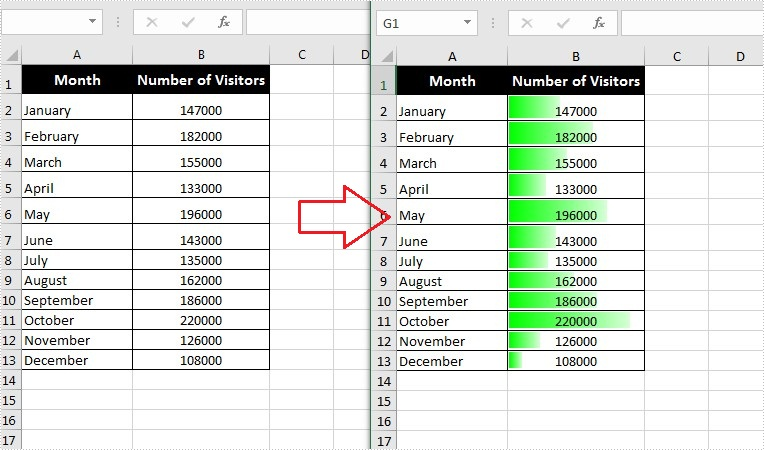
Data bars are a type of conditional formatting Microsoft Excel offers for visualizing the values in Excel cells. They can help you compare the values quickly because a cell with a longer bar represents a larger value, while a cell with a shorter bar represents a smaller value. This article will introduce how to add data bars in a range of cells using Spire.XLS for Java.
Install Spire.XLS for Java
First of all, you're required to add the Spire.Xls.jar file as a dependency in your Java program. The JAR file can be downloaded from this link. If you use Maven, you can easily import the JAR file in your application by adding the following code to your project's pom.xml file.
<repositories>
    <repository>
        <id>com.e-iceblue</id>
        <name>e-iceblue</name>
        <url>https://repo.e-iceblue.com/nexus/content/groups/public/</url>
    </repository>
</repositories>
<dependencies>
    <dependency>
        <groupId>e-iceblue</groupId>
        <artifactId>spire.xls</artifactId>
        <version>16.6.5</version>
    </dependency>
</dependencies>
Add Data Bars in Excel
The following are steps to add data bars in a range of Excel cells through conditional formatting:
- Create a Workbook instance.
- Load an Excel file using Workbook.loadFromFile() method.
- Get the worksheets collection using Workbook.getWorksheets() method, and then get the first worksheet using WorksheetsCollection.get() method.
- Get a specific cell range using Worksheet.getCellRange() method.
- Add a new conditional formatting to the cell range using ConditionalFormats. addCondition(), and then set the type of the new conditional formatting to DataBar using ConditionalFormatWrapper.setFormatType() method.
- Set the color of the data bar using DataBar.setBarColor() method.
- Save the document to another file using Workbook.saveToFile() method.
- Java
import com.spire.xls.*;
import com.spire.xls.core.IConditionalFormat;
import com.spire.xls.core.spreadsheet.collections.XlsConditionalFormats;

import java.awt.*;

public class applyDataBars {
    public static void main(String[] args) {
        //Create a Workbook instance
        Workbook workbook = new Workbook();

        //Load an Excel file
        workbook.loadFromFile("C:\\Users\\Administrator\\Desktop\\test.xlsx");

        //Get the first worksheet.
        Worksheet sheet = workbook.getWorksheets().get(0);

        //Add a conditional formatting and specify ranges
        XlsConditionalFormats conditional = sheet.getConditionalFormats().add();
        conditional.addRange(sheet.getCellRange("B2:B13"));

        //Add the conditional formatting of data bars
        IConditionalFormat format = conditional.addCondition();
        format.setFormatType( ConditionalFormatType.DataBar);

        //Set color for the data bars
        format.getDataBar().setBarColor( Color.GREEN);

        //Save to file
        workbook.saveToFile("ApplyDataBars.xlsx", ExcelVersion.Version2013);
    }
}
Apply for a Temporary License
If you'd like to remove the evaluation message from the generated documents, or to get rid of the function limitations, please request a 30-day trial license for yourself.
