
Java (485)
An Excel document with Track Changes turned on will let you know what changes have been made to the document since the author has saved it. If you have the full authority over the document, you can accept or reject each revision. This article covers how to accept or reject all tracked changes at once using Spire.XLS for Java.
Install Spire.XLS for Java
First of all, you're required to add the Spire.Xls.jar file as a dependency in your Java program. The JAR file can be downloaded from this link. If you use Maven, you can easily import the JAR file in your application by adding the following code to your project's pom.xml file.
<repositories>
    <repository>
        <id>com.e-iceblue</id>
        <name>e-iceblue</name>
        <url>https://repo.e-iceblue.com/nexus/content/groups/public/</url>
    </repository>
</repositories>
<dependencies>
    <dependency>
        <groupId>e-iceblue</groupId>
        <artifactId>spire.xls</artifactId>
        <version>16.6.5</version>
    </dependency>
</dependencies>
Accept Tracked Changes in a Workbook
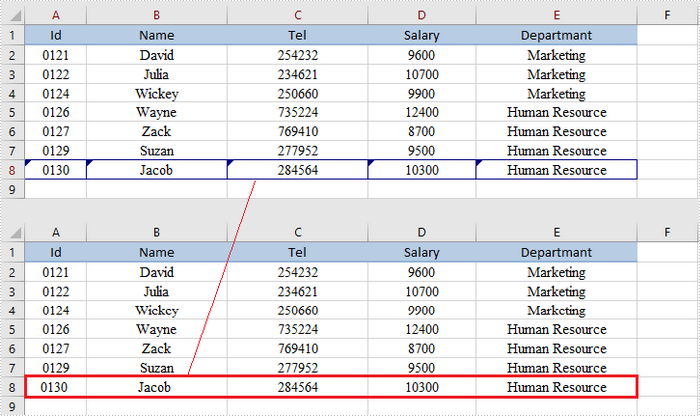
To determine whether a workbook has tracked changes, use Workbook.hasTrackedChanegs() method. If yes, you can accept all changes at once using Workbook.acceptAllTrackedchanges() method. The following are the steps to accept tracked changes in an Excel workbook.
- Create a Workbook object.
- Load the sample Excel document using Workbook.loadFromFile() method.
- Determine if the workbook has tracked changes by Workbook.hasTrackedChanegs() method.
- Accept tracked changes using Workbook.acceptAllTrackedChanges() method.
- Save the document to another file using Workbook.saveToFile() method.
- Java
import com.spire.xls.FileFormat;
import com.spire.xls.Workbook;

public class AcceptTrackedChanges {

    public static void main(String[] args) {

        //Create a Workbook object
        Workbook wb = new Workbook();

        //Load the sample Excel file
        wb.loadFromFile("C:\\Users\\Administrator\\Desktop\\Employees.xlsx");

        //Determine if the workbook has tracked changes
        if (wb.hasTrackedChanges())
        {
            //Accept tracked changes in the workbook
            wb.acceptAllTrackedChanges();
        }

        //Save to file
        wb.saveToFile("output/AcceptChanges.xlsx", FileFormat.Version2013);
    }
}
Reject Tracked Changes in a Workbook
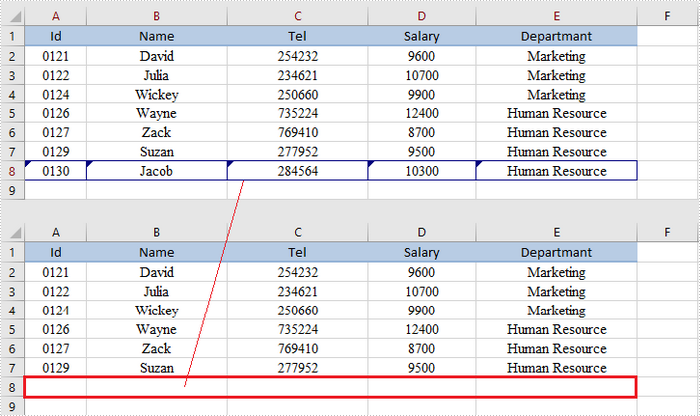
If the tracked changes have been proven to exist in a workbook, you can reject them using Workbook.rejectAllTrackedChanges() method. The following are the steps to achieve this.
- Create a Workbook object.
- Load the sample Excel document using Workbook.loadFromFile() method.
- Determine if the workbook has tracked changes by Workbook.hasTrackedChanegs() method.
- Reject all tracked changes using Workbook.rejectAllTrackedChanges() method.
- Save the document to another file using Workbook.saveToFile() method.
- Java
import com.spire.xls.FileFormat;
import com.spire.xls.Workbook;

public class RejectTrackedChanges {

    public static void main(String[] args) {

        //Create a Workbook object
        Workbook wb = new Workbook();

        //Load the sample Excel file
        wb.loadFromFile("C:\\Users\\Administrator\\Desktop\\Employees.xlsx");

        //Determine if the workbook has tracked changes
        if (wb.hasTrackedChanges())
        {
            //Reject tracked changes in the workbook
            wb.rejectAllTrackedChanges();
        }

        //Save to file
        wb.saveToFile("output/RejectChanges.xlsx", FileFormat.Version2013);
    }
}
Apply for a Temporary License
If you'd like to remove the evaluation message from the generated documents, or to get rid of the function limitations, please request a 30-day trial license for yourself.
If you are going to print or share a PDF document, it’s better to check if there are blank pages in the document, because they will lead to a waste of paper and a less professional look for your document. However, it will take much time to look through every page to find the empty pages and then delete them. A better way to deal with this problem is to use Spire.PDF for Java. In this article, you will learn how to use Spire.PDF for Java to find and remove blank pages from PDF document easily by programming.
Install Spire.PDF for Java
First, you're required to add the Spire.Pdf.jar file as a dependency in your Java program. The JAR file can be downloaded from this link. If you use Maven, you can easily import the JAR file in your application by adding the following code to your project's pom.xml file.
<repositories>
    <repository>
        <id>com.e-iceblue</id>
        <name>e-iceblue</name>
        <url>https://repo.e-iceblue.com/nexus/content/groups/public/</url>
    </repository>
</repositories>
<dependencies>
    <dependency>
        <groupId>e-iceblue</groupId>
        <artifactId>spire.pdf</artifactId>
        <version>12.7.0</version>
    </dependency>
</dependencies>
Find and Delete Blank Pages from a PDF Document
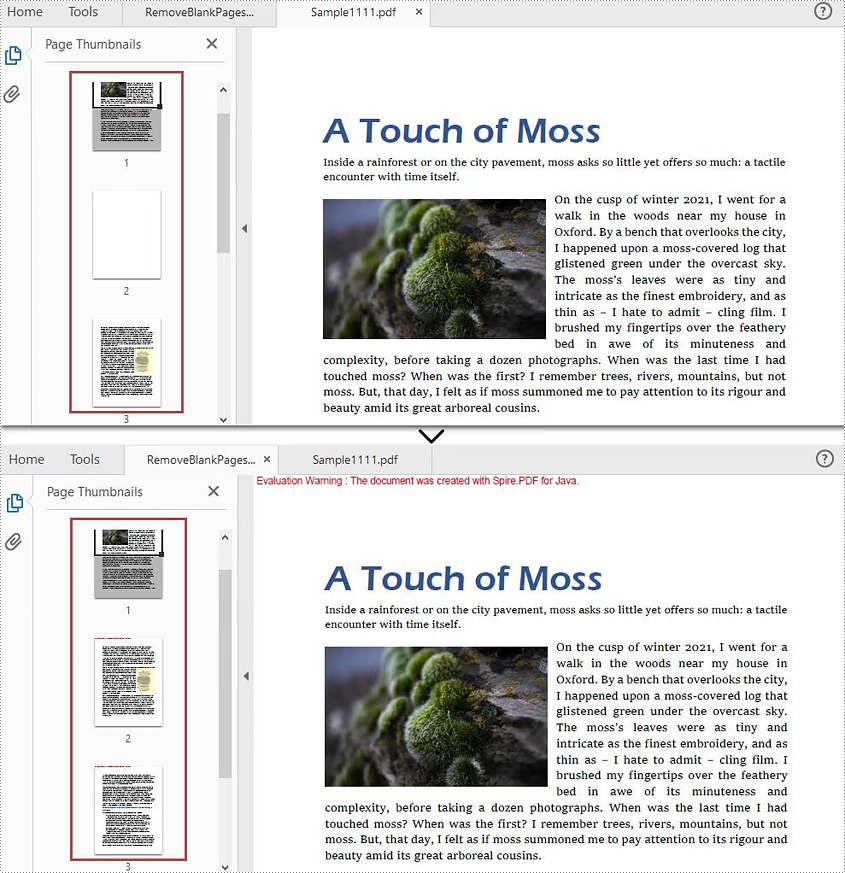
Spire.PDF for Java provides a method PdfPageBase.isBlank() to detect if a PDF page is absolutely blank. But some pages that look blank actually contain white images, these pages won't be deemed as blank using the PdfPageBase.isBlank() method. Therefore, it is necessary create a custom method isBlankImage() to be used in conjunction with PdfPageBase.isBlank() method to detect blank and white but non-blank pages.
Note: This solution will convert PDF pages into images and detect if an image is blank. It is necessary to apply a license to remove the evaluation message in the converted images. Otherwise, this method won't work properly. If you do not have a license, contact sales@e-iceblue.com for a temporary one for evaluation purpose.
The detailed steps are as follows:
- Create an object of PdfDocument class.
- Load a PDF document using PdfDocument.loadFromFile() method.
- Loop through the pages in the PDF document to detect if the pages are blank using PdfPageBase.isBlank() method.
- For absolutely blank pages, delete them using PdfDocument.getPages().remove() method.
- For pages that are not absolutely blank, save them as images using PdfDocument.saveAsImage() method, detect if the converted images are blank using custom method isBlankImage() and then remove the pages that are “balnk” using PdfDocument.getPages().remove().
- Save the result document using PdfDocument.saveToFile() method.
- Java
import com.spire.pdf.PdfDocument;
import com.spire.pdf.PdfPageBase;
import com.spire.pdf.graphics.PdfImageType;

import java.awt.*;
import java.awt.image.BufferedImage;

public class removeBlankPages {
    public static void main(String []args){

        //Create a PdfDocument class instance
        PdfDocument pdf = new PdfDocument();

        //Load a PDF document
        pdf.loadFromFile("C:/Sample.pdf");

        BufferedImage image;
        //Loop through pages in the PDF
        for(int i = pdf.getPages().getCount()-1; i>=0; i--)
        {
            PdfPageBase page = pdf.getPages().get(i);
            //Detect if a page is blank
            if(page.isBlank())
            {
                //Remove the absolutely blank page
                pdf.getPages().remove(page);
            }
            else
            {
                //Save PDF page as image
                image = pdf.saveAsImage(i, PdfImageType.Bitmap);

                //Detect if the converted image is blank
                if (isBlankImage(image))
                {
                    //Remove the page
                    pdf.getPages().remove(page);
                }
            }

        }

        //Save the result document
        pdf.saveToFile("RemoveBlankPages.pdf");
    }
    //Detect if an image is blank
    public static boolean isBlankImage(BufferedImage image)
    {
        BufferedImage bufferedImage = image;

        Color pixel;
        for (int i = 0; i < bufferedImage.getWidth(); i++)
        {
            for (int j = 0; j < bufferedImage.getHeight(); j++)
            {
                pixel = new Color(bufferedImage.getRGB(i, j));
                if (pixel.getRed() < 240 || pixel.getGreen() < 240 || pixel.getBlue() < 240)
                {
                    return false;
                }
            }
        }
        return true;
    }
}
Apply for a Temporary License
If you'd like to remove the evaluation message from the generated documents, or to get rid of the function limitations, please request a 30-day trial license for yourself.
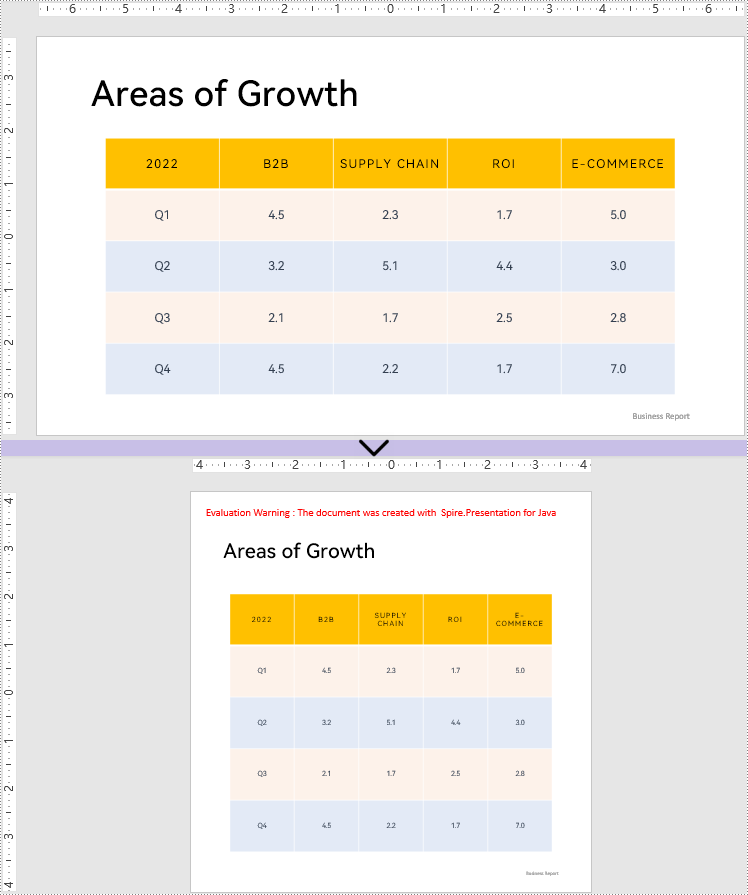
The slide size is one of the important aspects of the visual design of PowerPoint presentations. It influences the aspect ratio and dimensions of the presentation and can have a significant impact on the overall appearance and atmosphere of the presentation. If the default slide size does not meet the visual design requirements or does not match the size of the screen showing the presentation, it is necessary to change the size of the slides to another preset size or customize a slide size. This article will demonstrate how to change the slide size of PowerPoint presentations through Java programs using Spire.Presentation for Java.
Install Spire.Presentation for Java
First of all, you're required to add the Spire.Presentation.jar file as a dependency in your Java program. The JAR file can be downloaded from this link. If you use Maven, you can easily import the JAR file in your application by adding the following code to your project's pom.xml file.
<repositories>
    <repository>
        <id>com.e-iceblue</id>
        <name>e-iceblue</name>
        <url>https://repo.e-iceblue.com/nexus/content/groups/public/</url>
    </repository>
</repositories>
<dependencies>
    <dependency>
        <groupId>e-iceblue</groupId>
        <artifactId>spire.presentation</artifactId>
        <version>11.7.2</version>
    </dependency>
</dependencies>
Change the Slide Size to a Preset Size
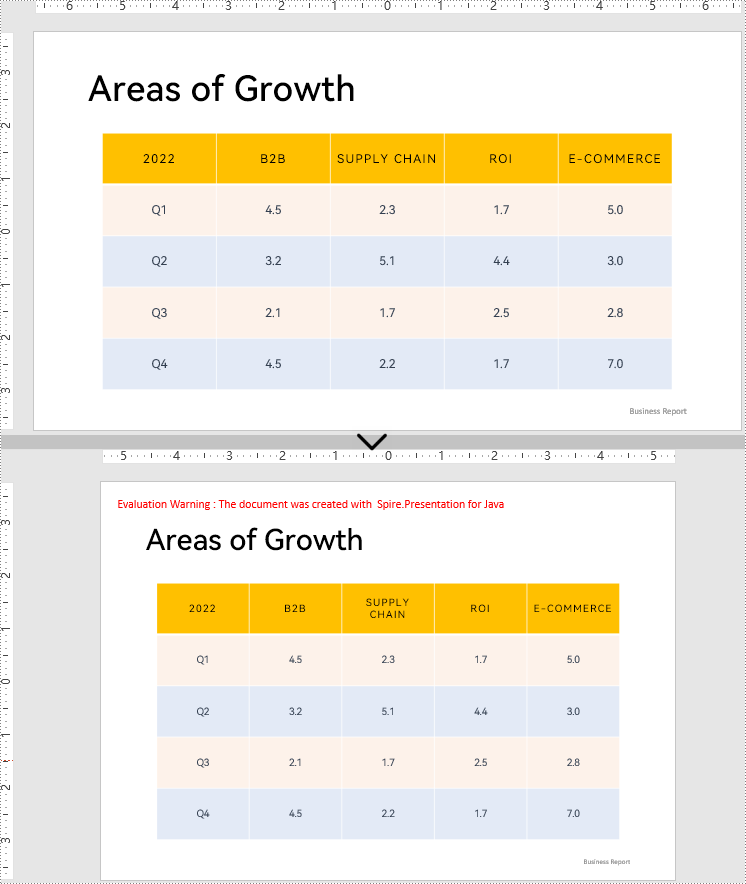
Spire.Presentation for Java provides the Presentation.getSlideSize().setType() method to change the slide size to a preset size. The detailed steps are as follows:
- Create an object of Presentation class.
- Load a PowerPoint presentation using Presentation.loadFromFile() method.
- Change the slide type of the presentation using Presentation.getSlideSize().setType() method.
- Save the presentation using Presentation.saveToFile() method.
- Java
import com.spire.presentation.FileFormat;
import com.spire.presentation.Presentation;
import com.spire.presentation.SlideSizeType;

public class changeSlideSizePreset {
    public static void main(String[] args) throws Exception {
        //Create an object of Presentation class
        Presentation pt = new Presentation();

        //Load a presentation file
        pt.loadFromFile("Sample.pptx");

        //Change the slide size of the presentation to A4
        pt.getSlideSize().setType(SlideSizeType.A4);

        //Save the presentation file
        pt.saveToFile("A4Size.pptx", FileFormat.AUTO);
        pt.dispose();
    }
}
Change the Slide Size to a Custom Size
Customizing the size of slides requires changing the slide size type to custom. After that, the Presentation.getSlideSize().setSize() method can be used to customize the slide size. The detailed steps are as follows:
- Create an object of Presentation class.
- Load a PowerPoint presentation using Presentation.loadFromFile() method.
- Change the slide size type to custom using Presentation.getSlideSize().setType() method.
- Customize the slide size using Presentation.getSlideSize().setSize() method.
- Save the presentation using Presentation.saveToFile() method.
- Java
import com.spire.presentation.FileFormat;
import com.spire.presentation.Presentation;
import com.spire.presentation.SlideSize;
import com.spire.presentation.SlideSizeType;

import java.awt.*;

public class changeSlideSizeCustom {
    public static void main(String[] args) throws Exception {
        //Create an object of Presentation class
        Presentation pt = new Presentation();

        //Load a PowerPoint presentation
        pt.loadFromFile("Sample.pptx");

        //Change the slide size type to custom
        pt.getSlideSize().setType(SlideSizeType.CUSTOM);

        //Set the slide size
        pt.getSlideSize().setSize(new Dimension(600, 600));

        //Save the presentation file
        pt.saveToFile("CustomSize.pptx", FileFormat.AUTO);
        pt.dispose();
    }
}
Apply for a Temporary License
If you'd like to remove the evaluation message from the generated documents, or to get rid of the function limitations, please request a 30-day trial license for yourself.
