
Java (485)
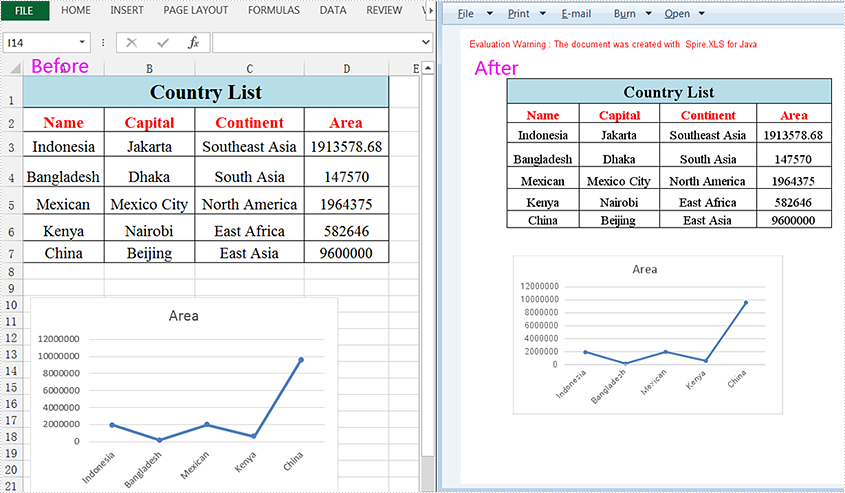
When you work with Excel worksheets on a daily basis, you sometimes need to convert them to images for storage or preventing data from being changed when shared with others. This article will show you how to convert a whole Excel worksheet or a specific cell range to an image using Spire.XLS for Java.
Install Spire.XLS for Java
First of all, you're required to add the Spire.Xls.jar file as a dependency in your Java program. The JAR file can be downloaded from this link. If you use Maven, you can easily import the JAR file in your application by adding the following code to your project's pom.xml file.
<repositories>
    <repository>
        <id>com.e-iceblue</id>
        <name>e-iceblue</name>
        <url>https://repo.e-iceblue.com/nexus/content/groups/public/</url>
    </repository>
</repositories>
<dependencies>
    <dependency>
        <groupId>e-iceblue</groupId>
        <artifactId>spire.xls</artifactId>
        <version>16.8.4</version>
    </dependency>
</dependencies>
Convert a Whole Excel Worksheet to Image
The following steps will demonstrate how to convert a whole Excel worksheet to an image.
- Create a Workbook instance.
- Load a sample Excel document using Workbook.loadFromFile() method.
- Get a specific worksheet of the document using Workbook.getWorksheets().get() method.
- Convert the worksheet to an image using Worksheet.saveToImage() method.
- Java
import com.spire.xls.*;

public class ExcelToImage {
    public static void main(String[] args){

        //Create a workbook instance
        Workbook workbook = new Workbook();
        //Load a sample Excel document
        workbook.loadFromFile("C:\\Users\\Test1\\Desktop\\sample.xlsx");

        //Get the first worksheet
        Worksheet sheet = workbook.getWorksheets().get(0);

        //Save the sheet to an image
        sheet.saveToImage("output/SheetToImage.png");
    }
}
Convert a Specific Cell Range to Image
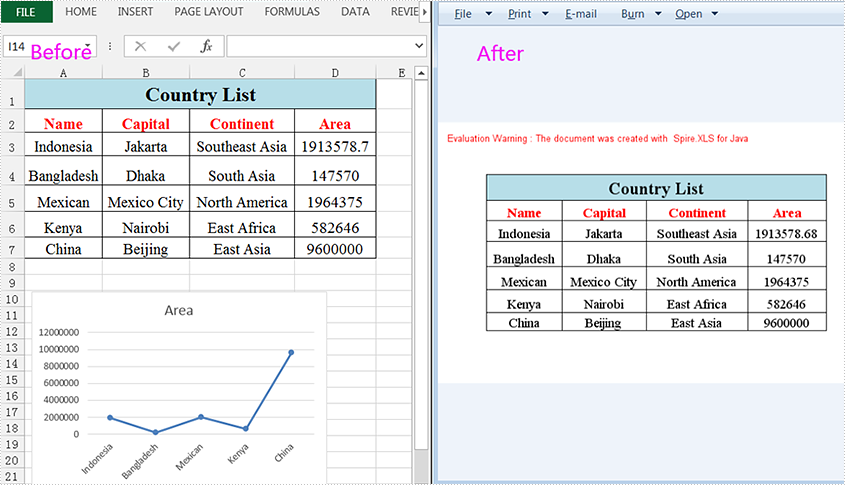
Spire.XLS for Java supports converting a specific cell range to an image by using the Worksheet.toImage (int firstRow,int firstColumn,int lastRow,int lastColumn) method. Detailed steps are listed below.
- Create a Workbook instance.
- Load a sample Excel document using Workbook.loadFromFile() method.
- Get a specific worksheet of the document using Workbook.getWorksheets().get() method.
- Create a BufferedImage instance.
- Convert a specific cell range to the ButteredImage object using Worksheet.toImage () method.
- Save the BufferedImage object to a .png image.
- Java
import com.spire.xls.Workbook;
import com.spire.xls.Worksheet;
import javax.imageio.ImageIO;
import java.awt.image.BufferedImage;
import java.io.*;

public class SpecificCellsToImage {
    public static void main(String[] args) throws IOException {

        //Create a workbook instance
        Workbook workbook = new Workbook();
        //Load a sample Excel document
        workbook.loadFromFile("C:\\Users\\Test1\\Desktop\\sample.xlsx");

        //Get the first worksheet
        Worksheet sheet = workbook.getWorksheets().get(0);

        //Convert a specific cell range to the BufferedImage object
        BufferedImage bufferedImage = sheet.toImage(1, 1, 7, 4);
        //Save as a .png image
ImageIO.write(bufferedImage,"PNG",new File("output/specificCellsToImage.png"));
    }
}
Apply for a Temporary License
If you'd like to remove the evaluation message from the generated documents, or to get rid of the function limitations, please request a 30-day trial license for yourself.
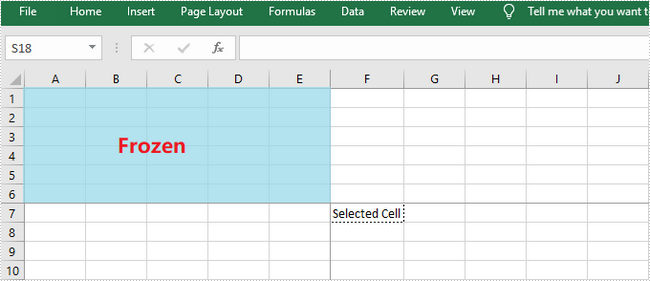
Excel Panes can be frozen to make certain rows or columns visible even when scrolling through the worksheet. This feature is helpful for viewing or editing data in a large worksheet. For example, once the header row is frozen, we can easily find cells in the lower part of the worksheet without having to go back to the top to check the name of the header. This article will introduce how to freeze rows or/and columns in Excel using Spire.XLS for Java.
Spire.XLS for Java provides the Worksheet.freezePanes(int rowIndex, int columnIndex) method to freeze all rows and columns above and left of the selected cell which is specified by the rowIndex and the columnIndex.
This tutorial provides the code examples for the following cases:
Install Spire.XLS for Java
First, you're required to add the Spire.Xls.jar file as a dependency in your Java program. The JAR file can be downloaded from this link. If you use Maven, you can easily import the JAR file in your application by adding the following code to your project's pom.xml file.
<repositories>
    <repository>
        <id>com.e-iceblue</id>
        <name>e-iceblue</name>
        <url>https://repo.e-iceblue.com/nexus/content/groups/public/</url>
    </repository>
</repositories>
<dependencies>
    <dependency>
        <groupId>e-iceblue</groupId>
        <artifactId>spire.xls</artifactId>
        <version>16.8.4</version>
    </dependency>
</dependencies>
Freeze the Top Row
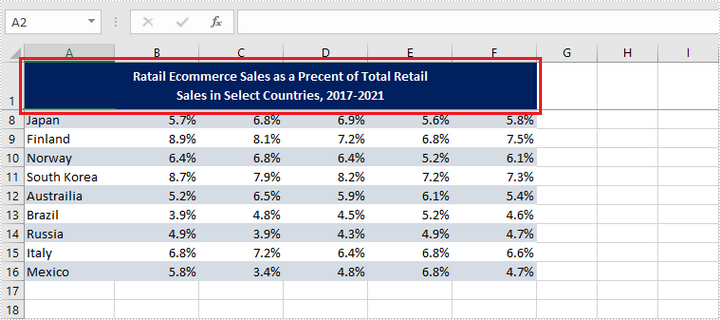
In order to freeze the top row, we should select the cell (2, 1) – "A2" and freeze the row above. The following are the steps to freeze the top row using Spire.XLS for Java.
- Create a Workbook object.
- Load an Excel file using Workbook.loadFromFile() method.
- Get a specific worksheet using Workbook.getWorksheets().get() method.
- Freeze the top row by passing (2, 1) to the Worksheet.freezePanes(int rowIndex, int columnIndex) method as the parameter.
- Save the workbook to another Excel file using Workbook.saveToFile() method.
- Java
import com.spire.xls.ExcelVersion;
import com.spire.xls.Workbook;
import com.spire.xls.Worksheet;

public class FreezeTopRow {

    public static void main(String[] args) {

        //Create a Workbook instance
        Workbook workbook = new Workbook();

        //Load an Excel document
        workbook.loadFromFile("C:\\Users\\Administrator\\Desktop\\sample.xlsx");

        //Get the first worksheet
        Worksheet sheet = workbook.getWorksheets().get(0);

        //Freeze the first row
        sheet.freezePanes(2, 1);

        //Save to another file
        workbook.saveToFile("output/FreezeTopRow.xlsx", ExcelVersion.Version2016);
    }
}
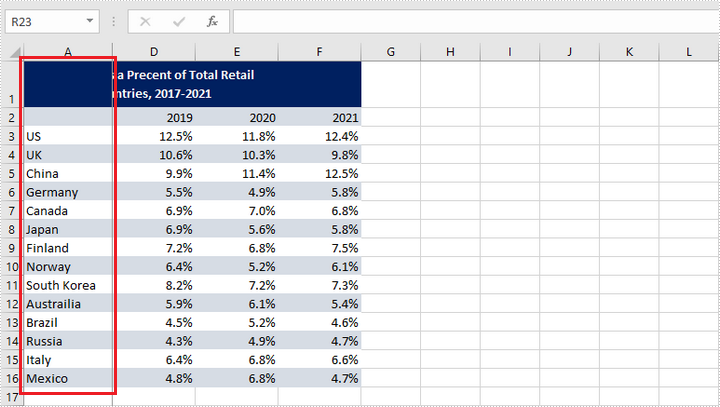
Freeze the First Column
To freeze the first column, we should select the cell (1, 2) – "B1" and freeze the column on the left. The following are the steps to freeze the first column using Spire.XLS for Java.
- Create a Workbook object.
- Load an Excel file using Workbook.loadFromFile() method.
- Get a specific worksheet using Workbook.getWorksheets().get() method.
- Freeze the top row by passing (1, 2) to the Worksheet.freezePanes(int rowIndex, int columnIndex) method as the parameter.
- Save the workbook to another Excel file using Workbook.saveToFile() method.
- Java
import com.spire.xls.ExcelVersion;
import com.spire.xls.Workbook;
import com.spire.xls.Worksheet;

public class FreezeFirstColumn {

    public static void main(String[] args) {

        //Create a Workbook instance
        Workbook workbook = new Workbook();

        //Load an Excel document
        workbook.loadFromFile("C:\\Users\\Administrator\\Desktop\\sample.xlsx");

        //Get the first worksheet
        Worksheet sheet = workbook.getWorksheets().get(0);

        //Freeze the first column
        sheet.freezePanes(1, 2);

        //Save to another file
        workbook.saveToFile("output/FreezeFirstColumn.xlsx", ExcelVersion.Version2016);
    }
}
Freeze the First Row and the First Column
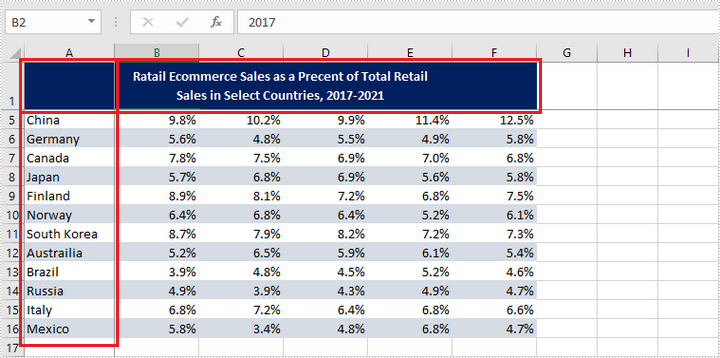
To freeze the first row and the first column, the selected cell should be cell (2, 2) – "B2". The following are the detailed steps.
- Create a Workbook object.
- Load an Excel file using Workbook.loadFromFile() method.
- Get a specific worksheet using Workbook.getWorksheets().get() method.
- Freeze the first row and the first column by passing (2, 2) to the Worksheet.freezePanes(int rowIndex, int columnIndex) method as the parameter.
- Save the workbook to another Excel file using Workbook.saveToFile() method.
- Java
import com.spire.xls.ExcelVersion;
import com.spire.xls.Workbook;
import com.spire.xls.Worksheet;

public class FreezeFirstRowAndFirstColumn {

    public static void main(String[] args) {

        //Create a Workbook instance
        Workbook workbook = new Workbook();

        //Load an Excel document
        workbook.loadFromFile("C:\\Users\\Administrator\\Desktop\\sample.xlsx");

        //Get the first worksheet
        Worksheet sheet = workbook.getWorksheets().get(0);

        //Freeze the first row and the first column
        sheet.freezePanes(2, 2);

        //Save to another file
        workbook.saveToFile("output/FreezeFirstRowAndFirstColumn.xlsx", ExcelVersion.Version2016);
    }
}
Apply for a Temporary License
If you'd like to remove the evaluation message from the generated documents, or to get rid of the function limitations, please request a 30-day trial license for yourself.
Formatting numbers in Excel cells is a critical step when working with spreadsheets, especially in professional or data-driven environments. Proper number formatting ensures that data is presented clearly, consistently, and in a way that aligns with its purpose—whether it's financial data, percentages, dates, or scientific values. When automating Excel tasks using Java, applying the correct number format programmatically can save time, reduce errors, and enhance the readability of reports or dashboards. This article explores how to use Spire.XLS for Java to set number formats in Excel cells, enabling you to create polished and well-structured spreadsheets with ease.
- How to Set Number Formats in Excel with Java
- Add Values in Specified Number Formats to Excel Cells with Java
Install Spire.XLS for Java
First of all, you're required to add the Spire.Xls.jar file as a dependency in your Java program. The JAR file can be downloaded from this link. If you use Maven, you can easily import the JAR file in your application by adding the following code to your project's pom.xml file.
<repositories>
    <repository>
        <id>com.e-iceblue</id>
        <name>e-iceblue</name>
        <url>https://repo.e-iceblue.com/nexus/content/groups/public/</url>
    </repository>
</repositories>
<dependencies>
    <dependency>
        <groupId>e-iceblue</groupId>
        <artifactId>spire.xls</artifactId>
        <version>16.8.4</version>
    </dependency>
</dependencies>
How to Set Number Formats in Excel with Java
Spire.XLS for Java provides the CellRange.setNumberFormat() method, enabling developers to set number formats for cells using Excel's number format codes. The table below highlights commonly used symbols in Excel number format codes and their functions:
| Symbols | Description |
| 0 and # | 0 forces display of digit places, padding with zeros if necessary; # shows digits only when needed. |
| ? | Placeholder for aligning numbers, leaves space but does not display anything if not used. |
| , and . | , serves as a thousands separator and can also indicate division by 1000; . is the decimal point. |
| % | Multiplies the number by 100 and adds a percent sign. |
| E+ / E- | Scientific notation, for positive and negative exponents respectively. |
| Currency ($, €, ¥, etc.) | Displays the respective currency symbol. |
| [Color] | Sets text color (e.g., [Red], [Blue]). |
| @ | Text placeholder, used to represent text in custom formats. |
| Date/Time (yyyy, mmmm, mm, dd, hh, ss, AM/PM) | Represent year, full month name, month, day, hour, minute, second, and 12-hour clock markers respectively. |
The detailed steps for setting number formats of Excel cells with Java are as follows:
- Create a Workbook object to create a new Excel workbook.
- Get the first default worksheet using the Workbook.getWorksheets().get() method.
- Add values using the CellRange.setValue() method or add numeric values using the CellRange.setNumberValue() method.
- Set the number formats using the CellRange.setNumberFormat() method.
- Save the workbook using the Workbook.saveToFile() method.
- Java
import com.spire.xls.*;

public class SetNumberFormat {
    public static void main(String[] args) {
        // Create a new workbook instance
        Workbook workbook = new Workbook();

        // Get the first worksheet
        Worksheet sheet = workbook.getWorksheets().get(0);

        // Add a title
        sheet.getCellRange("B1").setText("NUMBER FORMATTING");
        sheet.getCellRange("B1").getCellStyle().getExcelFont().isBold(true);
        sheet.getCellRange("B1:C1").merge(); // Merge cells B1 and C1
        sheet.getCellRange("B1:C1").setHorizontalAlignment(HorizontalAlignType.Center); // Center align the text

        // Add number format examples and corresponding values
        // Add positive number formats
        addNumberFormatExample(sheet, "B3", "C3", "0", "1234.5678");
        addNumberFormatExample(sheet, "B4", "C4", "0.00", "1234.5678");
        addNumberFormatExample(sheet, "B5", "C5", "#,##0.00", "1234.5678");
        addNumberFormatExample(sheet, "B6", "C6", "$#,##0.00", "1234.5678");

        // Add negative number formats
        addNumberFormatExample(sheet, "B7", "C7", "0;[Red]-0", "-1234.5678");
        addNumberFormatExample(sheet, "B8", "C8", "0.00;[Red]-0.00", "-1234.5678");

        // Add scientific notation and percentage formats
        addNumberFormatExample(sheet, "B9", "C9", "0.00E+00", "1234.5678");
        addNumberFormatExample(sheet, "B10", "C10", "0.00%", "0.5678");

        // Add date and time formats
        addNumberFormatExample(sheet, "B11", "C11", "yyyy-MM-dd", "44930.0"); // Excel date value for 2023-01-01
        addNumberFormatExample(sheet, "B12", "C12", "HH:mm:ss", "0.75"); // Excel time value for 18:00:00

        // Add text format
        addNumberFormatExample(sheet, "B13", "C13", "@", "Text Example");

        // Set the formatting
        sheet.getCellRange("B3:B13").getCellStyle().setKnownColor(ExcelColors.Gray25Percent);
        sheet.getCellRange("C3:C13").getCellStyle().setKnownColor(ExcelColors.Gray50Percent);
        sheet.setColumnWidth(2, 24); // Column B
        sheet.setColumnWidth(3, 24); // Column C

        // Save the workbook to a file
        workbook.saveToFile("output/SetExcelNumberFormat.xlsx", FileFormat.Version2016);
        workbook.dispose();
    }

        /**
        * Adds a number format example to the specified cells in the worksheet.
        *
        * @param sheet        The worksheet to modify.
        * @param textCell     The cell for displaying the number format string.
        * @param valueCell    The cell for displaying the formatted value.
        * @param format       The number format code.
        * @param value        The numeric value to format.
        */
        private static void addNumberFormatExample(Worksheet sheet, String textCell, String valueCell, String format, String value) {
            sheet.getCellRange(textCell).setText(format); // Display the number format code
            sheet.getCellRange(valueCell).setValue(value); // Add the value
            // sheet.getCellRange(valueCell).setNumberValue(Double); //  Or set numeric value with setNumberValue() method
            sheet.getCellRange(valueCell).setNumberFormat(format); // Apply the number format
    }
}

Add Values in Specified Number Formats to Excel Cells with Java
Spire.XLS for Java also supports directly adding data with specific number formats to Excel cells with methods under the CellRange class. The following table outlines the methods for adding data with common number formats to cells and their corresponding data types:
| Method | Description |
| setText(String text) | Sets a text value in a cell or range of cells. |
| setNumberValue(double numberValue) | Sets a numeric value in a cell or range of cells. |
| setBooleanValue(boolean booleanValue) | Sets a boolean value (true/false) in a cell or range of cells. |
| setDateTimeValue(java.util.Date dateTime) | Sets a date and time value in a cell or range of cells. |
| setHtmlString(String htmlCode) | Sets an HTML-formatted string in a cell or range of cells. |
The detailed steps for adding values with number formats to Excel cells are as follows:
- Create an instance of the Workbook class.
- Get the first worksheet using the Workbook.getWorksheets().get() method.
- Get a cell or cell range using the Worksheet.getCellRange() method.
- Add values in specific number formats using the methods under the CellRange class.
- Set the cell styles as needed.
- Save the workbook using the Workbook.saveToFile() method.
- Java
import com.spire.xls.*;

import java.util.Calendar;
import java.util.Date;

public class AddFormattedDataExcel {
    public static void main(String[] args) {
        // Create a new workbook instance
        Workbook workbook = new Workbook();

        // Get the first worksheet
        Worksheet sheet = workbook.getWorksheets().get(0);

        // Add a text value
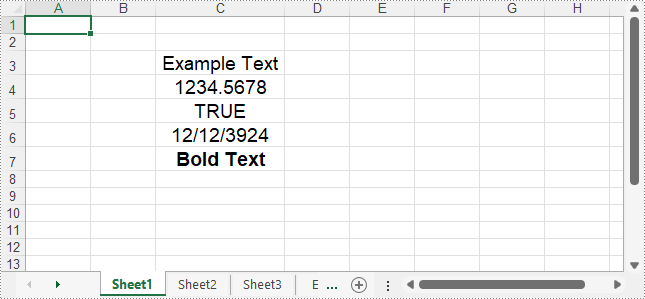
        sheet.getCellRange("C3").setText("Example Text");
        // Add number value
        sheet.getCellRange("C4").setNumberValue(1234.5678);
        // Add boolean value
        sheet.getCellRange("C5").setBooleanValue(true);
        // Add date time value
        sheet.getCellRange("C6").setDateTimeValue(new Date(2024, Calendar.DECEMBER, 12));
        // Add HTML string
        sheet.getCellRange("C7").setHtmlString("Bold Text");

        // Format the cells
        sheet.getCellRange("C3:C7").setHorizontalAlignment(HorizontalAlignType.Center);
        sheet.getCellRange("C3:C7").setVerticalAlignment(VerticalAlignType.Center);
        sheet.getCellRange("C3:C7").getCellStyle().getExcelFont().setSize(14);
        for (int i = 3; i <= 7; i++) {
            sheet.autoFitColumn(i);
        }

        // Save the workbook
        workbook.saveToFile("output/AddFormattedDataExcel.xlsx", FileFormat.Version2016);
        workbook.dispose();
    }
}
Apply for a Temporary License
If you'd like to remove the evaluation message from the generated documents, or to get rid of the function limitations, please request a 30-day trial license for yourself.
