
Java (485)
This article demonstrates how to modify hyperlinks in Word including modifying hyperlink address and display text using Spire.Doc for Java.
Below is the sample Word document we used for demonstration:

import com.spire.doc.*;
import com.spire.doc.documents.*;
import com.spire.doc.fields.Field;
import java.util.ArrayList;
import java.util.List;
public class ModifyHyperlink {
public static void main(String[] args) {
//Load Word document
Document doc = new Document();
doc.loadFromFile("Hyperlink.docx");
List<Field> hyperlinks = new ArrayList<>();
//Loop through the section in the document
for (Section section : (Iterable<Section>) doc.getSections()
) {
//Loop through the section in the document
for (Paragraph para : (Iterable<Paragraph>) section.getParagraphs()
) {
for (DocumentObject obj:(Iterable<DocumentObject>) para.getChildObjects()
) {
if (obj.getDocumentObjectType().equals(DocumentObjectType.Field)) {
Field field = (Field) obj;
if (field.getType().equals(FieldType.Field_Hyperlink)) {
hyperlinks.add(field);
}
}
}
}
}
hyperlinks.get(0).setCode("HYPERLINK \"http://www.google.com\"");
hyperlinks.get(0).setFieldText("www.google.com");
doc.saveToFile("EditHyperlink.docx", FileFormat.Docx_2013);
}
}
Output:

Published in
Hyperlink
Tagged under
We have already demonstrated how to use Spire.Doc to insert footnote to word document in Java applications. This article will show how to remove footnote from word document in Java.
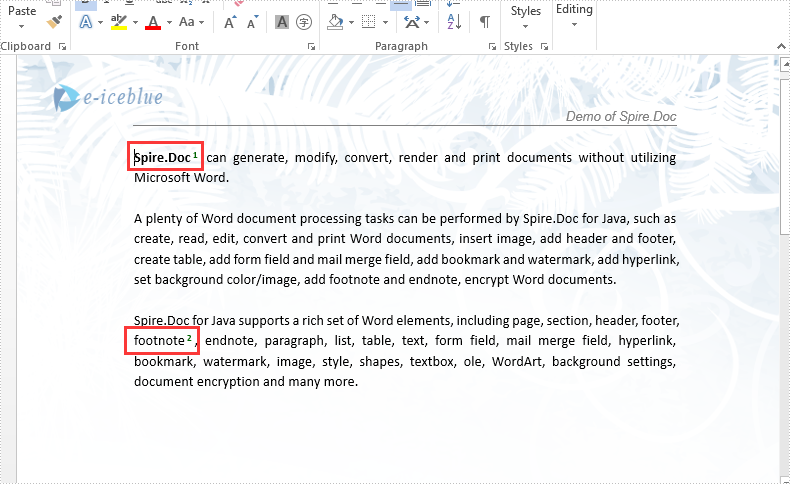
Firstly, view the sample document with footnotes:
import com.spire.doc.*;
import com.spire.doc.documents.Paragraph;
import com.spire.doc.fields.*;

public class RemoveFootnote {
    public static void main(String[] args) throws Exception {

        //Load the Sample Word document.
        Document document = new Document();
        document.loadFromFile("Sample.docx");

        Section section = document.getSections().get(0);

        //Traverse paragraphs in the section and find the footnote
        for (int j = 0; j < section.getParagraphs().getCount(); j++) {
            Paragraph para = section.getParagraphs().get(j);
            int index = -1;
            for (int i = 0, cnt = para.getChildObjects().getCount(); i < cnt; i++) {
                ParagraphBase pBase = (ParagraphBase) para.getChildObjects().get(i);
                if (pBase instanceof Footnote) {
                    index = i;
                    break;
                }
            }

            if (index > -1)
                //remove the footnote
                para.getChildObjects().removeAt(index);
        }
        document.saveToFile("Removefootnote.docx", FileFormat.Docx);
    }
}
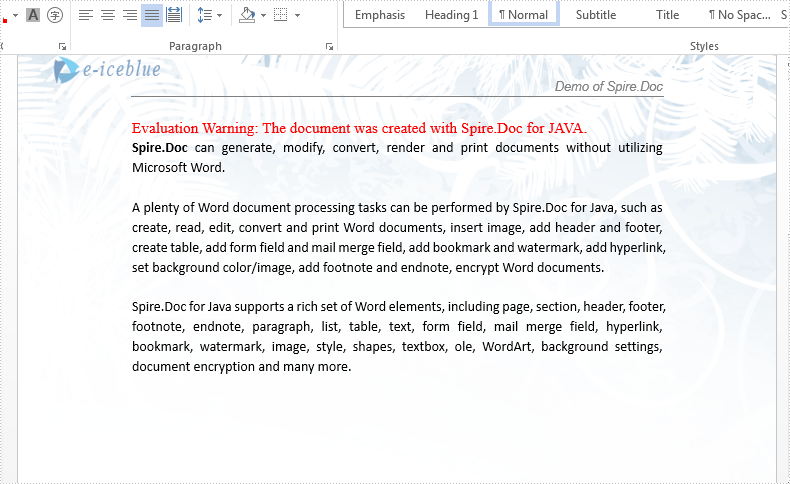
Effective screenshot after remove the footnote from word document:
Published in
FootNote
Tagged under
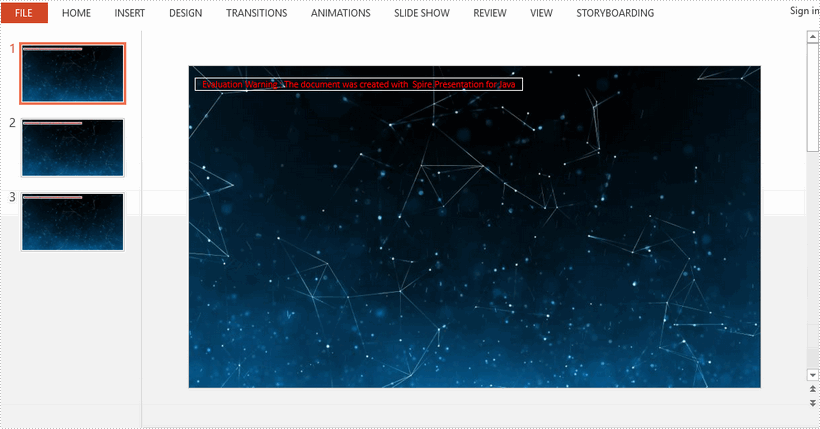
This article demonstrates how to apply background image to all slides in a PowerPoint presentation using Spire.Presentation for Java.
import com.spire.presentation.FileFormat;
import com.spire.presentation.Presentation;
import com.spire.presentation.SlideBackground;
import com.spire.presentation.drawing.*;

import javax.imageio.ImageIO;
import java.awt.image.BufferedImage;
import java.io.FileInputStream;

public class AppplyBgToAllSlides {

    public static void main(String[] args) throws Exception {

        //load a PowerPoint file
        Presentation presentation = new Presentation();
        presentation.loadFromFile("C:\\Users\\Administrator\\Desktop\\input.pptx");

        //get the image data
        BufferedImage bufferedImage = ImageIO.read(new FileInputStream("C:\\Users\\Administrator\\Desktop\\bg.jpg"));
        IImageData imageData = presentation.getImages().append(bufferedImage);

        //loop through the slides
        for (int i = 0; i < presentation.getSlides().getCount() ; i++) {

            //apply the image to the specific slide as background
            SlideBackground background = presentation.getSlides().get(i).getSlideBackground();
            background.setType(BackgroundType.CUSTOM);
            background.getFill().setFillType(FillFormatType.PICTURE);
            background.getFill().getPictureFill().setFillType(PictureFillType.STRETCH);
            background.getFill().getPictureFill().getPicture().setEmbedImage(imageData);
        }

        //save the file
        presentation.saveToFile("output/BackgroundImage.pptx", FileFormat.PPTX_2013);
        presentation.dispose();
    }
}
Published in
Document Operation
Tagged under
