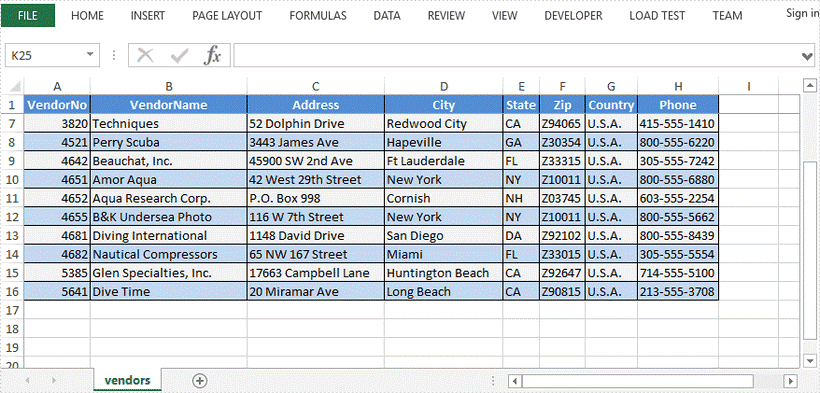
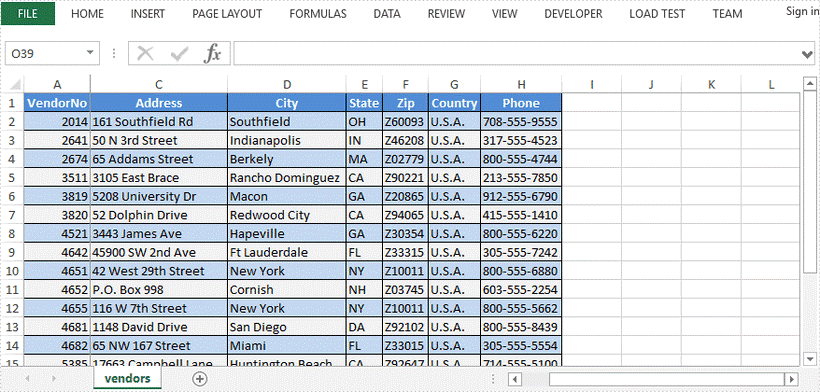
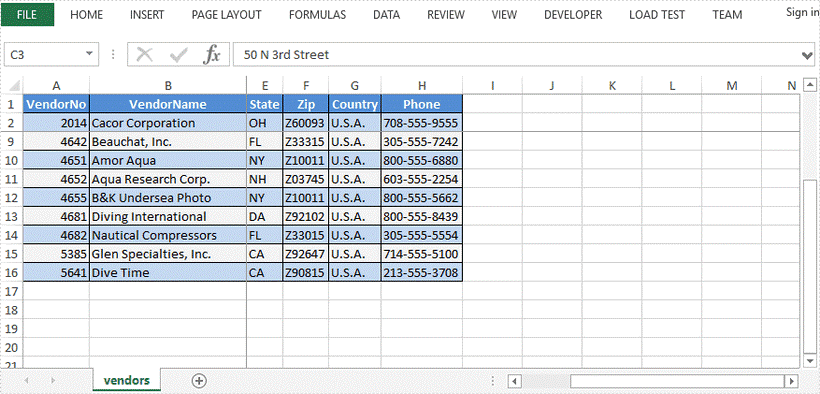
Java: Copy Cell Range in Excel

2023-07-12 07:31:00 Written by Koohji

Copying cell ranges is a fundamental and highly beneficial function in spreadsheet management, which empowers users to effortlessly duplicate a range of cells, including data, formatting, and formulas, to a specified position. With it, users can efficiently copy identical content throughout their spreadsheets, while mitigating the potential for input errors. Importantly, the relative relationships between cells are preserved when copying cell ranges, ensuring the consistency of the copied data with the original. As a result, this feature holds immense value for tasks such as file backups and template creation, making it an indispensable tool in spreadsheet. This article will demonstrate how to copy a cell range within a worksheet or between two worksheets in a single Excel file by using Spire.XLS for Java.

Install Spire.XLS for Java

First of all, you're required to add the Spire.Xls.jar file as a dependency in your Java program. The JAR file can be downloaded from this link. If you use Maven, you can easily import the JAR file in your application by adding the following code to your project's pom.xml file.

<repositories>
    <repository>
        <id>com.e-iceblue</id>
        <name>e-iceblue</name>
        <url>https://repo.e-iceblue.com/nexus/content/groups/public/</url>
    </repository>
</repositories>
<dependencies>
    <dependency>
        <groupId>e-iceblue</groupId>
        <artifactId>spire.xls</artifactId>
        <version>16.3.2</version>
    </dependency>
</dependencies>

Copy a Specific Cell Range within a Worksheet

Spire.XLS for Java provides Worksheet.copy() method, which supports copying a specific cell range in the same worksheet. The following are detailed steps.

  • Create a new Workbook object.
  • Load an Excel file from disk using Workbook.loadFromFile() method.
  • Get the first worksheet of this file by using Workbook.getWorksheets().get() method.
  • Get the source range and target range of the first sheet using Worksheet.getCellRange() method.
  • Copy the specific cell range within a worksheet by calling Worksheet.copy() method.
  • Finally, specify the output path and save the result file using Workbook.saveToFile() method.
  • Java
import com.spire.xls.ExcelVersion;
import com.spire.xls.Workbook;
import com.spire.xls.Worksheet;

public class CopyRow {
    public static void main(String[] args) {

        //Create a Workbook instance
        Workbook wb = new Workbook();

        //Load a sample Excel file from disk
        wb.loadFromFile("sample.xlsx", ExcelVersion.Version2013);

        //Get the first worksheet
        Worksheet sheet = wb.getWorksheets().get(0);

        //Get the source range and target range
        CellRange sourceRange = sheet.getCellRange("A1:E1");
        CellRange destRange = sheet.getCellRange("A10:E10");

        //Copy a specific cell range within a worksheet
        sheet.copy (sourceRange,destRange,true);

        //Save the result file
        wb.saveToFile("CopyRangeWithinSheet.xlsx", ExcelVersion.Version2013);
        wb.dispose();
    }
}

Java: Copy Cell Range in Excel

Copy a Specific Cell Range between Worksheets

Spire.XLS for Java library also allows you to copy cell range from one sheet to another sheet effortlessly. The following are the steps to duplicate cell range between different worksheets.

  • Create a new Workbook object.
  • Load an Excel file from disk using Workbook.loadFromFile() method.
  • Get the first and second worksheets of this file by using Workbook.getWorksheets().get() method.
  • Get the source range and target range using Worksheet.getCellRange() method.
  • Copy the specific cell range from sheet1 to sheet2 by calling Worksheet.copy() method.
  • Auto fit the column width in sheet2 by using Worksheet.autoFitColumn() method
  • Finally, specify the output path and save the result file using Workbook.saveToFile() method.
  • Java
import com.spire.xls.CellRange;
import com.spire.xls.ExcelVersion;
import com.spire.xls.Workbook;
import com.spire.xls.Worksheet;

public class CopyRow {
    public static void main(String[] args) {

        //Create a Workbook instance
        Workbook wb = new Workbook();

        //Load a sample Excel file from disk
        wb.loadFromFile("sample.xlsx", ExcelVersion.Version2013);

        //Get the first worksheet 
        Worksheet sheet1 = wb.getWorksheets().get(0);

        //Get the second worksheet 
        Worksheet sheet2 = wb.getWorksheets().get(1);

        //Get the source range and target range
        CellRange sourceRange = sheet1.getCellRange("A1:E1");
        CellRange destRange = sheet2.getCellRange("A1:E1");

        //Copy a specific cell range from sheet1 to sheet2
        sheet1.copy (sourceRange,destRange,true);

        //Auto fit column width in sheet 2
        for (int i = 0; i < 8; i++) {
            sheet2.autoFitColumn(i+1);
        }

        //Save the result file
        wb.saveToFile("CopyRangeBetweenSheets.xlsx", ExcelVersion.Version2013);
        wb.dispose();
    }
}

Java: Copy Cell Range in Excel

Apply for a Temporary License

If you'd like to remove the evaluation message from the generated documents, or to get rid of the function limitations, please request a 30-day trial license for yourself.

Excel documents are widely used in many applications, and it is often necessary to customize their appearance to improve their readability. One way to achieve this is by setting a background color or image for the document, which can enhance its visual appeal and give it a more professional look. This article will demonstrate how to set background color and image for Excel in Java using Spire.XLS for Java.

Install Spire.XLS for Java

First, you're required to add the Spire.Xls.jar file as a dependency in your Java program. The JAR file can be downloaded from this link. If you use Maven, you can easily import the JAR file in your application by adding the following code to your project's pom.xml file.

<repositories>
    <repository>
        <id>com.e-iceblue</id>
        <name>e-iceblue</name>
        <url>https://repo.e-iceblue.com/nexus/content/groups/public/</url>
    </repository>
</repositories>
<dependencies>
    <dependency>
        <groupId>e-iceblue</groupId>
        <artifactId>spire.xls</artifactId>
        <version>16.3.2</version>
    </dependency>
</dependencies>

Set Background Color for Excel in Java

With Spire.XLS for Java, not only can you set the background color for the entire range of cells used in the worksheet, but you can also set it for a specific range of cells within the worksheet. The following are the steps to set background color for Excel.

  • Create a Workbook instance.
  • Load a sample Excel file using Workbook.loadFromFile() method.
  • Get a specific worksheet from the workbook using Workbook.getWorksheets.get(index) method.
  • Use Worksheet.getAllocatedRange().getStyle().setColor() method to set background color for the used cell range or Worksheet.getCellRange().getStyle().setColor() method to set background color for a specified cell range in the worksheet.
  • Save the result file using Workbook.saveToFile() method.
  • Java
import com.spire.xls.ExcelVersion;
        import com.spire.xls.Workbook;
        import com.spire.xls.Worksheet;

        import java.awt.*;

public class BackgroundColor{
    public static void main(String[] args){
        //Create a Workbook instance
        Workbook workbook = new Workbook();
        //Load an Excel file
        workbook.loadFromFile("sample.xlsx");

        //Get the first worksheet
        Worksheet sheet = workbook.getWorksheets().get(0);
        //Set background color for the used cell range in the worksheet
        sheet.getAllocatedRange().getStyle().setColor(Color.orange);
        //Set background color for a specified cell range in the worksheet
        //sheet.getCellRange("A1:E19").getStyle().setColor(Color.pink);

        //Save the file
        workbook.saveToFile("SetBackColor.xlsx", ExcelVersion.Version2013);
    }
}
Java: Set Background Color and Image for Excel in Java

Set Background Image for Excel in Java

Spire.XLS for Java also offers Worksheet.getPageSetup().setBackgoundImage() method for users to set the image background. The following are the steps to achieve this.

  • Create a Workbook instance.
  • Load a sample Excel file using Workbook.loadFromFile() method.
  • Get a specific worksheet from the workbook using Workbook.getWorksheets.get(index) method.
  • Set the image as the background image of the worksheet using Worksheet. getPageSetup().setBackgoundImage() method.
  • Save the result file using Workbook.saveToFile() method.
  • Java
import com.spire.xls.ExcelVersion;
import com.spire.xls.Workbook;
import com.spire.xls.Worksheet;

import javax.imageio.ImageIO;
import java.awt.image.BufferedImage;
import java.io.File;
import java.io.IOException;

public class BackgroundImage {
    public static void main(String[] args) throws IOException {
        //Create a Workbook instance
        Workbook workbook = new Workbook();
        //Load an Excel file
        workbook.loadFromFile("sample.xlsx");

        //Get the first worksheet
        Worksheet sheet = workbook.getWorksheets().get(0);
        //Load an image
        BufferedImage image = ImageIO.read( new File("background.jpg"));
        //Set the image as the background image of the worksheet
        sheet.getPageSetup().setBackgoundImage(image);

        //Save the file
        workbook.saveToFile("SetBackImage.xlsx", ExcelVersion.Version2013);
    }
}
Java: Set Background Color and Image for Excel in Java

Apply for a Temporary License

If you'd like to remove the evaluation message from the generated documents, or to get rid of the function limitations, please request a 30-day trial license for yourself.

Textboxes in Excel are versatile tools that enhance the functionality of your spreadsheets. They allow users to add annotations, labels, or supplementary information, making it easier to convey important messages or insights. Whether you're looking to highlight critical data points, provide detailed explanations, or create visually appealing reports, effectively managing textboxes is essential.

In this article, you will learn how to insert a textbox, extract text from a textbox, and delete a textbox in Excel using Java and Spire.XLS for Java.

Install Spire.XLS for Java

First of all, you're required to add the Spire.Xls.jar file as a dependency in your Java program. The JAR file can be downloaded from this link. If you use Maven, you can easily import the JAR file in your application by adding the following code to your project's pom.xml file.

<repositories>
    <repository>
        <id>com.e-iceblue</id>
        <name>e-iceblue</name>
        <url>https://repo.e-iceblue.com/nexus/content/groups/public/</url>
    </repository>
</repositories>
<dependencies>
    <dependency>
        <groupId>e-iceblue</groupId>
        <artifactId>spire.xls</artifactId>
        <version>16.3.2</version>
    </dependency>
</dependencies>

Insert a Textbox to Excel in Java

A textbox can be inserted into a worksheet using the Worksheet.getTextBoxes().addTextBox() method. This method returns an ITextBoxShape object, which provides various methods like setText(), setHAlignment(), and getFill() for configuring the text and formatting of the textbox.

To add a textbox with personalized text and formatting in Excel, follow these steps:

  • Create a Workbook object.
  • Load an Excel file from the specified file path.
  • Retrieve a specific worksheet from the workbook.
  • Insert a textbox at the desired location using Worksheet.getTextBoxes().addTextBox() method.
  • Set the textbox text using ITextBoxShape.setText() method.
  • Customize the textbox's appearance using other methods available in the ITextBoxShape object.
  • Save the workbook as a new Excel file.
  • Java
import com.spire.xls.*;
import com.spire.xls.core.ITextBoxShape;

import java.awt.*;

public class AddTextbox {

    public static void main(String[] args) {

        // Create a Workbook object
        Workbook workbook = new Workbook();

        // Load an Excel document
        workbook.loadFromFile("C:\\Users\\Administrator\\Desktop\\Input.xlsx");

        // Get a specific sheet
        Worksheet sheet = workbook.getWorksheets().get(0);

        // Add a textbox to the specified location
        ITextBoxShape textBoxShape = sheet.getTextBoxes().addTextBox(5, 4, 60, 200);

        // Set text of the textbox
        textBoxShape.setText("This is a text box, with sample text.");

        // Create a font
        ExcelFont font = workbook.createFont();
        font.setFontName("Times New Roman");
        font.setSize(14);
        font.setColor(Color.red);

        // Apply font to the text
        textBoxShape.getRichText().setFont(0, textBoxShape.getText().length() - 1, font);

        // Set horizontal alignment
        textBoxShape.setHAlignment(CommentHAlignType.Left);

        // Set the fill color of the shape
        textBoxShape.getFill().setFillType(ShapeFillType.SolidColor);
        textBoxShape.getFill().setForeColor(Color.LIGHT_GRAY);

        // Save the Excel file
        workbook.saveToFile("output/AddTextBox.xlsx", ExcelVersion.Version2010);

        // Dispose resources
        workbook.dispose();
    }
}

Java: Insert, Extract, or Delete Textboxes in Excel

Extract Text from a Textbox in Excel in Java

You can access a specific textbox using the Worksheet.getTextBoxes().get() method. After retrieving it, the text can be accessed with the ITextBox.getText() method.

Here are the steps to extract text from a textbox in Excel:

  • Create a Workbook object.
  • Load an Excel file from the specified file path.
  • Retrieve a specific worksheet from the workbook.
  • Access the desired textbox using Worksheet.getTextBoxes().get() method.
  • Get the textbox's text using ITextBox.getText() method.
  • Java
import com.spire.xls.Workbook;
import com.spire.xls.Worksheet;
import com.spire.xls.core.ITextBox;

public class ExtractTextbox {

    public static void main(String[] args) {

        // Create a Workbook object
        Workbook workbook = new Workbook();

        // Load an Excel file
        workbook.loadFromFile("C:\\Users\\Administrator\\Desktop\\TextBox.xlsx");

        // Get a specific worksheet
        Worksheet sheet = workbook.getWorksheets().get(0);

        // Get a specific textbox
        ITextBox textBox = sheet.getTextBoxes().get(0);

        // Get text from the textbox
        String text = textBox.getText();

        // Print out result
        System.out.println(text);
    }
}

Java: Insert, Extract, or Delete Textboxes in Excel

Delete a Textbox in Excel in Java

To delete a specific textbox from a worksheet, utilize the ITextBoxes.get().Remove() method. If you want to clear all textboxes, first obtain the count with the Worksheet.getTextBoxes().getCount() method, then loop through the collection to remove each textbox one by one.

Here's how to remove a textbox from Excel:

  • Create a Workbook object.
  • Load an Excel file from the desired file path.
  • Access a specific worksheet within the workbook.
  • Retrieve the textbox collection using Worksheet.getTextBoxes() method.
  • Delete the targeted textbox using ITextBoxes.get().Remove() method.
  • Save the modified workbook to a new Excel file.
  • Java
import com.spire.xls.ExcelVersion;
import com.spire.xls.Workbook;
import com.spire.xls.Worksheet;
import com.spire.xls.core.ITextBoxes;

public class DeleteTextbox {

    public static void main(String[] args) {

        // Create a Workbook object
        Workbook workbook = new Workbook();

        // Load an Excel file
        workbook.loadFromFile("C:\\Users\\Administrator\\Desktop\\TextBox.xlsx");

        // Get a specific worksheet
        Worksheet sheet = workbook.getWorksheets().get(0);

        // Get textbox collection from the worksheet
        ITextBoxes textBoxes = sheet.getTextBoxes();

        // Remove a specific textbox
        textBoxes.get(0).remove();

        // Save the updated document to a different Excel file
        workbook.saveToFile("output/DeleteTextbox.xlsx", ExcelVersion.Version2016);

        // Dispose resources
        workbook.dispose();
    }
}

Apply for a Temporary License

If you'd like to remove the evaluation message from the generated documents, or to get rid of the function limitations, please request a 30-day trial license for yourself.

page 51