When a product manual or conference handout is printed as a booklet, the pages of a multi-page document have to be rearranged onto facing sheets in saddle-stitch order. In desktop software that means dragging pages by hand, which goes wrong easily once the page count grows, and every new document starts over. Hand it to a server, and the file has to leave the user's device first.
This article uses Spire.PDF for JavaScript to create PDF booklets. It loads, imposes, and saves PDFs in the browser via WebAssembly, reading and writing every file through a virtual file system (VFS) with no backend involved.
This article covers two core features:
For installation and project configuration, see Integrate Spire.PDF for JavaScript in a React Project. The examples below assume Spire.PDF is installed and the WebAssembly module is initialized.
Impose a PDF as a Two-Sided Booklet Automatically
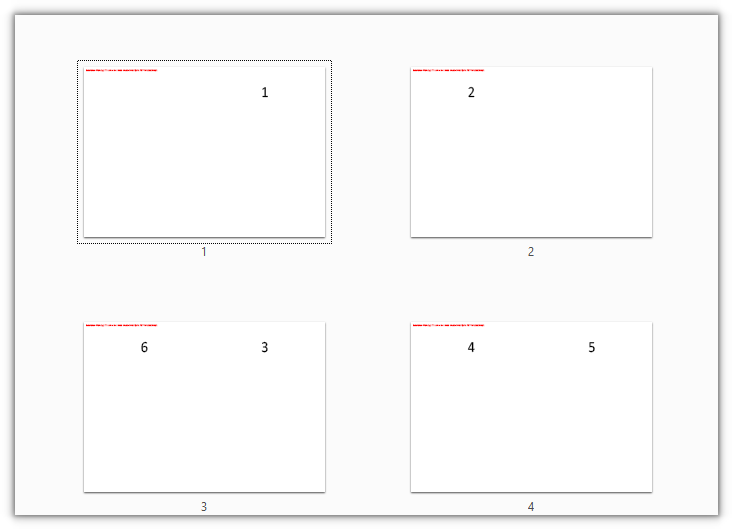
Spire.PDF for JavaScript provides the PdfDocument.CreateBooklet() method, which imposes the pages of an existing PDF onto facing pages in saddle-stitch order. The width and height parameters set the sheet size of the finished product; when bothSides is true, the layout is arranged for double-sided printing.
The steps are:
- Get the Spire.PDF WASM module and confirm it is ready.
- Load the source PDF into the VFS.
- Create a
PdfDocumentobject and callCreateBooklet()with a width equal to two A4 pages side by side and the height of one A4 page. - Save the result with
SaveToFile(). - Read the result file from the VFS and trigger a browser download.
The code for creating a booklet by automatic imposition is as follows:
function App() {
  const createBooklet = async () => {
    // Get the Spire.PDF WASM module
    const pdfModule = window.wasmModule?.spirepdf;

    // Check that the module is ready
    if (!pdfModule) {
      alert('Spire.PDF is not ready yet');
      return;
    }

    // Load the source PDF into the VFS
    const inputFileName = 'CMS-Technical-Manual.pdf';
    await window.spire.FetchFileToVFS(inputFileName, "", `${process.env.PUBLIC_URL}/data/`);

    // Spread size: width is two A4 pages side by side, height is one A4 page
    const width = pdfModule.PdfPageSize.A4().Width * 2;
    const height = pdfModule.PdfPageSize.A4().Height;

    // Create a document and impose the pages in saddle-stitch order
    const doc = new pdfModule.PdfDocument();
    doc.CreateBooklet({ fileName: inputFileName, width: width, height: height, bothSides: true });

    // Save the result file
    const outputFileName = 'Booklet_Auto.pdf';
    doc.SaveToFile(outputFileName);
    doc.Close();

    // Read the generated file from the VFS and trigger a download
    const fileArray = window.dotnetRuntime.Module.FS.readFile(outputFileName);
    const blob = new Blob([fileArray], { type: 'application/pdf' });
    const url = URL.createObjectURL(blob);
    const a = document.createElement('a');
    a.href = url;
    a.download = outputFileName;
    a.click();
    URL.revokeObjectURL(url);
  };

  return (
    <div style={{ textAlign: 'center', height: '300px' }}>
      <h1>Create a Two-Sided Booklet</h1>
      <button onClick={createBooklet}>
        Create Booklet
      </button>
    </div>
  );
}

export default App;
The source pages are imposed onto spreads two at a time in saddle-stitch order:
Build Facing Pages in a Custom Page Order
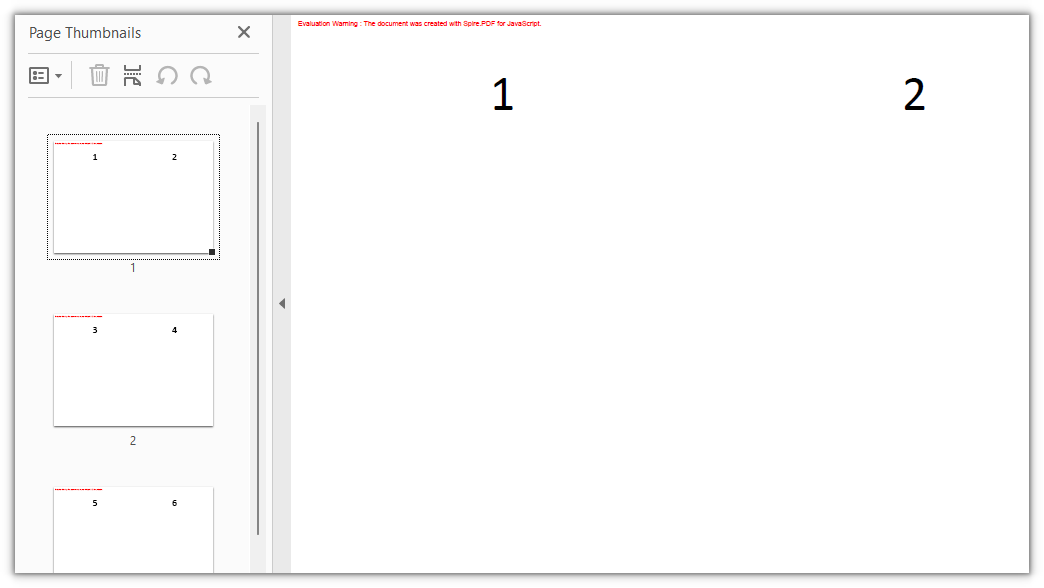
Spire.PDF for JavaScript also provides the PdfPageBase.CreateTemplate() method, which extracts the content of a page into a template that PdfTemplate.Draw() can draw at a given position on a new page. A page-order array decides which two pages land on each sheet; the example puts consecutive pages side by side in reading order.
The steps are:
- Get the Spire.PDF WASM module and confirm it is ready.
- Load the source PDF into the VFS.
- Create a
PdfDocumentobject and load the source document; then create an output document whose width is two A4 pages side by side and whose height is one A4 page. - For each pair in the page order, take a page template with
CreateTemplate()and draw it onto the left or right half of the spread withDraw(). - Save the result with
SaveToFile(), then read it from the VFS and trigger a download.
The code for building facing pages manually is as follows:
function App() {
  const createCustomBooklet = async () => {
    // Get the Spire.PDF WASM module
    const pdfModule = window.wasmModule?.spirepdf;

    // Check that the module is ready
    if (!pdfModule) {
      alert('Spire.PDF is not ready yet');
      return;
    }

    // Load the source PDF into the VFS
    const inputFileName = 'CMS-Technical-Manual.pdf';
    await window.spire.FetchFileToVFS(inputFileName, "", `${process.env.PUBLIC_URL}/data/`);

    // Create a PdfDocument object and load the source document
    const srcDoc = new pdfModule.PdfDocument();
    srcDoc.LoadFromFile(inputFileName);
    const pageCount = srcDoc.Pages.Count;
    const a4 = pdfModule.PdfPageSize.A4();

    // Output document: width is two A4 pages side by side, height is one A4 page
    const bookletDoc = new pdfModule.PdfDocument();
    bookletDoc.PageSettings.Margins.All = 0;
    bookletDoc.PageSettings.Width = a4.Width * 2;
    bookletDoc.PageSettings.Height = a4.Height;

    // Two consecutive pages per sheet: 1|2, 3|4, 5|6, ...
    for (let i = 0; i < pageCount; i += 2) {
      const sheet = bookletDoc.Pages.Add();

      // Left half
      const leftTemplate = srcDoc.Pages.get_Item(i).CreateTemplate();
      leftTemplate.Draw({ page: sheet, location: new pdfModule.PointF(0, 0) });

      // Right half; with an odd page count the last sheet leaves the right side blank
      if (i + 1 < pageCount) {
        const rightTemplate = srcDoc.Pages.get_Item(i + 1).CreateTemplate();
        rightTemplate.Draw({ page: sheet, location: new pdfModule.PointF(a4.Width, 0) });
      }
    }

    // Save the result file
    const outputFileName = 'Booklet_CustomOrder.pdf';
    bookletDoc.SaveToFile(outputFileName);
    bookletDoc.Close();
    srcDoc.Close();

    // Read the generated file from the VFS and trigger a download
    const fileArray = window.dotnetRuntime.Module.FS.readFile(outputFileName);
    const blob = new Blob([fileArray], { type: 'application/pdf' });
    const url = URL.createObjectURL(blob);
    const a = document.createElement('a');
    a.href = url;
    a.download = outputFileName;
    a.click();
    URL.revokeObjectURL(url);
  };

  return (
    <div style={{ textAlign: 'center', height: '300px' }}>
      <h1>Custom Page Order Imposition</h1>
      <button onClick={createCustomBooklet}>
        Build Facing Pages
      </button>
    </div>
  );
}

export default App;
Two consecutive pages sit side by side on one sheet; a 6-page document produces 3 spreads:
FAQ
What determines the paper size of the booklet
Reason: The width and height passed to CreateBooklet() describe the sheet size of the finished spread, not the size of a single page in the source document. This article uses "A4 width × 2" and "A4 height", which gives an A3-sized spread with one A4 page on each half.
Solution: To print on A4 paper, set the sheet to A4 landscape — width equal to the A4 height, height equal to the A4 width; each half then holds an A5 page, and the source pages are scaled down to half a sheet.
// A4 landscape: one A5 page on each half
const width = pdfModule.PdfPageSize.A4().Height;
const height = pdfModule.PdfPageSize.A4().Width;
What does the bothSides parameter do
Reason: bothSides tells CreateBooklet() whether the result will be printed double-sided. true groups pages into front and back pairs in saddle-stitch order and pads the page count to a multiple of 4; false lays pages out for single-sided printing and adds no blank pages.
Solution: Pass true when you print on a duplex printer and fold and staple the result; pass false for single-sided printing only. The print mode must match the imposed layout, or the page order will not line up.
How is the booklet arranged when the page count is not a multiple of 4
Reason: A saddle-stitch sheet holds four pages (two on each side); when the pages run out, the last sheet has blank positions.
Solution: With automatic imposition, CreateBooklet() pads the required spreads. With manual imposition, the loop checks i + 1 < pageCount before drawing the right half, so an unpaired page simply leaves the right side blank.
In manual imposition the content drifts to one side or runs off the sheet
Reason: PdfTemplate.Draw() draws at the template's original size by default. If a source page is wider than half a sheet, the right-hand page crosses the center line or extends past the edge.
Solution: Make the source page size match half the sheet. In this article the source pages are A4 and the spread is two A4 pages wide, so placing them at x = 0 and x = A4.Width aligns exactly. If the source size differs, use PdfCanvas.DrawTemplate() with size set to the half-sheet size; the template is scaled to fit.
sheet.Canvas.DrawTemplate({
  template: rightTemplate,
  location: new pdfModule.PointF(a4.Width, 0),
  size: new pdfModule.SizeF(a4.Width, a4.Height)
});
Get a Free License
If you want to remove the evaluation message from the result document or lift the feature limits, contact sales for a temporary license valid for 30 days.