The same PDF can look different when opened on different machines: if the font a document references is not installed locally, the viewer substitutes another one. Conversely, when brand standards or legal requirements say an outgoing file may only use specified fonts, you first need to know which fonts the original uses. Common browser-side PDF libraries mostly draw pages; they do not expose font resources.
This article uses Spire.PDF for JavaScript to read and replace the fonts in a PDF: first list the document's fonts with PdfDocument.UsedFonts, then replace the standard and non-embedded TrueType fonts with a new TrueType font via PdfUsedFont.Replace(). Everything runs in the browser; files are read and written through a virtual file system (VFS) and never uploaded to a server.
This article covers two core features:
For installation and project configuration, see Integrate Spire.PDF for JavaScript in a React Project. The examples below assume Spire.PDF is installed and the WebAssembly module is initialized.
Get the Fonts Used in a PDF
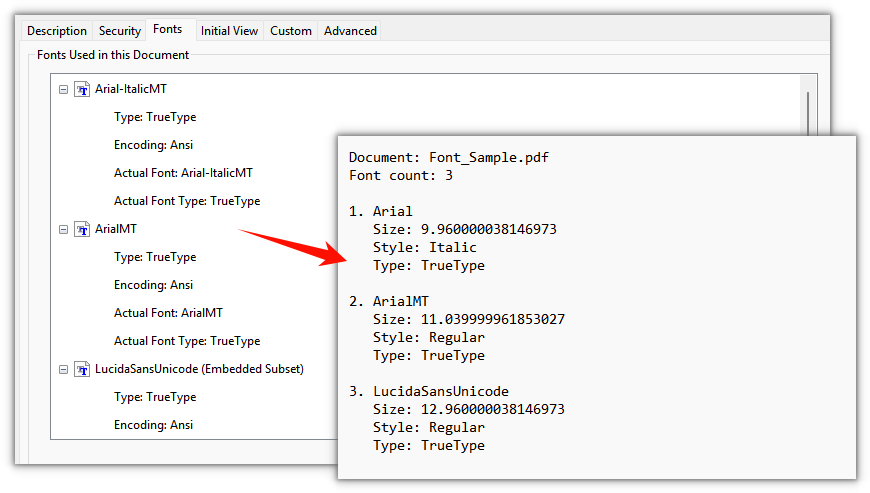
Spire.PDF for JavaScript provides the PdfDocument.UsedFonts property for reading every font used in a document. Each item in the collection is a PdfUsedFont, whose Name, Size, Style, and Type give the font name, size, style, and font type.
The steps are:
- Get the Spire.PDF WASM module and confirm it is ready.
- Load the sample PDF into the VFS, create a
PdfDocumentobject, and load the file. - Read
PdfDocument.UsedFontsand take eachPdfUsedFontfrom the collection. - Put together each font's name, size, style, and type, and write them to a text file.
- Read the result file from the VFS and trigger a browser download.
The code for getting the fonts in a PDF is as follows:
function App() {
  const getFonts = async () => {
    // Get the Spire.PDF WASM module
    const pdfModule = window.wasmModule?.spirepdf;

    // Check whether the module is ready
    if (!pdfModule) {
      alert('Spire.PDF is not ready yet');
      return;
    }

    // Load the sample PDF into the VFS
    const inputFileName = 'Font_Sample.pdf';
    await window.spire.FetchFileToVFS(inputFileName, '', `${process.env.PUBLIC_URL}/data/`);

    // Create a PdfDocument object and load the document
    const doc = new pdfModule.PdfDocument();
    doc.LoadFromFile(inputFileName);

    // UsedFonts lists the fonts the document currently uses
    const fonts = doc.UsedFonts;

    const styleNames = new Map([
      [pdfModule.PdfFontStyle.Regular.value, 'Regular'],
      [pdfModule.PdfFontStyle.Bold.value, 'Bold'],
      [pdfModule.PdfFontStyle.Italic.value, 'Italic'],
      [pdfModule.PdfFontStyle.Underline.value, 'Underline'],
      [pdfModule.PdfFontStyle.Strikeout.value, 'Strikeout'],
    ]);
    const typeNames = new Map([
      [pdfModule.PdfFontType.Standard.value, 'Standard'],
      [pdfModule.PdfFontType.TrueType.value, 'TrueType'],
      [pdfModule.PdfFontType.TrueTypeEmbedded.value, 'Embedded TrueType'],
    ]);

    // Collect each font's name, size, style, and type
    let report = `Document: ${inputFileName}\r\nFont count: ${fonts.length}\r\n\r\n`;
    for (let i = 0; i < fonts.length; i++) {
      const font = fonts.get(i);
      report += `${i + 1}. ${font.Name}\r\n`;
      report += `   Size: ${font.Size}\r\n`;
      report += `   Style: ${styleNames.get(font.Style.value)}\r\n`;
      report += `   Type: ${typeNames.get(font.Type.value)}\r\n\r\n`;
    }

    // Write the font list into the VFS
    const outputFileName = 'FontList.txt';
    window.dotnetRuntime.Module.FS.writeFile(outputFileName, report);
    doc.Close();

    // Read the result file from the VFS and trigger the download
    const fileArray = window.dotnetRuntime.Module.FS.readFile(outputFileName);
    const blob = new Blob([fileArray], { type: 'text/plain;charset=utf-8' });
    const url = URL.createObjectURL(blob);
    const a = document.createElement('a');
    a.href = url;
    a.download = outputFileName;
    a.click();
    URL.revokeObjectURL(url);
  };

  return (
    <div style={{ textAlign: 'center', height: '300px' }}>
      <h1>Get the Fonts Used in a PDF</h1>
      <button onClick={getFonts}>
        Get fonts
      </button>
    </div>
  );
}

export default App;
The font list is written to a text file, listing each font's name, size, style, and type:
Replace the Fonts Used in a PDF
Spire.PDF for JavaScript also provides the PdfUsedFont.Replace() method, which swaps one font in a document for another font object. It works only with standard Type1 fonts and non-embedded TrueType fonts; embedded fonts (such as subset-embedded CJK fonts) cannot be replaced and must be skipped.
The steps are:
- Get the Spire.PDF WASM module and confirm it is ready.
- Load the sample PDF and the replacement font file into the VFS, with the font file placed under
/Library/Fonts/. - Create a
PdfDocumentobject, load the PDF, and readPdfDocument.UsedFonts. - Create a
PdfTrueTypeFontobject, iterate overUsedFonts, skip embedded fonts, and callPdfUsedFont.Replace()on standard and non-embedded TrueType fonts. - Save the result with
PdfDocument.SaveToFile()and trigger a browser download.
The code for replacing the fonts in a PDF is as follows:
function App() {
  const replaceFonts = async () => {
    // Get the Spire.PDF WASM module
    const pdfModule = window.wasmModule?.spirepdf;

    // Check whether the module is ready
    if (!pdfModule) {
      alert('Spire.PDF is not ready yet');
      return;
    }

    // Load the replacement font and the sample PDF
    await window.spire.FetchFileToVFS('ARIALUNI.TTF', '/Library/Fonts/', `${process.env.PUBLIC_URL}/font/`);
    const inputFileName = 'Font_Sample.pdf';
    await window.spire.FetchFileToVFS(inputFileName, '', `${process.env.PUBLIC_URL}/data/`);

    // Create a PdfDocument object and load the document
    const doc = new pdfModule.PdfDocument();
    doc.LoadFromFile(inputFileName);

    // UsedFonts returns the fonts used in the document
    const fonts = doc.UsedFonts;
    const newFont = new pdfModule.PdfTrueTypeFont({
      fontFamily: 'Arial Unicode MS',
      size: 12,
      style: pdfModule.PdfFontStyle.Regular,
      unicode: true
    });

    // Replace one by one: Replace() supports only standard Type1 and non-embedded TrueType fonts
    for (let i = 0; i < fonts.length; i++) {
      const font = fonts.get(i);
      // Embedded fonts cannot be replaced; skip them
      if (font.Type.value === pdfModule.PdfFontType.TrueTypeEmbedded.value) {
        continue;
      }
      font.Replace(newFont);
    }

    // Save the result file
    const outputFileName = 'ReplacedFonts.pdf';
    doc.SaveToFile(outputFileName);
    doc.Close();

    // Read the generated file from the VFS and trigger the download
    const fileArray = window.dotnetRuntime.Module.FS.readFile(outputFileName);
    const blob = new Blob([fileArray], { type: 'application/pdf' });
    const url = URL.createObjectURL(blob);
    const a = document.createElement('a');
    a.href = url;
    a.download = outputFileName;
    a.click();
    URL.revokeObjectURL(url);
  };

  return (
    <div style={{ textAlign: 'center', height: '300px' }}>
      <h1>Replace the Fonts Used in a PDF</h1>
      <button onClick={replaceFonts}>
        Replace fonts
      </button>
    </div>
  );
}

export default App;
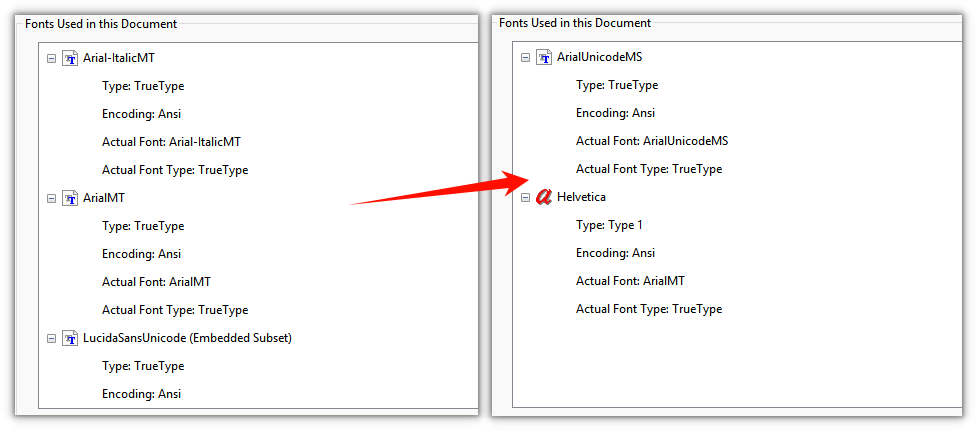
After replacement, the text in the standard font uses the new TrueType font while embedded fonts stay unchanged:
FAQ
Why do the text size and style change after replacement
Reason: Replace() takes a complete font object, and replacement applies the new object's own size and style; the original sizes of individual text runs are not preserved.
Solution: Set the target font's size and style to the values you want in the result. For example, to make everything 12 pt regular, pass size: 12 and style: PdfFontStyle.Regular to PdfTrueTypeFont.
Why do Chinese or Japanese characters turn into boxes or question marks after replacement
Reason: The target font has no glyphs for those characters, or PdfTrueTypeFont was created without Unicode enabled.
Solution: Use a font that covers the target language (such as Arial Unicode MS) and pass unicode: true when creating it. The font file must first be loaded into /Library/Fonts/ in the VFS so Spire.PDF can embed it.
Can I replace only one of the fonts
Reason: UsedFonts lists each font in the document, and Replace() acts on a single PdfUsedFont.
Solution: Check Name while iterating and replace only the matching font:
for (let i = 0; i < fonts.length; i++) {
  const font = fonts.get(i);
  if (font.Name === 'ArialMT') {
    font.Replace(newFont);
  }
}
Font names of subset-embedded fonts may carry prefixes such as BCDEEE+, so write the comparison against the Name you actually read from the list.
Why does Replace() report that the font is not a standard Type 1 or non-embedded TrueType font
Reason: PdfUsedFont.Replace() only works on standard Type1 fonts and non-embedded TrueType fonts. CJK fonts in PDFs are often subset-embedded TrueType fonts (UsedFonts reports them as Embedded TrueType), and Spire.PDF cannot replace them directly.
Solution: Check Type while iterating UsedFonts and call Replace() only on standard and non-embedded TrueType fonts; skip the rest, or prepare a document that uses standard or non-embedded fonts first.
Get a Free License
To remove the evaluation message from result documents or lift the feature limits, contact sales for a 30-day temporary license.