
PDF layers partition the content on a page into multiple "Optional Content Groups" (OCGs). This is most commonly seen in CAD drawings where walls, furniture, and electrical plans are separated onto layers, in maps where roads, water systems, and labels are separated, and in pages that need to switch between several plans or several languages on demand. Unlike erasing content, layers let you hide content and then bring it back at any time without destroying the document structure, which greatly increases the reuse value of the same PDF.
Spire.PDF for JavaScript runs on WebAssembly and completes the loading, drawing, and saving of PDFs entirely in the browser, managing input and output files through a virtual file system (VFS) with no backend required.
This article covers three core functions:
For installation and project configuration, refer to Integrating Spire.PDF for JavaScript in a React Project. The examples below assume Spire.PDF is installed and the WebAssembly module has been initialized.
Adding Layers to a PDF
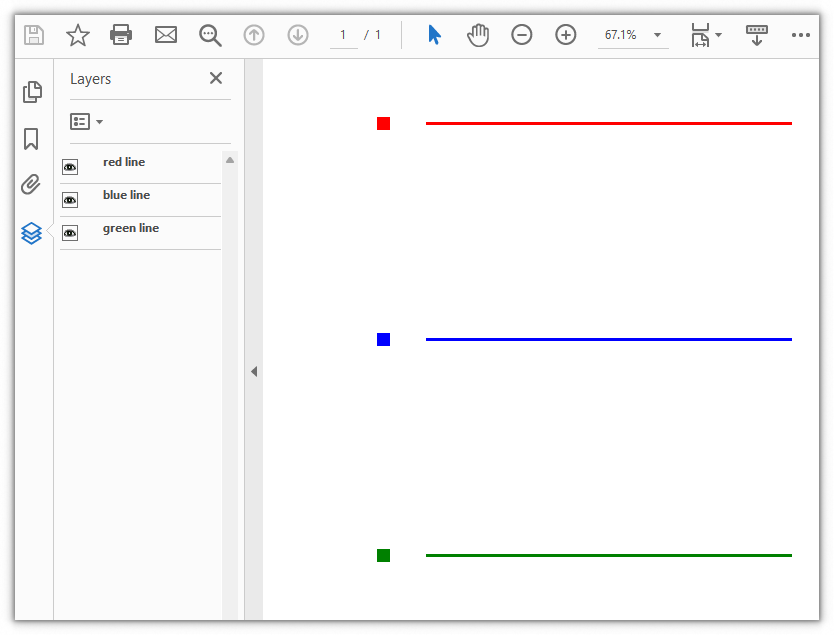
To add a layer, first create a document and add a page, then create a named layer with doc.Layers.AddLayer({ name, state }) (the state argument lets you specify the initial visibility), and call the layer's layer.CreateGraphics(page.Canvas) to obtain a drawing context bound to the page canvas. From then on, methods such as DrawLine and DrawRectangle can draw lines, color blocks, and other content "into" that layer. The example below creates three layers named red line, blue line, and green line, draws one horizontal line and one small color block of the corresponding color into each layer, and staggers the three lines at different heights.
function App() {
  const addLayers = async () => {
    // Get the Spire.PDF WASM module
    const pdfModule = window.wasmModule?.spirepdf;

    // Check that the module is ready
    if (!pdfModule) {
      alert('Spire.PDF is not ready yet');
      return;
    }

    // Create a PdfDocument and add a page
    let doc = new pdfModule.PdfDocument();
    let page = doc.Pages.Add();

    // Get the page size for positioning content relative to the page
    const width = page.Canvas.Size.Width;
    const height = page.Canvas.Size.Height;

    // Define a local function that draws a horizontal line with a small
    // color block of the same color into the layer with the given name
    const drawRow = (layerName, centerY, brush) => {
      // Add a layer to the document and set its initial state to visible
      let layer = doc.Layers.AddLayer({ name: layerName, state: pdfModule.PdfVisibility.On });

      // Get the drawing context of the layer
      let g = layer.CreateGraphics(page.Canvas);

      // Draw a colored horizontal line that spans about 20% to 80% of the page width
      g.DrawLine({
        pen: new pdfModule.PdfPen({ brush: brush, width: 2 }),
        point1: new pdfModule.PointF(width * 0.2, centerY),
        point2: new pdfModule.PointF(width * 0.8, centerY)
      });

      // Draw a small color block at the left end of the line as an indicator of the layer color
      g.DrawRectangle({
        brush: brush,
        rectangle: new pdfModule.RectangleF({ x: width * 0.12, y: centerY - 6, width: 12, height: 12 })
      });
    };

    // Place the three lines from top to bottom at 25%, 50%, and 75% of the page height
    drawRow('red line', height * 0.25, pdfModule.PdfBrushes.get_Red());
    drawRow('blue line', height * 0.5, pdfModule.PdfBrushes.get_Blue());
    drawRow('green line', height * 0.75, pdfModule.PdfBrushes.get_Green());

    // Define the output file name and save the document
    const outputFileName = 'AddLayers.pdf';
    doc.SaveToFile(outputFileName);
    doc.Close();

    // Read the generated file from the VFS and trigger a download
    const fileArray = window.dotnetRuntime.Module.FS.readFile(outputFileName);
    const blob = new Blob([fileArray], { type: 'application/pdf' });
    const url = URL.createObjectURL(blob);
    const a = document.createElement('a');
    a.href = url;
    a.download = outputFileName;
    a.click();
    URL.revokeObjectURL(url);
  };

  return (
    <div style={{ textAlign: 'center', height: '300px' }}>
      <h1>Add Layers To PDF</h1>
      <button onClick={addLayers}>
        Generate
      </button>
    </div>
  );
}

export default App;
PDF page after adding the red line, blue line and green line layers
Hiding a Specified Layer
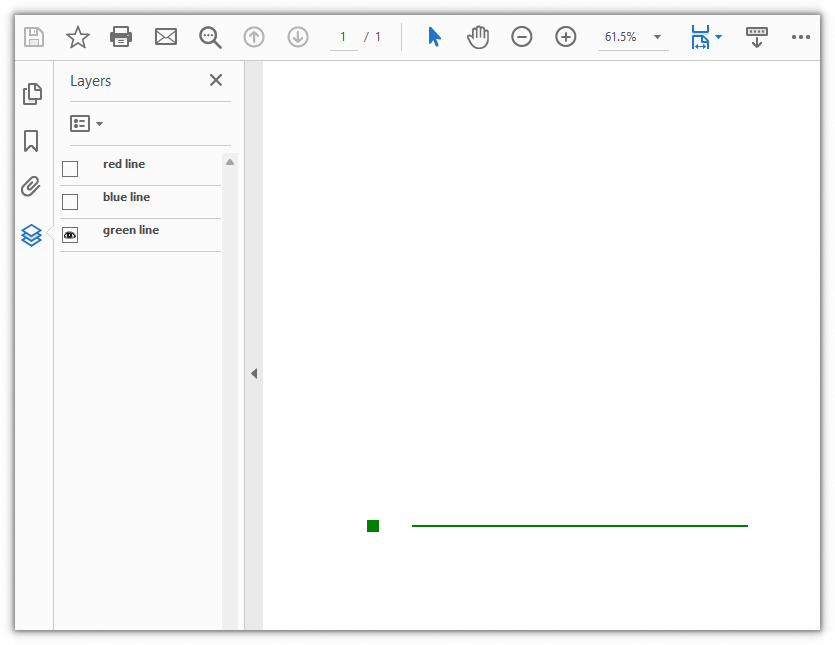
When the content of a layer should not be shown temporarily but may be needed again later, you do not have to delete it. Simply set the Visibility property of the layer to PdfVisibility.Off to "hide" it. The content then no longer displays, but the layer and the objects inside it are still kept in the PDF, and readers can turn them back on any time in the Layers panel of a PDF viewer. The example below takes the AddLayers.pdf produced in the previous section (it already contains the red line, blue line, and green line layers), fetches two of the layers by name with get_Item({ name }), and sets their Visibility to invisible, so only the green line layer remains on the page.
function App() {
  const hideLayers = async () => {
    // Get the Spire.PDF WASM module
    const pdfModule = window.wasmModule?.spirepdf;

    // Check that the module is ready
    if (!pdfModule) {
      alert('Spire.PDF is not ready yet');
      return;
    }

    // Load the PDF that contains the layers into the VFS
    const inputFileName = 'AddLayers.pdf';
    await window.spire.FetchFileToVFS(inputFileName, "", `${process.env.PUBLIC_URL}/data/`);

    // Create a PdfDocument object and load the PDF document
    let doc = new pdfModule.PdfDocument();
    doc.LoadFromFile(inputFileName);

    // Get the "red line" and "blue line" layers by name and set them to invisible,
    // so only "green line" remains on the page
    doc.Layers.get_Item({ name: 'red line' }).Visibility = pdfModule.PdfVisibility.Off;
    doc.Layers.get_Item({ name: 'blue line' }).Visibility = pdfModule.PdfVisibility.Off;

    // Define the output file name and save the document
    const outputFileName = 'HideLayers.pdf';
    doc.SaveToFile(outputFileName);
    doc.Close();

    // Read the generated file from the VFS and trigger a download
    const fileArray = window.dotnetRuntime.Module.FS.readFile(outputFileName);
    const blob = new Blob([fileArray], { type: 'application/pdf' });
    const url = URL.createObjectURL(blob);
    const a = document.createElement('a');
    a.href = url;
    a.download = outputFileName;
    a.click();
    URL.revokeObjectURL(url);
  };

  return (
    <div style={{ textAlign: 'center', height: '300px' }}>
      <h1>Hide Layers In PDF</h1>
      <button onClick={hideLayers}>
        Generate
      </button>
    </div>
  );
}

export default App;
After hiding the red line and blue line layers, only the green line layer remains on the page
Deleting a Layer
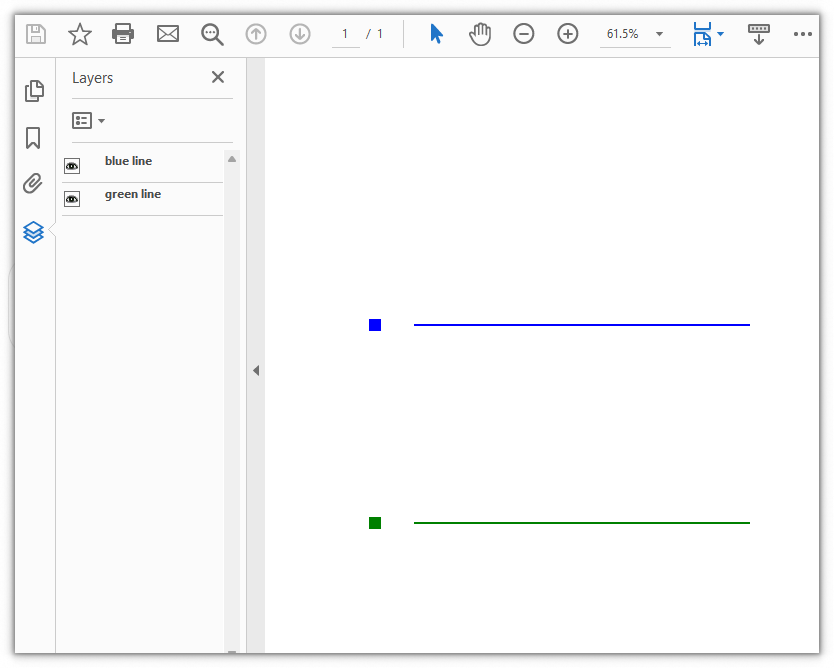
When a layer and its content are no longer needed, you can remove it from the document's layer collection with doc.Layers.RemoveLayer: just pass the layer name, for example RemoveLayer({ name: 'red line' }) removes the entire layer named red line. The content of that layer no longer displays afterward and cannot be restored through the Layers panel either. The example below takes the AddLayers.pdf produced in the first section (it already contains the red line, blue line, and green line layers), and deletes the red line layer by name, so only the blue line and green line layers remain on the page.
function App() {
  const deleteLayer = async () => {
    // Get the Spire.PDF WASM module
    const pdfModule = window.wasmModule?.spirepdf;

    // Check that the module is ready
    if (!pdfModule) {
      alert('Spire.PDF is not ready yet');
      return;
    }

    // Load the PDF that contains the layers into the VFS
    const inputFileName = 'AddLayers.pdf';
    await window.spire.FetchFileToVFS(inputFileName, "", `${process.env.PUBLIC_URL}/data/`);

    // Create a PdfDocument object and load the PDF document
    let doc = new pdfModule.PdfDocument();
    doc.LoadFromFile(inputFileName);

    // Delete the "red line" layer by name; its content no longer shows on the page
    doc.Layers.RemoveLayer({ name: 'red line' });

    // Define the output file name and save the document
    const outputFileName = 'DeleteLayers.pdf';
    doc.SaveToFile(outputFileName);
    doc.Close();

    // Read the generated file from the VFS and trigger a download
    const fileArray = window.dotnetRuntime.Module.FS.readFile(outputFileName);
    const blob = new Blob([fileArray], { type: 'application/pdf' });
    const url = URL.createObjectURL(blob);
    const a = document.createElement('a');
    a.href = url;
    a.download = outputFileName;
    a.click();
    URL.revokeObjectURL(url);
  };

  return (
    <div style={{ textAlign: 'center', height: '300px' }}>
      <h1>Delete PDF Layer</h1>
      <button onClick={deleteLayer}>
        Generate
      </button>
    </div>
  );
}

export default App;
After deleting the red line layer, only the blue line and green line layers remain on the page
FAQ
What is the difference between hiding and deleting a layer
Reason: Both hiding and deleting make content "invisible" on the page, so it is easy to confuse the difference between the two in terms of the document structure.
Solution: Hiding sets the Visibility of a layer to Off; the layer and the objects inside it are still kept in the PDF, and you can turn them back on at any time in the Layers panel of the viewer. Deleting, on the other hand, removes the layer from doc.Layers entirely with RemoveLayer, and its content no longer displays and cannot be restored. In short: hide it when you do not need to see it for a while, delete it when you will never need it again:
// Hide: the content stays in the document and can be turned back on at any time
doc.Layers.get_Item({ name: 'red line' }).Visibility = pdfModule.PdfVisibility.Off;

// Delete: the layer is removed from the collection and cannot be turned back on
doc.Layers.RemoveLayer({ name: 'red line' });
How do I control whether a layer is visible when I add it
Reason: A layer created by AddLayer is visible by default, but sometimes you want a layer to start out hidden (for example, an alternative plan that is preset but not shown yet).
Solution: The state argument of AddLayer specifies the initial visibility of a layer. Passing PdfVisibility.Off creates it as invisible, while passing On (or omitting it) makes it visible immediately after creation. After creation you can switch it at any time with the Visibility property:
// Create a new layer that is invisible initially
doc.Layers.AddLayer({ name: 'Alternative Plan', state: pdfModule.PdfVisibility.Off });
How do I locate a layer by name or index
Reason: With a document that contains multiple layers, you often need to operate on one particular layer, and the Layers collection holds several elements, so you need an accurate way to locate it.
Solution: doc.Layers is the layer collection. Count gives the total number of layers, get_Item({ name }) retrieves a layer by its name, and get_Item(i) retrieves one by its index. To control layers in bulk, iterate through all of them, for example to set every layer invisible at once:
// Iterate through the layer collection and set all layers to invisible
for (let i = 0; i < doc.Layers.Count; i++) {
  doc.Layers.get_Item(i).Visibility = pdfModule.PdfVisibility.Off;
}
Get a Free Temporary License
If you want to remove the evaluation message from the result documents, or get rid of the function limitations, please contact our sales team to get a temporary license that is valid for 30 days.

