
PDF keeps its layout fixed and identical across devices, which makes it the format of choice for distributing contracts, reports, and photo albums. But PDFs that contain many high-resolution images or embedded fonts are often very large: they eat up storage space and slow down emailing, web uploads, and downloads. If the document can be “slimmed down” directly in the browser while keeping it readable, distribution and loading get noticeably better — without uploading the file to a server and waiting for processing.
Spire.PDF for JavaScript runs on WebAssembly and completes the loading, compression, and saving of PDFs entirely in the browser, managing input and output files through a virtual file system (VFS) with no backend required. It ships a dedicated PdfCompressor, whose Options control the compression strategy along three dimensions: first ImageCompressionOptions resizes and re-compresses the images in the document, second TextCompressionOptions compresses font data or even removes embedded fonts, and third CompressContents re-compresses the page content streams. The three can be freely combined in a single pass to balance visual quality against file size.
This article first introduces the three compression dimensions of PdfCompressor, and then gives a complete runnable example that combines them:
- Compressing Images in a PDF
- Compressing Fonts and Unembedding Fonts in a PDF
- Compressing PDF Content Streams
- Combining All Three Approaches to Compress a PDF
For installation and project configuration, refer to Integrating Spire.PDF for JavaScript in a React Project. The examples below assume Spire.PDF is installed and the WebAssembly module has been initialized.
Compressing Images in a PDF
High-resolution bitmaps on a page are usually the main source of a PDF's size. Options.ImageCompressionOptions controls image scaling and re-encoding with three properties:
| Property | What it does | Effect and trade-off |
|---|---|---|
ResizeImages |
Scales images down proportionally and re-encodes them | Noticeably reduces the size; suited to very large, high-resolution images |
CompressImage |
Performs lossy compression on images | Smaller file at the cost of a little image quality |
ImageQuality |
Controls the quality tier used for re-encoding | High gives better quality but a larger file; Low gives a smaller file but images may look softer |
For an image-heavy document, a typical approach is to enable ResizeImages and CompressImage first, then pick the ImageQuality tier that matches your tolerance for quality loss:
// Compress images in the document: resize, re-compress, and lower the quality
compressor.Options.ImageCompressionOptions.ResizeImages = true;
compressor.Options.ImageCompressionOptions.CompressImage = true;
compressor.Options.ImageCompressionOptions.ImageQuality = pdfModule.ImageQuality.Low;
Compressing Fonts and Unembedding Fonts in a PDF
A PDF embeds the fonts used in its text as subsets inside the file, and several fonts with multiple weights can add up to a fair amount of size. Options.TextCompressionOptions offers two ways to handle fonts:
| Property | What it does | Effect and trade-off |
|---|---|---|
CompressFonts |
Compresses the embedded font data and keeps the fonts | Same rendering, smaller file, no display risk |
UnembedFonts |
Removes the fonts and lets the reader render with system fonts | Even smaller file; glyphs may be substituted if the target system lacks the fonts |
UnembedFonts shrinks the file further but carries a display risk, so whether to enable it depends on where the document will be viewed:
// Compress font data; UnembedFonts goes further and removes the embedded fonts
compressor.Options.TextCompressionOptions.CompressFonts = true;
compressor.Options.TextCompressionOptions.UnembedFonts = true;
Compressing PDF Content Streams
The text and vector drawing commands on a PDF page are stored as “content streams”. They are usually compressed when generated, but after repeated edits or processing by different tools they can still hold redundancy. Options.CompressContents re-compresses the document's content streams, which can also free up some space in text-heavy, layout-complex documents:
// Re-compress the document content streams
compressor.Options.CompressContents = true;
Combining All Three Approaches to Compress a PDF
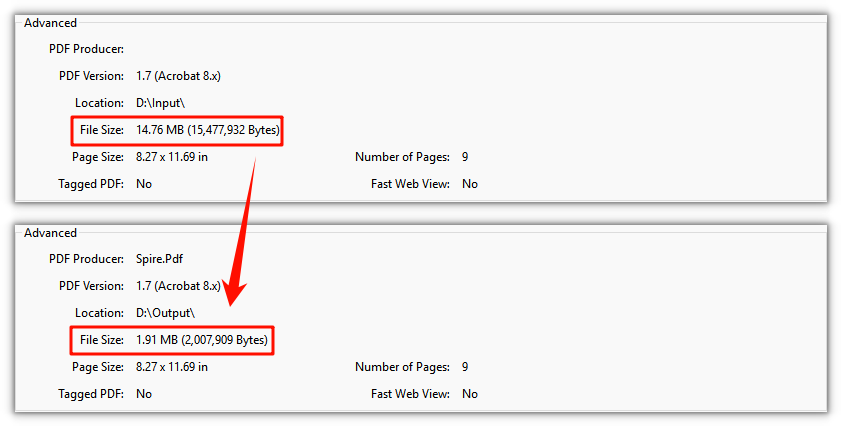
Combining the three approaches above gives a complete compression flow that balances effect and speed: after loading the PDF, enable image, font, and content compression in one pass, then call CompressToFile to write the result to a new file. The example below enables ResizeImages, CompressImage (with the High quality tier), CompressFonts, UnembedFonts, and CompressContents all at once on a PDF that contains both high-resolution images and text, and produces a new document that is clearly smaller:
function App() {
  const compressPdfDocument = async () => {
    // Get the Spire.PDF WASM module
    const pdfModule = window.wasmModule?.spirepdf;

    // Check that the module is ready
    if (!pdfModule) {
      alert('Spire.PDF is not ready yet');
      return;
    }

    // Load the PDF to be compressed into the VFS
    const inputFileName = 'ImageDocument.pdf';
    await window.spire.FetchFileToVFS(inputFileName, "", `${process.env.PUBLIC_URL}/data/`);

    // Create a PdfCompressor and point it at the PDF to compress
    let compressor = new pdfModule.PdfCompressor({ filePath: inputFileName });

    // 1. Image compression: resize and re-compress images, with a higher quality tier
    compressor.Options.ImageCompressionOptions.ResizeImages = true;
    compressor.Options.ImageCompressionOptions.CompressImage = true;
    compressor.Options.ImageCompressionOptions.ImageQuality = pdfModule.ImageQuality.High;

    // 2. Font compression: compress font data and remove embedded fonts
    compressor.Options.TextCompressionOptions.CompressFonts = true;
    compressor.Options.TextCompressionOptions.UnembedFonts = true;

    // 3. Content compression: re-compress the document content streams
    compressor.Options.CompressContents = true;

    // Define the output file name and compress to it
    const outputFileName = 'CompressedDocument.pdf';
    compressor.CompressToFile(outputFileName);

    // Read the generated file from the VFS and trigger the download
    const fileArray = window.dotnetRuntime.Module.FS.readFile(outputFileName);
    const blob = new Blob([fileArray], { type: 'application/pdf' });
    const url = URL.createObjectURL(blob);
    const a = document.createElement('a');
    a.href = url;
    a.download = outputFileName;
    a.click();
    URL.revokeObjectURL(url);
  };

  return (
    <div style={{ textAlign: 'center', height: '300px' }}>
      <h1>Compress PDF Document</h1>
      <button onClick={compressPdfDocument}>
        Generate
      </button>
    </div>
  );
}

export default App;
PDF document compressed by combining all three approaches
FAQ
Why is the file still large after compression when the PDF has few images
Reason: The size does not always come from images. When the pages are text-heavy, the size is more likely to come from the embedded fonts and the page content streams, so enabling image compression alone helps little.
Solution: Cover the other dimensions as well — compress font data with TextCompressionOptions (using UnembedFonts to remove embedded fonts when appropriate) and re-compress the content streams with CompressContents, so that text-heavy documents also shrink noticeably.
Will unembedding fonts cause the text to display incorrectly
Reason: UnembedFonts removes the font programs from the PDF, so the reader renders the text with fonts installed on the system; if the target environment lacks those fonts, glyph substitution or spacing changes may occur.
Solution: For documents distributed to users whose font environments are unknown, keep the fonts embedded and only use CompressFonts to compress the font data; enable UnembedFonts only when you are sure the target system has the corresponding fonts:
// Keep fonts embedded but compress the font data to avoid display risks after unembedding
compressor.Options.TextCompressionOptions.UnembedFonts = false;
compressor.Options.TextCompressionOptions.CompressFonts = true;
How should I trade off the image quality tier against the compression methods
Reason: ImageQuality only affects the quality and size of the re-encoded images; depending on the document, the part that contributes the most to its size differs, so a single dimension rarely reaches an ideal compression ratio.
Solution: For image-heavy documents, enable ResizeImages and CompressImage first and choose between the High/Low tiers; for text-heavy documents, focus on font compression and content compression. If fonts must stay embedded, just turn off UnembedFonts — the other compression options are unaffected:
// For image-heavy documents, choose the lower quality tier for a smaller file
compressor.Options.ImageCompressionOptions.ImageQuality = pdfModule.ImageQuality.Low;
Get a Free License
If you want to remove the evaluation message from the result documents or get rid of feature limitations, please contact sales to obtain a free 30-day temporary license.

