
PDF keeps its layout fixed and renders consistently across devices, which makes it ideal for distributing contracts, manuals, and reports. In business, however, a set of materials often consists of multiple related PDFs: a product manual, for example, usually goes together with a quotation, a technical specification, and frequently asked questions. Sending each file separately is scattered and easy to miss. The PDF "portfolio" mechanism provides a standard way to solve this problem — it lets you package several documents into a single PDF. The recipient opens one file and can view, expand, and save each member file from the portfolio view of their PDF viewer, which makes unified delivery and archiving convenient.
Spire.PDF for JavaScript runs on WebAssembly and completes the loading, drawing, and saving of PDFs entirely in the browser, managing input and output files through a virtual file system (VFS) with no backend required. Two operations are commonly used around portfolios: creating one — load a main document with PdfDocument, then add each member file that has been loaded into the VFS one by one through the file collection's root folder doc.Collection.Folders and its AddFile method, using CreateSubfolder to build subfolders and group members when needed; and identifying one — read the doc.IsPortfolio property directly to tell whether a PDF is a portfolio.
This article covers two core functions:
For installation and project configuration, refer to Integrating Spire.PDF for JavaScript in a React Project. The examples below assume Spire.PDF is installed and the WebAssembly module has been initialized.
Creating a PDF Portfolio
Portfolio members are not limited to PDFs — Word, Excel, and image files can be added as well, and subfolders can be used to group them. The packaging logic is straightforward: first load a main document with PdfDocument to act as the carrier of the portfolio; load each member file to be packaged into the virtual file system with FetchFileToVFS; then iterate over the members and add each one to the file collection's root folder with doc.Collection.Folders.AddFile({ filePath }). If you want some files to live in a subfolder of their own, create the subfolder first with CreateSubfolder, then call AddFile on it to add the files. When every member has been added, save the document to obtain a PDF portfolio that packages the main document together with all of its member files.
function App() {
  const createPortfolio = async () => {
    // Get the Spire.PDF WASM module
    const pdfModule = window.wasmModule?.spirepdf;

    // Check whether the module is ready
    if (!pdfModule) {
      alert('Spire.PDF is not ready yet');
      return;
    }

    // Load the PDF used as the main document of the portfolio into the VFS
    const mainFileName = 'Product_Manual.pdf';
    await window.spire.FetchFileToVFS(mainFileName, "", `${process.env.PUBLIC_URL}/data/`);

    // Create a PdfDocument object and load the main document
    let doc = new pdfModule.PdfDocument();
    doc.LoadFromFile(mainFileName);

    // Load each member file placed under the root of the portfolio into the VFS and add it to the folder of the file collection
    const rootFiles = ['Quotation.pdf', 'Technical_Specification.pdf', 'logo.png', 'Financial_Statement.xlsx'];
    for (let i = 0; i < rootFiles.length; i++) {
      await window.spire.FetchFileToVFS(rootFiles[i], "", `${process.env.PUBLIC_URL}/data/`);
      doc.Collection.Folders.AddFile({ filePath: rootFiles[i] });
    }

    // Load the Word document to be placed in a subfolder into the VFS
    await window.spire.FetchFileToVFS('test.docx', "", `${process.env.PUBLIC_URL}/data/`);
    // Create a subfolder named "Documents" in the file collection and add the Word document to it
    const subFolder = doc.Collection.Folders.CreateSubfolder('Documents');
    subFolder.AddFile({ filePath: 'test.docx' });

    // Define the output file name and save the document
    const outputFileName = 'Product_Portfolio.pdf';
    doc.SaveToFile(outputFileName);
    doc.Close();

    // Read the generated file from the VFS and trigger a download
    const fileArray = window.dotnetRuntime.Module.FS.readFile(outputFileName);
    const blob = new Blob([fileArray], { type: 'application/pdf' });
    const url = URL.createObjectURL(blob);
    const a = document.createElement('a');
    a.href = url;
    a.download = outputFileName;
    a.click();
    URL.revokeObjectURL(url);
  };

  return (
    <div style={{ textAlign: 'center', height: '300px' }}>
      <h1>Create PDF Portfolio</h1>
      <button onClick={createPortfolio}>
        Generate
      </button>
    </div>
  );
}

export default App;
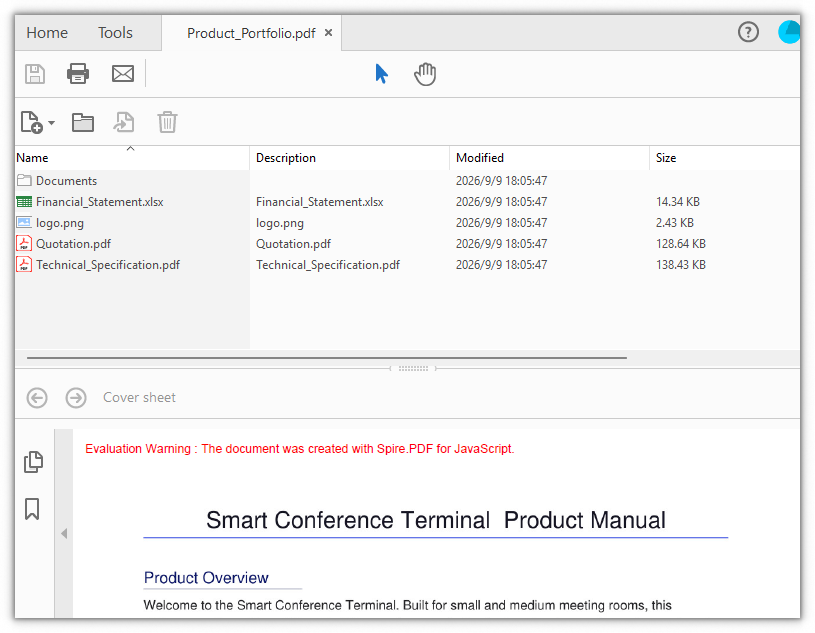
The resulting PDF portfolio after creation
Identifying a PDF Portfolio
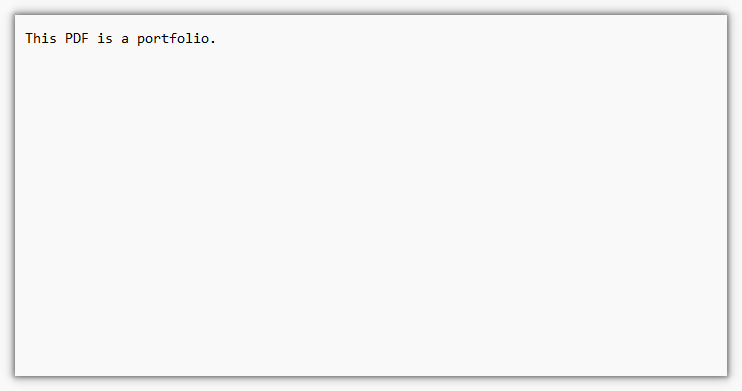
When you receive a PDF and need to tell whether it is a portfolio, use the PdfDocument.IsPortfolio property: load the document with LoadFromFile and read the Boolean property. A return value of true means the PDF is a portfolio, while false means it is a regular PDF document. This example loads a product portfolio sample to identify it, writes the "is a portfolio" result to a downloaded txt file, and also shows it below on the page so the conclusion can be seen at a glance.
function App() {
  const identifyPortfolio = async () => {
    // Get the Spire.PDF WASM module
    const pdfModule = window.wasmModule?.spirepdf;

    // Check whether the module is ready
    if (!pdfModule) {
      alert('Spire.PDF is not ready yet');
      return;
    }

    // Load the PDF to be identified into the VFS
    const inputFileName = 'Product_Portfolio.pdf';
    await window.spire.FetchFileToVFS(inputFileName, "", `${process.env.PUBLIC_URL}/data/`);

    // Create a PdfDocument object and load the PDF document
    let doc = new pdfModule.PdfDocument();
    doc.LoadFromFile(inputFileName);

    // Judge whether this PDF is a portfolio
    const isPortfolio = doc.IsPortfolio;
    const message = isPortfolio ? 'This PDF is a portfolio.' : 'This PDF is not a portfolio.';
    doc.Close();

    // Show the result below on the page
    const resultEl = document.getElementById('identify-result');
    if (resultEl) resultEl.innerText = message;

    // Write the result to a txt file and trigger a download
    const outputFileName = 'Identification_Result.txt';
    window.dotnetRuntime.Module.FS.writeFile(outputFileName, message);
    const fileArray = window.dotnetRuntime.Module.FS.readFile(outputFileName);
    const blob = new Blob([fileArray], { type: 'text/plain' });
    const url = URL.createObjectURL(blob);
    const a = document.createElement('a');
    a.href = url;
    a.download = outputFileName;
    a.click();
    URL.revokeObjectURL(url);
  };

  return (
    <div style={{ textAlign: 'center', height: '300px' }}>
      <h1>Identify PDF Portfolio</h1>
      <button onClick={identifyPortfolio}>
        Check
      </button>
      <p id="identify-result" style={{ marginTop: '20px', fontWeight: 'bold' }}></p>
    </div>
  );
}

export default App;
The identification result shows that the PDF is a portfolio
FAQ
How can I confirm that the file is really a portfolio after creating it
Reason: A portfolio only "packages" the member files into the same PDF, so it may not be obvious at a glance whether the saving succeeded.
Solution: Use doc.IsPortfolio for a second check on the saved result — reload the generated file and a return value of true means it is a portfolio:
// Reload the generated file and check whether it is a portfolio
let doc = new pdfModule.PdfDocument();
doc.LoadFromFile('Product_Portfolio.pdf');
const isPortfolio = doc.IsPortfolio;
What is the difference between a portfolio and ordinary PDF attachments
Reason: Both portfolios and attachments "stuff" files into a PDF, so it is easy to confuse their purposes and how to tell them apart.
Solution: A PDF attachment (Attachment) attaches a file as an embedded file that appears in the attachment panel of the document, while the body itself is usually an independent document. A portfolio, on the other hand, organizes member files around a file collection (Collection), and the members can be several documents that appear as separate files in the portfolio view and can be expanded and saved individually. To tell them apart, use doc.Attachments to inspect attachments and doc.IsPortfolio to check whether the document is a portfolio; the two do not substitute for each other.
Can only PDF files be added to a portfolio
Reason: The example presents the PDF members first, which makes it easy to assume a portfolio can only hold PDFs.
Solution: AddFile adds any file that exists in the virtual file system, not just PDFs. Load the target file into the VFS with FetchFileToVFS and add it with { filePath: fileName }; to group files into one place, create a subfolder with CreateSubfolder and add the files to it. Word, Excel, images, and other files can all be packaged into a portfolio as members:
// Load an Excel file and add it as a portfolio member
await window.spire.FetchFileToVFS('Financial_Statement.xlsx', "", `${process.env.PUBLIC_URL}/data/`);
doc.Collection.Folders.AddFile({ filePath: 'Financial_Statement.xlsx' });
Get a Free Temporary License
If you want to remove the evaluation message from the result documents, or get rid of the function limitations, please contact our sales team to get a temporary license that is valid for 30 days.

