
Knowledgebase (2370)
Children categories
Word documents are files created with Microsoft Word or other word-processing programs. They are used by almost all types of businesses around the world. A wide variety of professional documents, such as business contracts, essays, brochures, letters, resumes, and reports, are created and saved in the form of Word documents. In this article, you will learn how to create or edit Word documents programmatically in C++ using Spire.Doc for C++ library.
Install Spire.Doc for C++
There are two ways to integrate Spire.Doc for C++ into your application. One way is to install it through NuGet, and the other way is to download the package from our website and copy the libraries into your program. Installation via NuGet is simpler and more recommended. You can find more details by visiting the following link.
Integrate Spire.Doc for C++ in a C++ Application
Create a Word Document in C++
Using Spire.Doc for C++, you can create a Word document with one or more sections and add various elements to it, such as paragraphs, tables, images, lists, hyperlinks, watermarks, headers, footers, content controls, and comments.
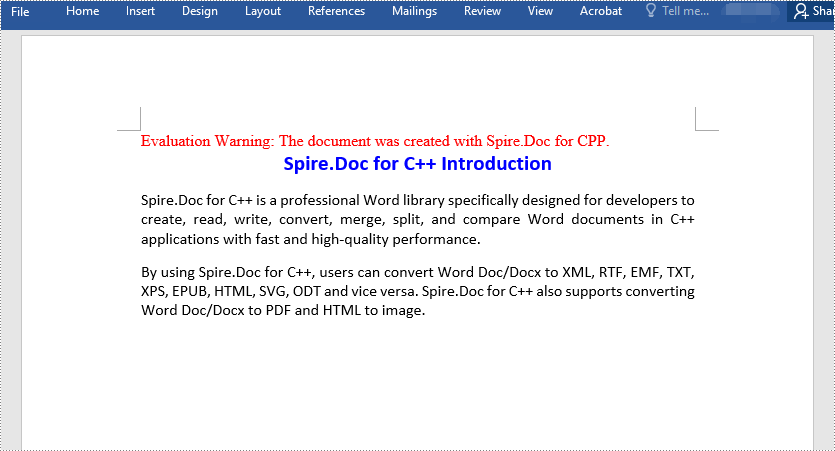
The following steps show you how to create a simple Word document with a section and three paragraphs:
- Initialize an instance of the Document class.
- Add a section to the document using Document->AddSection() method.
- Set page margins for the section.
- Add three paragraphs to the section using Section->AddParagraph() method.
- Add text to the paragraphs using Paragraph->AppendText() method.
- Initialize two instances of the ParagraphStyle class to create two paragraph styles, and then apply the styles to the paragraphs respectively using Paragraph->ApplyStyle() method.
- Save the result document to a Word file using Document->SaveToFile() method.
- C++
#include "Spire.Doc.o.h"

using namespace Spire::Doc;

int main()
{
    //Initialize an instance of the Document class
    intrusive_ptr<Document> doc = new Document();
    //Add a section to the document
    intrusive_ptr<Section> section = doc->AddSection();

    //Set page margins
    section->GetPageSetup()->GetMargins()->SetAll(72);

    //Add a title paragraph to the section
    intrusive_ptr<Paragraph> titlePara = section->AddParagraph();
    //Add text to the paragraph
    titlePara->AppendText(L"Spire.Doc for C++ Introduction");

    //Add a body paragraph to the section
    intrusive_ptr<Paragraph> bodyPara1 = section->AddParagraph();
    //Add text to the paragraph
    bodyPara1->AppendText(L"Spire.Doc for C++ is a professional Word library specifically designed for developers to create, read, write, convert, merge, split, and compare Word documents in C++ applications with fast and high-quality performance.");

    //Add a body paragraph to the section
    intrusive_ptr<Paragraph> bodyPara2 = section->AddParagraph();
    //Add text to the paragraph
    bodyPara2->AppendText(L"By using Spire.Doc for C++, users can convert Word Doc/Docx to XML, RTF, EMF, TXT, XPS, EPUB, HTML, SVG, ODT and vice versa. Spire.Doc for C++ also supports converting Word Doc/Docx to PDF and HTML to image.");

    //Create a style and apply it to the title paragraph
    intrusive_ptr<ParagraphStyle> style1 = new ParagraphStyle(doc);
    style1->SetName(L"titleStyle");
    style1->GetCharacterFormat()->SetBold(true);
    style1->GetCharacterFormat()->SetTextColor(Color::GetBlue());
    style1->GetCharacterFormat()->SetFontName(L"Calibri");
    style1->GetCharacterFormat()->SetFontSize(16);
    doc->GetStyles()->Add(style1);
    titlePara->ApplyStyle(L"titleStyle");

    //Create a style and apply it to the body paragraphs
    intrusive_ptr<ParagraphStyle> style2 = new ParagraphStyle(doc);
    style2->SetName(L"paraStyle");
    style2->GetCharacterFormat()->SetFontName(L"Calibri");
    style2->GetCharacterFormat()->SetFontSize(12);
    doc->GetStyles()->Add(style2);
    bodyPara1->ApplyStyle(L"paraStyle");
    bodyPara2->ApplyStyle(L"paraStyle");

    //Set horizontal alignment for the title and body paragraphs
    titlePara->GetFormat()->SetHorizontalAlignment(HorizontalAlignment::Center);
    bodyPara1->GetFormat()->SetHorizontalAlignment(HorizontalAlignment::Justify);
    bodyPara2->GetFormat()->SetHorizontalAlignment(HorizontalAlignment::Justify);

    //Set spacing after the title and body paragraphs
    titlePara->GetFormat()->SetAfterSpacing(10);
    bodyPara1->GetFormat()->SetAfterSpacing(10);

    //Save the result document
    doc->SaveToFile(L"CreateWord.docx", FileFormat::Docx2013);
    doc->Dispose();
}
Edit an Existing Word Document in C++
Apart from creating Word documents from scratch, Spire.Doc for C++ also enables you to edit existing Word documents. For example, you can modify existing elements in the document or add new elements to the document.
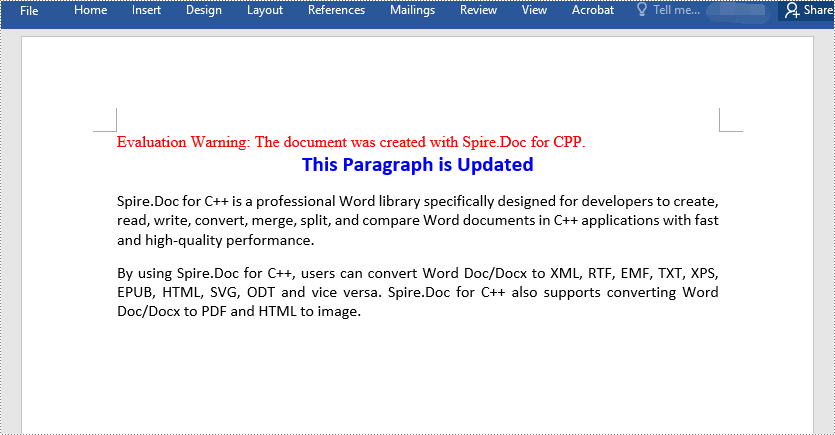
The following steps show you how to modify the text of a specific paragraph in a Word document:
- Initialize an instance of the Document class.
- Load the Word document using Document->LoadFromFile() method.
- Access a specific section in the document by its index using Document->GetSections()->GetItem(int index) method.
- Access a specific paragraph in the section by its index using Section->GetParagraphs()->GetItem(int index) method.
- Modify the paragraph text using Paragraph->SetText() method.
- Save the result document using Document->SaveToFile() method.
- C++
#include "Spire.Doc.o.h"

using namespace Spire::Doc;

int main()
{
    //Initialize an instance of the Document class
    intrusive_ptr<Document> doc = new Document();
    //Load a Word document
    doc->LoadFromFile(L"CreateWord.docx");

    //Access the first section in the document
    intrusive_ptr<Section> section = doc->GetSections()->GetItemInSectionCollection(0);

    //Access the second paragraph in the first section
    intrusive_ptr<Paragraph> para = section->GetParagraphs()->GetItemInParagraphCollection(1);
    //Modify the paragraph text
    para->SetText(L"This Paragraph is Updated");

    //Save the result document
    doc->SaveToFile(L"EditWord.docx", FileFormat::Docx2013);
    doc->Dispose();
}
Apply for a Temporary License
If you'd like to remove the evaluation message from the generated documents, or to get rid of the function limitations, please request a 30-day trial license for yourself.
How to Integrate Spire.Presentation for C++ in a C++ Application
2023-02-16 02:12:44 Written by KoohjiSpire.Presentation for C++ is a professional PowerPoint library built for developers to read, create, edit, and convert PowerPoint documents in any type of C++ applications. This article demonstrates how to integrate Spire.Presentation for C++ into your C++ application in two different ways.
- Install Spire.Presentation for C++ via NuGet
- Install Spire.Presentation for C++ by Manually Importing Libraries
Install Spire.Presentation for C++ via NuGet
Step 1
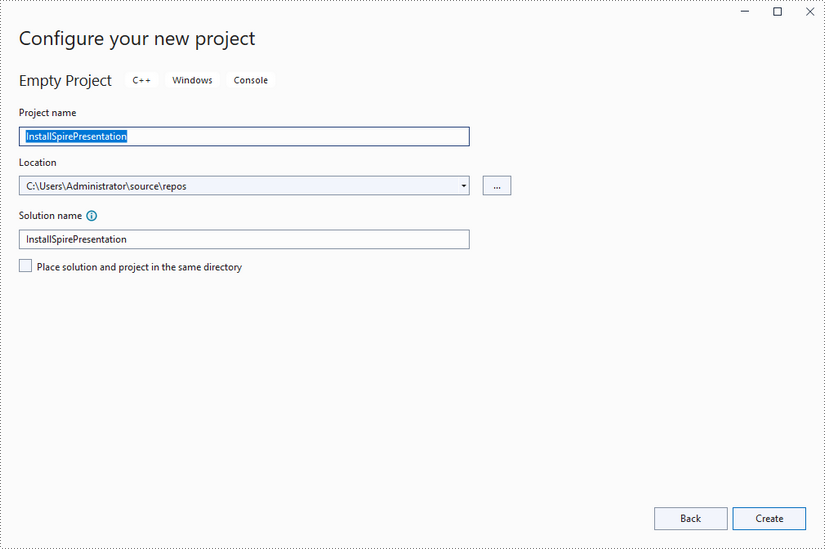
Create a C++ project in Visual Studio 2022.
Step 2
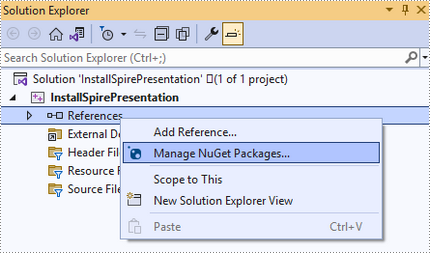
Right-click "References" in the Solution Explorer and choose "Manage NuGet Package" in the popup menu.
Click "Browse", search for "spire.presentation.cpp", and install it in your project.

Step 3
Right-click "Source Files" in the Solution Explorer, choose "Add" and then "New Item".
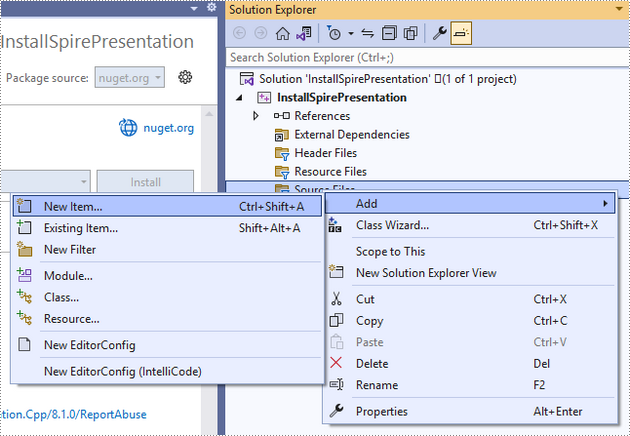
Create a .cpp file.
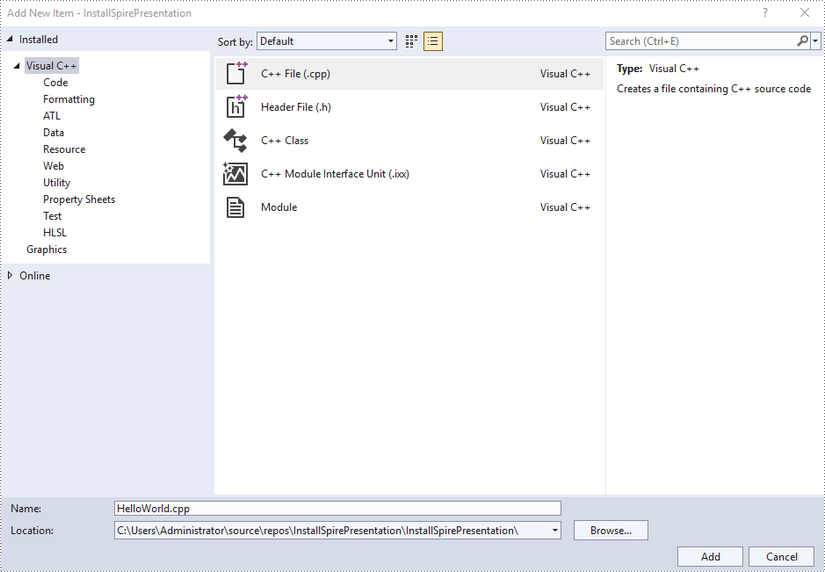
Step 4
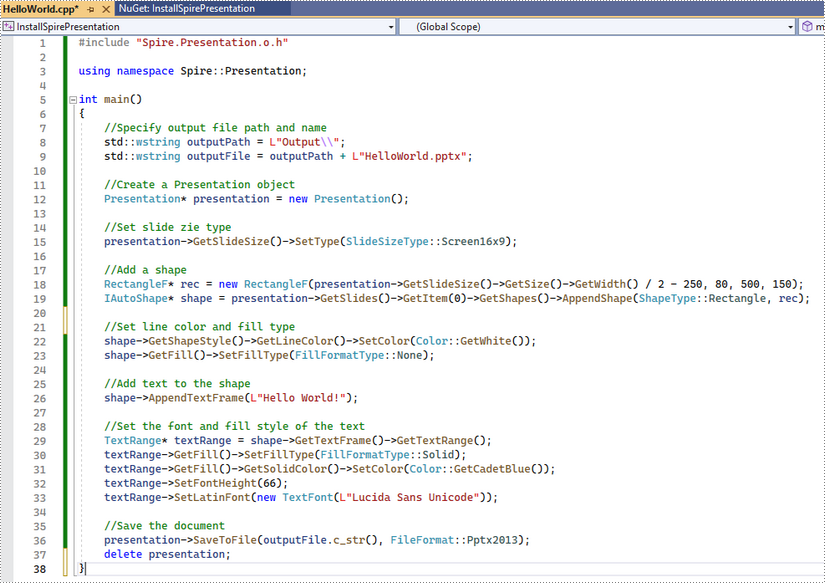
Click the .cpp file you just created to write code. Before starting, you need to include the header file “Spire.Presentation.o.h” by adding the following line of code to your program.
- C++
#include "Spire.Presentation.o.h"
The code example below shows you how to create a simple Presentation file using Spire.Presentation for C++.
Install Spire.Presentation for C++ by Manually Importing Libraries
Step 1
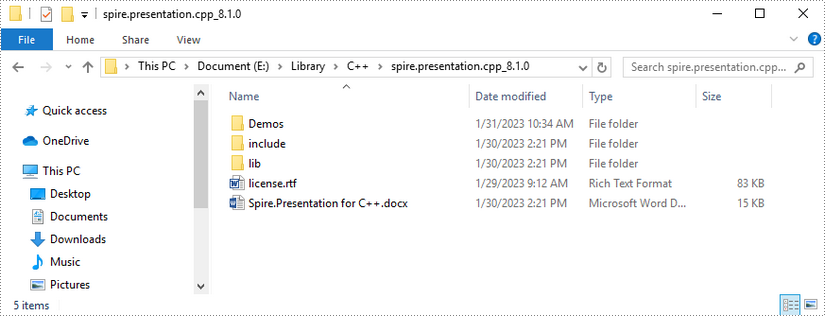
Download Spire.Presentation for C++ package and unzip it somewhere on your disc to get the following files.
Step 2
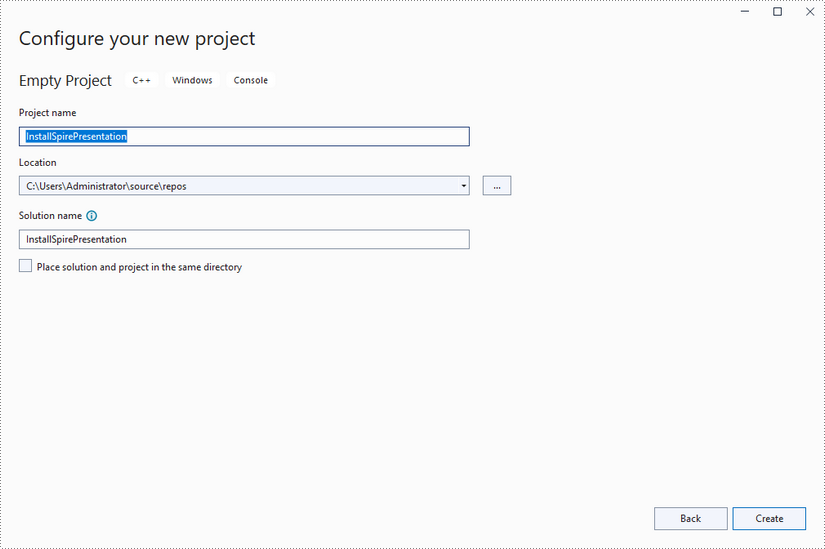
Create a C++ project in Visual Studio 2022.
Step 3
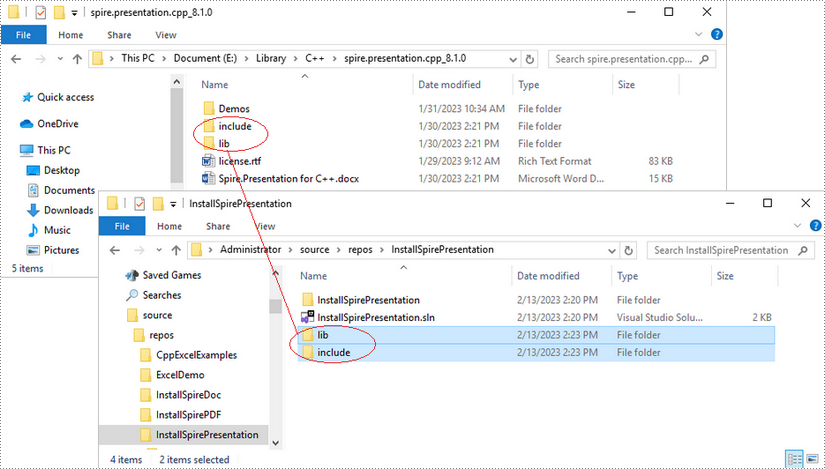
Copy the "include" folder and the "lib" folder from the product package to your project, and save them under the same folder where the .sln file exists.
Step 4
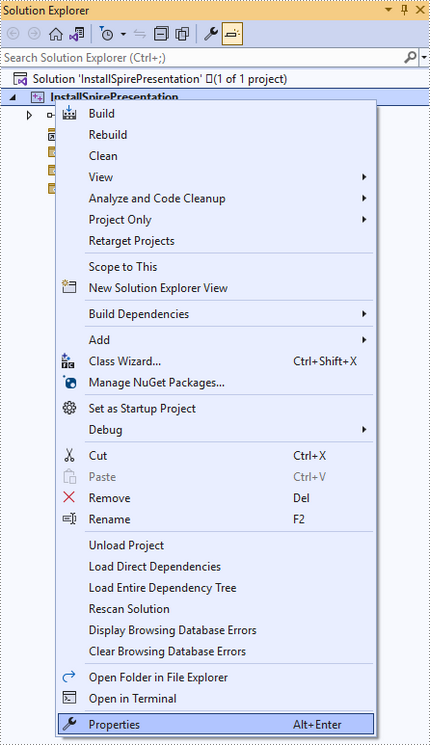
Right-click the project name and select "Properties".
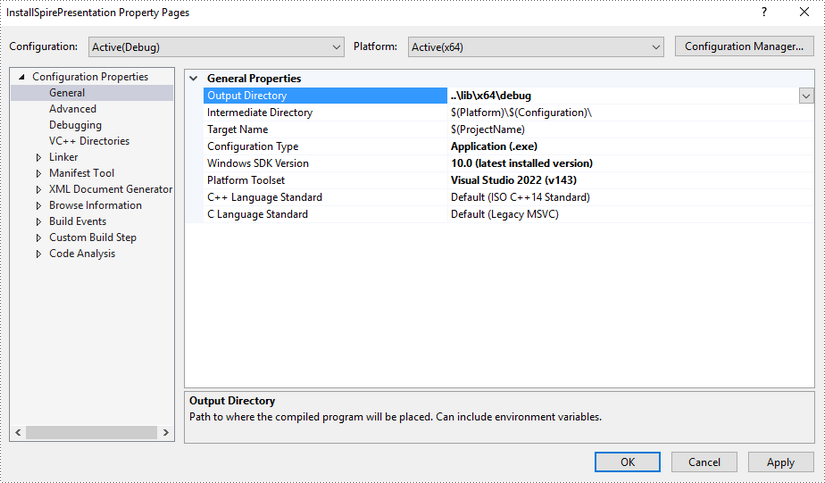
Configure output directory. Depending on the build mode (Debug or Release) you choose, you can set the output directory to "..\lib\x64\debug" or "..\lib\x64\release".
Step 5
Right-click "Source Files" in the Solution Explorer, choose "Add" and then "New Item".
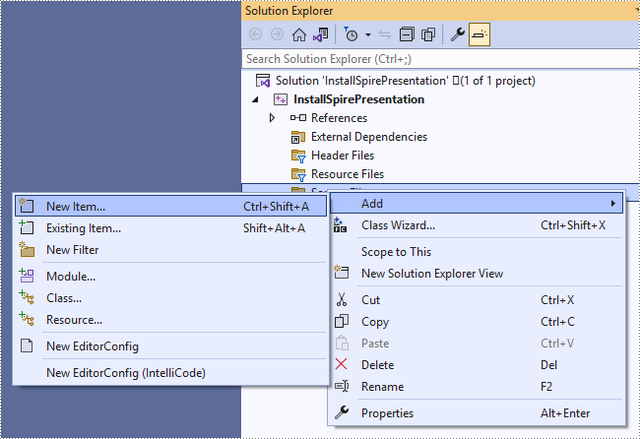
Create a .cpp file.
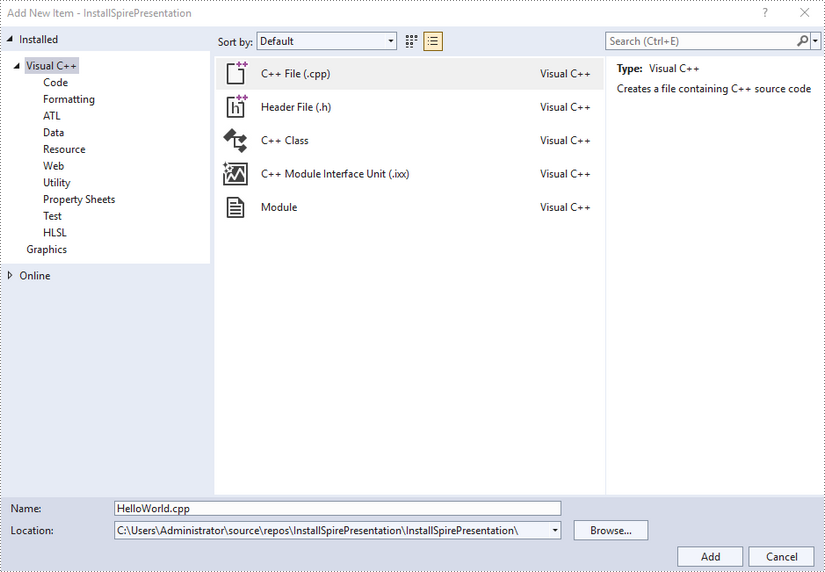
Step 6
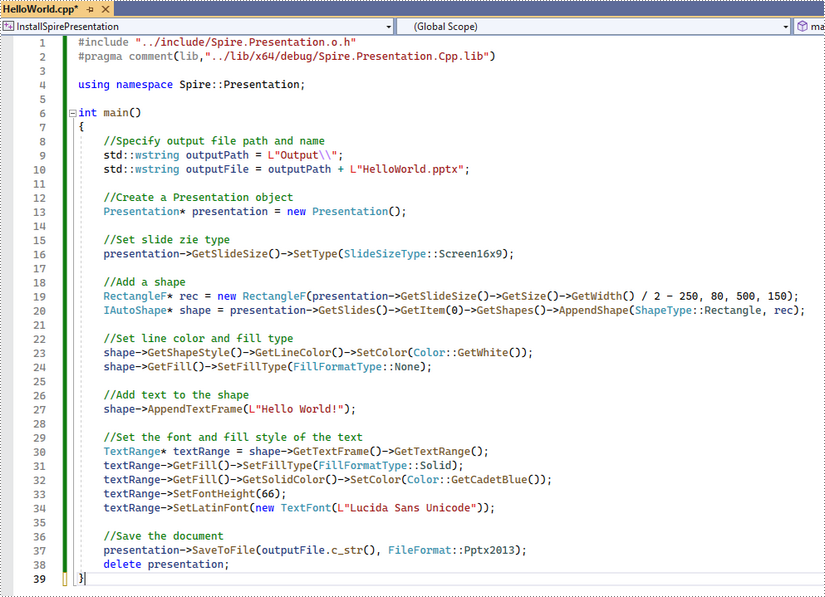
Click the .cpp file you just created to write code. Before starting, you need to include the following two lines of code to your program.
- C++
#include "../include/Spire.Presentation.o.h"
#pragma comment(lib,"../lib/x64/debug/Spire.Presentation.Cpp.lib")
The code example below shows you how to create a simple PowerPoint file using Spire.Presentation for C++.
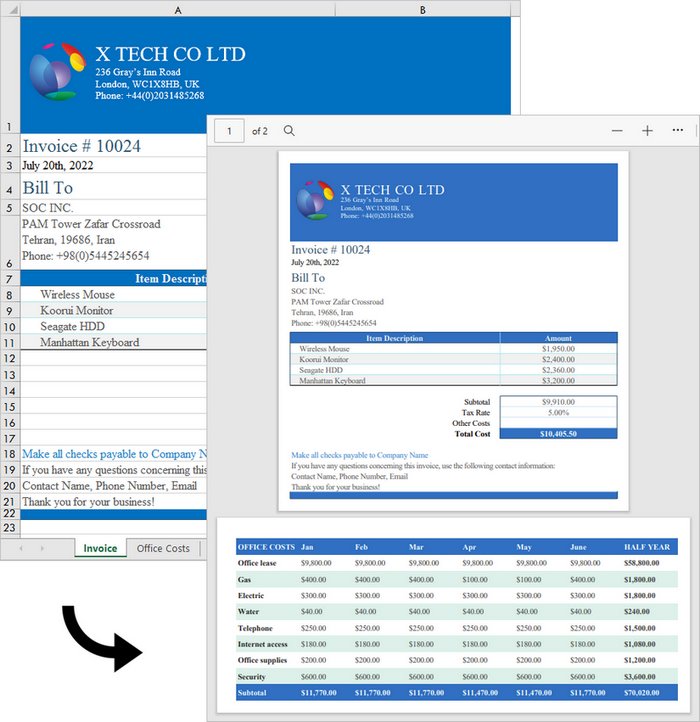
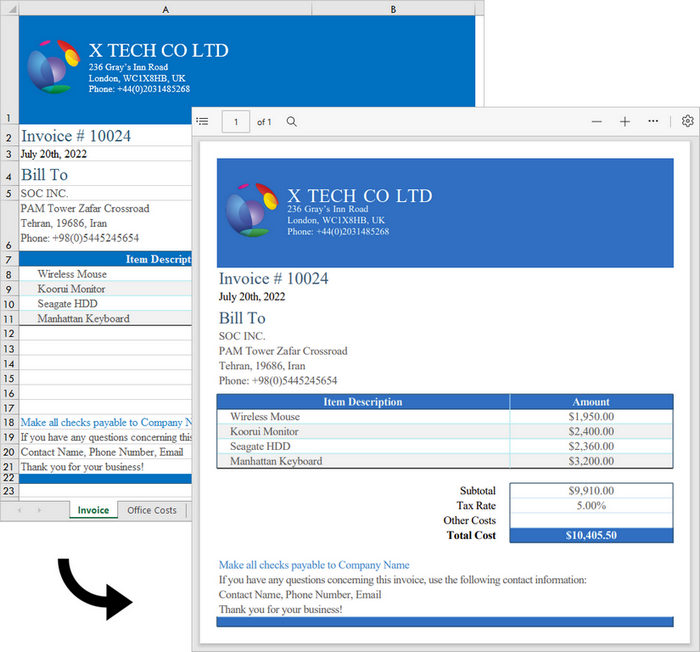
Excel is a wonderful tool for the creation and management of spreadsheets. However, when it comes to sharing these files with others, Excel may not deliver the best results. As soon as you have finalized your report, you can convert it to PDF, which keeps the formatting of your spreadsheets and allows them to be displayed perfectly on a variety of devices. Furthermore, PDFs are secure and can be encrypted to prevent unauthorized changes to the content.
In this article, you will learn how to convert an Excel workbook to PDF and how to convert an Excel worksheet to PDF in C++ using Spire.XLS for C++.
Install Spire.XLS for C++
There are two ways to integrate Spire.XLS for C++ into your application. One way is to install it through NuGet, and the other way is to download the package from our website and copy the libraries into your program. Installation via NuGet is simpler and more recommended. You can find more details by visiting the following link.
Integrate Spire.XLS for C++ in a C++ Application
Convert an Excel Workbook to a PDF Document in C++
Spire.XLS for C++ offers the Workbook->SaveToFile(LPCWSTR_S fileName, FileFormat fileFormat) method, enabling users to convert an entire workbook to another format file, like PDF, HTML, CSV and XPS. Besides, it offers the ConverterSetting class to specify the convert options, such as whether to automatically adjust the height and width of the cells during conversion. The following are the steps to convert an Excel workbook to PDF using it.
- Create a Workbook object.
- Load a sample Excel document using Workbook->LoadFromFile() method.
- Make worksheets to fit to page when converting using Workbook->GetConverterSetting()->SetSheetFitToPage() method.
- Convert the workbook to PDF using Workbook->SaveToFile() method.
- C++
#include "Spire.Xls.o.h"

using namespace Spire::Xls;
using namespace std;

int main()
{
    //Specify input file path
    wstring inputFilePath = L"C:\\Users\\Administrator\\Desktop\\sample.xlsx";

    //Specify output file path and name
    wstring outputPath = L"Output\\";
    wstring outputFile = outputPath + L"ToPDF.pdf";

    //Create a Workbook object
    intrusive_ptr<Workbook> workbook = new Workbook();

    //Load the source Excel file
    workbook->LoadFromFile(inputFilePath.c_str());

    //Set worksheets to fit to page when converting
    workbook->GetConverterSetting()->SetSheetFitToPage(true);

    //Save to PDF
    workbook->SaveToFile(outputFile.c_str(), FileFormat::PDF);
    workbook->Dispose();
}
Convert a Specific Worksheet to a PDF Document in C++
To export a specific worksheet as a PDF, you must first use the Workbook->GetWorksheets()->Get(index) method to obtain the worksheet, and then use the Worksheet->SaveToPdf(LPCWSTR_S fileName) method to save it. The following are the detailed steps.
- Create a Workbook object.
- Load a sample Excel document using Workbook->LoadFromFile() method.
- Make worksheets to fit to page when converting using Workbook->GetConverterSetting()->SetSheetFitToPage() method.
- Get a specific worksheet using Workbook->GetWorksheets()->Get() method.
- Convert the worksheet to PDF using Worksheet->SaveToPdf() method.
- C++
#include "Spire.Xls.o.h"

using namespace Spire::Xls;
using namespace std;

int main()
{
	//Specify input file path
	wstring inputFilePath = L"C:\\Users\\Administrator\\Desktop\\sample.xlsx";

	//Specify output file path and name
	wstring outputPath = L"Output\\";
	wstring outputFile = outputPath + L"ToPDF.pdf";

	//Create a Workbook object
	intrusive_ptr<Workbook> workbook = new Workbook();

	//Load the source Excel file
	workbook->LoadFromFile(inputFilePath.c_str());

	//Set worksheets to fit to page when converting
	workbook->GetConverterSetting()->SetSheetFitToPage(true);

	//Get a specific worksheet
	intrusive_ptr<Worksheet> sheet = dynamic_pointer_cast<Worksheet>(workbook->GetWorksheets()->Get(0));

	//Save it to PDF
	sheet->SaveToPdf(outputFile.c_str());
	workbook->Dispose();
}
Apply for a Temporary License
If you'd like to remove the evaluation message from the generated documents, or to get rid of the function limitations, please request a 30-day trial license for yourself.
