
Knowledgebase (2370)
Children categories
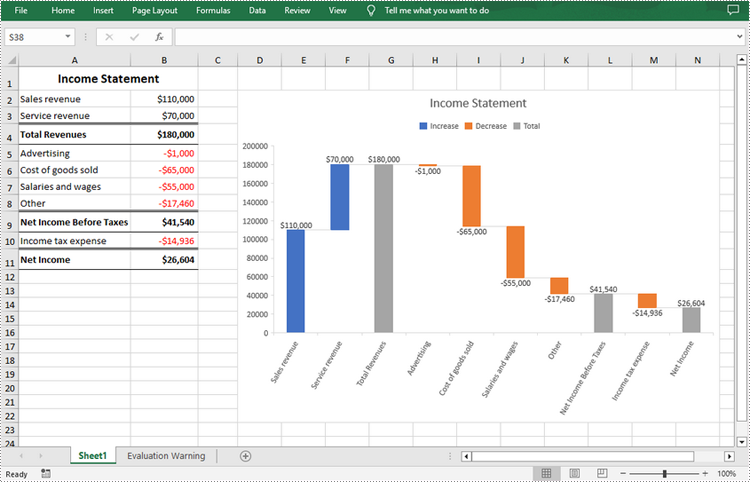
A waterfall chart, also called a bridge chart or a cascade chart, is one of the most visually descriptive charts in Excel. It shows the cumulative effect of positive and negative contributions over a period of time, which is useful in many scenarios where quantitative analysis is required, such as visualizing profit and loss statements, showing budget changes in a project, or monitoring shop inventories. In this article, you will learn how to create a waterfall chart in Excel in Java using Spire.XLS for Java.
Install Spire.XLS for Java
First of all, you're required to add the Spire.Xls.jar file as a dependency in your Java program. The JAR file can be downloaded from this link. If you use Maven, you can easily import the JAR file in your application by adding the following code to your project's pom.xml file.
<repositories>
    <repository>
        <id>com.e-iceblue</id>
        <name>e-iceblue</name>
        <url>https://repo.e-iceblue.com/nexus/content/groups/public/</url>
    </repository>
</repositories>
<dependencies>
    <dependency>
        <groupId>e-iceblue</groupId>
        <artifactId>spire.xls</artifactId>
        <version>16.7.3</version>
    </dependency>
</dependencies>
Create a Waterfall Chart in Excel in Java
Waterfall charts are ideal for analyzing financial statements. To create a waterfall chart, you could first add a chart to a specified worksheet using Worksheet.getCharts().add() method, and then set the chart type to Waterfall using Chart.setChartType(ExcelChartType.WaterFall) method. The following are the detailed steps.
- Create a Workbook instance.
- Load a sample Excel document using Workbook.loadFromFile() method.
- Get a specified worksheet by its index using Workbook.getWorksheets().get() method.
- Add a chart to the worksheet Worksheet.getCharts().add() method, and then set the chart type to waterfall using Chart.setChartType(ExcelChartType.WaterFall) method.
- Set data range for the chart using Chart.setDataRange() method.
- Set position and title of the chart.
- Get a specified data series of the chart, and then set specific data points in the chart as totals or subtotals using ChartSerie.getDataPoints().get().setAsTotal() method.
- Show the connector lines between data points using ChartSerie.getFormat().showConnectorLines(true) method.
- Show data labels for data points, and set the legend position of the chart.
- Save the result document using Workbook.saveToFile() method.
- Java
import com.spire.xls.*;

public class WaterfallChart {
    public static void main(String []args){
        //Create a Workbook object
        Workbook workbook=new Workbook();

        //Load a sample Excel document
        workbook.loadFromFile("data.xlsx");

        //Get the first worksheet
        Worksheet sheet=workbook.getWorksheets().get(0);

        //Add a waterfall chart to the worksheet
        Chart chart=sheet.getCharts().add();
        chart.setChartType(ExcelChartType.WaterFall);

        //Set data range for the chart
        chart.setDataRange(sheet.getRange().get("A2:B11"));

        //Set position of the chart
        chart.setLeftColumn(4);
        chart.setTopRow(2);
        chart.setRightColumn(15);
        chart.setBottomRow(23);

        //Set chart title
        chart.setChartTitle("Income Statement");

        //Set specific data points in the chart as totals or subtotals
        chart.getSeries().get(0).getDataPoints().get(2).setAsTotal(true);
        chart.getSeries().get(0).getDataPoints().get(7).setAsTotal(true);
        chart.getSeries().get(0).getDataPoints().get(9).setAsTotal(true);

        //Show the connector lines between data points
        chart.getSeries().get(0).getFormat().showConnectorLines(true);

        //Show data labels for data points
        chart.getSeries().get(0).getDataPoints().getDefaultDataPoint().getDataLabels().hasValue(true);
        chart.getSeries().get(0).getDataPoints().getDefaultDataPoint().getDataLabels().setSize(8);

        //Set the legend position of the chart
        chart.getLegend().setPosition(LegendPositionType.Top);

        //Save the result document
        workbook.saveToFile("WaterfallChart.xlsx",FileFormat.Version2016);
    }
}
Apply for a Temporary License
If you'd like to remove the evaluation message from the generated documents, or to get rid of the function limitations, please request a 30-day trial license for yourself.
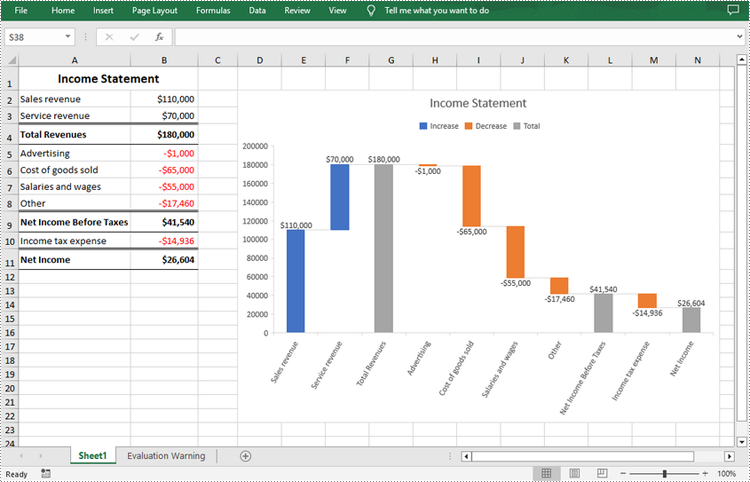
Waterfall charts in Excel are graphs that visually show how a series of consecutive positive or negative values contribute to the final outcome. They are a useful tool for tracking company profits or cash flow, comparing product revenues, analyzing sales and inventory changes over time, etc. In this article, you will learn how to create a waterfall chart in Excel in C# and VB.NET using Spire.XLS for .NET.
Install Spire.XLS for .NET
To begin with, you need to add the DLL files included in the Spire.XLS for .NET package as references in your .NET project. The DLL files can be either downloaded from this link or installed via NuGet.
PM> Install-Package Spire.XLS
Create a Waterfall Chart in Excel in C# and VB.NET
Waterfall/bridge charts are ideal for analyzing financial statements. To add a waterfall chart to an Excel worksheet, Spire.XLS for .NET provides the Worksheet.Charts.Add(ExcelChartType.WaterFall) method. The following are the detailed steps.
- Create a Workbook instance.
- Load a sample Excel document using Workbook.LoadFromFile() method.
- Get a specified worksheet by its index using Workbook.Worksheets[sheetIndex] property.
- Add a waterfall chart to the worksheet using Worksheet.Charts.Add(ExcelChartType.WaterFall) method.
- Set data range for the chart using Chart.DataRange property.
- Set position and title of the chart.
- Get a specified data series of the chart and then set specific data points in the chart as totals or subtotals using ChartSerie.DataPoints[int index].SetAsTotal property.
- Show the connector lines between data points by setting the ChartSerie.Format.ShowConnectorLines property to true.
- Show data labels for data points, and set the legend position of the chart.
- Save the result document using Workbook.SaveToFile() method.
- C#
- VB.NET
using Spire.Xls;

namespace WaterfallChart
{
    class Program
    {
        static void Main(string[] args)
        {
            //Create a Workbook instance
            Workbook workbook = new Workbook();

            //Load a sample Excel document
            workbook.LoadFromFile("Data.xlsx");

            //Get the first worksheet
            Worksheet sheet = workbook.Worksheets[0];

            //Add a waterfall chart to the the worksheet
            Chart chart = sheet.Charts.Add(ExcelChartType.WaterFall);

            //Set data range for the chart
            chart.DataRange = sheet["A2:B11"];

            //Set position of the chart
            chart.LeftColumn = 4;
            chart.TopRow = 2;
            chart.RightColumn = 15;
            chart.BottomRow = 23;

            //Set the chart title
            chart.ChartTitle = "Income Statement";

            //Set specific data points in the chart as totals or subtotals
            chart.Series[0].DataPoints[2].SetAsTotal = true;
            chart.Series[0].DataPoints[7].SetAsTotal = true;
            chart.Series[0].DataPoints[9].SetAsTotal = true;

            //Show the connector lines between data points
            chart.Series[0].Format.ShowConnectorLines = true;

            //Show data labels for data points
            chart.Series[0].DataPoints.DefaultDataPoint.DataLabels.HasValue = true;
            chart.Series[0].DataPoints.DefaultDataPoint.DataLabels.Size = 8;

            //Set the legend position of the chart
            chart.Legend.Position = LegendPositionType.Top;

            //Save the result document
            workbook.SaveToFile("WaterfallChart.xlsx");
        }
    }
}
Apply for a Temporary License
If you'd like to remove the evaluation message from the generated documents, or to get rid of the function limitations, please request a 30-day trial license for yourself.
When dealing with large PDF files, splitting them into multiple separate files is a useful operation to streamline your work. By doing this, you can get the specific parts you need, or get smaller PDF files that are easy to upload to a website, send via email, etc. In this article, you will learn how to split a PDF into multiple files in C++ using Spire.PDF for C++.
Install Spire.PDF for C++
There are two ways to integrate Spire.PDF for C++ into your application. One way is to install it through NuGet, and the other way is to download the package from our website and copy the libraries into your program. Installation via NuGet is simpler and more recommended. You can find more details by visiting the following link.
Integrate Spire.PDF for C++ in a C++ Application
Split a PDF File into Multiple Single-Page PDFs in C++
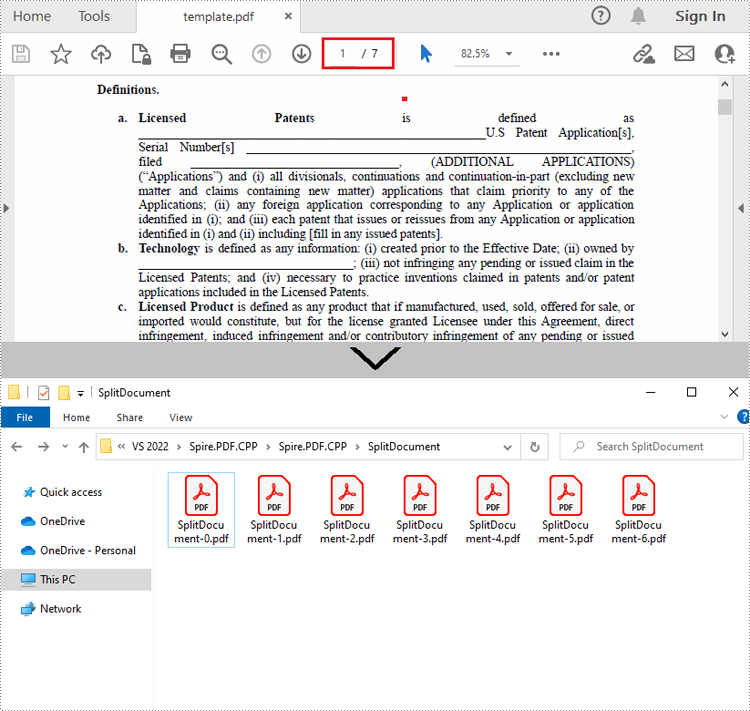
Spire.PDF for C++ offers the PdfDocument->Split() method to divide a multipage PDF document into multiple single-page files. The following are the detailed steps.
- Create a PdfDcoument instance.
- Load a sample PDF document using PdfDocument->LoadFromFile() method.
- Split the document into one-page PDFs using PdfDocument->Split() method.
- C++
#include "Spire.Pdf.o.h";

using namespace Spire::Pdf;


int main()
{
	//Specify the input and output files
	std::wstring inputFile = L"Data\\template.pdf";
	std::wstring outputFile = L"SplitDocument/";
	std::wstring pattern = outputFile + L"SplitDocument-{0}.pdf";

	//Create a PdfDocument instance
	intrusive_ptr<PdfDocument> pdf = new PdfDocument();

	//Load a sample PDF file
	pdf->LoadFromFile(inputFile.c_str());

	//Split the PDF to one-page PDFs
	pdf->Split(pattern.c_str());
	pdf->Close();

}
Split a PDF File by Page Ranges in C++
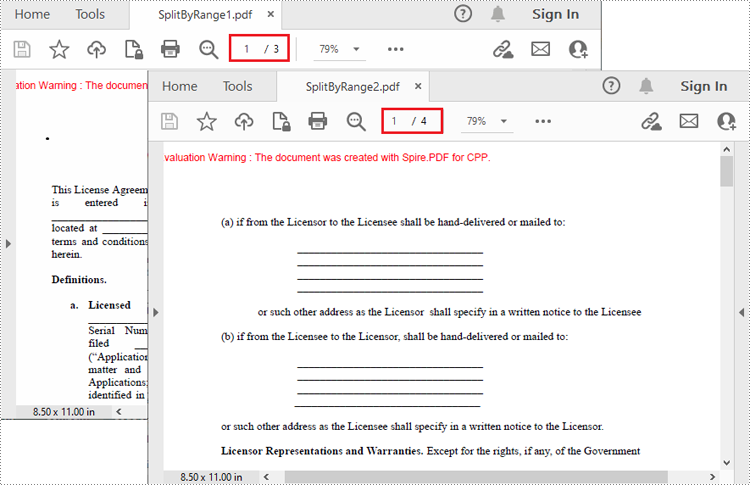
There's no straightforward way to split PDF documents by page ranges. To do so, you can create two or more new PDF documents and then use the PdfPageBase->CreateTemplate()->Draw() method to draw the contents of the specified pages in the input PDF file onto the pages of the new PDFs. The following are the detailed steps.
- Create a PdfDocument instance and load a sample PDF file.
- Create a new PDF document, and then Initialize a new instance of PdfPageBase class.
- Iterate through the first several pages in the sample PDF file.
- Create a new page with specified size and margins in the new PDF document
- Get the specified page in the sample PDF using PdfDocument->GetPages()->GetItem() method, and then draw the contents of the specified page onto the new page using PdfPageBase->CreateTemplate()->Draw() method.
- Save the first new PDF document using PdfDocument->SaveToFile() method.
- Create another new PDF document and then draw the remaining pages of the sample PDF file into it.
- Save the second new PDF document.
- C++
#include "Spire.Pdf.o.h";

using namespace Spire::Pdf;

int main()
{
	//Create a PdfDocument instance and load a sample PDF file
	intrusive_ptr<PdfDocument> oldPdf = new PdfDocument();
	oldPdf->LoadFromFile(L"Data\\template.pdf");

	//Create a new PDF document
	intrusive_ptr<PdfDocument> newPdf1 = new PdfDocument();

	//Initialize a new instance of PdfPageBase class
	intrusive_ptr<PdfPageBase> page;

	//Draw the first three pages of the sample file into the new PDF document
	for (int i = 0; i < 3; i++)
	{
		//Create a new page with specified size and margin in the new PDF document
		intrusive_ptr<PdfMargins> tempVar = new PdfMargins(0);
		page = newPdf1->GetPages()->Add(oldPdf->GetPages()->GetItem(i)->GetSize(), tempVar);

		//Draw the contents of a specified page in the sample file onto the new page
		oldPdf->GetPages()->GetItem(i)->CreateTemplate()->Draw(page, new PointF(0, 0));
	}

	//Save the first PDF document
	newPdf1->SaveToFile(L"SplitByRange1.pdf");
	newPdf1->Close();

	//Create another new PDF document
	intrusive_ptr<PdfDocument> newPdf2 = new PdfDocument();

	//Draw the rest pages of the sample file into the new PDF document
	for (int i = 3; i < oldPdf->GetPages()->GetCount(); i++)
	{
		//Create a new page with specified size and margin in the new PDF document
		intrusive_ptr<PdfMargins> tempVar = new PdfMargins(0);
		page = newPdf2->GetPages()->Add(oldPdf->GetPages()->GetItem(i)->GetSize(), tempVar);

		// Draw the contents of a specified page in the sample file onto the new page
		oldPdf->GetPages()->GetItem(i)->CreateTemplate()->Draw(page, new PointF(0, 0));
	}

	//Save the second PDF document
	newPdf2->SaveToFile(L"SplitByRange2.pdf");
	newPdf2->Close();
}
Apply for a Temporary License
If you'd like to remove the evaluation message from the generated documents, or to get rid of the function limitations, please request a 30-day trial license for yourself.
