
Knowledgebase (2370)
Children categories
Hyperlinks are a powerful tool in Excel that allows users to connect different parts of an Excel file or link to external sources such as websites, email addresses, or other files. They provide a quick and easy way for users to navigate within a worksheet or between different worksheets. In addition to facilitating navigation, hyperlinks can also provide additional context or resources related to the data in a file. For example, you can link to a website that provides more information about a specific product listed in your worksheet to help your readers gain a deeper understanding of the product. In this article, we will explore how to add hyperlinks to Excel, specifically, how to add text hyperlinks and image hyperlinks to Excel files in C++ using Spire.XLS for C++.
Install Spire.XLS for C++
There are two ways to integrate Spire.XLS for C++ into your application. One way is to install it through NuGet, and the other way is to download the package from our website and copy the libraries into your program. Installation via NuGet is simpler and more recommended. You can find more details by visiting the following link.
Integrate Spire.XLS for C++ in a C++ Application
Add Text Hyperlinks to Excel in C++
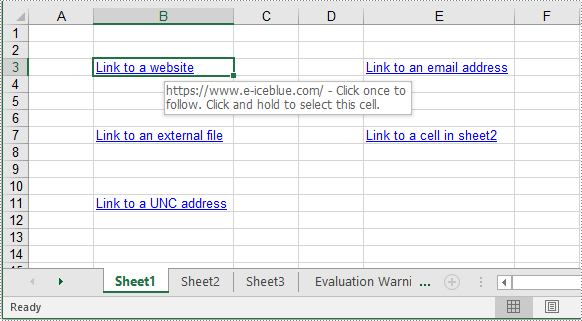
A text hyperlink in Excel is a word or phrase that you can click on to jump to a specific location, such as a different part of the Excel file, an email address, a webpage, or an external file. The following steps explain how to add a text hyperlink to an Excel file using Spire.XLS for C++:
- Initialize an instance of the Workbook class.
- Get a specific worksheet using the Workbook->GetWorksheets()->Get(int index) method.
- Get the cell that you want to add a hyperlink to using the Worksheet->GetRange(LPCWSTR_S name) method.
- Add a hyperlink to the cell using the Worksheet->GetHyperLinks()->Add(intrusive_ptr<IXLSRange> range) method.
- Set the type, display text, and address for the hyperlink using the XlsHyperLink->SetType(HyperLinkType value), XlsHyperLink->SetTextToDisplay(LPCWSTR_S value) and XlsHyperLink->SetAddress(LPCWSTR_S value) methods.
- Autofit column width using the XlsWorksheet->AutoFitColumn(int columnIndex) method.
- Save the result file using the Workbook->SaveToFile(LPCWSTR_S fileName, ExcelVersion version) method.
- C++
#include "Spire.Xls.o.h";

using namespace Spire::Xls;

int main()
{
    //Initialize an instance of the Workbook class
    intrusive_ptr<Workbook> workbook = new Workbook();

    //Get the first worksheet
    intrusive_ptr<Worksheet> sheet = dynamic_pointer_cast<Worksheet>(workbook->GetWorksheets()->Get(0));

    //Add a text hyperlink that links to a webpage
    intrusive_ptr<CellRange> cell1 = dynamic_pointer_cast<CellRange>(sheet->GetRange(L"B3"));
    intrusive_ptr<HyperLink> urlLink = sheet->GetHyperLinks()->Add(cell1);
    urlLink->SetType(HyperLinkType::Url);
    urlLink->SetTextToDisplay(L"Link to a website");
    urlLink->SetAddress(L"https://www.e-iceblue.com/");

    //Add a text hyperlink that links to an email address
    intrusive_ptr<CellRange> cell2 = dynamic_pointer_cast<CellRange>(sheet->GetRange(L"E3"));
    intrusive_ptr<HyperLink> mailLink = sheet->GetHyperLinks()->Add(cell2);
    mailLink->SetType(HyperLinkType::Url);
    mailLink->SetTextToDisplay(L"Link to an email address");
    mailLink->SetAddress(L"mailto:support@e-iceblue.com");

    //Add a text hyperlink that links to an external file
    intrusive_ptr<CellRange> cell3 = dynamic_pointer_cast<CellRange>(sheet->GetRange(L"B7"));
    intrusive_ptr<HyperLink> fileLink = sheet->GetHyperLinks()->Add(cell3);
    fileLink->SetType(HyperLinkType::File);
    fileLink->SetTextToDisplay(L"Link to an external file");
    fileLink->SetAddress(L"C:\\Users\\Administrator\\Desktop\\Report.xlsx");

    //Add a text hyperlink that links to a cell in another sheet
    intrusive_ptr<CellRange> cell4 = dynamic_pointer_cast<CellRange>(sheet->GetRange(L"E7"));
    intrusive_ptr<HyperLink> sheetLink = sheet->GetHyperLinks()->Add(cell4);
    sheetLink->SetType(HyperLinkType::Workbook);
    sheetLink->SetTextToDisplay(L"Link to a cell in sheet2");
    sheetLink->SetAddress(L"Sheet2!B5");

    //Add a text hyperlink that links to a UNC address
    intrusive_ptr<CellRange> cell5 = dynamic_pointer_cast<CellRange>(sheet->GetRange(L"B11"));
    intrusive_ptr<HyperLink> uncLink = sheet->GetHyperLinks()->Add(cell5);
    uncLink->SetType(HyperLinkType::Unc);
    uncLink->SetTextToDisplay(L"Link to a UNC address");
    uncLink->SetAddress(L"\\192.168.0.121");

    //Autofit column widths
    sheet->AutoFitColumn(2);
    sheet->AutoFitColumn(5);

    //Save the result file
    workbook->SaveToFile(L"AddTextHyperlinks.xlsx", ExcelVersion::Version2013);
    workbook->Dispose();
}
Add Image Hyperlinks to Excel in C++
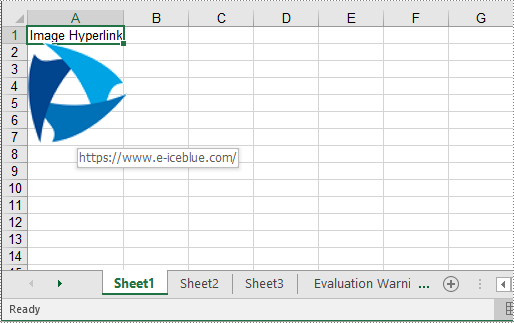
Similar to a text hyperlink, an image hyperlink is an image that you can click on to navigate to a specific location. The following steps explain how to add an image hyperlink to an Excel file using Spire.XLS for C++:
- Initialize an instance of the Workbook class.
- Get a specific worksheet using the Workbook->GetWorksheets()->Get(int index) method.
- Add text to a specific cell using the Worksheetsheet->GetRange(LPCWSTR_S name)->SetText(LPCWSTR_S value) method.
- Add an image to a specific cell using the Worksheet->GetPictures()->Add(int topRow,int leftColumn, LPCWSTR_S fileName) method.
- Set image width and height.
- Add a hyperlink to the image using the XlsBitmapShape->SetHyperLink(LPCWSTR_S linkString, bool isExternal) method.
- Save the result file using the Workbook->SaveToFile(LPCWSTR_S fileName, ExcelVersion version) method.
- C++
#include "Spire.Xls.o.h";

using namespace Spire::Xls;

int main()
{
    //Initialize an instance of the Workbook class
    intrusive_ptr<Workbook> workbook = new Workbook();
    //Get the first worksheet
    intrusive_ptr<Worksheet> sheet = dynamic_pointer_cast<Worksheet>(workbook->GetWorksheets()->Get(0));

    //Add text to a specific cell
    sheet->GetRange(L"A1")->SetText(L"Image Hyperlink");

    //Add an image to a specific cell
    intrusive_ptr<ExcelPicture> picture = ExcelPicture::Dynamic_cast<ExcelPicture>(sheet->GetPictures()->Add(2, 1, L"Logo.png"));
    //Set image width and height
    picture->SetWidth(100);
    picture->SetHeight(100);

    //Add a hyperlink to the image
    picture->SetHyperLink(L"https://www.e-iceblue.com", true);

    //Set column width
    sheet->GetColumns()->GetItem(0)->SetColumnWidth(13);

    //Save the result file
    workbook->SaveToFile(L"AddImageHyperlink.xlsx", ExcelVersion::Version2013);
    workbook->Dispose();
}
Apply for a Temporary License
If you'd like to remove the evaluation message from the generated documents, or to get rid of the function limitations, please request a 30-day trial license for yourself.
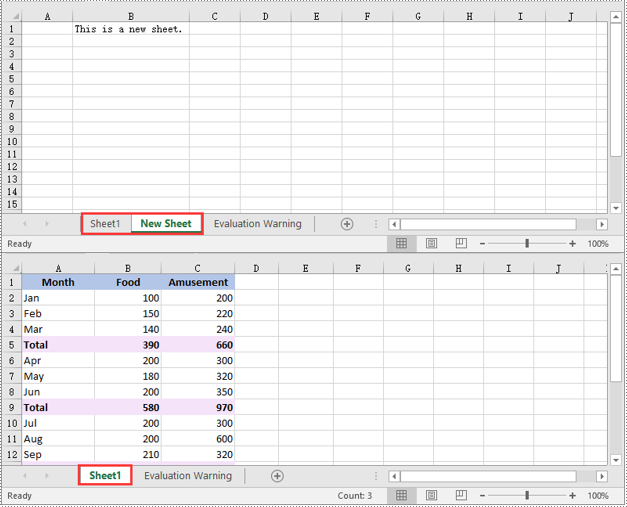
When creating or editing Excel files, users may need to manipulate worksheets to make the files fit their specific needs. For instance, they might need to add new worksheets to record data for different categories, move or rearrange worksheets to ensure that the data is displayed in a logical order, or delete worksheets containing unnecessary information or errors. In this article, we will explain how to add, move or delete worksheets in Excel in C++ using Spire.XLS for C++.
- Add a Worksheet to an Excel File in C++
- Move a Worksheet to Another Location in an Excel File in C++
- Delete a Worksheet from an Excel File in C++
Install Spire.XLS for C++
There are two ways to integrate Spire.XLS for C++ into your application. One way is to install it through NuGet, and the other way is to download the package from our website and copy the libraries into your program. Installation via NuGet is simpler and more recommended. You can find more details by visiting the following link.
Integrate Spire.XLS for C++ in a C++ Application
Add a Worksheet to an Excel File in C++
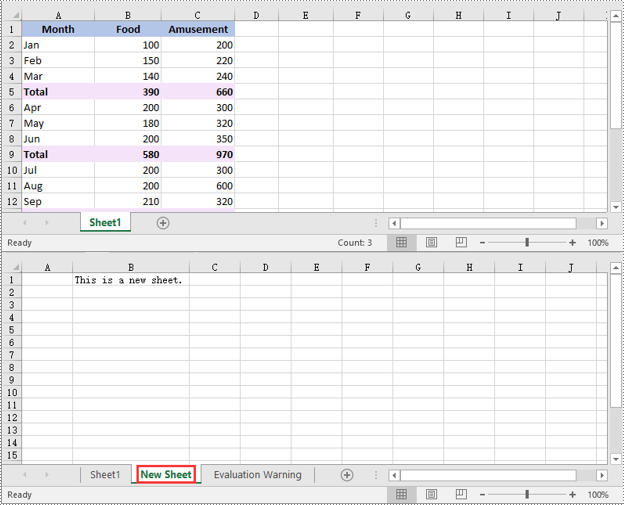
You can use the Workbook->GetWorksheets()->Add(LPCWSTR_S name) method to add a new worksheet to an Excel file. The detailed steps are as follows:
- Initialize an instance of the Workbook class.
- Load an Excel file using the Workbook->LoadFromFile(LPCWSTR_S fileName) method.
- Add a new worksheet with a specific name to the Excel file using the Workbook->GetWorksheets()->Add(LPCWSTR_S name) method.
- Add text to a specific cell of the worksheet using the Worksheet->GetCellRange(LPCWSTR_S name)->SetText(LPCWSTR_S value) method.
- Save the result file to a specific location using the Workbook->SaveToFile(LPCWSTR_S fileName, ExcelVersion version) method.
- C++
#include "Spire.Xls.o.h";

using namespace Spire::Xls;

int main()
{
	//Initialize an instance of the Workbook class
	intrusive_ptr<Workbook> workbook = new Workbook();
	//Load an Excel file
	workbook->LoadFromFile(L"Sample.xlsx");

	//Add a new worksheet with a specific name to the file
	intrusive_ptr<Worksheet> sheet = dynamic_pointer_cast<Worksheet>(workbook->GetWorksheets()->Add(L"New Sheet"));
	//Add text to the worksheet
	dynamic_pointer_cast<CellRange>(sheet->GetRange(L"B1"))->SetText(L"This is a new sheet.");
	//Autofit the width of the second column
	sheet->AutoFitColumn(2);

	//Save the result file to a specific location
	workbook->SaveToFile(L"AddWorksheet.xlsx", ExcelVersion::Version2013);
	workbook->Dispose();
}
Move a Worksheet to Another Location in an Excel File in C++
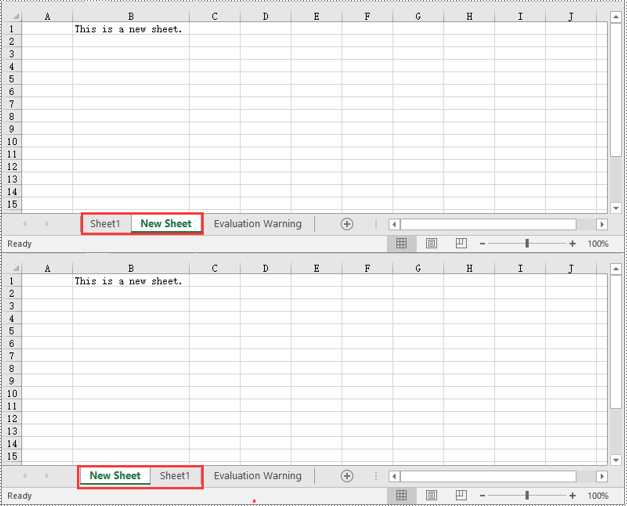
Spire.XLS for C++ provides the XlsWorksheet->MoveWorksheet(int destIndex) method which allows you to move a worksheet to from one location to another in an Excel file with ease. The detailed steps are as follows:
- Initialize an instance of the Workbook class.
- Load an Excel file using the Workbook->LoadFromFile(LPCWSTR_S fileName) method.
- Get the worksheet that you want to move using the Workbook->GetWorksheets()->Get(int index) method.
- Move the worksheet to a specific position in the Excel file using the XlsWorksheet->MoveWorksheet(int destIndex) method.
- Save the result file to a specific location using the Workbook->SaveToFile(LPCWSTR_S fileName, ExcelVersion version) method.
- C++
#include "Spire.Xls.o.h";

using namespace Spire::Xls;

int main()
{
	//Initialize an instance of the Workbook class
	intrusive_ptr<Workbook> workbook = new Workbook();
	//Load an Excel file
	workbook->LoadFromFile(L"AddWorksheet.xlsx");

	//Get the second worksheet
	intrusive_ptr<Worksheet> sheet = dynamic_pointer_cast<Worksheet>(workbook->GetWorksheets()->Get(1));

	//Move the worksheet to the first position in the Excel file
	sheet->MoveWorksheet(0);

	//Save the result file to a specific location
	workbook->SaveToFile(L"MoveWorksheet.xlsx", ExcelVersion::Version2013);
	workbook->Dispose();
}
Delete a Worksheet from an Excel File in C++
Deleting a worksheet from an Excel file is also very simple, you just need to call the Workbook->GetWorksheets()->RemoveAt(int index) method. The detailed steps are as follows:
- Initialize an instance of the Workbook class.
- Load an Excel file using the Workbook->LoadFromFile(LPCWSTR_S fileName) method.
- Delete a specific worksheet from the Excel file by its index using the Workbook->GetWorksheets()->RemoveAt(int index) method.
- Save the result file to a specific location using the Workbook->SaveToFile(LPCWSTR_S fileName, ExcelVersion version) method.
- C++
#include "Spire.Xls.o.h";

using namespace Spire::Xls;

int main()
{
	//Initialize an instance of the Workbook class
	intrusive_ptr<Workbook> workbook = new Workbook();
	//Load an Excel file
	workbook->LoadFromFile(L"AddWorksheet.xlsx");

	//Delete the second worksheet from the Excel file using its sheet index
	workbook->GetWorksheets()->RemoveAt(1);

	//Save the result file to another location
	workbook->SaveToFile(L"DeleteWorksheet.xlsx", ExcelVersion::Version2013);
	workbook->Dispose();
}
Apply for a Temporary License
If you'd like to remove the evaluation message from the generated documents, or to get rid of the function limitations, please request a 30-day trial license for yourself.
Data validation in Excel controls what types of information can be entered into a cell. Using it, you can restrict only specific data types such as numbers or dates to be in a cell, or limit numbers to a certain range and text to a certain length. In addition, it also allows you to present a list of predefined values in a drop-down menu for users to choose from. In this article, you will learn how to apply or remove data validation in Excel in C++ using Spire.XLS for C++.
Install Spire.XLS for C++
There are two ways to integrate Spire.XLS for C++ into your application. One way is to install it through NuGet, and the other way is to download the package from our website and copy the libraries into your program. Installation via NuGet is simpler and more recommended. You can find more details by visiting the following link.
Integrate Spire.XLS for C++ in a C++ Application
Apply Data Validation to Excel Cells in C++
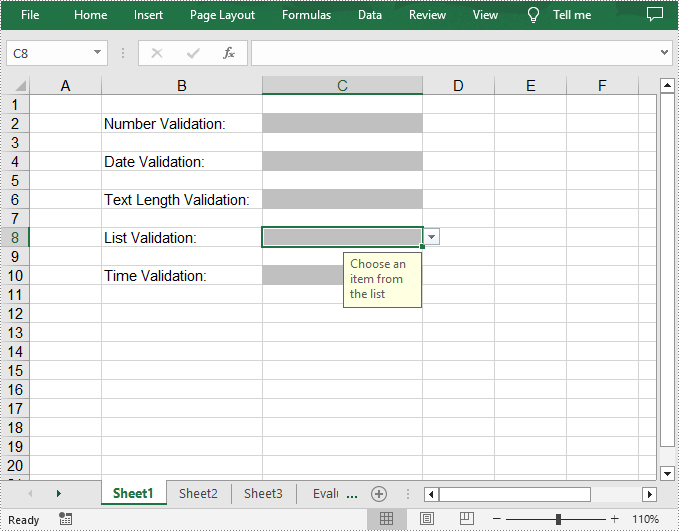
Spire.XLS for C++ allows you to create validation rules for numbers, dates, text values, lists, etc. The following are the steps to apply different data validation types to specified cells in Excel.
- Create a Workbook object.
- Get a specified worksheet using Workbook->GetWorksheets()->Get() method.
- Get a specific cell using Worksheet->GetRange() method.
- Set the data type allowed in the cell using CellRange->GetDataValidation()->SetAllowType() method. You can select different data type such as Decimal, Time, Date, TextLength and Integer.
- Set the comparison operator using CellRange->GetDataValidation()->SetCompareOperator() method. The comparison operators include Between, NotBetween, Less, Greater, and Equal.
- Set one or two formulas for the data validation using CellRange->GetDataValidation()->SetFormula1() and CellRange->GetDataValidation()->SetFormula2() methods.
- Set the input prompt using CellRange->GetDataValidation()->SetInputMessage() method.
- Set the error message using CellRange->GetDataValidation()->SetErrorMessage() method.
- Set to show the error alert and set its alert style when invalid data is entered.
- Save the result document using Workbook->SaveToFile() method.
- C++
#include "Spire.Xls.o.h";

using namespace Spire::Xls;

int main() {

	//Specify the output file
	std::wstring outputFile = L"DataValidation.xlsx";

	//Create a Workbook object
	intrusive_ptr<Workbook> workbook = new Workbook();

	//Get the first worksheet
	intrusive_ptr<Worksheet> sheet = dynamic_pointer_cast<Worksheet>(workbook->GetWorksheets()->Get(0));

	//Insert text in specified cells
	dynamic_pointer_cast<CellRange>(sheet->GetRange(L"B2"))->SetText(L"Number Validation: ");
	dynamic_pointer_cast<CellRange>(sheet->GetRange(L"B4"))->SetText(L"Date Validation: ");
	dynamic_pointer_cast<CellRange>(sheet->GetRange(L"B6"))->SetText(L"Text Length Validation: ");
	dynamic_pointer_cast<CellRange>(sheet->GetRange(L"B8"))->SetText(L"List Validation: ");
	dynamic_pointer_cast<CellRange>(sheet->GetRange(L"B10"))->SetText(L"Time Validation: ");

	//Add a number validation to C2
	intrusive_ptr<CellRange> rangeNumber = dynamic_pointer_cast<CellRange>(sheet->GetRange(L"C2"));
	rangeNumber->GetDataValidation()->SetAllowType(CellDataType::Decimal);
	rangeNumber->GetDataValidation()->SetCompareOperator(ValidationComparisonOperator::Between);
	rangeNumber->GetDataValidation()->SetFormula1(L"3");
	rangeNumber->GetDataValidation()->SetFormula2(L"6");
	rangeNumber->GetDataValidation()->SetInputMessage(L"Enter a number between 1 and 10");
	rangeNumber->GetDataValidation()->SetErrorMessage(L"Please input correct number!");
	rangeNumber->GetDataValidation()->SetShowError(true);
	rangeNumber->GetDataValidation()->SetAlertStyle(AlertStyleType::Warning);
	rangeNumber->GetStyle()->SetKnownColor(ExcelColors::Gray25Percent);

	//Add a date validation to C4
	intrusive_ptr<CellRange> rangeDate = dynamic_pointer_cast<CellRange>(sheet->GetRange(L"C4"));
	rangeDate->GetDataValidation()->SetAllowType(CellDataType::Date);
	rangeDate->GetDataValidation()->SetCompareOperator(ValidationComparisonOperator::Between);
	rangeDate->GetDataValidation()->SetFormula1(L"1/1/2021");
	rangeDate->GetDataValidation()->SetFormula2(L"12/31/2021");
	rangeDate->GetDataValidation()->SetInputMessage(L"Enter a date between 1/1/2021 and 12/31/2021");
	rangeDate->GetStyle()->SetKnownColor(ExcelColors::Gray25Percent);

	//Add a text length validation to C6
	intrusive_ptr<CellRange> rangeTextLength = dynamic_pointer_cast<CellRange>(sheet->GetRange(L"C6"));
	rangeTextLength->GetDataValidation()->SetAllowType(CellDataType::TextLength);
	rangeTextLength->GetDataValidation()->SetCompareOperator(ValidationComparisonOperator::LessOrEqual);
	rangeTextLength->GetDataValidation()->SetFormula1(L"5");
	rangeTextLength->GetDataValidation()->SetErrorMessage(L"Enter a Valid String!");
	rangeTextLength->GetDataValidation()->SetShowError(true);
	rangeTextLength->GetDataValidation()->SetAlertStyle(AlertStyleType::Stop);
	rangeTextLength->GetStyle()->SetKnownColor(ExcelColors::Gray25Percent);

	//Apply a list validation to C8
	intrusive_ptr<CellRange> rangeList = dynamic_pointer_cast<CellRange>(sheet->GetRange(L"C8"));
	std::vector<LPCWSTR_S> files = { L"United States", L"Canada", L"United Kingdom" };
	rangeList->GetDataValidation()->SetValues(files);
	rangeList->GetDataValidation()->SetIsSuppressDropDownArrow(false);
	rangeList->GetDataValidation()->SetInputMessage(L"Choose an item from the list");
	rangeList->GetStyle()->SetKnownColor(ExcelColors::Gray25Percent);

	//Apply a time validation to C10
	intrusive_ptr<CellRange> rangeTime = dynamic_pointer_cast<CellRange>(sheet->GetRange(L"C10"));
	rangeTime->GetDataValidation()->SetAllowType(CellDataType::Time);
	rangeTime->GetDataValidation()->SetCompareOperator(ValidationComparisonOperator::Between);
	rangeTime->GetDataValidation()->SetFormula1(L"9:00");
	rangeTime->GetDataValidation()->SetFormula2(L"12:00");
	rangeTime->GetDataValidation()->SetInputMessage(L"Enter a time between 9:00 and 12:00");
	rangeTime->GetStyle()->SetKnownColor(ExcelColors::Gray25Percent);

	//Auto fit width of column 2
	sheet->AutoFitColumn(2);

	//Set the width of column 3
	sheet->GetColumns()->GetItem(2)->SetColumnWidth(20);

	//Save the result document
	workbook->SaveToFile(outputFile.c_str(), ExcelVersion::Version2016);
	workbook->Dispose();
}
Remove Data Validation from Excel Cells in C++
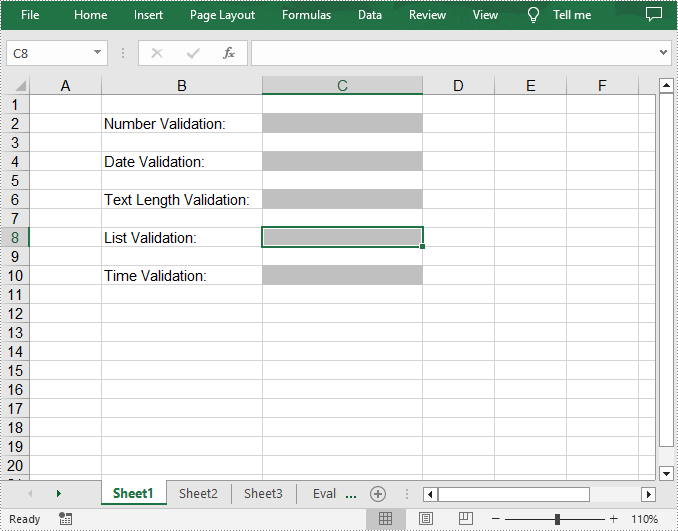
To remove data validation applied to the cells, Spire.XLS for C++ provides the Worksheet->GetDVTable()->Remove() method. The following are the detailed steps.
- Create a Workbook object.
- Load a sample Excel document containing data validation using Workbook->LoadFromFile() method.
- Get a specified worksheet using Workbook->GetWorksheets()->Get() method.
- Create an array of rectangles, which is used to locate the cells where the validation will be removed.
- Remove the data validation from the selected cells using Worksheet->GetDVTable()->Remove() method.
- Save the result document using Workbook->SaveToFile() method.
- C++
#include "Spire.Xls.o.h";

using namespace Spire::Xls;

int main() {

	//Specify the input and output files
	std::wstring inputFile = L"DataValidation.xlsx";
	std::wstring outputFile = L"RemoveDataValidation.xlsx";

	//Create a Workbook object
	intrusive_ptr<Workbook> workbook = new Workbook();

	//Load a sample Excel document from disk
	workbook->LoadFromFile(inputFile.c_str());

	//Get the first worksheet
	intrusive_ptr<Worksheet> sheet = dynamic_pointer_cast<Worksheet>(workbook->GetWorksheets()->Get(0));

	//Create an array of rectangles, which is used to locate the ranges in worksheet
	std::vector<intrusive_ptr<Spire::Xls::Rectangle>> rectangles(1);

	//Assign value to the first element of the array. A rectangle specifies a cell range
	rectangles[0] = Spire::Xls::Rectangle::FromLTRB(0, 0, 2, 9);

	//Remove validations in the ranges represented by rectangles
	sheet->GetDVTable()->Remove(rectangles);

	//Save the result document
	workbook->SaveToFile(outputFile.c_str(), ExcelVersion::Version2016);
	workbook->Dispose();
}
Apply for a Temporary License
If you'd like to remove the evaluation message from the generated documents, or to get rid of the function limitations, please request a 30-day trial license for yourself.
