
Knowledgebase (2370)
Children categories
Extracting text and images from PDF files enables you to quickly reuse these contents in other types of files, such as Word documents, web pages, or presentations. This approach can help you save a significant amount of time and effort, as it eliminates the tedious and time-consuming process of re-typing information from scratch. In this article, you will learn how to extract text and images from a PDF file in C++ using Spire.PDF for C++.
- Extract Text from a PDF File in C++
- Extract Text from a Specific Page Area in a PDF File in C++
- Extract Images from a PDF File in C++
Install Spire.PDF for C++
There are two ways to integrate Spire.PDF for C++ into your application. One way is to install it through NuGet, and the other way is to download the package from our website and copy the libraries into your program. Installation via NuGet is simpler and more recommended. You can find more details by visiting the following link.
Integrate Spire.PDF for C++ in a C++ Application
Extract Text from a PDF File in C++
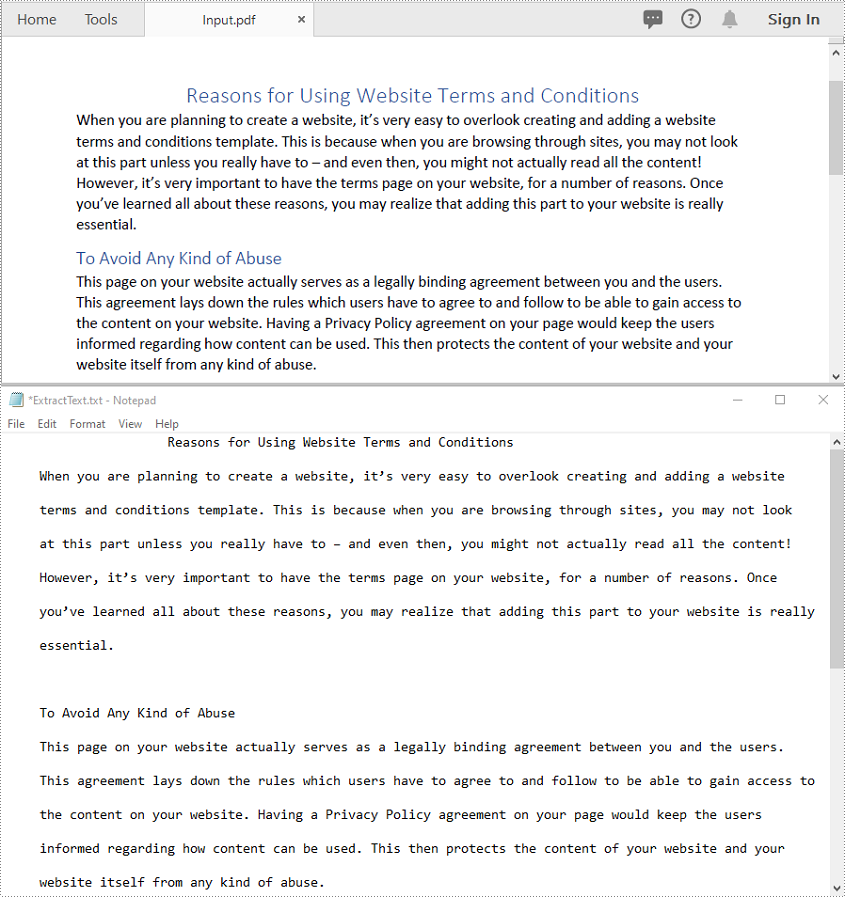
Spire.PDF for C++ provides the PdfTextExtractor class to extract text from PDF pages. The detailed steps are as follows:
- Initialize an instance of the PdfDocument class.
- Load a PDF file using PdfDocument->LoadFromFile() method.
- Iterate through all pages in the file.
- For each page, create a PdfTextExtractor object and use its ExtractText() method to extract the text content.
- Save the extracted text to a .txt file.
- C++
#include "Spire.Pdf.o.h"

using namespace std;
using namespace Spire::Pdf;

int main()
{
	// Create a new instance of PdfDocument
	intrusive_ptr<PdfDocument> doc = new PdfDocument();

	// Load the PDF document from the input file
	doc->LoadFromFile(L"Input.pdf");

	// Variable to hold the extracted text
	wstring buffer = L"";

	// Iterate through all pages in the file
	for (int i = 0; i < doc->GetPages()->GetCount(); i++)
	{
		// Get the current page
		intrusive_ptr<PdfPageBase> page = doc->GetPages()->GetItem(i);

		// Create a text extractor for the specified page
		intrusive_ptr<PdfTextExtractor> textExtractor = new PdfTextExtractor(page);

		// Create options for text extraction
		intrusive_ptr<PdfTextExtractOptions> textExtractorOption = new PdfTextExtractOptions();

		// Extract text from the page
		buffer += textExtractor->ExtractText(textExtractorOption);
	}

	// Save the extracted text to a .txt file
	wofstream write(L"ExtractText.txt");
	auto LocUtf8 = locale(locale(""), new std::codecvt_utf8<wchar_t>);
	write.imbue(LocUtf8);
	write << buffer;
	write.close();
	doc->Close();
}
Extract Text from a Specific Page Area in a PDF File in C++
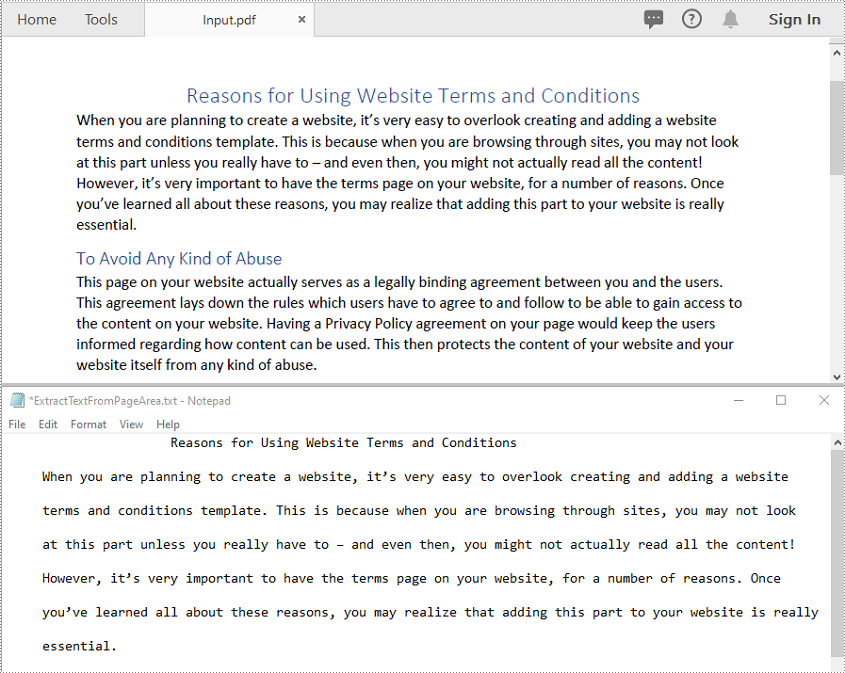
You can extract text from a specific rectangular area of a PDF page using the PdfTextExtractor class and PdfTextExtractOptions in Spire.PDF for C++. The detailed steps are as follows:
- Initialize an instance of the PdfDocument class.
- Load a PDF file using PdfDocument->LoadFromFile() method.
- Iterate through all pages in the document or access a specific page using its index.
- Create a PdfTextExtractor object for the specified page.
- Define a rectangular area using RectangleF and set it in PdfTextExtractOptions using the SetExtractArea() method.
- Extract text from the specified area using the PdfTextExtractor->ExtractText() method
- Save the extracted text to a .txt file.
- C++
#include "Spire.Pdf.o.h"

using namespace Spire::Pdf;
using namespace std;

int main()
{
	// Create a new instance of PdfDocument
	intrusive_ptr<PdfDocument> doc = new PdfDocument();

	// Load the PDF document from the input file
	doc->LoadFromFile(L"Input.pdf");

	// Variable to hold the extracted text
	wstring buffer = L"";

	// Iterate through all pages in the file
	for (int i = 0; i < doc->GetPages()->GetCount(); i++)
	{
		// Get the current page
		intrusive_ptr<PdfPageBase> page = doc->GetPages()->GetItem(i);

		// Create a text extractor for the specified page
		intrusive_ptr<PdfTextExtractor> textExtractor = new PdfTextExtractor(page);

		// Create options for text extraction
		intrusive_ptr<PdfTextExtractOptions> textExtractorOption = new PdfTextExtractOptions();
		textExtractorOption->SetExtractArea(new RectangleF(0, 0, 600, 200));

		// Extract text from the page
		buffer += textExtractor->ExtractText(textExtractorOption);
	}

	// Save the extracted text to a .txt file
	wofstream write(L"ExtractTextFromPageArea.txt");
	auto LocUtf8 = locale(locale(""), new std::codecvt_utf8<wchar_t>);
	write.imbue(LocUtf8);
	write << buffer;
	write.close();
	doc->Close();
}
Extract Images from a PDF File in C++
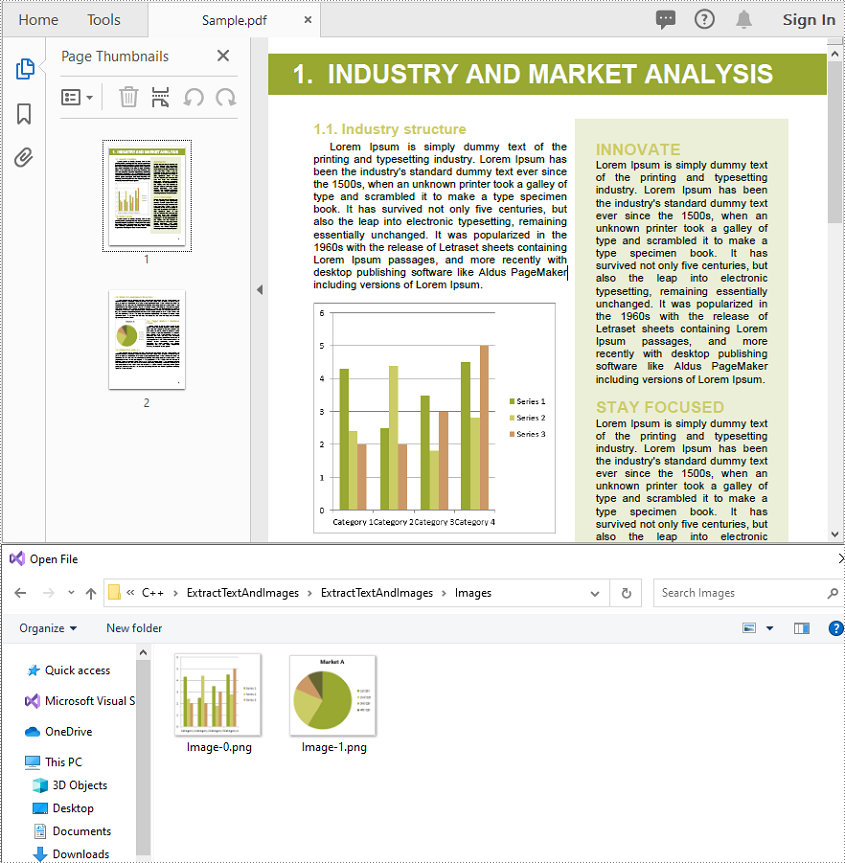
You can use the PdfImageHelper class to extract images from the pages in a PDF file. The detailed steps are as follows:
- Initialize an instance of the PdfDocument class.
- Load a PDF file using PdfDocument->LoadFromFile() method.
- Initialize an instance of the PdfImageHelper class to assist with image extraction
- Iterate through all pages in the document.
- For each page, retrieve information about all images on the page using the PdfImageHelper->GetImagesInfo() method
- Iterate through the extracted images and save them to PNG files
- C++
#include "Spire.Pdf.o.h"

using namespace Spire::Pdf;
using namespace std;

int main()
{
	// Create a new instance of PdfDocument
	intrusive_ptr<PdfDocument> doc = new PdfDocument();

	// Load the PDF document from the input file
	doc->LoadFromFile(L"Sample.pdf");

	// Initialize an image helper to extract images from the page
	intrusive_ptr<PdfImageHelper> imagehelper = new PdfImageHelper();

	int imageIndex = 0;

	// Iterate through all pages in the file
	for (int i = 0; i < doc->GetPages()->GetCount(); i++)
	{
		// Get the current page
		intrusive_ptr<PdfPageBase> page = doc->GetPages()->GetItem(i);

		// Retrieve information about all images on the page
		vector<intrusive_ptr<Utilities_PdfImageInfo>> exImages = imagehelper->GetImagesInfo(page);

		// Iterate through images and save them
		for (auto image : exImages)
		{
			std::wstring imageFileName = L"Image\\Image-" + to_wstring(imageIndex) + L".png";
			image->GetImage()->Save(imageFileName.c_str());
			imageIndex++;
		}
	}
}
Apply for a Temporary License
If you'd like to remove the evaluation message from the generated documents, or to get rid of the function limitations, please request a 30-day trial license for yourself.
While creating a worksheet, the default font MS Excel uses is "Calibri" with a size of 11 and a color of black. However, there are times when you may want to apply a different font style such as bold, italic to optimize the appearance of your document, or set a unique font color to highlight useful information within a large set of data. In this article, you will learn how to programmatically apply multiple font styles to Excel cells using Spire.XLS for C++.
- Apply Different Fonts to Different Excel Cells in C++
- Apply Multiple Fonts to a Single Excel Cell in C++
Install Spire.XLS for C++
There are two ways to integrate Spire.XLS for C++ into your application. One way is to install it through NuGet, and the other way is to download the package from our website and copy the libraries into your program. Installation via NuGet is simpler and more recommended. You can find more details by visiting the following link.
Integrate Spire.XLS for C++ in a C++ Application
Apply Different Fonts to Different Excel Cells in C++
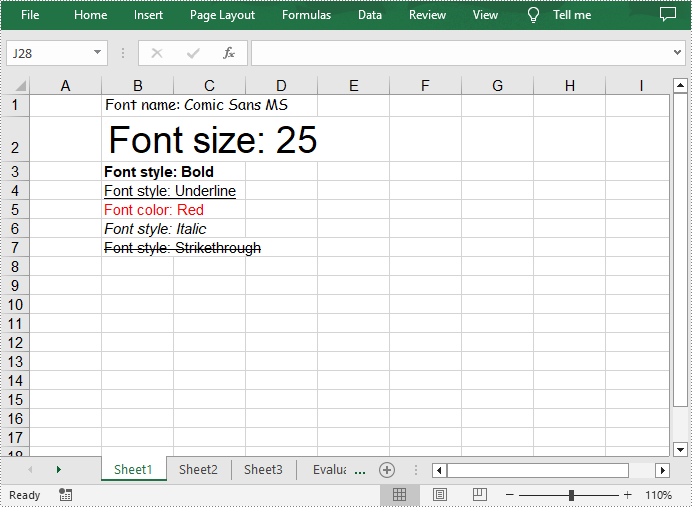
The ExcelFont class provided by Spire.XLS for C++ allows you to set or change the font name, color, size, and style in a cell easily. The following are the steps to apply different fonts to different cells in Excel.
- Create a Workbook object.
- Get a specific worksheet using Workbook->GetWorksheets()->Get() method.
- Get a specified cell using Worksheet->GetRange() method.
- Set the value of the cell using CellRange->SetText() method.
- Get the font in the specified cell using CellRange->GetStyle()->GetFont() method.
- Set the font name, color, size and style using the methods under the ExcelFont class.
- Save the result file using Workbook->SaveToFile() method.
- C++
#include ""Spire.Xls.o.h"";

using namespace Spire::Xls;

int main()
{
	//Specify output file path and name
	std::wstring outputPath = L""Output\\"";
	std::wstring outputFile = outputPath + L""ApplyFontToCell.xlsx"";

	//Create a Workbook object
	intrusive_ptr<Workbook> workbook = new Workbook();

	//Get the first worksheet
	intrusive_ptr<Worksheet> sheet = dynamic_pointer_cast<Worksheet>(workbook->GetWorksheets()->Get(0));

	//Set font name
	sheet->GetRange(L""B1"")->SetText(L""Font name: Comic Sans MS"");
	sheet->GetRange(L""B1"")->GetStyle()->GetFont()->SetFontName(L""Comic Sans MS"");

	//Set font size
	sheet->GetRange(L""B2"")->SetText(L""Font size: 25"");
	sheet->GetRange(L""B2"")->GetStyle()->GetFont()->SetSize(25);

	//Set text to bold
	sheet->GetRange(L""B3"")->SetText(L""Font style: Bold"");
	sheet->GetRange(L""B3"")->GetStyle()->GetFont()->SetIsBold(true);

	//Underline text
	sheet->GetRange(L""B4"")->SetText(L""Font style: Underline"");
	sheet->GetRange(L""B4"")->GetStyle()->GetFont()->SetUnderline(FontUnderlineType::Single);

	//Set font color
	sheet->GetRange(L""B5"")->SetText(L""Font color: Red"");
	sheet->GetRange(L""B5"")->GetStyle()->GetFont()->SetColor(Spire::Xls::Color::GetRed());

	//Set text to italic
	sheet->GetRange(L""B6"")->SetText(L""Font style: Italic"");
	sheet->GetRange(L""B6"")->GetStyle()->GetFont()->SetIsItalic(true);

	//Add strikethrough to text
	sheet->GetRange(L""B7"")->SetText(L""Font style: Strikethrough"");
	sheet->GetRange(L""B7"")->GetStyle()->GetFont()->SetIsStrikethrough(true);

	//Save the result file
	workbook->SaveToFile(outputFile.c_str(), ExcelVersion::Version2013);
	workbook->Dispose();
}
Apply Multiple Fonts to a Single Excel Cell in C++
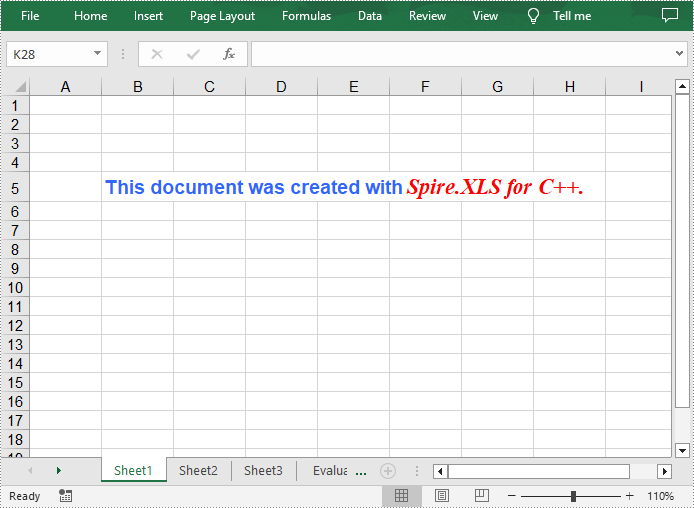
Mixing different fonts in one cell can help you emphasize some specific characters. The following are the steps to apply multiple fonts in an Excel cell.
- Create a Workbook object.
- Get a specific worksheet using Workbook->GetWorksheets()->Get() method.
- Create two ExcelFont objects using Workbook->CreateExcelFont() method.
- Get a specified cell using Worksheet->GetRange() method, and then set the rich text content of the cell using CellRange->GetRichText()->SetText() method.
- Apply the two ExcelFont objects to the rich text using RichText->SetFont(int startPos, int endPos, ExcelFont* font) method.
- Save the result file using Workbook->SaveToFile() method.
- C++
#include ""Spire.Xls.o.h"";

using namespace Spire::Xls;

int main()
{
	//Specify output file path and name
	std::wstring outputPath = L""Output\\"";
	std::wstring outputFile = outputPath + L""ApplyMultipleFontstoCell.xlsx"";

	//Create a Workbook object
	intrusive_ptr<Workbook> workbook = new Workbook();

	//Get the first worksheet
	intrusive_ptr<Worksheet> sheet = dynamic_pointer_cast<Worksheet>(workbook->GetWorksheets()->Get(0));

	//Create a ExcelFont object and set its font style, color and size
	intrusive_ptr<ExcelFont> font1 = workbook->CreateExcelFont();
	font1->SetKnownColor(ExcelColors::LightBlue);
	font1->SetIsBold(true);
	font1->SetSize(13);

	//Create another ExcelFont object and set its font style, color and size
	intrusive_ptr<ExcelFont> font2 = workbook->CreateExcelFont();
	font2->SetKnownColor(ExcelColors::Red);
	font2->SetIsBold(true);
	font2->SetIsItalic(true);
	font2->SetFontName(L""Times New Roman"");
	font2->SetSize(15);

	//Write a RichText string to cell B5
	intrusive_ptr<RichText> richText = dynamic_pointer_cast<RichText>(dynamic_pointer_cast<CellRange>(sheet->GetRange(L""B5""))->GetRichText());
	richText->SetText(L""This document was created with Spire.XLS for C++."");

	//Apply two fonts to the text in the cell B5
	richText->SetFont(0, 29, font1);
	richText->SetFont(31, 48, font2);

	//Save to the result file
	workbook->SaveToFile(outputFile.c_str(), ExcelVersion::Version2013);
	workbook->Dispose();
}
Apply for a Temporary License
If you'd like to remove the evaluation message from the generated documents, or to get rid of the function limitations, please request a 30-day trial license for yourself.
Document security is particularly important when critical or private data is involved in a Word document. There are several security options in Word that you can use to protect your documents, including password protection, read-only mode, editing restrictions, and partial protection. On the contrary, when the protection is no longer required, you may need to unprotect a Word document to improve work efficiency.
In this article, you will learn how to protect or unprotect Word documents in C++ using Spire.Doc for C++.
- Password Protect a Word Document in C++
- Restrict Editing of a Word Document in C++
- Protect Sections of a Word Document in C++
- Create Editable Regions in a Word Document in C++
- Remove Editable Regions from a Word Document in C++
- Remove Restrictions from a Word Document in C++
- Remove Password from a Password-Protected Word Document in C++
Install Spire.Doc for C++
There are two ways to integrate Spire.Doc for C++ into your application. One way is to install it through NuGet, and the other way is to download the package from our website and copy the libraries into your program. Installation via NuGet is simpler and more recommended. You can find more details by visiting the following link.
Integrate Spire.Doc for C++ in a C++ Application
Password Protect a Word Document in C++
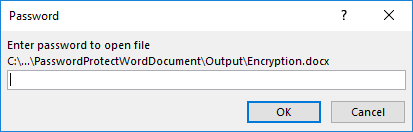
Encrypting a document with a password makes sure that only you and certain people can read or edit it. The following are the steps to password protect a Word document using Spire.Doc for C++.
- Create a Document object.
- Load a Word document using Document->LoadFromFile() method.
- Encrypt the document with a password using Document->Eencrypt(LPCWSTR_S password) method.
- Save the document to another Word file using Document->SaveToFile() method.
- C++
#include "Spire.Doc.o.h";

using namespace Spire::Doc;

int main() {

    //Create a Document object
    intrusive_ptr<Document> document = new Document();

    //Load a Word file
    document->LoadFromFile(L"C:\\Users\\Administrator\\Desktop\\sample.docx");

    //Encrypt the document with a password
    document->Encrypt(L"open-psd");

    //Save the document to another Word file
    document->SaveToFile(L"Output/Encryption.docx", FileFormat::Docx2013);
    document->Close();
}
Restrict Editing of a Word Document in C++
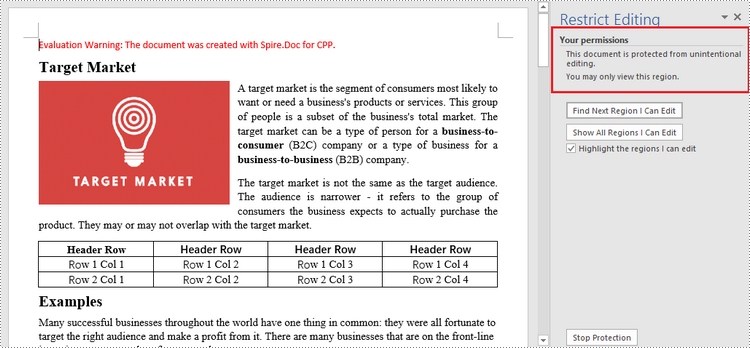
If you want to grant people permission to read your document but restrict the types of modifications that someone can make, you can protect your document with a specific protection type and a permission password.
| Protection Type | Description |
| AllowOnlyComments | Modification of comments in the document is allowed. |
| AllowOnlyFormFields | The user can only enter data in the form fields in the document. |
| AllowOnlyReading | The document is read-only. |
| AllowOnlyRevisions | The user can only add revision marks to the document. |
| NoProtection | The document is not protected. |
The following are the steps to restrict editing of a Word document using Spire.Doc for C++.
- Create a Document object.
- Load a Word document using Document->LoadFromFile() method.
- Protect the document by specifying the protection type and the permission password using Document->Protect(Spire::Doc::ProtectionType type, LPCWSTR_S password) method.
- Save the document to another Word file using Document->SaveToFile() method.
- C++
#include "Spire.Doc.o.h";

using namespace Spire::Doc;

int main() {

    //Create a Document object
    intrusive_ptr<Document> document = new Document();

    //Load a Word file
    document->LoadFromFile(L"C:\\Users\\Administrator\\Desktop\\sample.docx");

    //Protect the document by specifying the protection type and the password
    document->Protect(ProtectionType::AllowOnlyReading, L"permission-psd");

    //Save the document to another Word file
    document->SaveToFile(L"Output/RestrictEditing.docx", FileFormat::Docx2013);
    document->Close();
}
Protect Sections of a Word Document in C++
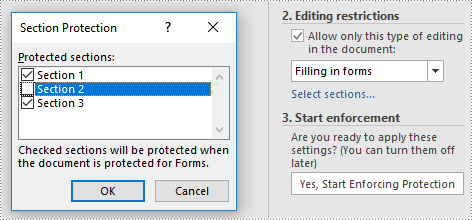
Word allows you to lock some sections of your Word document and leave the rest available for editing. The following are the steps to protect selected sections of a Word document using Spire.Doc for C++.
- Create a Document object.
- Load a Word document using Document->LoadFromFile() method.
- Set the protection type to AllowOnlyFormFields using Document->Protect() method.
- Unprotect a particular section by passing false as an argument to the Section->SetProtectForm() method. Other sections will continue to be protected.
- Save the document to another Word file using Document->SaveToFile() method.
- C++
#include "Spire.Doc.o.h";

using namespace Spire::Doc;

int main() {

    //Create a Document object
    intrusive_ptr<Document> document = new Document();

    //Load a Word file
    document->LoadFromFile(L"C:\\Users\\Administrator\\Desktop\\sample.docx");

    //Set the protection type as "AllowOnlyFormFields"
    document->Protect(ProtectionType::AllowOnlyFormFields, L"permission-psd");

    //Unprotect section 2
    document->GetSections()->GetItemInSectionCollection(1)->SetProtectForm(false);

    //Save the document to another Word file
    document->SaveToFile(L"Output/ProtectSections.docx", FileFormat::Docx2013);
    document->Close();
}
Create Editable Regions in a Word Document in C++
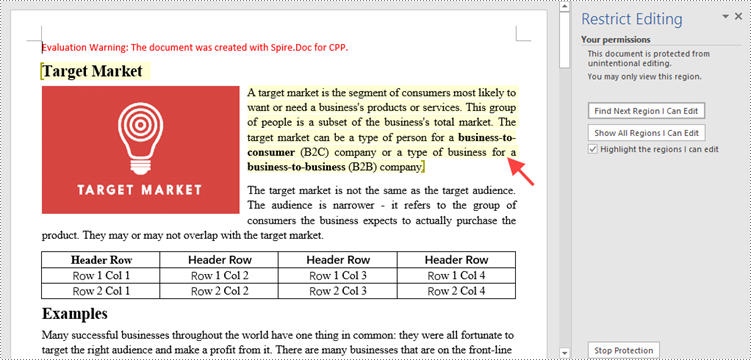
Aside from making certain sections editable, you can create editable regions based on text ranges in order to narrow down the scope of changes that users are able to make. The following are the steps to create editable regions in a read-only Word document using Spire.Doc for C++.
- Create a Document object.
- Load a Word file using Document->LoadFromFile() method.
- Set the protection type to AllowOnlyReading using Document->Protect() method.
- Create a PermissionStart object and a PermissionEnd object.
- Insert the PermissionStart object at the beginning of a paragraph using DocumentObjectCollection->Insert(int index, Spire::Doc::lDocumentObject *entity) method, which indicates the start of an editable region.
- Add the PermissionEnd object at the end of a paragraph using DocumentObjectCollection->Add(Spire::Doc::lDocumentObject *entity) method, which indicates the end of an editable region.
- Save the document to another Word file using Document->SaveToFile() method.
- C++
#include "Spire.Doc.o.h";

using namespace Spire::Doc;

int main() {

    //Create a Document object
    intrusive_ptr<Document> document = new Document();

    //Load a Word file
    document->LoadFromFile(L"C:\\Users\\Administrator\\Desktop\\sample2.docx");

    //Set the protect type to AllowOnlyReading
    document->Protect(ProtectionType::AllowOnlyReading, L"permission-psd");

    //Create tags for permission start and end
    intrusive_ptr<PermissionStart> start = new PermissionStart(document, L"regionOne");
    intrusive_ptr<PermissionEnd> end = new PermissionEnd(document, L"regionOne");

    //Add the start and end tags to allow the selected paragraphs to be editable
    document->GetSections()->GetItemInSectionCollection(0)->GetParagraphs()->GetItemInParagraphCollection(0)->GetChildObjects()->Insert(0, start);
    document->GetSections()->GetItemInSectionCollection(0)->GetParagraphs()->GetItemInParagraphCollection(1)->GetChildObjects()->Add(end);

    //Save the document to another Word file
    document->SaveToFile(L"Output/SetEditableRegions.docx", FileFormat::Docx2013);
    document->Close();
}
Remove Editable Regions from a Word Document in C++
In order to remove the editable regions, you need to find the "PermissionStart" and "PermissionEnd" tags in the document and remove them. The following are the detailed steps.
- Create a Document object.
- Load a Word document containing editable regions using Document->LoadFromFile() method.
- Traverse through all the child objects in the document, and determine if a certain child object is an instance of PermissionStart class or PermissionEnd class. If yes, remove the child object from the paragraph using Paragraph->GetChildObjects()->Remove(Spire::Doc::IDocumentObject *entity) method.
- Save the document to another Word file using Document->SaveToFile() method.
- C++
#include "Spire.Doc.o.h";

using namespace Spire::Doc;

int main() {

 //Create a Document object
 intrusive_ptr<Document> document = new Document();

 //Load a Word file
 document->LoadFromFile(L"C:\\Users\\Administrator\\Desktop\\SetEditableRegions.docx");

 //Find "PermissionStart" and "PermissionEnd" tags and remove them
 for (int i = 0; i < document->GetSections()->GetCount(); i++)
 {
  intrusive_ptr<Section> section = document->GetSections()->GetItemInSectionCollection(i);
  for (int j = 0; j < section->GetBody()->GetParagraphs()->GetCount(); j++)
  {
   intrusive_ptr<Paragraph> para = section->GetBody()->GetParagraphs()->GetItemInParagraphCollection(j);
   for (int k = 0; k < para->GetChildObjects()->GetCount(); k++)
   {
    intrusive_ptr<DocumentObject> obj = para->GetChildObjects()->GetItem(k);
    if (Object::Dynamic_cast<PermissionStart>(obj) != nullptr || Object::Dynamic_cast<PermissionEnd>(obj) != nullptr)
    {
     para->GetChildObjects()->Remove(obj);
    }
    else
    {
     k++;
    }
   }
  }
 }

 //Save the document to another Word file
 document->SaveToFile(L"Output/RemoveEditableRegions.docx", FileFormat::Docx2013);
 document->Close();
}
Remove Restrictions from a Word Document in C++
Spire.Doc for C++ allows you to remove editing restrictions without knowing the permission password. The following are the detailed steps.
- Create a Document object.
- Load a Word document containing editing restrictions using Document->LoadFromFile() method.
- Set the protection type to NoProtection using Document->Protect() method.
- Save the document to another Word file using Document->SaveToFile() method.
- C++
#include "Spire.Doc.o.h";

using namespace Spire::Doc;

int main() {

    //Create a Document object
    intrusive_ptr<Document> document = new Document();

    //Load a Word file
    document->LoadFromFile(L"C:\\Users\\Administrator\\Desktop\\RestrictEditing.docx");

    //Set the protect type to NoProtection
    document->Protect(ProtectionType::NoProtection);

    //Save the document to another Word file
    document->SaveToFile(L"Output/RemoveRestrictions.docx", FileFormat::Docx2013);
    document->Close();
}
Remove Password from a Password-Protected Word Document in C++
The password of an encrypted Word document can be removed if it is no longer needed. The following are the detailed steps.
- Create a Document object.
- Load a password-protected Word document using Document->LoadFromFile((LPCWSTR_S fileName, Spire::Doc::FileFormat fileFormat, LPCWSTR_S password) method.
- Remove the password using Document->RemoveEncryption() method.
- Save the document to another Word file using Document->SaveToFile() method.
- C++
#include "Spire.Doc.o.h";

using namespace Spire::Doc;

int main() {

    //Create a Document object
    intrusive_ptr<Document> document = new Document();

    //Load an encrypted Word file
    document->LoadFromFile(L"C:\\Users\\Administrator\\Desktop\\Encryption.docx", FileFormat::Docx, L"open-psd");

    //Remove the open password
    document->RemoveEncryption();

    //Save the document to another Word file
    document->SaveToFile(L"Output/RemovePassword.docx", FileFormat::Docx2013);
    document->Close();
}
Apply for a Temporary License
If you'd like to remove the evaluation message from the generated documents, or to get rid of the function limitations, please request a 30-day trial license for yourself.
