
Knowledgebase (2370)
Children categories
Hyperlinks in Word documents can lead readers to a webpage, an external file, an email address, and a specific place of the document being read. They are commonly used in Word documents for their convenience. This article will teach you how to use Spire.Doc for Java to find and extract hyperlinks in Word documents, including hypertexts and links.
- Find and Extract a Specified Hyperlink in a Word Document
- Find and Extract All the Hyperlinks in a Word Document
Install Spire.Doc for Java
First, you're required to add the Spire.Doc.jar file as a dependency in your Java program. The JAR file can be downloaded from this link. If you use Maven, you can easily import the JAR file in your application by adding the following code to your project's pom.xml file.
<repositories>
    <repository>
        <id>com.e-iceblue</id>
        <name>e-iceblue</name>
        <url>https://repo.e-iceblue.com/nexus/content/groups/public/</url>
    </repository>
</repositories>
<dependencies>
    <dependency>
        <groupId>e-iceblue</groupId>
        <artifactId>spire.doc</artifactId>
        <version>14.7.0</version>
    </dependency>
</dependencies>
Find and Extract a Specified Hyperlink in a Word Document
The detailed steps are as follows:
- Create a Document instance and load a Word document from disk using Document.loadFromFile() method.
- Create an object of ArrayList<Field>.
- Iterate through the items in the sections to find all hyperlinks.
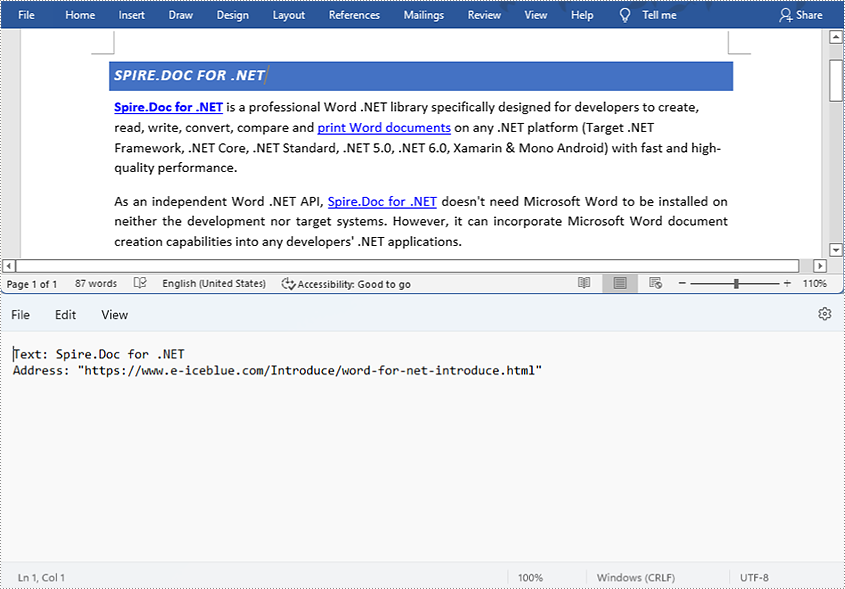
- Get the text of the first hyperlink using Field.get().getFieldText() method and get its link using Field.get().getValue() method.
- Save the text and the link of the first hyperlink to a TXT file using custom method writeStringToText().
- Java
import com.spire.doc.*;
import com.spire.doc.documents.*;
import com.spire.doc.fields.Field;
import java.io.*;
import java.util.ArrayList;
public class findHyperlinks {
public static void main(String[] args) throws IOException {
//Create a Document instance and load a Word document from file
String input = "D:/testp/test.docx";
Document doc = new Document();
doc.loadFromFile(input);
//Create an object of ArrayList
ArrayListField> hyperlinks = new ArrayList();
//Iterate through the items in the sections to find all hyperlinks
for (Section section : (IterableSection>) doc.getSections()) {
for (DocumentObject object : (IterableDocumentObject>) section.getBody().getChildObjects()) {
if (object.getDocumentObjectType().equals(DocumentObjectType.Paragraph)) {
Paragraph paragraph = (Paragraph) object;
for (DocumentObject cObject : (IterableDocumentObject>) paragraph.getChildObjects()) {
if (cObject.getDocumentObjectType().equals(DocumentObjectType.Field)) {
Field field = (Field) cObject;
if (field.getType().equals(FieldType.Field_Hyperlink)) {
hyperlinks.add(field);
}
}
}
}
}
}
//Get the text and the address of the first hyperlink
String hyperlinksText = hyperlinks.get(0).getFieldText();
String hyperlinkAddress = hyperlinks.get(0).getValue();
//Save the text and the link of the first hyperlink to a TXT file
String output = "D:/javaOutput/HyperlinkTextAndLink.txt";
writeStringToText("Text:\r\n" + hyperlinksText+ "\r\n" + "Link:\r\n" + hyperlinkAddress, output);
}
//Create a method to write the text and link of hyperlinks to a TXT file
public static void writeStringToText(String content, String textFileName) throws IOException {
File file = new File(textFileName);
if (file.exists())
{
file.delete();
}
FileWriter fWriter = new FileWriter(textFileName, true);
try {
fWriter.write(content);
} catch (IOException ex) {
ex.printStackTrace();
} finally {
try {
fWriter.flush();
fWriter.close();
} catch (IOException ex) {
ex.printStackTrace();
}
}
}
}
Find and Extract All the Hyperlinks in a Word Document
The detailed steps are as follows:
- Create a Document instance and load a Word document from disk using Document.loadFromFile() method.
- Create an object of ArrayList<Field>.
- Iterate through the items in the sections to find all hyperlinks.
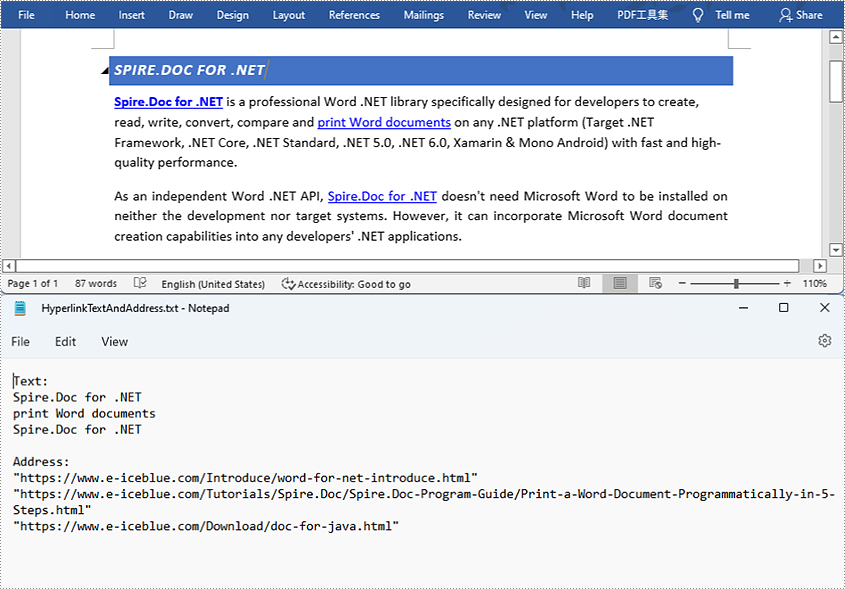
- Get the texts of the hyperlinks using Field.get().getFieldText() method and get their links using Field.get().getValue() method.
- Save the text and the links of the hyperlinks to a TXT file using custom method writeStringToText().
- Java
import com.spire.doc.*;
import com.spire.doc.documents.*;
import com.spire.doc.fields.Field;
import java.io.*;
import java.util.ArrayList;
public class findHyperlinks {
public static void main(String[] args) throws IOException {
//Create a Document instance and load a Word document from file
String input = "D:/testp/test.docx";
Document doc = new Document();
doc.loadFromFile(input);
//Create an object of ArrayList
ArrayListField> hyperlinks = new ArrayList();
String hyperlinkText = "";
String hyperlinkAddress = "";
//Iterate through the items in the sections to find all hyperlinks
for (Section section : (IterableSection>) doc.getSections()) {
for (DocumentObject object : (IterableDocumentObject>) section.getBody().getChildObjects()) {
if (object.getDocumentObjectType().equals(DocumentObjectType.Paragraph)) {
Paragraph paragraph = (Paragraph) object;
for (DocumentObject cObject : (IterableDocumentObject>) paragraph.getChildObjects()) {
if (cObject.getDocumentObjectType().equals(DocumentObjectType.Field)) {
Field field = (Field) cObject;
if (field.getType().equals(FieldType.Field_Hyperlink)) {
hyperlinks.add(field);
}
}
}
}
}
}
//Save the texts and the links of the hyperlinks to a TXT file
String output = "D:/javaOutput/HyperlinksTextsAndLinks.txt";
writeStringToText("Text:\r\n " + hyperlinkText + "\r\n" + "Link:\r\n" + hyperlinkAddress + "\r\n", output);
}
//Create a method to write the text and link of hyperlinks to a TXT file
public static void writeStringToText(String content, String textFileName) throws IOException {
File file = new File(textFileName);
if (file.exists())
{
file.delete();
}
FileWriter fWriter = new FileWriter(textFileName, true);
try {
fWriter.write(content);
} catch (IOException ex) {
ex.printStackTrace();
} finally {
try {
fWriter.flush();
fWriter.close();
} catch (IOException ex) {
ex.printStackTrace();
}
}
}
}
Apply for a Temporary License
If you'd like to remove the evaluation message from the generated documents, or to get rid of the function limitations, please request a 30-day trial license for yourself.
Hyperlinks usually appear on texts. By clicking on a hyperlink, we can access a website, a document, an email address, or other elements. Some Word documents, especially those that are generated from web content, may contain irritating hyperlinks, such as advertisements. This article shows you how to programmatically remove one hyperlink or all hyperlinks in a Word document using Spire.Doc for Java.
Install Spire.Doc for Java
First, you're required to add the Spire.Doc.jar file as a dependency in your Java program. The JAR file can be downloaded from this link. If you use Maven, you can easily import the JAR file in your application by adding the following code to your project's pom.xml file.
<repositories>
    <repository>
        <id>com.e-iceblue</id>
        <name>e-iceblue</name>
        <url>https://repo.e-iceblue.com/nexus/content/groups/public/</url>
    </repository>
</repositories>
<dependencies>
    <dependency>
        <groupId>e-iceblue</groupId>
        <artifactId>spire.doc</artifactId>
        <version>14.7.0</version>
    </dependency>
</dependencies>
Remove a Specified Hyperlink in a Word Document
The detailed steps to remove a specified hyperlink in a Word file are as follows:
- Create a Document object and load a Word document from disk using Document.loadFromFile() method.
- Find all the hyperlinks using custom method FindAllHyperlinks().
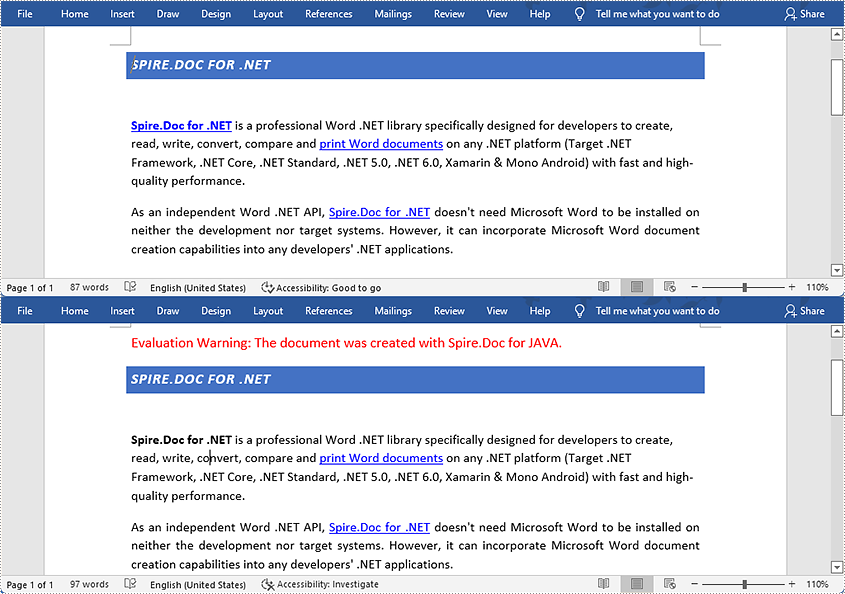
- Flatten the first hyperlink using custom method FlattenHyperlinks().
- Save the document using Document.saveToFile() method.
- Java
import com.spire.doc.*;
import com.spire.doc.documents.DocumentObjectType;
import com.spire.doc.documents.Paragraph;
import com.spire.doc.documents.UnderlineStyle;
import com.spire.doc.fields.Field;
import com.spire.doc.fields.TextRange;

import java.awt.*;
import java.util.ArrayList;

public class removeHyperlink {
    public static void main(String[] args) {
        //Create a Document object and load a Word document from disk
        String input = "D:/testp/test.docx";
        Document doc = new Document();
        doc.loadFromFile(input);

        //Find all hyperlinks
        ArrayList<Field> hyperlinks = FindAllHyperlinks(doc);

        //Flatten the first hyperlink
        FlattenHyperlinks(hyperlinks.get(0));

        //Save the document to file
        String output = "D:/javaOutput/RemoveHyperlinks.docx";
        doc.saveToFile(output, FileFormat.Docx);
    }

     //Iterate through the items in the sections to find all hyperlinks
        for (Section section : (Iterable<Section>)document.getSections())
        {
            for (DocumentObject object : (Iterable<DocumentObject>)section.getBody().getChildObjects())
            {
                if (object.getDocumentObjectType().equals(DocumentObjectType.Paragraph))
                {
                    Paragraph paragraph = (Paragraph) object;
                    for (DocumentObject cObject : (Iterable<DocumentObject>)paragraph.getChildObjects())
                    {
                    Paragraph paragraph = (Paragraph) object;
                    for (DocumentObject cObject : (Iterable)paragraph.getChildObjects())
                    {
                        if (cObject.getDocumentObjectType().equals(DocumentObjectType.Field))
                        {
                            Field field = (Field) cObject;
                            if (field.getType().equals(FieldType.Field_Hyperlink))
                            {
                                hyperlinks.add(field);
                            }
                        }
                    }
                }
            }
        }
        return hyperlinks;
    }

    //Create a method FlattenHyperlinks() to flatten the hyperlink field
    public static void FlattenHyperlinks(Field field)
    {
        int ownerParaIndex = field.getOwnerParagraph().getOwnerTextBody().getChildObjects().indexOf(field.getOwnerParagraph());
        int fieldIndex = field.getOwnerParagraph().getChildObjects().indexOf(field);
        Paragraph sepOwnerPara = field.getSeparator().getOwnerParagraph();
        int sepOwnerParaIndex = field.getSeparator().getOwnerParagraph().getOwnerTextBody().getChildObjects().indexOf(field.getSeparator().getOwnerParagraph());
        int sepIndex = field.getSeparator().getOwnerParagraph().getChildObjects().indexOf(field.getSeparator());
        int endIndex = field.getEnd().getOwnerParagraph().getChildObjects().indexOf(field.getEnd());
        int endOwnerParaIndex = field.getEnd().getOwnerParagraph().getOwnerTextBody().getChildObjects().indexOf(field.getEnd().getOwnerParagraph());
        FormatFieldResultText(field.getSeparator().getOwnerParagraph().getOwnerTextBody(), sepOwnerParaIndex, endOwnerParaIndex, sepIndex, endIndex);
        field.getEnd().getOwnerParagraph().getChildObjects().removeAt(endIndex);"
        for (int i = sepOwnerParaIndex; i >= ownerParaIndex; i--)
        {
            if (i == sepOwnerParaIndex && i == ownerParaIndex)
            {
                for (int j = sepIndex; j >= fieldIndex; j--)
                {
                    field.getOwnerParagraph().getChildObjects().removeAt(j);
                }
            }
            else if (i == ownerParaIndex)
            {
                for (int j = field.getOwnerParagraph().getChildObjects().getCount() - 1; j >= fieldIndex; j--)
                {
                    field.getOwnerParagraph().getChildObjects().removeAt(j);
                }
            }
            else if (i == sepOwnerParaIndex)
            {
                for (int j = sepIndex; j >= 0; j--)
                {
                    sepOwnerPara.getChildObjects().removeAt(j);
                }
            }
            else
            {
                field.getOwnerParagraph().ownerTextBody().getChildObjects().removeAt(i);
            }
        }
    }

    //Create a method FormatFieldResultText() to remove the font color and underline format of the hyperlinks
    private static void FormatFieldResultText(Body ownerBody, int sepOwnerParaIndex, int endOwnerParaIndex, int sepIndex, int endIndex)
    {
        for (int i = sepOwnerParaIndex; i <= endOwnerParaIndex; i++)
        {
            Paragraph para = (Paragraph) ownerBody.getChildObjects().get(i);
            if (i == sepOwnerParaIndex && i == endOwnerParaIndex)
            {
                for (int j = sepIndex + 1; j < endIndex; j++)
                {
                    FormatText((TextRange)para.getChildObjects().get(j));
                }
            }
            else if (i == sepOwnerParaIndex)
            {
                for (int j = sepIndex + 1; j < para.getChildObjects().getCount(); j++)
                {
                    FormatText((TextRange)para.getChildObjects().get(j));
                }
            }
            else if (i == endOwnerParaIndex)
            {
                for (int j = 0; j < endIndex; j++)
                {
                    FormatText((TextRange)para.getChildObjects().get(j));
                }
            }
            else
            {
                for (int j = 0; j < para.getChildObjects().getCount(); j++)
                {
                    FormatText((TextRange)para.getChildObjects().get(j));
                }
            }
        }
    }

    //Create a method FormatText() to change the color of the text to black and remove the underline
    private static void FormatText(TextRange tr)
    {
        //Set the text color to black
        tr.getCharacterFormat().setTextColor(Color.black);

        //Set the text underline style to none
        tr.getCharacterFormat().setUnderlineStyle(UnderlineStyle.None);
    }
}
Remove All the Hyperlinks in a Word Document
The detailed steps to remove all the hyperlinks in a Word file are as follows:
- Create a Document object and load a Word document from disk using Document.loadFromFile() method.
- Find all the hyperlinks using custom method FindAllHyperlinks().
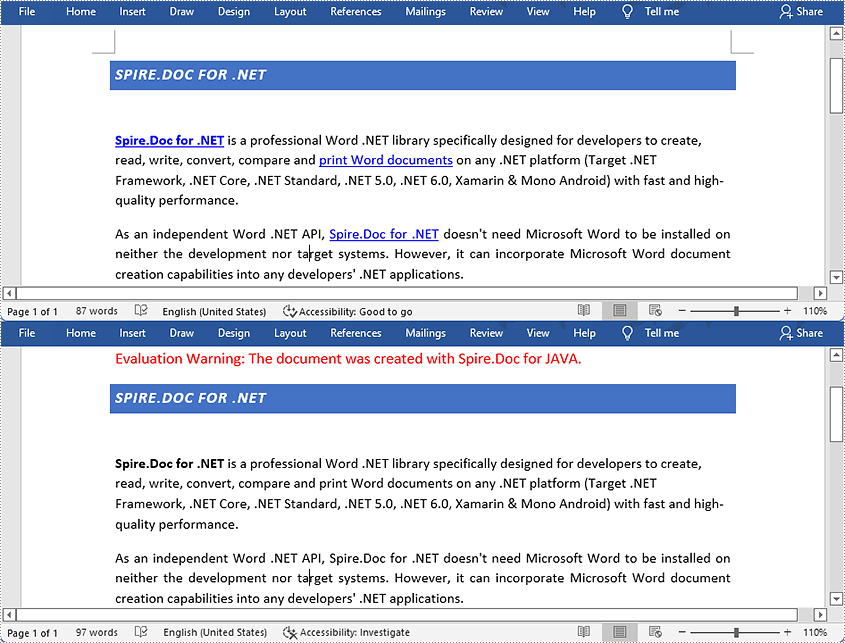
- Loop through the hyperlinks, and invoke the custom method FlattenHyperlinks() to flatten the specific hyperlink.
- Save the document using Document.saveToFile() method.
- Java
import com.spire.doc.*;
import com.spire.doc.documents.DocumentObjectType;
import com.spire.doc.documents.Paragraph;
import com.spire.doc.documents.UnderlineStyle;
import com.spire.doc.fields.Field;
import com.spire.doc.fields.TextRange;
import java.awt.*;
import java.util.ArrayList;
public class removeHyperlink {
public static void main(String[] args) {
//Create a Document object and load a Word document from disk
String input = "D:/testp/test.docx";
Document doc = new Document();
doc.loadFromFile(input);
//Find all the hyperlinks
ArrayList<Field> hyperlinks = FindAllHyperlinks(doc);
//Loop through the hyperlinks, and flatten the specific hyperlink.
for (int i = hyperlinks.size() -1; i >= 0; i--)
{
FlattenHyperlinks(hyperlinks.get(i));
}
//Save the document to file
String output = "D:/javaOutput/RemoveHyperlinks.docx";
doc.saveToFile(output, FileFormat.Docx);
}
//Create a method FindAllHyperlinks() to get all the hyperlinks from the sample document
private static ArrayList FindAllHyperlinks(Document document)
{
ArrayListField> hyperlinks = new ArrayList();
//Iterate through the items in the sections to find all hyperlinks
for (Section section : (Iterable<Section>)document.getSections())
{
for (DocumentObject object : (Iterable<DocumentObject>)section.getBody().getChildObjects())
{
if (object.getDocumentObjectType().equals(DocumentObjectType.Paragraph))
{
Paragraph paragraph = (Paragraph) object;
for (DocumentObject cObject : (Iterable<DocumentObject>)paragraph.getChildObjects())
{
if (cObject.getDocumentObjectType().equals(DocumentObjectType.Field))
{
Field field = (Field) cObject;
if (field.getType().equals(FieldType.Field_Hyperlink))
{
hyperlinks.add(field);
}
}
}
}
}
}
return hyperlinks;
}
//Create a method FlattenHyperlinks() to flatten the hyperlink field
public static void FlattenHyperlinks(Field field)
{
int ownerParaIndex = field.getOwnerParagraph().getOwnerTextBody().getChildObjects().indexOf(field.getOwnerParagraph());
int fieldIndex = field.getOwnerParagraph().getChildObjects().indexOf(field);
Paragraph sepOwnerPara = field.getSeparator().getOwnerParagraph();
int sepOwnerParaIndex = field.getSeparator().getOwnerParagraph().getOwnerTextBody().getChildObjects().indexOf(field.getSeparator().getOwnerParagraph());
int sepIndex = field.getSeparator().getOwnerParagraph().getChildObjects().indexOf(field.getSeparator());
int endIndex = field.getEnd().getOwnerParagraph().getChildObjects().indexOf(field.getEnd());
int endOwnerParaIndex = field.getEnd().getOwnerParagraph().getOwnerTextBody().getChildObjects().indexOf(field.getEnd().getOwnerParagraph());
FormatFieldResultText(field.getSeparator().getOwnerParagraph().getOwnerTextBody(), sepOwnerParaIndex, endOwnerParaIndex, sepIndex, endIndex);
field.getEnd().getOwnerParagraph().getChildObjects().removeAt(endIndex);"
for (int i = sepOwnerParaIndex; i >= ownerParaIndex; i--)
{
if (i == sepOwnerParaIndex && i == ownerParaIndex)
{
for (int j = sepIndex; j >= fieldIndex; j--)
{
field.getOwnerParagraph().getChildObjects().removeAt(j);
}
}
else if (i == ownerParaIndex)
{
for (int j = field.getOwnerParagraph().getChildObjects().getCount() - 1; j >= fieldIndex; j--)
{
field.getOwnerParagraph().getChildObjects().removeAt(j);
}
}
else if (i == sepOwnerParaIndex)
{
for (int j = sepIndex; j >= 0; j--)
{
sepOwnerPara.getChildObjects().removeAt(j);
}
}
else
{
field.getOwnerParagraph().ownerTextBody().getChildObjects().removeAt(i);
}
}
}
//Create a method FormatFieldResultText() to format the texts
private static void FormatFieldResultText(Body ownerBody, int sepOwnerParaIndex, int endOwnerParaIndex, int sepIndex, int endIndex)
{
for (int i = sepOwnerParaIndex; i <= endOwnerParaIndex; i++)
{
Paragraph para = (Paragraph) ownerBody.getChildObjects().get(i);
if (i == sepOwnerParaIndex && i == endOwnerParaIndex)
{
for (int j = sepIndex + 1; j < endIndex; j++)
{
FormatText((TextRange)para.getChildObjects().get(j));
}
}
else if (i == sepOwnerParaIndex)
{
for (int j = sepIndex + 1; j < para.getChildObjects().getCount(); j++)
{
FormatText((TextRange)para.getChildObjects().get(j));
}
}
else if (i == endOwnerParaIndex)
{
for (int j = 0; j < endIndex; j++)
{
FormatText((TextRange)para.getChildObjects().get(j));
}
}
else
{
for (int j = 0; j < para.getChildObjects().getCount(); j++)
{
FormatText((TextRange)para.getChildObjects().get(j));
}
}
}
}
//Create a method FormatText() to change the color of the text to black and remove the underline
private static void FormatText(TextRange tr)
{
//Set the text color to black
tr.getCharacterFormat().setTextColor(Color.black);
//Set the text underline style to none
tr.getCharacterFormat().setUnderlineStyle(UnderlineStyle.None);
}
}
Apply for a Temporary License
If you'd like to remove the evaluation message from the generated documents, or to get rid of the function limitations, please request a 30-day trial license for yourself.
The emphasis mark is used in Word documents to emphasize words and make them more noticeable. It is usually a dot or a circle placed above or under the emphasized words. However, manually selecting words and applying emphasis marks on them takes a lot of work. Fortunately, Spire.Doc for .NET provides a much easier way to apply emphasis marks by codes. This article will show you how to apply emphasis marks to text in Word documents using Spire.Doc for .NET.
Install Spire.Doc for .NET
To begin with, you need to add the DLL files included in the Spire.Doc for.NET package as references in your .NET project. The DLL files can be either downloaded from this link or installed via NuGet.
PM> Install-Package Spire.Doc
Apply Emphasis Mark to Specified Text
The detailed steps are as follows:
- Create a Document instance.
- Load the Word document from disk using Document.LoadFromFile() method.
- Find the text you need to emphasize using Document.FindAllString() method.
- Apply emphasis mark to the found text through CharacterFormat.EmphasisMark property.
- Save the document to another Word file using Document.SaveToFile() method.
- C#
- VB.NET
using System;
using Spire.Doc;
using Spire.Doc.Documents;

namespace applyemphasismark
{
    class Program
    {
        static void Main(string[] args)
        {
            //Create a Document instance
            Document document = new Document();

            //Load the Word document from disk
            document.LoadFromFile(@"D:\testp\test.docx");

            //Find text you want to emphasize
            TextSelection[] textSelections = document.FindAllString("Spire.Doc for .NET", false, true);

            //Apply emphasis mark to the found text
            foreach (TextSelection selection in textSelections)
            {
                selection.GetAsOneRange().CharacterFormat.EmphasisMark = Emphasis.Dot;
            }

            //Save the document to another Word file
            string output = "ApllyEmphasisMark.docx";
            document.SaveToFile(output, FileFormat.Docx);
        }
    }
}
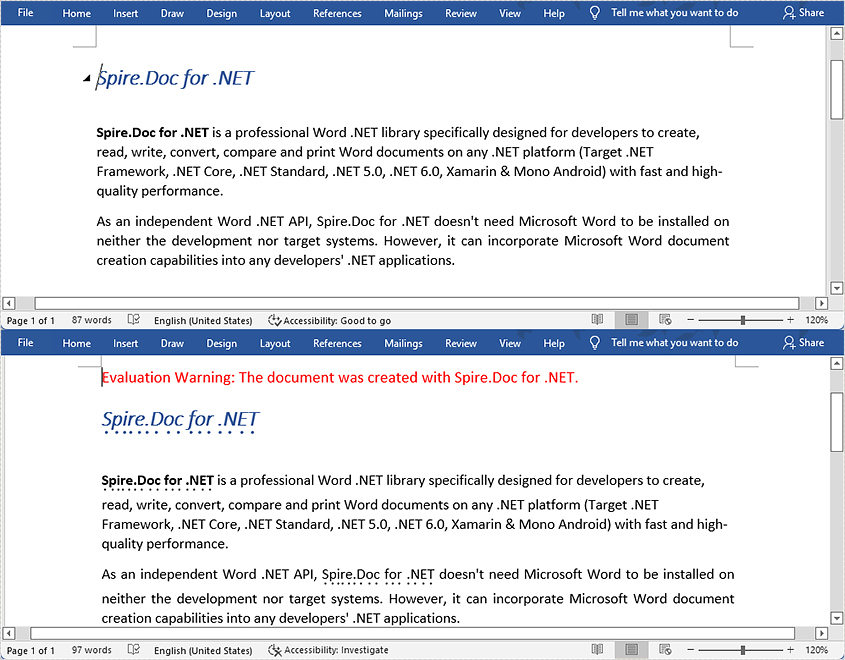
Apply for a Temporary License
If you'd like to remove the evaluation message from the generated documents, or to get rid of the function limitations, please request a 30-day trial license for yourself.
