Knowledgebase (2370)
Children categories
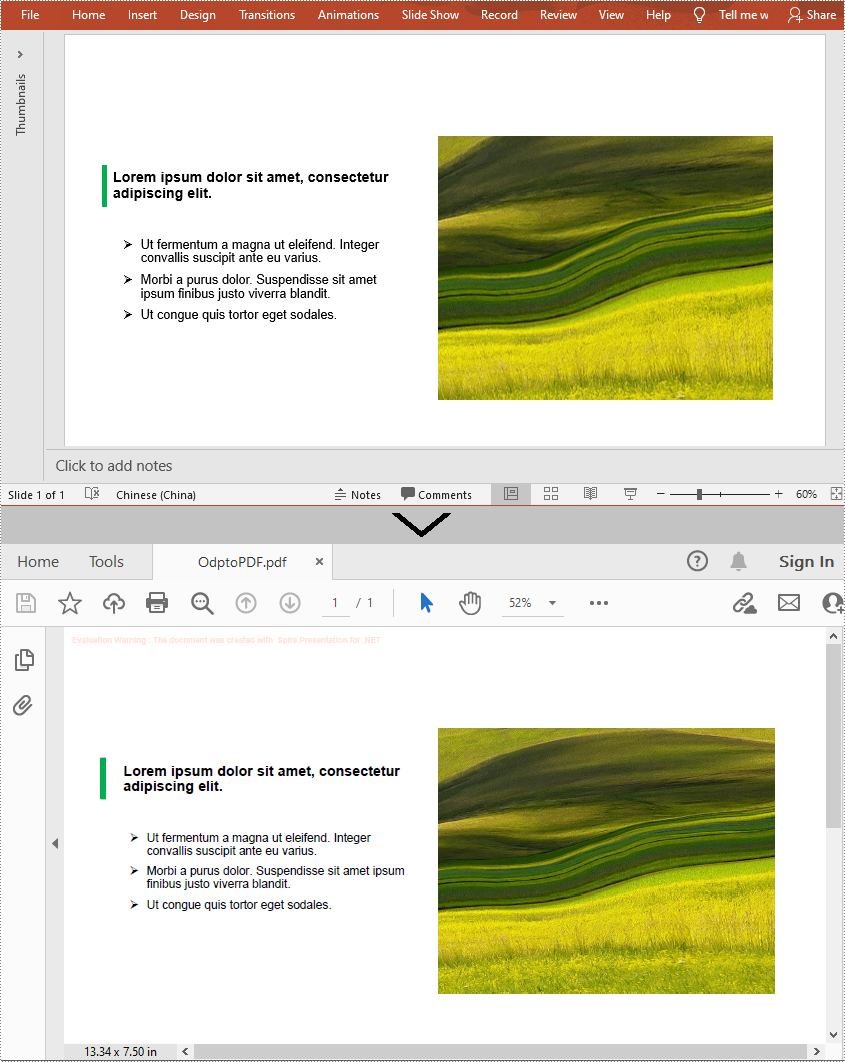
An ODP file is an OpenDocument Presentation file consisting of slides containing images, text, media, and transition effects. Since ODP files can only be opened by specified programs such as OpenOffice Impress, LibreOffice Impress, and Microsoft PowerPoint, if you want your ODP files to be viewable on more devices, you can convert them to PDF. In this article, you will learn how to programmatically convert a ODP file to PDF using Spire.Presentation for .NET.
Install Spire.Presentation for .NET
To begin with, you need to add the DLL files included in the Spire.Presentation for.NET package as references in your .NET project. The DLL files can be either downloaded from this link or installed via NuGet.
PM> Install-Package Spire.Presentation
Convert OpenDocument Presentation to PDF
The detailed steps are as follows:
- Create a Presentation instance.
- Load an ODP file using Presentation.LoadFromFile() method.
- Save the ODP file to PDF using Presentation.SaveToFile(String, FileFormat) method.
- C#
- VB.NET
using Spire.Presentation;

namespace ODPtoPDF
{
    class Program
    {
        static void Main(string[] args)
        {
            //Create a Presentation instance
            Presentation presentation = new Presentation();

            //Load an ODP file
            presentation.LoadFromFile("Sample.odp", FileFormat.ODP);

            //Convert the ODP file to PDF
            presentation.SaveToFile("OdptoPDF.pdf", FileFormat.PDF);

        }
    }
}
Apply for a Temporary License
If you'd like to remove the evaluation message from the generated documents, or to get rid of the function limitations, please request a 30-day trial license for yourself.
In some circumstances, you may need to change the page size of a PDF. For example, if you have a combined PDF file with pages of different sizes, you may want to resize the pages to the same size for easier reading and printing. In this article, we will introduce how to change the page size of a PDF file in Java using Spire.PDF for Java.
Install Spire.PDF for Java
First of all, you're required to add the Spire.Pdf.jar file as a dependency in your Java program. The JAR file can be downloaded from this link. If you use Maven, you can easily import the JAR file in your application by adding the following code to your project's pom.xml file.
<repositories>
    <repository>
        <id>com.e-iceblue</id>
        <name>e-iceblue</name>
        <url>https://repo.e-iceblue.com/nexus/content/groups/public/</url>
    </repository>
</repositories>
<dependencies>
    <dependency>
        <groupId>e-iceblue</groupId>
        <artifactId>spire.pdf</artifactId>
        <version>12.7.0</version>
    </dependency>
</dependencies>
Change PDF Page Size to a Standard Paper Size in Java
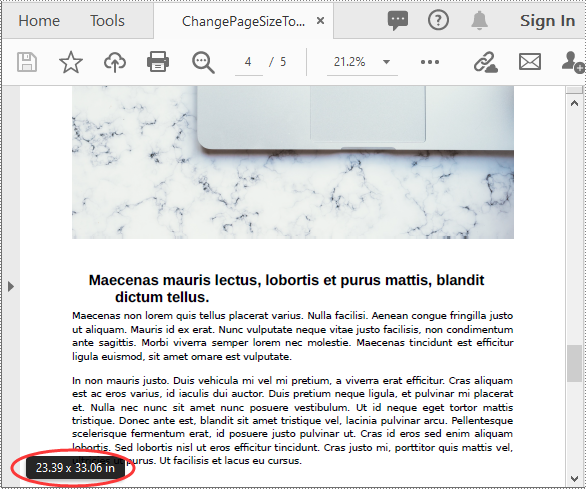
The way to change the page size of a PDF file is to create a new PDF file and add pages of the desired size to it, next, create templates from the pages in the original PDF file, then draw the templates onto the pages in the new PDF file. This process will preserve text, images, and other elements present in the original PDF.
Spire.PDF for Java supports a variety of standard paper sizes like letter, legal, A0, A1, A2, A3, A4, B0, B1, B2, B3, B4 and many more. The following steps show you how to change the page size of a PDF file to a standard paper size.
- Initialize a PdfDocument instance and load the original PDF file using PdfDocument.loadFromFile() method.
- Initialize another PdfDocument instance to create a new PDF file.
- Loop through the pages in the original PDF.
- Add pages of the desired size to the new PDF file using PdfDocument.getPages().add() method.
- Initialize a PdfTextLayout instance and set the text layout as one page using PdfTextLayout.setLayout() method.
- Create templates based on the pages in the original PDF using PdfPageBase.createTemplate() method.
- Draw the templates onto the pages in the new PDF file with the specified text layout using PdfTemplate.draw() method.
- Save the result file using PdfDocument.saveToFile() method.
- Java
import com.spire.pdf.PdfDocument;
import com.spire.pdf.PdfPageBase;
import com.spire.pdf.PdfPageSize;
import com.spire.pdf.graphics.*;

import java.awt.geom.Point2D;

public class ChangePageSizeToStandardPaperSize {
    public static void main(String []args){
        //Load the original PDF document
        PdfDocument originPdf = new PdfDocument();
        originPdf.loadFromFile("Sample.pdf");

        //Create a new PDF document
        PdfDocument newPdf = new PdfDocument();

        //Loop through the pages in the original PDF
        for(int i = 0; i< originPdf.getPages().getCount(); i++)
        {
            //Add pages of size A1 to the new PDF
            PdfPageBase newPage = newPdf.getPages().add(PdfPageSize.A1, new PdfMargins((0)));
            //Create a PdfTextLayout instance
            PdfTextLayout layout = new PdfTextLayout();
            //Set text layout as one page (if not set the content will not scale to fit page size)
            layout.setLayout(PdfLayoutType.One_Page);
            //Create templates based on the pages in the original PDF
            PdfTemplate template = originPdf.getPages().get(i).createTemplate();
            //Draw templates onto the pages in the new PDF
            template.draw(newPage, new Point2D.Float(0,0), layout);
        }

        //Save the result document
        newPdf.saveToFile("ChangePageSizeToA1.pdf");
    }
}
Change PDF Page Size to a Custom Paper Size in Java
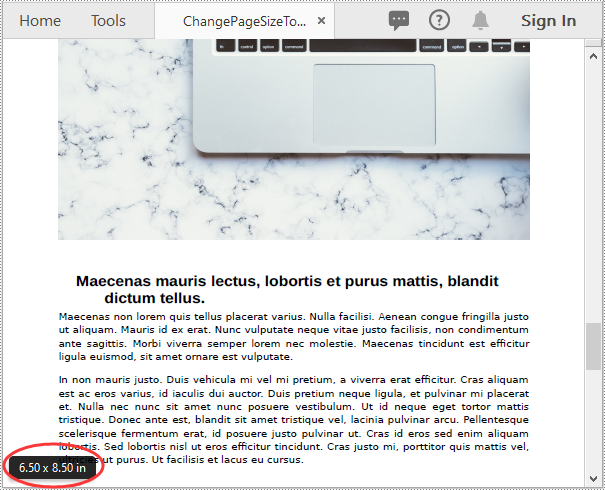
Spire.PDF for Java uses point (1/72 of an inch) as the unit of measure. If you want to change the page size of a PDF to a custom paper size in other units of measure like inches or millimeters, you can use the PdfUnitConvertor class to convert them to points.
The following steps show you how to change the page size of a PDF file to a custom paper size in inches:
- Initialize a PdfDocument instance and load the original PDF file using PdfDocument.loadFromFile() method.
- Initialize another PdfDocument instance to create a new PDF file.
- Initialize a PdfUnitConvertor instance, then convert the custom size in inches to points using PdfUnitConvertor.convertUnits() method.
- Initialize a Dimension2D instance from the custom size.
- Loop through the pages in the original PDF.
- Add pages of the custom size to the new PDF file using PdfDocument.getPages().add() method.
- Create a PdfTextLayout instance and set the text layout as one page using PdfTextLayout.setLayout() method.
- Create templates based on the pages in the original PDF using PdfPageBase.createTemplate() method.
- Draw the templates onto the pages in the new PDF file with the specified text layout using PdfTemplate.draw() method.
- Save the result file using PdfDocument.saveToFile() method.
- Java
import com.spire.pdf.PdfDocument;
import com.spire.pdf.PdfPageBase;
import com.spire.pdf.graphics.*;

import java.awt.*;
import java.awt.geom.Dimension2D;
import java.awt.geom.Point2D;

public class ChangePageSizeToCustomPaperSize {
    public static void main(String []args){
        //Load the original PDF document
        PdfDocument originPdf = new PdfDocument();
        originPdf.loadFromFile("Sample.pdf");

        //Create a new PDF document
        PdfDocument newPdf = new PdfDocument();

        //Create a PdfUnitConvertor instance
        PdfUnitConvertor unitCvtr = new PdfUnitConvertor();
        //Convert the custom size in inches to points
        float width = unitCvtr.convertUnits(6.5f, PdfGraphicsUnit.Inch, PdfGraphicsUnit.Point);
        float height = unitCvtr.convertUnits(8.5f, PdfGraphicsUnit.Inch, PdfGraphicsUnit.Point);

        //Create a Dimension2D instance from the custom size, then it will be used as the page size of the new PDF
        Dimension2D size = new Dimension();
        size.setSize(width, height);

        //Loop through the pages in the original PDF
        for(int i = 0; i< originPdf.getPages().getCount(); i++)
        {
            //Add pages of the custom size (6.5*8.5 inches) to the new PDF
            PdfPageBase newPage = newPdf.getPages().add(size, new PdfMargins((0)));
            //Create a PdfTextLayout instance
            PdfTextLayout layout = new PdfTextLayout();
            //Set text layout as one page (if not set the content will not scale to fit page size)
            layout.setLayout(PdfLayoutType.One_Page);
            //Create templates based on the pages in the original PDF
            PdfTemplate template = originPdf.getPages().get(i).createTemplate();
            //Draw templates onto the pages in the new PDF
            template.draw(newPage, new Point2D.Float(0,0), layout);
        }

        //Save the result document
        newPdf.saveToFile("ChangePageSizeToCustomSize.pdf");
    }
}
Apply for a Temporary License
If you'd like to remove the evaluation message from the generated documents, or to get rid of the function limitations, please request a 30-day trial license for yourself.
Spire.Cloud.Office is a HTML5-based document editor that allows users to view and edit Word and Excel documents in a web browser. After installing it on your server, you'll be able to embed the editor in your own web application. This article will show you how to install Spire.Cloud.Office for Linux on CentOS 7 via Docker.
Step 1. Pull Spire.Cloud.Office Docker Image
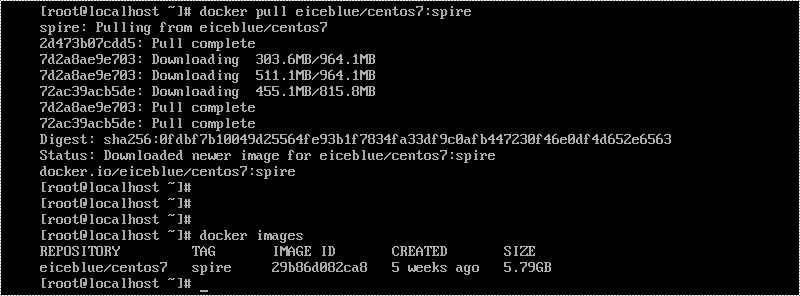
Run the script docker pull eiceblue/centos7:spire to pull the image of Spire.Cloud.Office from the docker repository.
Step 2. Create a Docker Container
Create a docker container named "spirecloud" (or whatever name you like) by executing the script docker run -itd --privileged --name spirecloud -e IP_ADDR="xxx.xxx.xxx.xxx" -p 3000:3000 -p 8000:8000 -p 8050:8050 eiceblue/centos7:spire /usr/sbin/init. Don't forget to specify the IP address and the ports according to your usage scenario.

Step 3. Copy License to CentOS
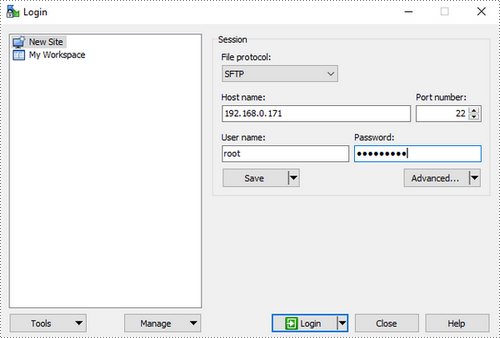
Here, we use WinSCP to copy files from Windows to the root of CentOS system.
1) Log in to WinSCP.
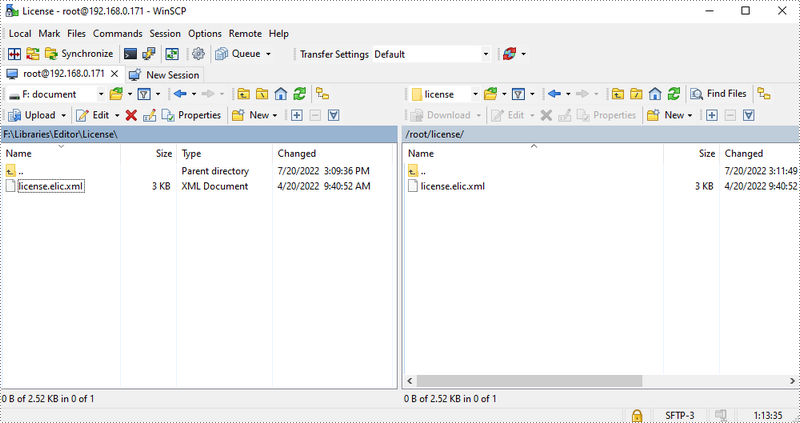
2) Copy the license file to the /root/license/ directory.
Step 4. Copy License from Root to Docker
Run the script docker cp /root/license/license.elic.xml spirecloud:/opt/spire/spire.cloud/service/ConverterService/bin/license to copy the license file from root to the docker container.

Step 5. Bind License
Execute the following commands successively to bind the license.
- docker exec -it spirecloud /bin/bash
- cd opt/spire
- sh binding_license.sh

Now that you've successfully installed Spire.Cloud.Office for Linux on CentOS, you can visit our example on port 3000, and embed the document editor in your HTML page using JavaScript.