
Knowledgebase (2370)
Children categories
Word and Excel are different from each other in terms of their uses and functioning. Word is used primarily for text documents such as essays, emails, letters, books, resumes, or academic papers where text formatting is essential. Excel is used to save data, make tables and charts and make complex calculations.
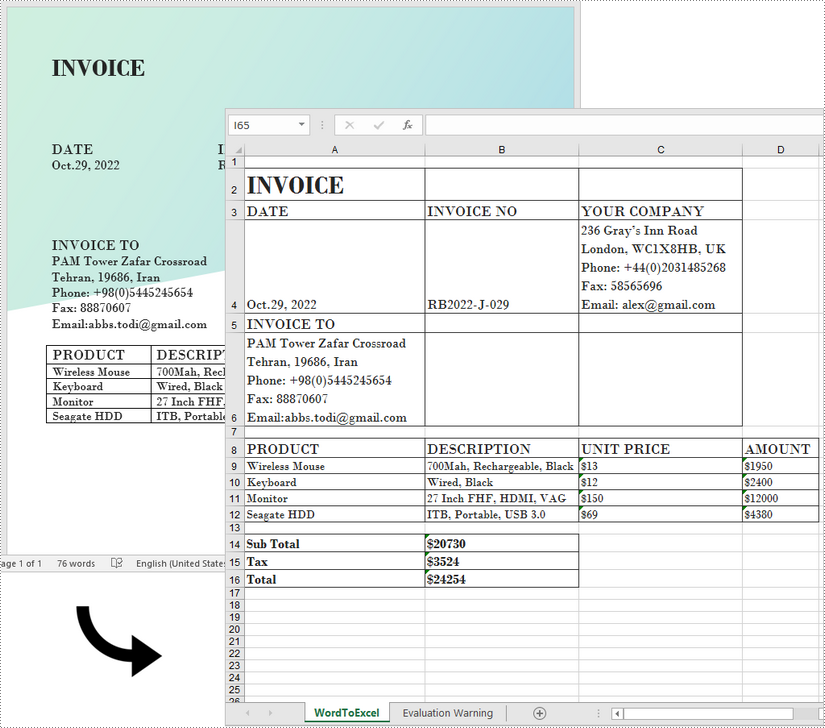
It is not recommended to convert a complex Word file to an Excel spreadsheet, because Excel can hardly render contents in the same way as Word. However, if your Word document is mainly composed of tables and you want to analyze the table data in Excel, you can use Spire.Office for Java to convert Word to Excel while maintaining good readability.
Install Spire.Office for Java
First of all, you're required to add the Spire.Office.jar file as a dependency in your Java program. The JAR file can be downloaded from this link. If you use Maven, you can easily import the JAR file in your application by adding the following code to your project's pom.xml file.
<repositories>
    <repository>
        <id>com.e-iceblue</id>
        <name>e-iceblue</name>
        <url>https://repo.e-iceblue.com/nexus/content/groups/public/</url>
    </repository>
</repositories>
<dependencies>
    <dependency>
        <groupId>e-iceblue</groupId>
        <artifactId>spire.office</artifactId>
        <version>11.6.0</version>
    </dependency>
</dependencies>
Convert Word to Excel in Java
This scenario actually uses two libraries in the Spire.Office package. They're Spire.Doc for Java and Spire.XLS for Java. The former is used to read and extract content from a Word document, and the latter is used to create an Excel document and write data in the specific cells. To make this code example easy to understand, we created the following three custom methods that preform specific functions.
- exportTableInExcel() - Export data from a Word table to specified Excel cells.
- copyContentInTable() - Copy content from a table cell in Word to an Excel cell.
- copyTextAndStyle() - Copy text with formatting from a Word paragraph to an Excel cell.
The following steps demonstrate how to export data from a Word document to a worksheet using Spire.Office for Java.
- Create a Document object to load a Word file.
- Create a Workbook object and add a worksheet named "WordToExcel" to it.
- Traverse though all the sections in the Word document, traverse through all the document objects under a certain section, and then determine if a document object is a paragraph or a table.
- If the document object is a paragraph, write the paragraph in a specified cell in Excel using coypTextAndStyle() method.
- If the document object is a table, export the table data from Word to Excel cells using exportTableInExcel() method.
- Auto fit the row height and column width in Excel so that the data within a cell will not exceed the bound of the cell.
- Save the workbook to an Excel file using Workbook.saveToFile() method.
- Java
import com.spire.doc.*;
import com.spire.doc.documents.Paragraph;
import com.spire.doc.fields.DocPicture;
import com.spire.doc.fields.TextRange;
import com.spire.xls.*;

import java.awt.*;

public class ConvertWordToExcel {

    public static void main(String[] args) {

        //Create a Document object
        Document doc = new Document();

        //Load a Word file
        doc.loadFromFile("C:\\Users\\Administrator\\Desktop\\Invoice.docx");

        //Create a Workbook object
        Workbook wb = new Workbook();

        //Remove the default worksheets
        wb.getWorksheets().clear();

        //Create a worksheet named "WordToExcel"
        Worksheet worksheet = wb.createEmptySheet("WordToExcel");
        int row = 1;
        int column = 1;

        //Loop through the sections in the Word document
        for (int i = 0; i < doc.getSections().getCount(); i++) {
            //Get a specific section
            Section section = doc.getSections().get(i);

            //Loop through the document object under a certain section
            for (int j = 0; j < section.getBody().getChildObjects().getCount(); j++) {
                //Get a specific document object
                DocumentObject documentObject = section.getBody().getChildObjects().get(j);

                //Determine if the object is a paragraph
                if (documentObject instanceof Paragraph) {
                    CellRange cell = worksheet.getCellRange(row, column);
                    Paragraph paragraph = (Paragraph) documentObject;
                    //Copy paragraph from Word to a specific cell
                    copyTextAndStyle(cell, paragraph);
                    row++;
                }

                //Determine if the object is a table
                if (documentObject instanceof Table) {
                    Table table = (Table) documentObject;
                    //Export table data from Word to Excel
                    int currentRow = exportTableInExcel(worksheet, row, table);
                    row = currentRow;
                }
            }
        }

        //Wrap text in cells
        worksheet.getAllocatedRange().isWrapText(true);

        //Auto fit row height and column width
        worksheet.getAllocatedRange().autoFitRows();
        worksheet.getAllocatedRange().autoFitColumns();

        //Save the workbook to an Excel file
        wb.saveToFile("output/WordToExcel.xlsx", ExcelVersion.Version2013);
    }

    //Export data from Word table to Excel cells
    private static int exportTableInExcel(Worksheet worksheet, int row, Table table) {
        CellRange cell;
        int column;
        for (int i = 0; i < table.getRows().getCount(); i++) {
            column = 1;
            TableRow tbRow = table.getRows().get(i);
            for (int j = 0; j < tbRow.getCells().getCount(); j++) {
                TableCell tbCell = tbRow.getCells().get(j);
                cell = worksheet.getCellRange(row, column);
                cell.borderAround(LineStyleType.Thin, Color.BLACK);
                copyContentInTable(tbCell, cell);
                column++;
            }
            row++;
        }
        return row;
    }

    //Copy content from a Word table cell to an Excel cell
    private static void copyContentInTable(TableCell tbCell, CellRange cell) {
        Paragraph newPara = new Paragraph(tbCell.getDocument());
        for (int i = 0; i < tbCell.getChildObjects().getCount(); i++) {
            DocumentObject documentObject = tbCell.getChildObjects().get(i);
            if (documentObject instanceof Paragraph) {
                Paragraph paragraph = (Paragraph) documentObject;
                for (int j = 0; j < paragraph.getChildObjects().getCount(); j++) {
                    DocumentObject cObj = paragraph.getChildObjects().get(j);
                    newPara.getChildObjects().add(cObj.deepClone());
                }
                if (i < tbCell.getChildObjects().getCount() - 1) {
                    newPara.appendText("\n");
                }
            }
        }
        copyTextAndStyle(cell, newPara);
    }

    //Copy text and style of a paragraph to a cell
    private static void copyTextAndStyle(CellRange cell, Paragraph paragraph) {

        RichText richText = cell.getRichText();
        richText.setText(paragraph.getText());
        int startIndex = 0;
        for (int i = 0; i < paragraph.getChildObjects().getCount(); i++) {
            DocumentObject documentObject = paragraph.getChildObjects().get(i);
            if (documentObject instanceof TextRange) {
                TextRange textRange = (TextRange) documentObject;
                String fontName = textRange.getCharacterFormat().getFontName();
                boolean isBold = textRange.getCharacterFormat().getBold();
                Color textColor = textRange.getCharacterFormat().getTextColor();
                float fontSize = textRange.getCharacterFormat().getFontSize();
                String textRangeText = textRange.getText();
                int strLength = textRangeText.length();
                ExcelFont font = new ExcelFont(cell.getWorksheet().getWorkbook().createFont());
                font.setColor(textColor);
                font.isBold(isBold);
                font.setSize(fontSize);
                font.setFontName(fontName);
                int endIndex = startIndex + strLength;
                richText.setFont(startIndex, endIndex, font);
                startIndex += strLength;
            }
            if (documentObject instanceof DocPicture) {
                DocPicture picture = (DocPicture) documentObject;
                cell.getWorksheet().getPictures().add(cell.getRow(), cell.getColumn(), picture.getImage());
                cell.getWorksheet().setRowHeightInPixels(cell.getRow(), 1, picture.getImage().getHeight());
            }
        }
        switch (paragraph.getFormat().getHorizontalAlignment()) {
            case Left:
                cell.setHorizontalAlignment(HorizontalAlignType.Left);
                break;
            case Center:
                cell.setHorizontalAlignment(HorizontalAlignType.Center);
                break;
            case Right:
                cell.setHorizontalAlignment(HorizontalAlignType.Right);
                break;
        }
    }
}
Apply for a Temporary License
If you'd like to remove the evaluation message from the generated documents, or to get rid of the function limitations, please request a 30-day trial license for yourself.

Word and Excel are designed for different types of content - Word focuses on documents, while Excel is better for structured data and analysis. Because of this, working with the same content across both formats isn't always straightforward.
If you have data in a Word document that you'd like to view or process in Excel, converting it manually can be tedious. With Spire.Doc for .NET, you can now convert Word directly to Excel, making it easier to reuse Word content in Excel.
In this tutorial, you'll learn how to convert Word to Excel in C#.
- Install Spire.Doc for .NET
- Basic Word to Excel Conversion in C#
- Advanced Word to Excel Conversion Scenarios
- Notes and Best Practices
- FAQs
- Get a Free License
Install Spire.Doc for .NET
To begin with, you need to add the DLL files included in the Spire.Doc for .NET package as references in your .NET project. The DLL files can be either downloaded from this link or installed via NuGet.
PM> Install-Package Spire.Doc
Basic Word to Excel Conversion in C#
Converting a Word document to Excel with Spire.Doc is straightforward:
-
Load a Word document using Document.LoadFromFile() method.
-
Save the document as an Excel file using Document.SaveToFile() method.
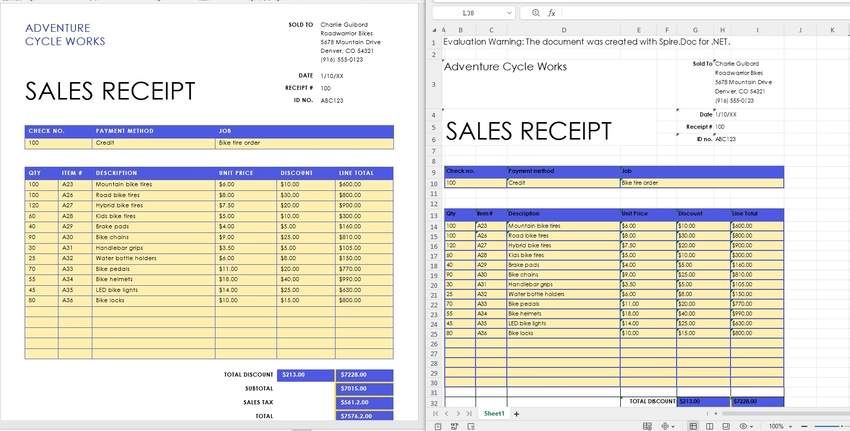
This works best when your Word document contains structured content, especially tables, which can be naturally mapped into spreadsheet cells.
using Spire.Doc;

namespace WordToExcel
{
    class Program
    {
        static void Main(string[] args)
        {
            // Load the Word document
            Document document = new Document();
            document.LoadFromFile("C:\\Users\\Tommy\\Desktop\\Sample.docx");

            // Save as Excel
            document.SaveToFile("C:\\Users\\Tommy\\Desktop\\Sample.xlsx", FileFormat.XLSX);

            document.Dispose();
        }
    }
}
Output Results:
What Gets Converted Well?
When converting Word to Excel, it's important to understand how content is interpreted:
- Tables in Word are converted into Excel worksheets with rows and columns preserved.
- Paragraph text may be inserted into cells, but without strict structure.
- Complex layouts (floating elements, multi-column sections) may not translate perfectly.
- By default, each Section in a Word document is converted into a separate worksheet in Excel.
For best results, ensure your Word document uses clear table structures before conversion.
Advanced Word to Excel Conversion Scenarios
Once you understand the basic conversion process, you can handle more advanced scenarios depending on your needs.
Convert Only Tables from Word to Excel
If you only need structured data, extracting tables from a Word document is often more useful than converting the entire file. By default, all tables within the same section are placed into a single worksheet. To output each table into a separate worksheet, you can place each table into its own section before conversion.
To do this, you can work with the document structure and table objects:
- Use section.Tables to access all tables within a section.
- Use table.Clone() to create a copy of each table.
- Create a new section for each table so that each one is mapped to a separate worksheet in Excel.
This approach gives you precise control over the output and ensures that only relevant data is included in the resulting Excel file.
using Spire.Doc;

class Program
{
    static void Main()
    {
        // Load the Word document
        Document doc = new Document();
        doc.LoadFromFile("G:/Documents/Sample84.docx");

        // Create a new document to store extracted tables
        Document tempDoc = new Document();

        // Iterate through all sections in the source document
        foreach (Section section in doc.Sections)
        {
            // Iterate through all tables in the current section
            foreach (Table table in section.Tables)
            {
                // Create a new section for each table (each section becomes a separate worksheet in Excel)
                Section tempSec = tempDoc.AddSection();

                // Clone the table and add it to the new section
                tempSec.Tables.Add(table.Clone());
            }
        }

        // Save as Excel file
        tempDoc.SaveToFile("Tables.xlsx", FileFormat.XLSX);

        // Close and release resources
        doc.Close();
        tempDoc.Close();
    }
}
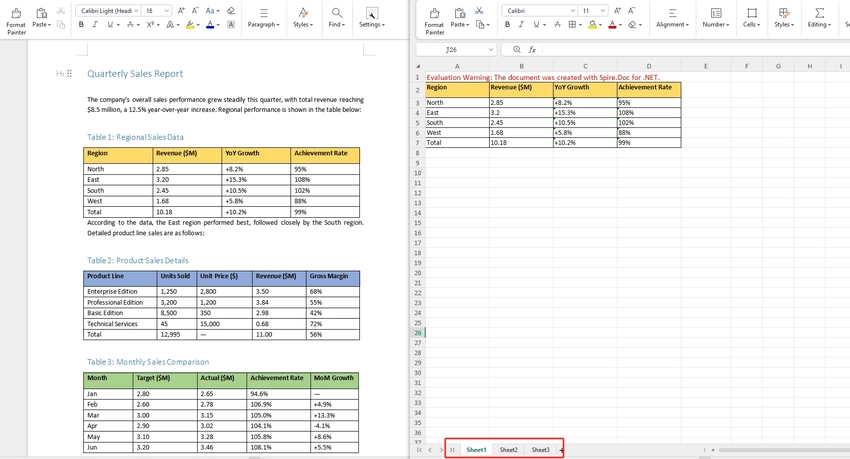
Note: Since each table is placed into its own section before conversion, each table will appear in a separate worksheet in the output Excel file.
Convert a Specific Page of a Word Document to Excel
In some cases, only a specific page contains the data you need — for example, a summary table on page 2 — use Document.ExtractPages() to isolate that page into a new Document object before converting. This avoids processing the entire file and gives you a cleaner, focused output. If you're only interested in structured data from that page, you can further extract tables from Word in C# before exporting.
using Spire.Doc;

namespace WordPageToExcel
{
    class Program
    {
        static void Main(string[] args)
        {
            // Load the Word document
            Document document = new Document();
            document.LoadFromFile("input.docx");

            // Extract the content of the specified page (e.g., page 1)
            Document pageDoc = document.ExtractPages(0, 1); // Retrieve page 1 (starting from index 0, retrieve page 1).

            // Save the extracted page as Excel
            pageDoc.SaveToFile("output.xlsx", FileFormat.XLSX);

            document.Dispose();
            pageDoc.Dispose();
        }
    }
}
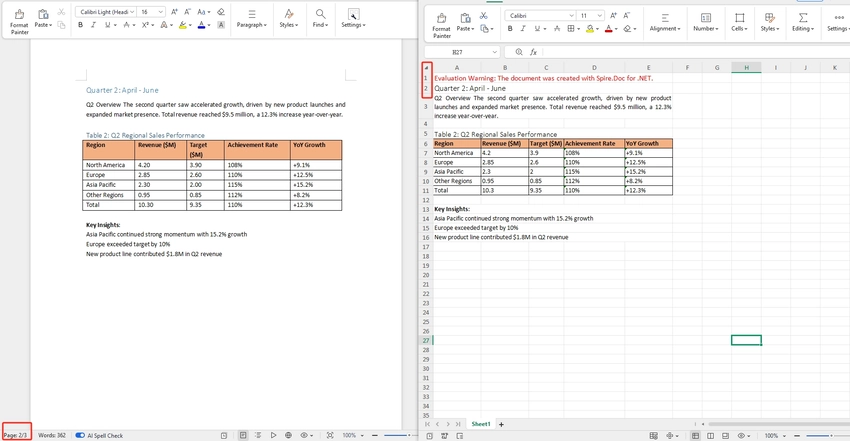
Note: Page boundaries in Word are flow-based and can shift depending on font rendering. If the extracted page doesn't match what you see in Word, verify the page index by testing with a few values around your target.
Batch Convert Multiple Word Documents to Excel
To convert an entire folder of Word files, loop through each .docx file and apply the same conversion. This is useful for bulk migrations or scheduled processing pipelines.
This approach can be easily integrated into background jobs or automation workflows.
using Spire.Doc;
using System.IO;

namespace BatchWordToExcel
{
    class Program
    {
        static void Main(string[] args)
        {
            // Get all Word files from the input folder
            string inputFolder = "inputDocs";
            string outputFolder = "outputExcels";
            Directory.CreateDirectory(outputFolder);

            string[] wordFiles = Directory.GetFiles(inputFolder, "*.docx");

            // Loop through each Word file and convert to Excel
            foreach (string filePath in wordFiles)
            {
                Document document = new Document();
                document.LoadFromFile(filePath);

                string fileName = Path.GetFileNameWithoutExtension(filePath);
                string outputPath = Path.Combine(outputFolder, fileName + ".xlsx");

                document.SaveToFile(outputPath, FileFormat.XLSX);
                document.Dispose();
            }
        }
    }
}
Tip: For large batches, consider wrapping the inner block in a try/catch so a single malformed file doesn't abort the entire run. If your workflow requires combining documents before conversion, learn how to merge Word documents in C#.
Notes and Best Practices
- For best results, use well-structured tables in Word.
- Avoid complex layouts like floating shapes or multi-column designs.
- For large-scale processing, consider handling files in batches to optimize memory usage.
FAQs
Q1: Which Word file formats are supported for conversion?
A: Spire.Doc for .NET supports both .doc and .docx formats as input. You can load either format using Document.LoadFromFile() and the library will handle the rest automatically.
Q2: Will the original formatting be preserved after conversion?
A: The conversion focuses on exporting content into a spreadsheet format. Structured content like tables is usually preserved with good readability, while complex layouts may not be retained exactly as in Word.
Q3: Is this feature suitable for large documents?
A: Yes, but performance may vary depending on document size and complexity. For large files, it is recommended to optimize memory usage and process documents efficiently in your code.
Q4: Can I further customize the Excel output after conversion?
A: Yes. After saving the converted .xlsx file, you can open it with Spire.XLS for .NET to further customize the output, such as adjusting cell styles, fonts, colors, column widths, or adding formulas. The two libraries are designed to work together seamlessly.
Conclusion
In this article, you learned how to convert Word to Excel in C# using Spire.Doc for .NET, from basic document conversion to more advanced scenarios like page extraction and table-focused processing. For more control over the output, such as adjusting fonts, colors, or cell formatting - you can combine it with Spire.XLS for .NET.
You can also explore other conversion features, such as exporting Word documents to PDF, HTML, or images.
Get a Free License
If you'd like to remove the evaluation message from the generated documents, or to get rid of the function limitations, please request a 30-day trial license for yourself.
Sometimes, you may need to perform specific operations on multiple shapes in Excel, such as adding styles, resizing, or moving them around. Grouping shapes can help you accomplish this task more easily and efficiently. Once shapes are grouped, they are treated as a single entity and can be manipulated at the same time. In this article, you will learn how to programmatically group or ungroup shapes in Excel in C# and VB.NET using Spire.XLS for .NET.
Install Spire.XLS for .NET
To begin with, you need to add the DLL files included in the Spire.XLS for .NET package as references in your .NET project. The DLL files can be either downloaded from this link or installed via NuGet.
PM> Install-Package Spire.XLS
Group Shapes in Excel using C# and VB.NET
To group certain shapes in an Excel worksheet, you need to use the Worksheet.GroupShapeCollection property to return a GroupShapeCollection object, and then call the GroupShapeCollection.Group() method. The following are the detailed steps:
- Initialize an instance of Workbook class.
- Get the first worksheet by its index through Workbook.Worksheets[int] property.
- Add several shapes to specific rows and columns in the worksheet using Worksheet.PrstGeomShapes.AddPrstGeomShape(int, int, int, int, PrstGeomShapeType) method.
- Get the group shape collection of the worksheet through Worksheet.GroupShapeCollection property.
- Group the shapes using GroupShapeCollection.Group(IShape[]) method.
- Save the result document using Workbook.SaveToFile(string) method.
- C#
- VB.NET
using Spire.Xls;
using Spire.Xls.Core;
using Spire.Xls.Core.MergeSpreadsheet.Collections;
using System.Drawing;

namespace GroupShapes
{
    class Program
    {
        static void Main(string[] args)
        {
            //Create a Workbook instance
            Workbook workbook = new Workbook();
            //Get the first worksheet
            Worksheet worksheet = workbook.Worksheets[0];

            //Add four shapes
            IPrstGeomShape shape1 = worksheet.PrstGeomShapes.AddPrstGeomShape(3, 3, 65, 50, PrstGeomShapeType.RoundRect);
            shape1.Fill.FillType = ShapeFillType.SolidColor;
            shape1.Fill.ForeColor = Color.Yellow;
            shape1.Line.Weight = 0.1;
            IPrstGeomShape shape2 = worksheet.PrstGeomShapes.AddPrstGeomShape(7, 3, 65, 50, PrstGeomShapeType.Ribbon);
            shape2.Fill.FillType = ShapeFillType.SolidColor;
            shape2.Fill.ForeColor = Color.Purple;
            shape2.Line.Weight = 0.1;
            IPrstGeomShape shape3 = worksheet.PrstGeomShapes.AddPrstGeomShape(3, 5, 65, 50, PrstGeomShapeType.Cloud);
            shape3.Fill.FillType = ShapeFillType.SolidColor;
            shape3.Fill.ForeColor = Color.LightGreen;
            shape3.Line.Weight = 0.1;
            IPrstGeomShape shape4 = worksheet.PrstGeomShapes.AddPrstGeomShape(7, 5, 65, 50, PrstGeomShapeType.Ellipse);
            shape4.Fill.FillType = ShapeFillType.SolidColor;
            shape4.Fill.ForeColor = Color.LightSkyBlue;
            shape4.Line.Weight = 0.1;

            //Group the shapes
            GroupShapeCollection groupShapeCollection = worksheet.GroupShapeCollection;
            groupShapeCollection.Group(new IShape[] { shape1, shape2, shape3, shape4});


            //Save the result file
            workbook.SaveToFile("GroupShapes.xlsx", ExcelVersion.Version2013);
        }
    }
}
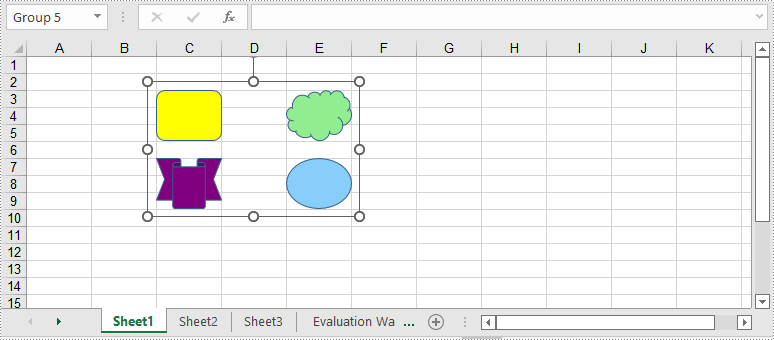
Ungroup Shapes in Excel using C# and VB.NET
To ungroup the grouped shapes in an Excel worksheet, you can use the GroupShapeCollection. UnGroupAll() method. After the shapes are ungrouped, you can manipulate them individually. The following are the detailed steps:
- Initialize an instance of Workbook class.
- Load an Excel file using Workbook.LoadFromFile() method.
- Get a specific worksheet by its index through Workbook.Worksheets[int] property.
- Get the group shape collection of the worksheet through Worksheet.GroupShapeCollection property.
- Ungroup all the grouped shapes using GroupShapeCollection.UnGroupAll() method.
- Save the result document using Workbook.SaveToFile() method.
- C#
- VB.NET
using Spire.Xls;
using Spire.Xls.Core.MergeSpreadsheet.Collections;

namespace UngroupShapes
{
    class Program
    {
        static void Main(string[] args)
        {
            //Create a Workbook instance
            Workbook workbook = new Workbook();
            workbook.LoadFromFile("GroupShapes.xlsx");

            //Get the first worksheet
            Worksheet worksheet = workbook.Worksheets[0];

            //Ungroup the grouped shapes in the worksheet
            GroupShapeCollection groupShapeCollection = worksheet.GroupShapeCollection;
            groupShapeCollection.UnGroupAll();

            //Save the result file
            workbook.SaveToFile("UnGroupShapes.xlsx", ExcelVersion.Version2013);
        }
    }
}
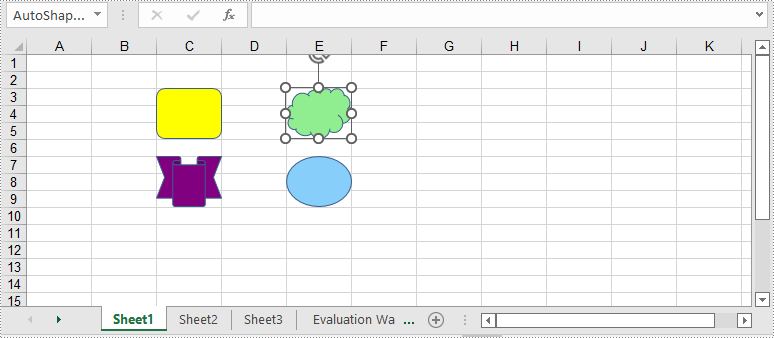
Apply for a Temporary License
If you'd like to remove the evaluation message from the generated documents, or to get rid of the function limitations, please request a 30-day trial license for yourself.
