
Knowledgebase (2370)
Children categories
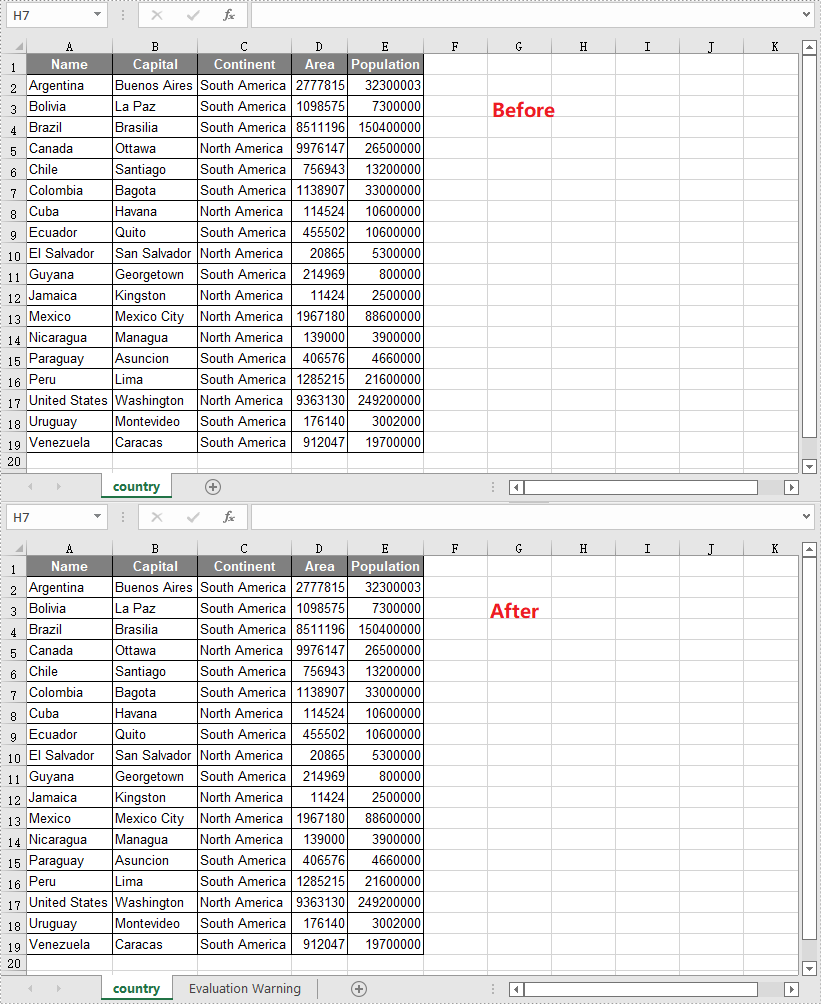
When you open an XLS file in a newer version of Microsoft Excel, such as Excel 2016 or 2019, you'll see "Compatibility Mode" in the title bar after the file name. If you want to change from Compatibility Mode to Normal Mode, you can save the XLS file as a newer Excel file format like XLSX. In this article, you will learn how to convert XLS to XLSX or XLSX to XLS in Java using Spire.XLS for Java.
Install Spire.XLS for Java
First of all, you're required to add the Spire.Xls.jar file as a dependency in your Java program. The JAR file can be downloaded from this link. If you use Maven, you can easily import the JAR file in your application by adding the following code to your project's pom.xml file.
<repositories>
    <repository>
        <id>com.e-iceblue</id>
        <name>e-iceblue</name>
        <url>https://repo.e-iceblue.com/nexus/content/groups/public/</url>
    </repository>
</repositories>
<dependencies>
    <dependency>
        <groupId>e-iceblue</groupId>
        <artifactId>spire.xls</artifactId>
        <version>16.7.3</version>
    </dependency>
</dependencies>
Convert XLS to XLSX in Java
The following are the steps to convert an XLS file to XLSX format using Spire.XLS for Java:
- Create a Workbook instance.
- Load the XLS file using Workbook.loadFromFile() method.
- Save the XLS file to XLSX format using Workbook.saveToFile(String, ExcelVersion) method.
- Java
import com.spire.xls.ExcelVersion;
import com.spire.xls.Workbook;

public class ConvertXlsToXlsx {
    public static void main(String[] args){
        //Initialize an instance of Workbook class
        Workbook workbook = new Workbook();
        //Load the XLS file
        workbook.loadFromFile("Input.xls");

        //Save the XLS file to XLSX format
        workbook.saveToFile("ToXlsx.xlsx", ExcelVersion.Version2016);
    }
}
Convert XLSX to XLS in Java
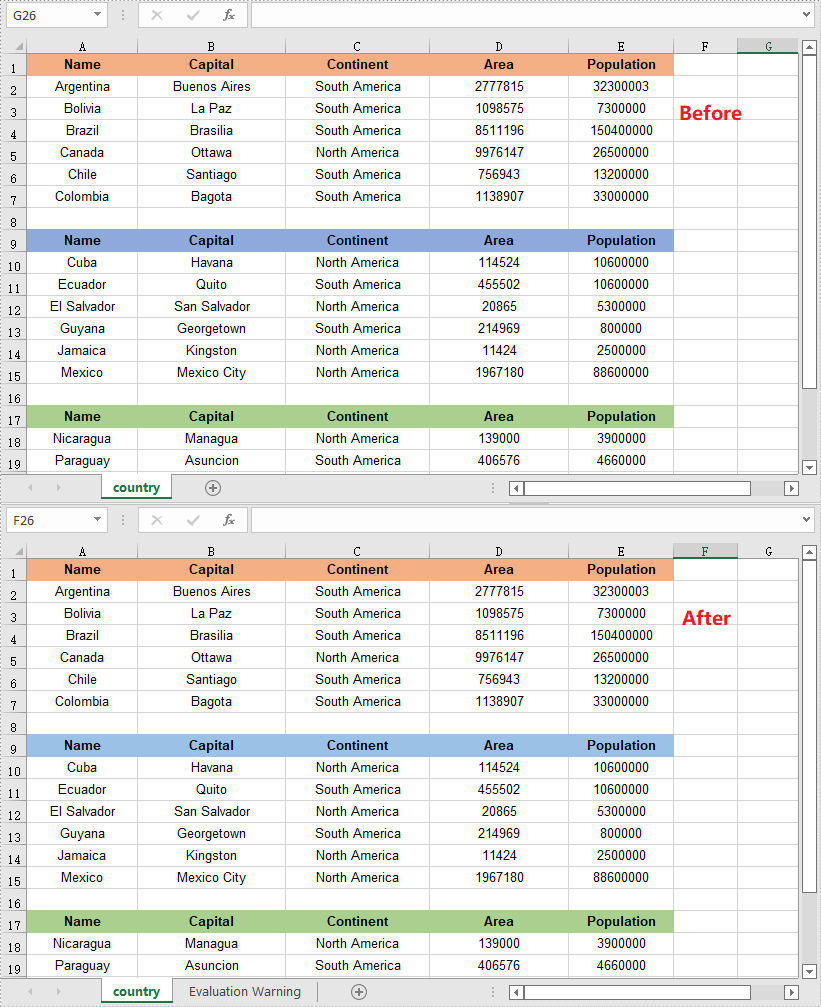
The following are the steps to convert an XLSX file to XLS format using Spire.XLS for Java:
- Create a Workbook instance.
- Load the XLSX file using Workbook.loadFromFile() method.
- Save the XLSX file to XLS format using Workbook.saveToFile(String, ExcelVersion) method.
- Java
import com.spire.xls.ExcelVersion;
import com.spire.xls.Workbook;

public class ConvertXlsxToXls {
    public static void main(String[] args){
        //Initialize an instance of Workbook class
        Workbook workbook = new Workbook();
        //Load the XLSX file
        workbook.loadFromFile("Input.xlsx");

        //Save the XLSX file to XLS format
        workbook.saveToFile("ToXls.xls", ExcelVersion.Version97to2003);
    }
}
Apply for a Temporary License
If you'd like to remove the evaluation message from the generated documents, or to get rid of the function limitations, please request a 30-day trial license for yourself.
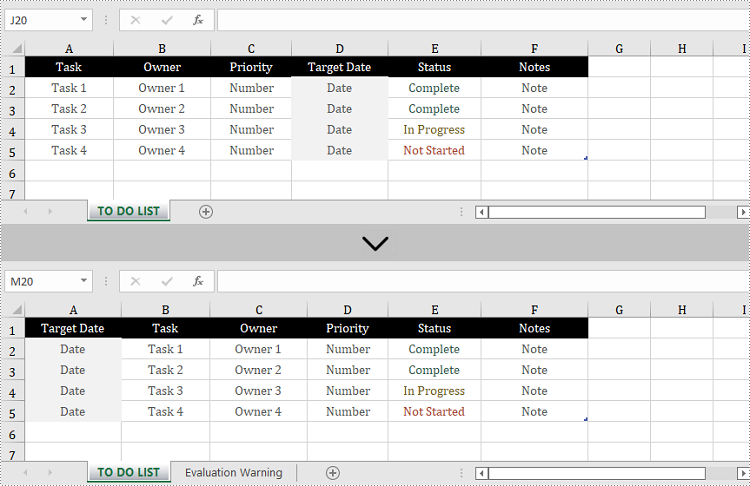
The proper adjustment of the columns' order in Excel can improve readability. For example, by setting the date data as the first column, we can quickly locate data based on a specific date. It is easy to move columns in MS Excel by using Shift and Drag. This article, however, focuses on how to rearrange columns in Excel in C# and VB.NET by using Spire.XLS for .NET.
Install Spire.XLS for .NET
To begin with, you need to add the DLL files included in the Spire.XLS for .NET package as references in your .NET project. The DLL files can be either downloaded from this link or installed via NuGet.
PM> Install-Package Spire.XLS
Reorder Excel Columns in C# and VB.NET
The following are the steps to rearrange columns in Excel using Spire.XLS for .NET.
- Create a Workbook object, and load a sample Excel file using Workbook.LoadFromFile() method.
- Get the target worksheet using Workbook.Worksheets[index] property.
- Specify the new column order in an int array.
- Create a temporary sheet and copy the data from the target sheet into it.
- Copy the columns from the temporary sheet to the target sheet and store them in the new order.
- Remove the temporary sheet.
- Save the workbook to another Excel file using Workbook.SaveToFile() method.
- C#
- VB.NET
using System.Linq;
using Spire.Xls;

namespace MoveColumn
{
    class Program
    {
        static void Main(string[] args)
        {
            //Create a Workbook object
            Workbook workbook = new Workbook();

            //Load an Excel file
            workbook.LoadFromFile(@"C:\Users\Administrator\Desktop\sample.xlsx");

            //Get the first worksheet
            Worksheet worksheet = workbook.Worksheets[0];

            //Set the new column order (the column index starts from 0)
            int[] newColumnOrder = new int[] { 3, 0, 1, 2, 4, 5 };

            //Add a temporary worksheet
            Worksheet newSheet = workbook.Worksheets.Add("temp");

            //Copy data from the first worksheet to the temporary sheet
            newSheet.CopyFrom(worksheet);

            //Loop through the newColumnOrder array
            for (int i = 0; i < newColumnOrder.Count(); i++)
            {
                //Copy the column from the temporary sheet to the first sheet
                newSheet.Columns[newColumnOrder[i]].Copy(worksheet.Columns[i], true, true);

                //Set the width of a certain column the first sheet to that of the temporary sheet
                worksheet.Columns[i].ColumnWidth = newSheet.Columns[newColumnOrder[i]].ColumnWidth;
            }

            //Remove temporary sheet
            workbook.Worksheets.Remove(newSheet);

            //Save the workbook to another Excel file
            workbook.SaveToFile("MoveColumn.xlsx", FileFormat.Version2016);
        }
    }
}
Apply for a Temporary License
If you'd like to remove the evaluation message from the generated documents, or to get rid of the function limitations, please request a 30-day trial license for yourself.
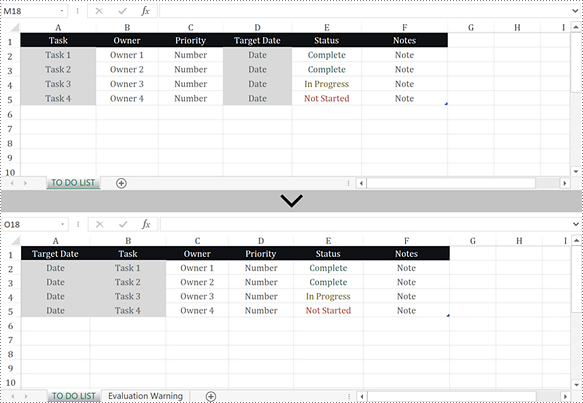
When you are dealing with the data in a worksheet, you may need to rearrange the columns so as to make it easier to find and read the specific data. It is easy to move columns in MS Excel by using Shift and Drag. This article introduces how to programmatically reorder columns in Excel using Spire.XLS for Java.
Install Spire.XLS for Java
First of all, you're required to add the Spire.Xls.jar file as a dependency in your Java program. The JAR file can be downloaded from this link. If you use Maven, you can easily import the JAR file in your application by adding the following code to your project's pom.xml file.
<repositories>
    <repository>
        <id>com.e-iceblue</id>
        <name>e-iceblue</name>
        <url>https://repo.e-iceblue.com/nexus/content/groups/public/</url>
    </repository>
</repositories>
<dependencies>
    <dependency>
        <groupId>e-iceblue</groupId>
        <artifactId>spire.xls</artifactId>
        <version>16.7.3</version>
    </dependency>
</dependencies>
Rearrange Columns in Excel in Java
The following are the steps to reorder columns in Excel using Spire.XLS for Java.
- Create a Workbook object, and load a sample Excel file using Workbook.loadFromFile() method.
- Get the target worksheet where you’d like to adjust the order using Workbook.getWorksheets().get() method.
- Specify the new column order in an int array.
- Create a temporary sheet and copy the data from the target sheet into it.
- Copy the columns from the temporary sheet to the target sheet and store them in the new order.
- Remove the temporary sheet.
- Save the workbook to another Excel file using Workbook.saveToFile() method.
- Java
import com.spire.xls.FileFormat;
import com.spire.xls.Workbook;
import com.spire.xls.Worksheet;

public class RearrangeColumns {

    public static void main(String[] args) {

        //Create a Workbook object
        Workbook workbook = new Workbook();

        //Load an Excel file
        workbook.loadFromFile( "C:\\Users\\Jack\\Desktop\\sample.xlsx");

        //Get the first worksheet
        Worksheet worksheet = workbook.getWorksheets().get(0);

        //Set the new column order (the column index starts from 0)
        int[] newColumnOrder = new int[]{3, 0, 1, 2, 4, 5};

        //Add a temporary worksheet
        Worksheet newSheet = workbook.getWorksheets().add("temp");

        //Copy data from the first worksheet to the temporary sheet
        newSheet.copyFrom(worksheet);

        //Loop through the newColumnOrder array
        for (int i = 0; i < newColumnOrder.length; i++) {

            //Copy the column from the temporary sheet to the first sheet
            newSheet.getColumns()[newColumnOrder[i]].copy(worksheet.getColumns()[i],true,true);

            //Set the width of a certain column the first sheet to that of the temporary sheet
            worksheet.getColumns()[i].setColumnWidth(newSheet.getColumns()[newColumnOrder[i]].getColumnWidth());
        }

        //Remove temporary sheet
        workbook.getWorksheets().remove(newSheet);

        //Save the workbook to another Excel file
        workbook.saveToFile("output/MoveColumn.xlsx", FileFormat.Version2016);
    }
}
Apply for a Temporary License
If you'd like to remove the evaluation message from the generated documents, or to get rid of the function limitations, please request a 30-day trial license for yourself.
