
Knowledgebase (2370)
Children categories
In Microsoft Excel, suppose a workbook contains lots of worksheets and you need to count them, you can use the Sheets Function, the Define Name Command or a simple VBA code to achieve it. Within this tutorial, I’ll show you how to programmatically count the number of worksheets in Excel using Spire.XLS for Java.
Install Spire.XLS for Java
First of all, you're required to add the Spire.Xls.jar file as a dependency in your Java program. The JAR file can be downloaded from this link. If you use Maven, you can easily import the JAR file in your application by adding the following code to your project's pom.xml file.
<repositories>
    <repository>
        <id>com.e-iceblue</id>
        <name>e-iceblue</name>
        <url>https://repo.e-iceblue.com/nexus/content/groups/public/</url>
    </repository>
</repositories>
<dependencies>
    <dependency>
        <groupId>e-iceblue</groupId>
        <artifactId>spire.xls</artifactId>
        <version>16.7.3</version>
    </dependency>
</dependencies>
Count the Number of Worksheets in Excel
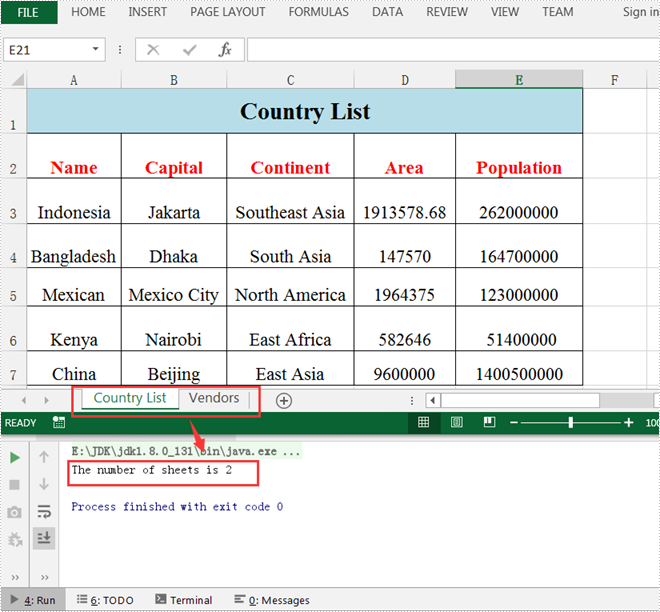
Spire.XLS for Java supports counting the number of worksheets in Excel using the getCount() method provided by the IWorksheets interface. The following are detailed steps.
- Create a Workbook instance.
- Load a sample Excel document using Workbook.loadFromFile() method.
- Get a collection of worksheets using Workbook.getWorksheets() method and obtain the number of worksheets in the collection using the getCount() method.
- Java
import com.spire.xls.Workbook;

public class CountNumberOfWorsheets {
    public static void main(String[] args) {
        //Create a Workbook instance
        Workbook workbook = new Workbook();

        //Load a sample Excel file
        workbook.loadFromFile("C:\\Users\\Test1\\Desktop\\Sample.xlsx");

        //Get the number of worksheets
        int sheetCount=workbook.getWorksheets().getCount();

        //Output the result
        System.out.println("The number of sheets is "+sheetCount);
    }
}
Apply for a Temporary License
If you'd like to remove the evaluation message from the generated documents, or to get rid of the function limitations, please request a 30-day trial license for yourself.
PowerPoint is a presentation document that is typically used for product introductions, performance reports, teaching, and other purposes. Since the design of PowerPoint is a visual behavior and needs constant fine-tuning, it is not recommended to create PowerPoint from scratch programmatically. But if you do have the requirement to create PowerPoint documents in C# or VB.NET, you can try this solution provided by Spire.Presentation for .NET.
Install Spire.Presentation for .NET
To begin with, you need to add the DLL files included in the Spire.Presentation for.NET package as references in your .NET project. The DLL files can be either downloaded from this link or installed via NuGet.
PM> Install-Package Spire.Presentation
Create a Simple PowerPoint Document
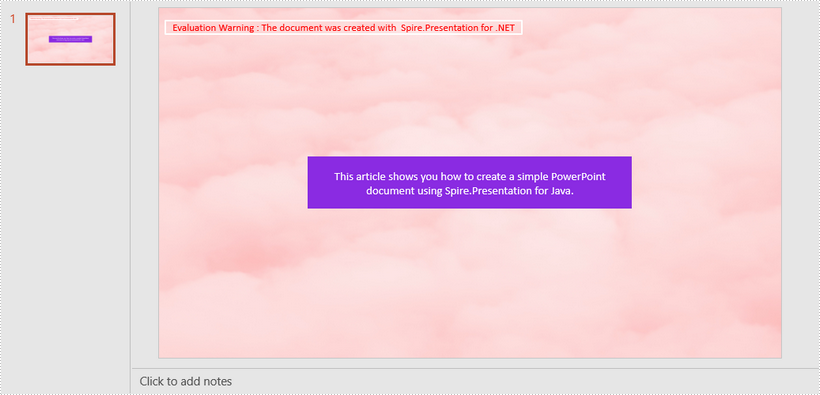
Spire.Presentation for .NET offers the Presentation class and the ISlide interface to represent a PowerPoint document and a slide respectively. It is quite straightforward and simple for developers to use the properties and methods under them to create or manipulate PowerPoint files. The following are the steps to generate a simple PowerPoint document using it.
- Create a Presentation object, and set the slide size type to screen 16x9 through the Presentation.SlideSize.Type property.
- Get the first slide through the Presentation.Slides[] property.
- Set the background image of the slide using ISlide.SlideBackground property.
- Add a rectangle to the slide using ISlide.Shapes.AppendShape() method, positioning the shape at the center of the slide using IAutoShape.SetShapeAlignment() method.
- Set the fill color, line style, font color, and text of the shape through other properties under the IAutoShape object.
- Save the presentation to a .pptx file using Presentation.SaveToFile() method.
- C#
- VB.NET
using System.Drawing;
using Spire.Presentation;
using Spire.Presentation.Drawing;

namespace CreatePowerPoint
{
    class Program
    {
        static void Main(string[] args)
        {
            //Create a Presentation object
            Presentation presentation = new Presentation();

            //Set the slide size type to screen 16x9
            presentation.SlideSize.Type = SlideSizeType.Screen16x9;

            //Get the first slide
            ISlide slide = presentation.Slides[0];

            //Set the background image
            string imgPath = @"C:\Users\Administrator\Desktop\bgImage.jpg";
            IImageData imageData = presentation.Images.Append(Image.FromFile(imgPath));
            slide.SlideBackground.Type = Spire.Presentation.Drawing.BackgroundType.Custom;
            slide.SlideBackground.Fill.FillType = Spire.Presentation.Drawing.FillFormatType.Picture;
            slide.SlideBackground.Fill.PictureFill.FillType = PictureFillType.Stretch;
            slide.SlideBackground.Fill.PictureFill.Picture.EmbedImage = imageData;

            //Insert a rectangle shape
            Rectangle rect = new Rectangle(100, 100, 500, 80);
            IAutoShape shape = slide.Shapes.AppendShape(ShapeType.Rectangle, rect);

            //Position the shape at the center of the slide
            shape.SetShapeAlignment(ShapeAlignment.AlignCenter);
            shape.SetShapeAlignment(ShapeAlignment.DistributeVertically);

            //Set the fill color, line style and font color of the shape
            shape.Fill.FillType = FillFormatType.Solid;
            shape.Fill.SolidColor.Color = Color.BlueViolet;
            shape.ShapeStyle.LineStyleIndex = 0;//no line
            shape.ShapeStyle.FontColor.Color = Color.White;

            //Set the text of the shape
            shape.TextFrame.Text = "This article shows you how to create a simple PowerPoint document using Spire.Presentation for Java.";

            //Save to file
            presentation.SaveToFile("CreatePowerPoint.pptx", FileFormat.Pptx2013);
        }
    }
}
Apply for a Temporary License
If you'd like to remove the evaluation message from the generated documents, or to get rid of the function limitations, please request a 30-day trial license for yourself.
Margins are white areas around a PDF page. In cases where you need more white space to add additional information, you can increase the margins. In some other cases, you may also have to reduce the margins. This article demonstrates how to adjust the margins of an existing PDF document using Spire.PDF for Java.
Install Spire.PDF for Java
First of all, you're required to add the Spire.Pdf.jar file as a dependency in your Java program. The JAR file can be downloaded from this link. If you use Maven, you can easily import the JAR file in your application by adding the following code to your project's pom.xml file.
<repositories>
    <repository>
        <id>com.e-iceblue</id>
        <name>e-iceblue</name>
        <url>https://repo.e-iceblue.com/nexus/content/groups/public/</url>
    </repository>
</repositories>
<dependencies>
    <dependency>
        <groupId>e-iceblue</groupId>
        <artifactId>spire.pdf</artifactId>
        <version>12.7.0</version>
    </dependency>
</dependencies>
Increase Margins of an Existing PDF
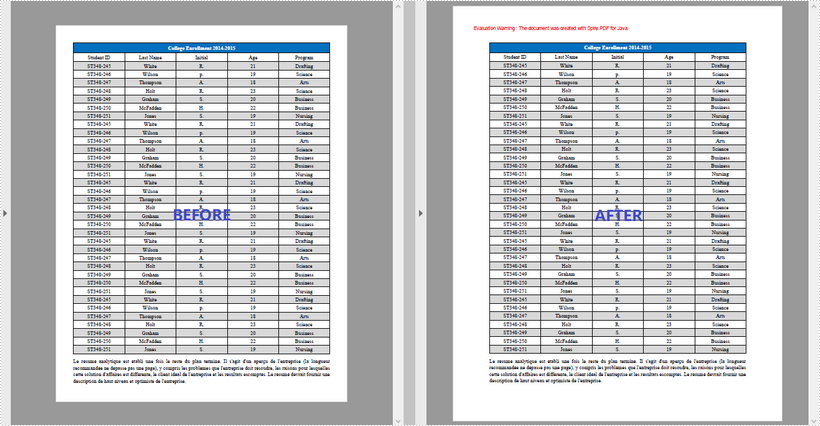
The way to enlarge the margin of a PDF document is to create a new PDF that has a larger page size and then draw the original pages on the larger pages at the proper location. The following are the main steps to increase margins of an existing PDF document using Spire.PDF for Java.
- Load the original PDF document while initialing the PdfDocument object.
- Create another PdfDocument object, which is used to create a new PDF document that has a larger page size.
- Set the increasing values of the margins.
- Set the page size of the new PDF document.
- Loop through the pages in the original document, and create a template based on a certain page using PdfPageBase.createTemplate() method.
- Add a page to the new PDF document using PdfDocument.getPages().add() method.
- Draw the template on the page from (0, 0) using PdfTemplate.draw() method.
- Save the new PDF document to file using PdfDocument.saveToFile() method.
- Java
import com.spire.pdf.FileFormat;
import com.spire.pdf.PdfDocument;
import com.spire.pdf.PdfPageBase;
import com.spire.pdf.graphics.PdfMargins;
import com.spire.pdf.graphics.PdfTemplate;

import java.awt.*;
import java.awt.geom.Dimension2D;
import java.awt.geom.Point2D;

public class IncreaseMargins {

    public static void main(String[] args) {

        //Load the original PDF document
        PdfDocument originalPdf = new PdfDocument("C:\\Users\\Administrator\\Desktop\\sample.pdf");

        //Get the first page
        PdfPageBase firstPage = originalPdf.getPages().get(0);

        //Create a new PdfDocument object
        PdfDocument newPdf = new PdfDocument();

        //Set increasing value of the margins
        PdfMargins margins = newPdf.getPageSettings().getMargins();
        margins.setTop(40);
        margins.setBottom(40);
        margins.setLeft(40);
        margins.setRight(40);

        //Set the size for the new PDF document
        Dimension2D dimension2D = new Dimension();
        dimension2D.setSize(firstPage.getSize().getWidth() + margins.getLeft() + margins.getRight(), firstPage.getSize().getHeight() + margins.getTop() + margins.getBottom());

        //Loop through the pages in the original document
        for (int i = 0; i < originalPdf.getPages().getCount(); i++) {

            //Create a template based on the source page
            PdfTemplate template = originalPdf.getPages().get(i).createTemplate();

            //Add a page to the new PDF
            PdfPageBase page = newPdf.getPages().add(dimension2D);

            //Draw template on the page
            template.draw(page.getCanvas(), new Point2D.Float(0, 0));
        }

        //Save the new document to file
        newPdf.saveToFile("output/IncreaseMargins.pdf", FileFormat.PDF);
    }
}
Decrease Margins of an Existing PDF
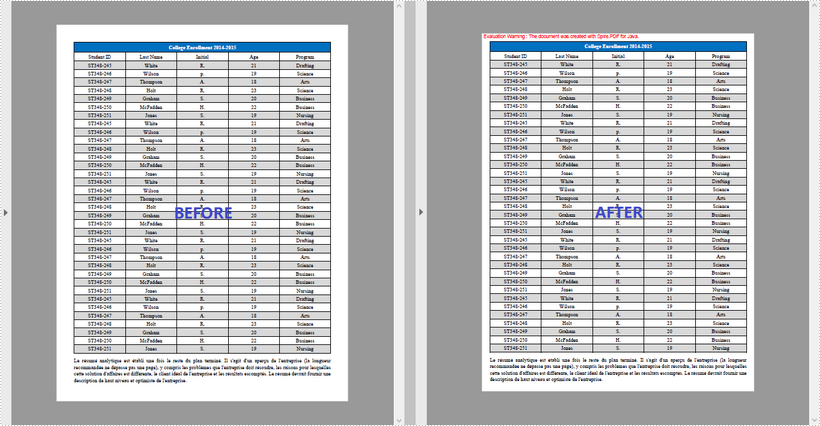
Likewise, the way to decrease the margins of a PDF is to create a new PDF that has a smaller page size and then draw the original pages on the smaller pages at a specified coordinate. The following are the main steps to decrease margins of an existing PDF document using Spire.PDF for Java.
- Load the original PDF document while initialing the PdfDocument object.
- Create another PdfDocument object, which is used to create a new PDF document that has a smaller page size.
- Set the decreasing values of the margins.
- Set the page size of the new PDF document.
- Loop through the pages in the original document, and create a template based on a certain page using PdfPageBase.createTemplate() method.
- Add a page to the new PDF document using PdfDocument.getPages().add() method.
- Draw the template on the page at the specified position using PdfTemplate.draw() method.
- Save the new PDF document to file using PdfDocument.saveToFile() method.
- Java
import com.spire.pdf.FileFormat;
import com.spire.pdf.PdfDocument;
import com.spire.pdf.PdfPageBase;
import com.spire.pdf.graphics.PdfMargins;
import com.spire.pdf.graphics.PdfTemplate;

import java.awt.*;
import java.awt.geom.Dimension2D;
import java.awt.geom.Point2D;

public class DecreaseMargins {
    public static void main(String[] args) {

        //Load the original PDF document
        PdfDocument originalPdf = new PdfDocument("C:\\Users\\Administrator\\Desktop\\sample.pdf");

        //Get the first page
        PdfPageBase firstPage = originalPdf.getPages().get(0);

        //Create a new PdfDocument object
        PdfDocument newPdf = new PdfDocument();

        //Set decreasing value
        double left = -20;
        double right = -20;
        double top = -20;
        double bottom = -20;

        //Set the page size of the new PDF document
        Dimension2D dimension2D = new Dimension();
        dimension2D.setSize(originalPdf.getPages().get(0).getSize().getWidth() + left + right, originalPdf.getPages().get(0).getSize().getHeight() + top + bottom);

        //Loop through the pages in the original document
        for (int i = 0; i < originalPdf.getPages().getCount(); i++) {

            //Create template based on the source page
            PdfTemplate template = originalPdf.getPages().get(i).createTemplate();

            //Add a page to the new PDF
            PdfPageBase page = newPdf.getPages().add(dimension2D, new PdfMargins(0));

            //Draw template on the page
            template.draw(page.getCanvas(), new Point2D.Float((float) left, (float) top));
        }

        //Save the new document to file
        newPdf.saveToFile("output/DecreaseMargins.pdf", FileFormat.PDF);
    }
}
Apply for a Temporary License
If you'd like to remove the evaluation message from the generated documents, or to get rid of the function limitations, please request a 30-day trial license for yourself.
