
Knowledgebase (2370)
Children categories
Spire.Cloud.Office is an Office suite that contains online editors for Word and Excel documents. It can be installed on your local server and integrated into your own web application to view, create & edit Word and Excel documents. This guide will teach you how to install Spire.Cloud.Office on Windows system.
Step 1. Install Spire.Cloud.Office
1) Download the installer of Spire.Could.Office for Windows.
2) Turn off the antivirus program if you have any.
3) Run the installer and follow the wizard steps.
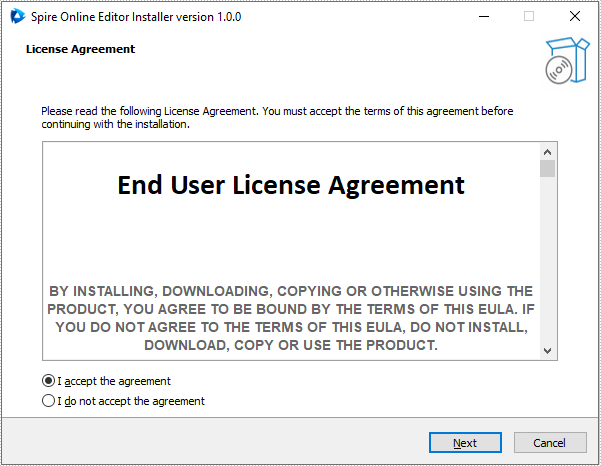
Choose "I accept the agreement" and press "Next".
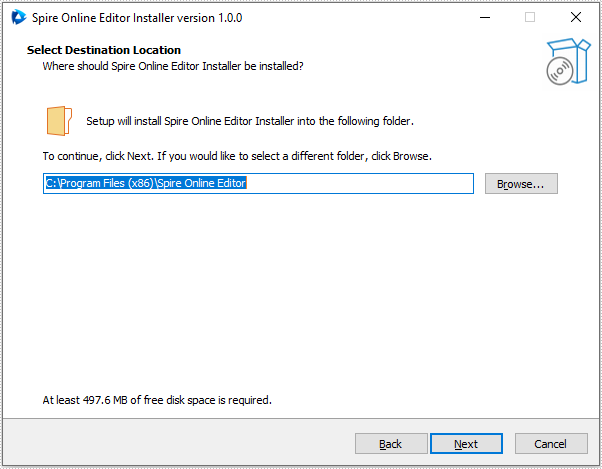
Set install location and go to the next step. Please make sure that your user account has appropriate permissions to access the specified installation directory, otherwise you may fail to bind the license later.
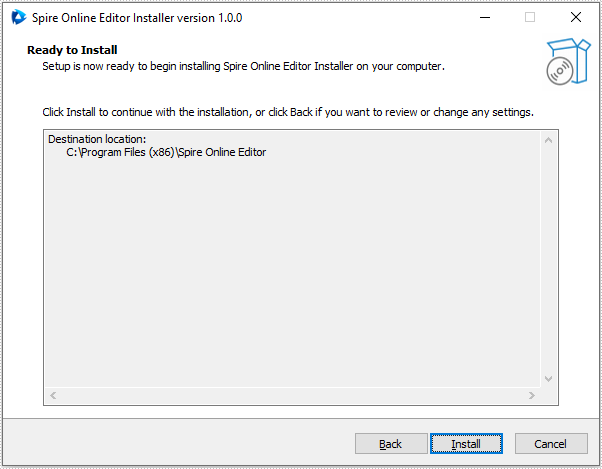
Press "Install" to install Spire.Cloud.Office for .NET to the specified location.
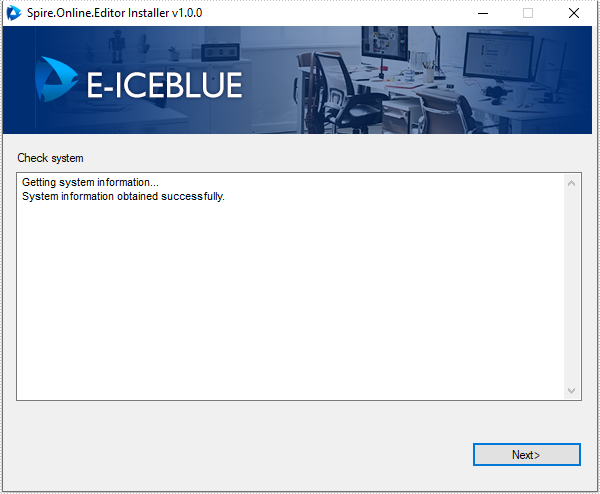
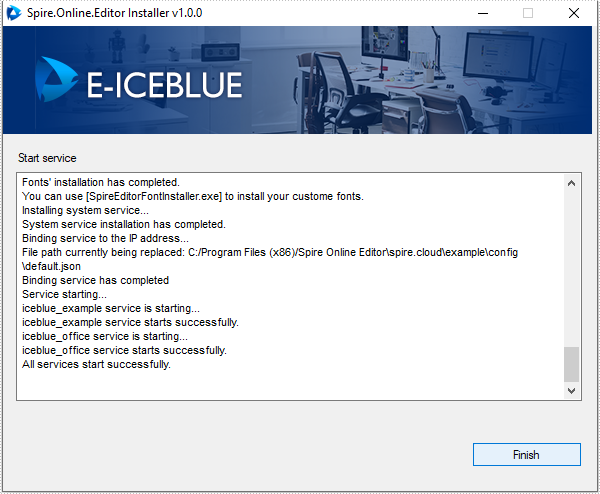
Press "Next" to accomplish system checking and fonts’ installation.
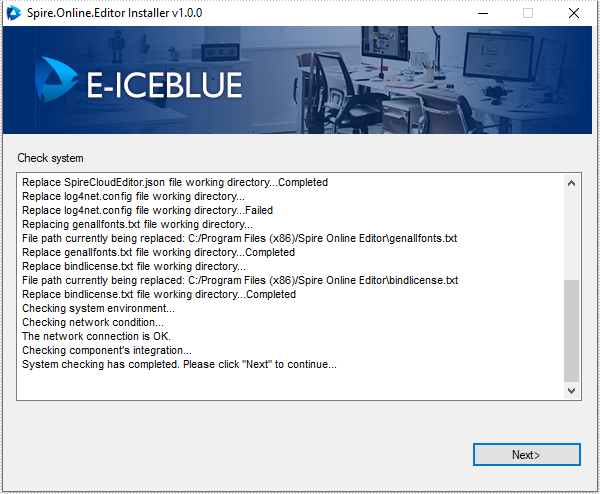
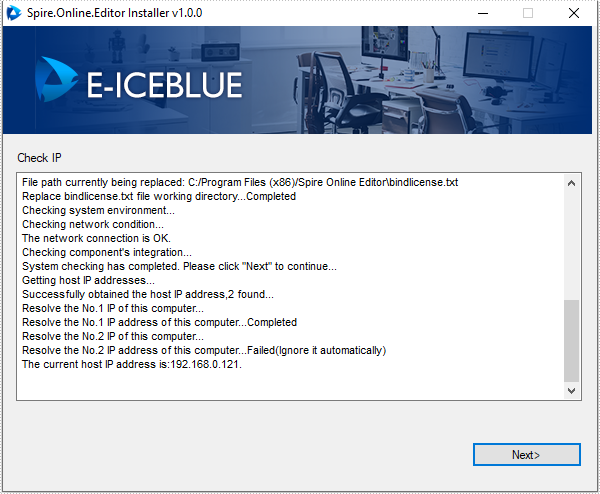
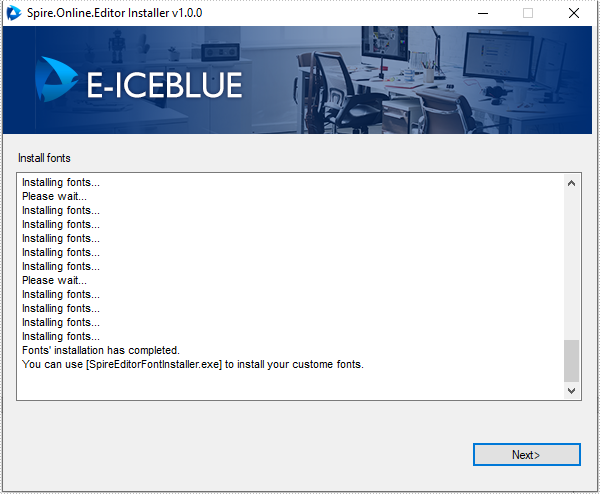
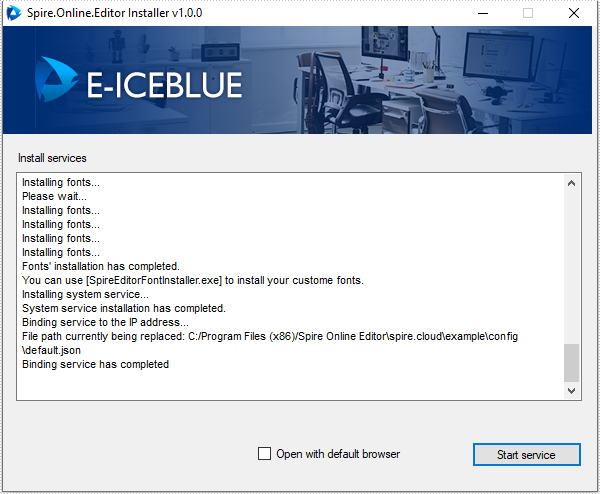
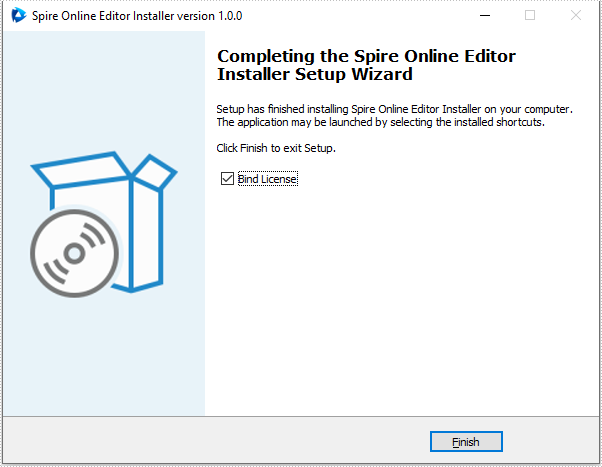
Press "Start service" to start the service and then click "Finish" to finish the installation.
Step 2. Bind License
A license is required to run Spire.Cloud.Office for .NET editor, please contact our sales department (sales@e-iceblue.com) to request one. Then follow the steps below to bind the license.
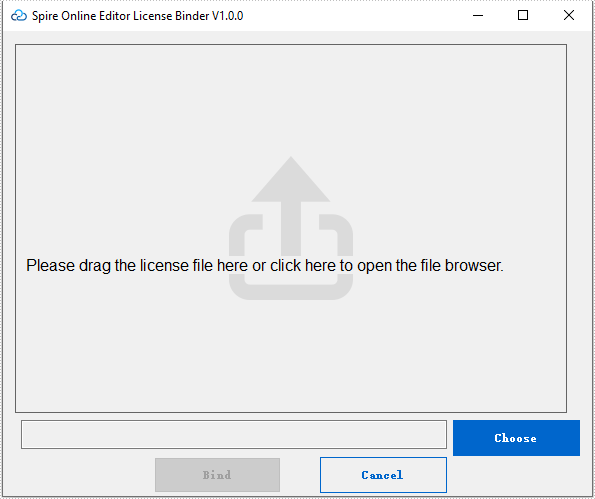
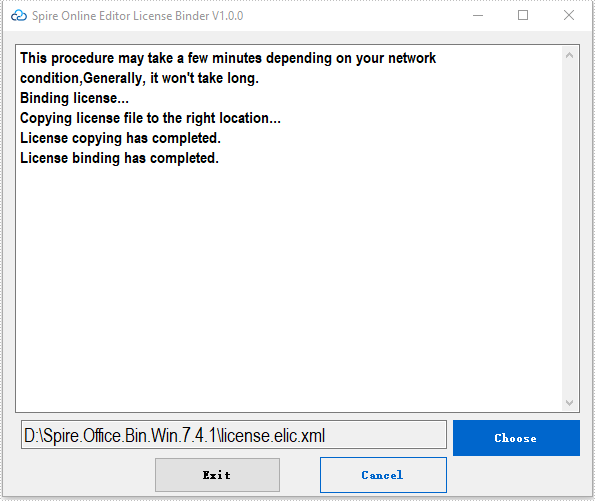
Drag the license (license.elic.xml) to the wizard or press "Choose" to choose the license from your system.
Press "Bind" to bind the license.
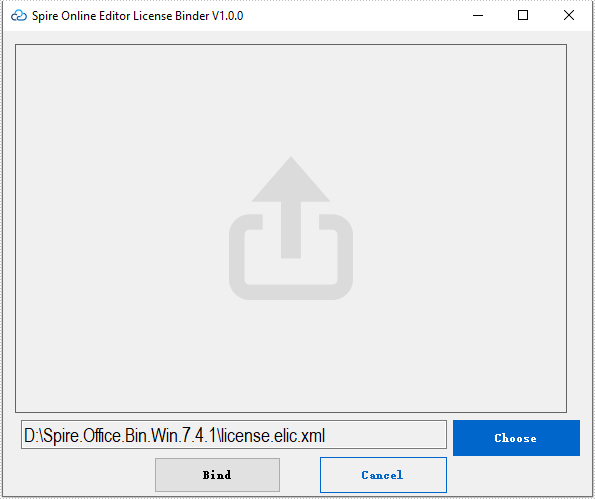
After the license binding has completed, press "Exit" to quit the wizard.
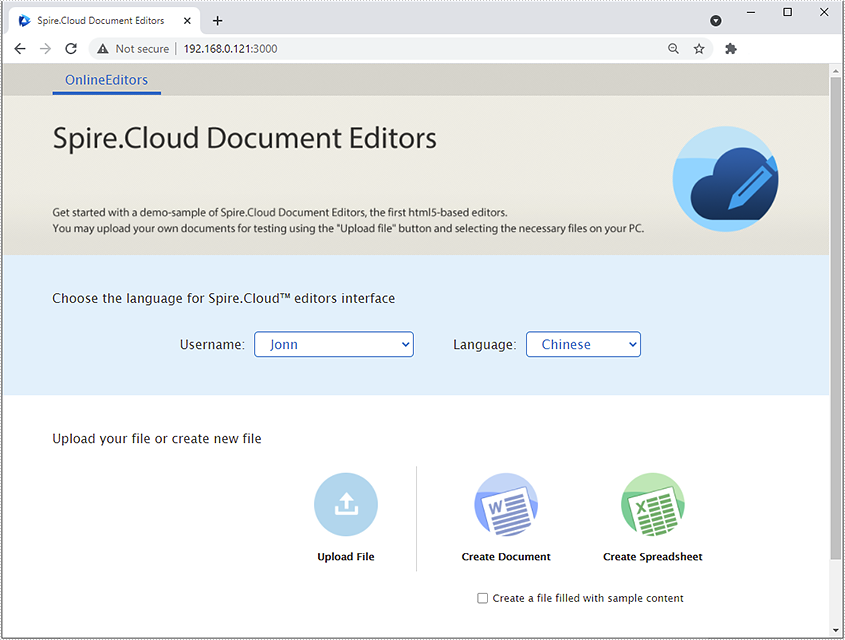
Now, Spire.Cloud.Office for .NET is ready for use. If you type "[your server ip]:3000" (in this article, we use 192.168.0.121:3000) in your browser's address bar and press enter, the following page will appear:
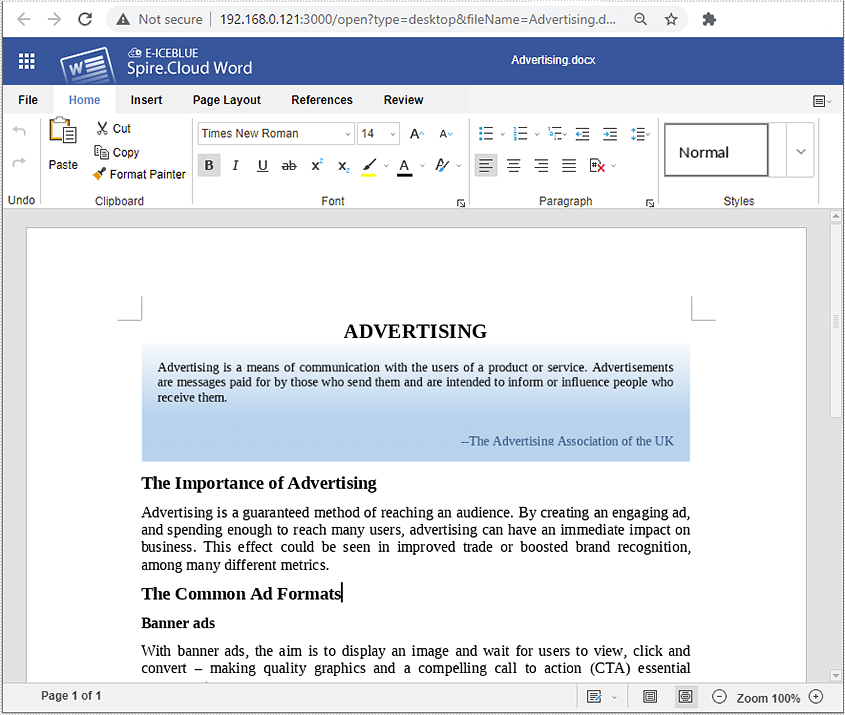
You can upload an existing Word/Excel file or create a new one from scratch by selecting the "Upload File" or "Create Document/Spreadsheet" option. Here we upload an existing Word file:
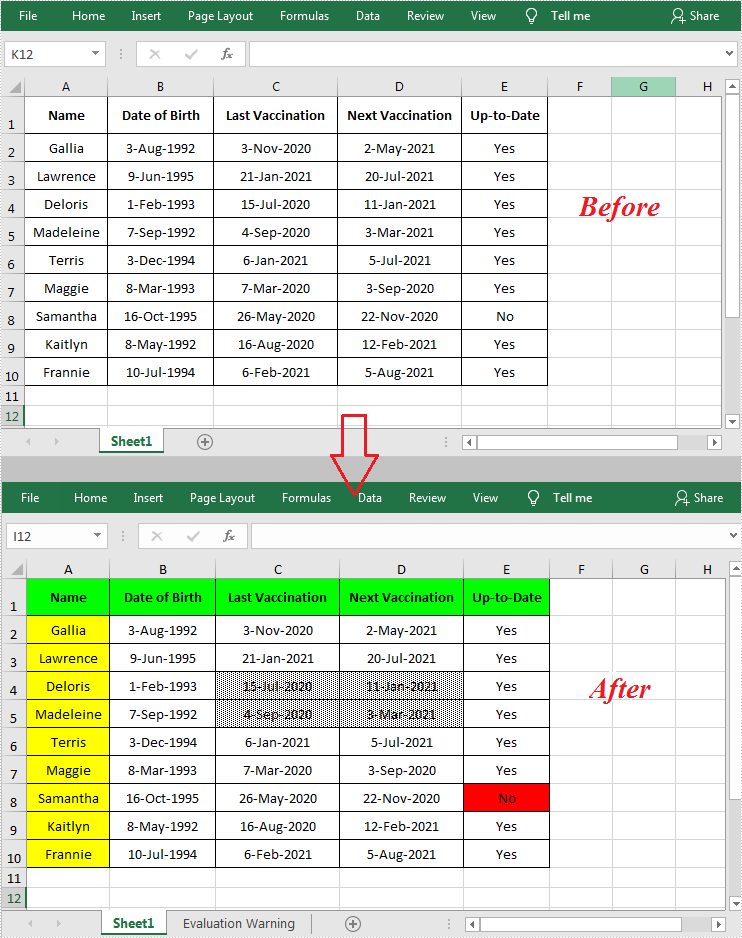
When working with an Excel document that contains a lot of data, setting color or pattern for selected cells can make it very easy for users to locate specific types of information. In Microsoft Excel, you can achieve this function by simply clicking the "Fill Color" button on the formatting toolbar. In this article, you will learn how to programmatically set background color and pattern style for a specified cell or cell range in Excel using Spire.XLS for Java.
Install Spire.XLS for Java
First, you're required to add the Spire.Xls.jar file as a dependency in your Java program. The JAR file can be downloaded from this link. If you use Maven, you can easily import the JAR file in your application by adding the following code to your project's pom.xml file.
<repositories>
    <repository>
        <id>com.e-iceblue</id>
        <name>e-iceblue</name>
        <url>https://repo.e-iceblue.com/nexus/content/groups/public/</url>
    </repository>
</repositories>
<dependencies>
    <dependency>
        <groupId>e-iceblue</groupId>
        <artifactId>spire.xls</artifactId>
        <version>16.7.3</version>
    </dependency>
</dependencies>
Set Background Color and Pattern for Excel Cells
The detailed steps are as follows.
- Create a Workbook object.
- Load a sample Excel document using Workbook.loadFromFile() method.
- Get a specified worksheet using Workbook.getWorksheets().get() method.
- Get a specified cell range using Worksheet.getRange().get() method.
- Set background color for the specified cell range using CellRange.getStyle().setColor() method.
- Set fill pattern style for the specified cell range using CellRange.getStyle().setFillPattern() method.
- Save the result to another file using Workbook.saveToFile() method.
- Java
import com.spire.xls.*;
import java.awt.*;

public class CellBackground {
    public static void main(String[] args) {
        //Create a Workbook object
        Workbook workbook = new Workbook();

        //Load a sample Excel document
        workbook.loadFromFile("C:\\Users\\Administrator\\Desktop\\data.xlsx");

        //Get the first worksheet
        Worksheet worksheet= workbook.getWorksheets().get(0);

        //Set background color for range "A1:E1" and "A2:A10"
        worksheet.getRange().get("A1:E1").getStyle().setColor(Color.green);
        worksheet.getRange().get("A2:A10").getStyle().setColor(Color.yellow);

        //Set background color for cell E8
        worksheet.getRange().get("E8").getStyle().setColor(Color.red);

        //Set fill pattern style for range "C4:D5"
        worksheet.getRange().get("C4:D5").getStyle().setFillPattern(ExcelPatternType.Percent25Gray);

        //Save the document
        workbook.saveToFile("CellBackground.xlsx", ExcelVersion.Version2013);
    }
}
Apply for a Temporary License
If you'd like to remove the evaluation message from the generated documents, or to get rid of the function limitations, please request a 30-day trial license for yourself.
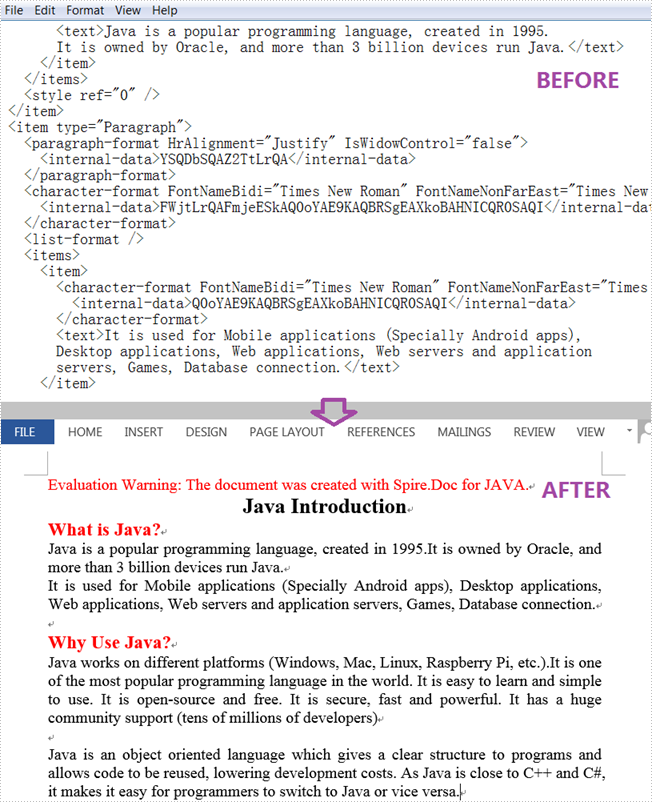
An XML file is a plain text file that uses custom tags to display a document's structure and other features. In daily work, you sometimes need to convert Word to XML for storing and organizing data, or convert XML to Word for working on them more easily and efficiently. This article will demonstrate how to programmatically convert XML to Word using Spire.Doc for Java.
Install Spire.Doc for Java
First of all, you're required to add the Spire.Doc.jar file as a dependency in your Java program. The JAR file can be downloaded from this link. If you use Maven, you can easily import the JAR file in your application by adding the following code to your project's pom.xml file.
<repositories>
    <repository>
        <id>com.e-iceblue</id>
        <name>e-iceblue</name>
        <url>https://repo.e-iceblue.com/nexus/content/groups/public/</url>
    </repository>
</repositories>
<dependencies>
    <dependency>
        <groupId>e-iceblue</groupId>
        <artifactId>spire.doc</artifactId>
        <version>14.7.0</version>
    </dependency>
</dependencies>
Convert XML to Word
The following are steps to convert XML to Word using Spire.Doc for Java.
- Create a Document instance.
- Load an XML sample document using Document.loadFromFile() method.
- Save the document as a Word file using Document.saveToFile() method.
- Java
import com.spire.doc.Document;
import com.spire.doc.FileFormat;

public class XMLToWord {
    public static void main(String[] args) {
        //Create a Document instance
        Document document = new Document();

        //Load an XML sample document
        document.loadFromFile(sample.xml");

        //Save the document to Word
        document.saveToFile("output/XMLToWord.docx", FileFormat.Docx );
    }
}
Apply for a Temporary License
If you'd like to remove the evaluation message from the generated documents, or to get rid of the function limitations, please request a 30-day trial license for yourself.
