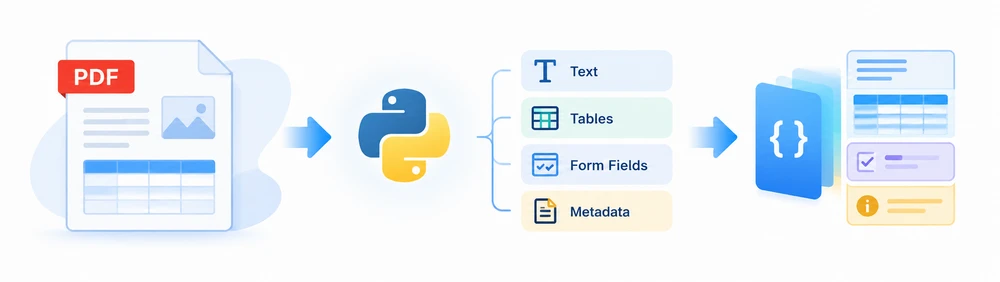
When you parse a PDF in Python, you are not merely opening the file and printing its contents to the console. You are extracting information—text, tables, form fields, and metadata—and organizing it into Python data structures such as dictionaries and lists. These structures can then be serialized to JSON for use by downstream programs.
This tutorial shows how to parse PDF in Python using Spire.PDF for Python, a standalone Python PDF parser library that does not require Adobe Acrobat. You will learn to extract text page by page, parse tables into rows and columns, read existing form field values, and retrieve document metadata. You will also combine page-level text and table results into a structured JSON object that downstream programs can process.
Quick Navigation
- What Does Parsing a PDF in Python Mean?
- Load a PDF and Inspect Its Contents
- Parse PDF Text into Structured Python Data
- Parse Tables from PDF into Rows and Columns
- Extract Form Fields and Document Metadata
- Handle Scanned PDFs and Special Cases
- Use Parsed PDF Data in Python Workflows
- Summary
What Does Parsing a PDF in Python Mean?
Parsing a PDF in Python involves extracting the information you need from a document and organizing it into a form that a program can use. Depending on the PDF and the task, this may mean collecting text by page, extracting table cells into rows and columns, reading form field values, or retrieving document metadata. Depending on the document, you can also combine parsing with other techniques to target specific data fields.
In this tutorial, "reading" refers broadly to accessing PDF contents, while "parsing" focuses on extracting those contents and arranging them into structures for downstream processing. The terms can overlap in PDF development. The practical distinction is in the output:
- Reading a PDF gives you access to its contents—pages, text, images—so you can view or print what is inside.
- Parsing a PDF organizes the extracted content into data structures keyed by page number, row and column indices, or field names, so that another program can process the results without human inspection.
Different parsing goals call for different approaches:
| What you want to parse | Method | Section |
|---|---|---|
| Text | PdfTextExtractor |
Parse PDF Text into Structured Python Data |
| Tables | PdfTableExtractor |
Parse Tables from PDF into Rows and Columns |
| Form fields | PdfFormWidget |
Extract Form Fields and Document Metadata |
| Scanned pages | OCR | Handle Scanned PDFs and Special Cases |
This guide focuses on parsing text, tables, and form data. If you need to extract images from a PDF, see the existing Python Read PDF tutorial.
Load a PDF and Inspect Its Contents
Before parsing, you need to load the PDF document and understand its basic structure—how many pages it contains and what dimensions each page has.
Install Spire.PDF for Python
pip install spire.pdf
Load and inspect a PDF
from spire.pdf import PdfDocument

doc = PdfDocument()
doc.LoadFromFile("sample.pdf")
print(f"Pages: {doc.Pages.Count}")
for i in range(doc.Pages.Count):
    page = doc.Pages.get_Item(i)
    print(f"Page {i+1}: {page.Size.Width} x {page.Size.Height}")
doc.Close()
This snippet loads a PDF file, prints the total page count, and iterates through every page to report its width and height. The LoadFromFile method accepts a file path string; Pages.Count returns the number of pages; and Pages.get_Item(i) gives you access to an individual page object.
Once the document is loaded, you can pass page objects to the extractors in the following sections.
Parse PDF Text into Structured Python Data
The most common task when you parse a PDF in Python is extracting text. To extract text from PDF in Python, instead of concatenating all text into a single string, the approach below stores each page's text in a dictionary keyed by page number. This structure lets downstream code look up specific pages without splitting strings or tracking offsets.
import json
from spire.pdf import PdfDocument, PdfTextExtractor, PdfTextExtractOptions

doc = PdfDocument()
doc.LoadFromFile("sample.pdf")

# Parse text into a structured dictionary: {page_number: text}
parsed_text = {}
for i in range(doc.Pages.Count):
    page = doc.Pages.get_Item(i)
    extractor = PdfTextExtractor(page)
    options = PdfTextExtractOptions()
    options.IsExtractAllText = True
    parsed_text[i + 1] = extractor.ExtractText(options)

doc.Close()

# Serialize for downstream processing
with open("parsed_text.json", "w", encoding="utf-8") as f:
    json.dump(parsed_text, f, ensure_ascii=False, indent=2)
Here, PdfTextExtractor is created for each page, and PdfTextExtractOptions with IsExtractAllText = True instructs the extractor to retrieve all text on that page. The result is stored in parsed_text as a dictionary mapping page numbers (starting from 1) to their text content. Finally, the dictionary is serialized to JSON.
The PdfTextExtractOptions class also provides an IsSimpleExtraction property, which offers a different line-break handling style. The examples in this tutorial use IsExtractAllText = True for comprehensive text retrieval. Depending on the document, you can also try IsSimpleExtraction and keep the option whose output best matches your content.
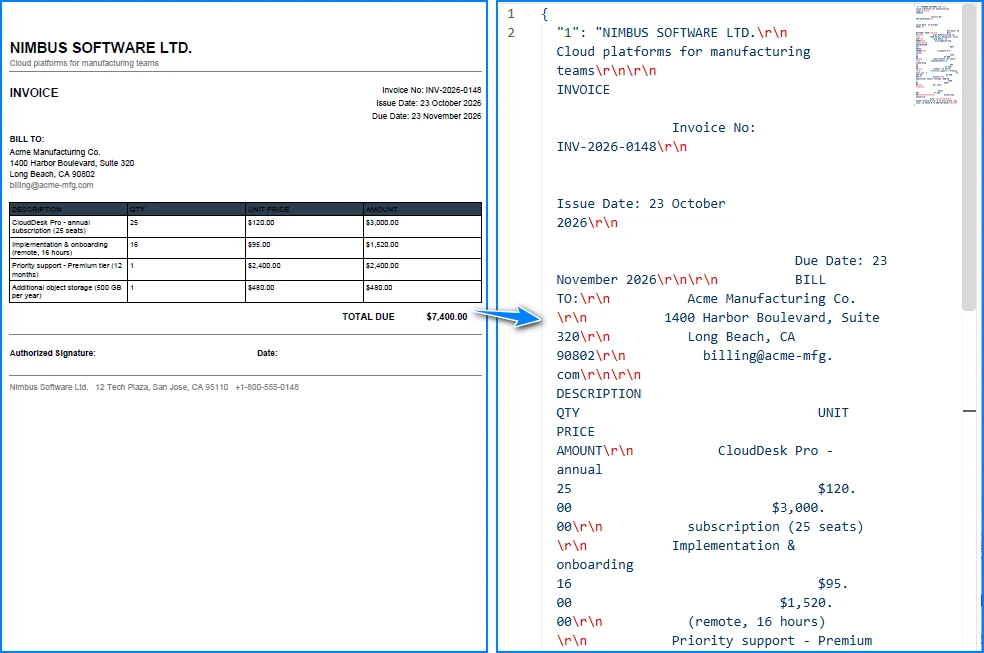
Note that JSON keys are always strings ("1", "2"), but this does not affect the dictionary's usefulness as input for downstream programs—you can convert keys back to integers with int(k) when needed.
If you need finer control over text extraction—such as extracting text from a specific region, searching with regular expressions, or replacing text—see the text extraction tutorial for those techniques.
Parse Tables from PDF into Rows and Columns
Many PDF documents contain tabular data—invoices, reports, financial statements. The PdfTableExtractor class can identify and extract tables from PDF pages. It returns table objects whose rows, columns, and cell text can be accessed programmatically, following the table's layout including its merged cells. The code below iterates through all pages, extracts every table found, and stores the results as a list of dictionaries.
import json
from spire.pdf import PdfDocument, PdfTableExtractor

doc = PdfDocument()
doc.LoadFromFile("sample.pdf")

extractor = PdfTableExtractor(doc)
all_tables = []

for page_idx in range(doc.Pages.Count):
    tables = extractor.ExtractTable(page_idx) or []
    for table in tables:
        rows = table.GetRowCount()
        cols = table.GetColumnCount()
        table_data = []
        for r in range(rows):
            row = [table.GetText(r, c) for c in range(cols)]
            table_data.append(row)
        all_tables.append({"page": page_idx + 1, "data": table_data})

doc.Close()

# Display results with empty-table safety
for t in all_tables:
    row_count = len(t["data"])
    col_count = len(t["data"][0]) if row_count else 0
    print(f"Page {t['page']}: {row_count} rows x {col_count} cols")

# Serialize for downstream processing
with open("parsed_tables.json", "w", encoding="utf-8") as f:
    json.dump(all_tables, f, ensure_ascii=False, indent=2)
The ExtractTable method returns a list of table objects found on the given page index. The or [] safeguard handles both empty lists and potential None returns. For each table, GetRowCount and GetColumnCount provide the dimensions, and GetText(row, col) retrieves the cell content at the specified position. The code handles the case where a page has no tables gracefully—the loop simply does not execute.
The display loop uses an explicit empty-table safety check (len(t["data"][0]) if row_count else 0) to avoid an IndexError when a table has zero rows.
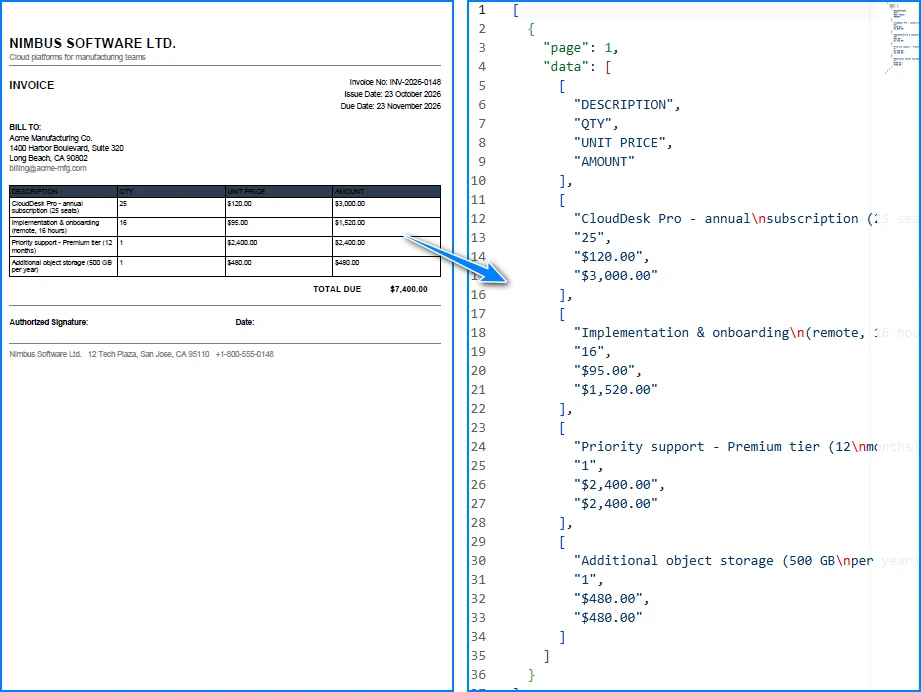
If you need to export tables to Excel format rather than JSON, see the PDF to Excel conversion tutorial.
Extract Form Fields and Document Metadata
PDF forms contain interactive fields—text boxes, check boxes, list boxes—that users fill in. Parsing these fields programmatically lets you automate data collection from filled forms. You can also extract PDF document metadata (title, author, subject, keywords) for cataloging and search.
Parse form field values
from spire.pdf import (
    PdfDocument,
    PdfFormWidget,
    PdfTextBoxFieldWidget,
)

doc = PdfDocument()
doc.LoadFromFile("form.pdf")
form = PdfFormWidget(doc.Form)

fields = {}
for i in range(form.FieldsWidget.Count):
    field = form.FieldsWidget.get_Item(i)
    if isinstance(field, PdfTextBoxFieldWidget):
        fields[field.Name] = field.Text

print(fields)
doc.Close()
This code wraps the document's form with PdfFormWidget, then iterates through all form fields. The isinstance check filters for text box fields specifically—PdfTextBoxFieldWidget—and stores each field's name and value in a dictionary.
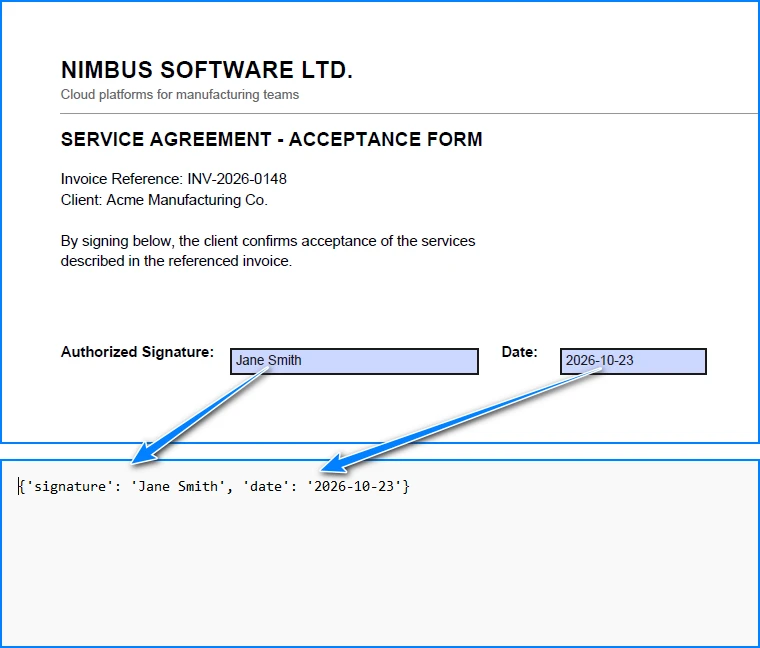
This example reads the values from the text box fields already defined in the form. For a detailed guide on the other field types (check boxes, list boxes, signature fields), see the form field extraction tutorial.
Parse document metadata
from spire.pdf import PdfDocument

doc = PdfDocument()
doc.LoadFromFile("sample.pdf")
info = doc.DocumentInformation
metadata = {
    "title": info.Title, "author": info.Author,
    "subject": info.Subject, "keywords": info.Keywords
}
print(metadata)
doc.Close()
The DocumentInformation property provides access to the PDF's metadata fields. Each field is read as a string and stored in a dictionary for easy access.
Handle Scanned PDFs and Special Cases
Most PDFs parse directly. A few benefit from an extra step or a companion technique, and the table below outlines these situations and points to the relevant guidance:
| Situation | Context | Guidance |
|---|---|---|
| Scanned, image-only pages | Content is stored as images rather than a text layer | Use OCR to read the text → OCR tutorial |
| Multi-column or richly laid-out pages | Reading order follows the PDF's internal text stream | Use region extraction to target a specific area → text extraction tutorial |
| Tables with merged or borderless cells | The grid is not drawn with visible lines | Use PDF-to-Excel with layout options → PDF to Excel tutorial |
| Uncommon font encodings | Some PDFs embed fonts in less common encodings | Choose the extraction options that match the document |
For image-only scanned PDFs without a text layer, the content you see is stored as page images rather than extractable text. OCR recognizes the text in those images. The full OCR implementation is covered in the OCR tutorial and is not reproduced here.
When a page uses multiple columns or an irregular layout, region-based extraction lets you target a specific area by coordinates, which helps keep the reading order you expect.
Use Parsed PDF Data in Python Workflows
The previous sections produced separate data structures: parsed_text (a dictionary of page text) and all_tables (a list of table data). In practice, you often need a single unified representation of the document that combines text and tables page by page.
The code below merges the two results into one structure. This example assumes that you have already run the text and table extraction examples above in the same Python session.
import json

# Reuse parsed_text and all_tables from earlier sections
unified = {"pages": []}
for page_num in sorted(parsed_text.keys()):
    page_tables = [t["data"] for t in all_tables if t["page"] == page_num]
    unified["pages"].append({
        "page": page_num,
        "text": parsed_text[page_num],
        "tables": page_tables
    })

with open("parsed_document.json", "w", encoding="utf-8") as f:
    json.dump(unified, f, ensure_ascii=False, indent=2)
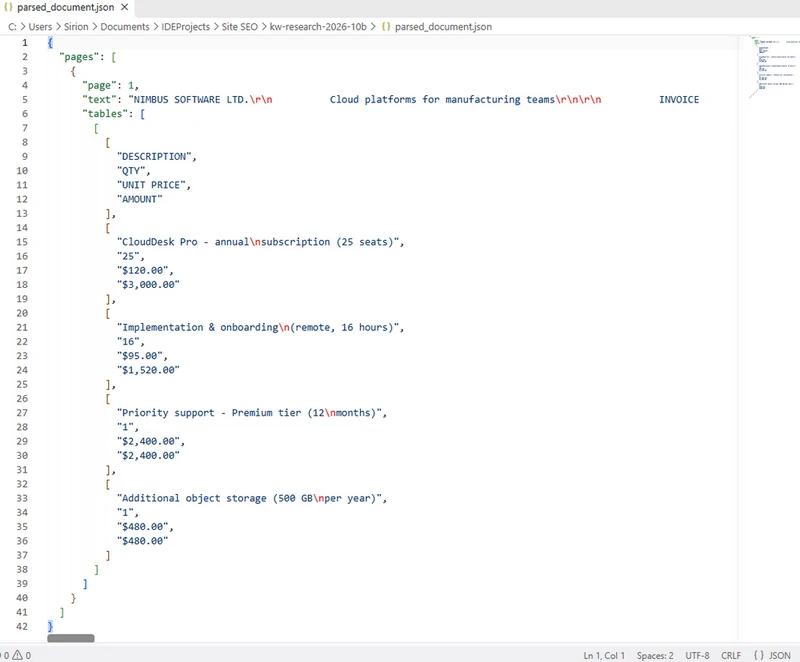
This unified structure is composed by the developer from the text dictionary and the table list produced earlier, joined on page number. Once assembled, the extracted data can be transformed into a pandas DataFrame for analysis, mapped to database columns, or sent to another API endpoint. Note that the unified JSON is a nested structure; converting it to a flat DataFrame requires selecting specific fields or expanding table data.
For this workflow, the practical benefit of parsing is that extracted text and table data are organized into a unified representation that downstream programs can consume directly.
Summary
Parsing a PDF in Python involves more than extracting its text. With Spire.PDF for Python, you can organize page-level text into dictionaries, extract tables into rows and columns, and retrieve existing form field values and document metadata.
These results can be combined into a unified JSON structure for downstream processing, such as data analysis, database storage, or integration with other applications. The approach depends on the PDF's contents: image-only scanned pages are handled with OCR, while multi-column or richly formatted pages can be parsed with the extraction options that suit their layout.
By choosing the appropriate extraction method and organizing the results for your application, you can build a PDF parsing workflow that fits your data-processing needs.
If you need to test Spire.PDF for Python in a real business environment, you can apply for a temporary license.