
Spire.Doc for .NET (338)
Children categories
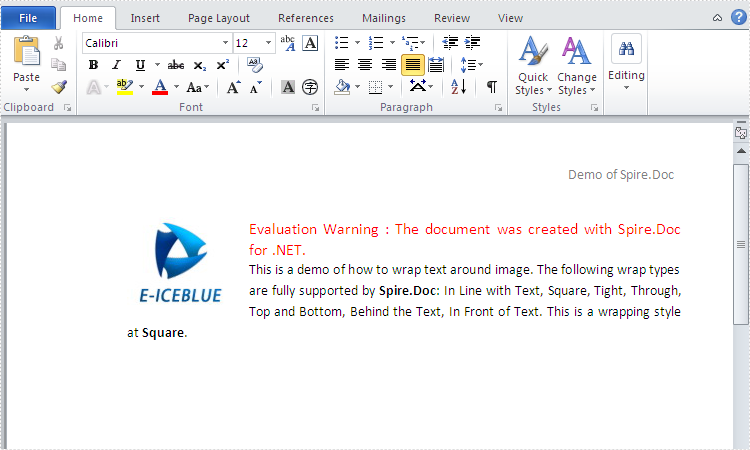
When we add image into word document, of course we want to move it exactly where we want to make our page tidy and beautiful. With the help of Spire.Doc, we can set the wrapping style to adjust the position of the image. Usually there are seven kinds of wrapping styles: In Line with Text, Square, Tight, Through, Top and Bottom, Behind the Text, In Front of Text and Spire.Doc supports all of them. This article will show you how to wrap text around image in C#. Here comes to the steps:
Step 1: Create a new word document and load the document from the file.
Document document = new Document();
document.LoadFromFile("Sample.docx");
Step 2: Add a paragraph for the first section.
Paragraph paragraph = document.Sections[0].AddParagraph();
Step 3: Add a picture in the paragraph.
DocPicture picture = paragraph.AppendPicture(Image.FromFile("image.jpg"));
Step 4: Set text wrapping style to Square.
picture.TextWrappingStyle = TextWrappingStyle.Square;
Step 5: Set text wrapping type to both.
picture.TextWrappingType = TextWrappingType.Both;
Step 6: Save the document to file and process it.
document.SaveToFile(output,FileFormat.Docx);
System.Diagnostics.Process.Start(output);
Effective screenshot of warp text around image:
Full codes:
using Spire.Doc;
using Spire.Doc.Documents;
using Spire.Doc.Fields;
using System.Drawing;

namespace wrap_text_around_image
{
    class Program
    {
        static void Main(string[] args)
        {
            Document document = new Document();
            document.LoadFromFile("Sample.docx");
            Paragraph paragraph = document.Sections[0].AddParagraph();

            DocPicture picture = paragraph.AppendPicture(Image.FromFile("image.jpg"));
            picture.TextWrappingStyle = TextWrappingStyle.Square;
            picture.TextWrappingType = TextWrappingType.Both;
            string output = "output.docx";
            document.SaveToFile(output,FileFormat.Docx);
            System.Diagnostics.Process.Start(output);

        }

    }
}
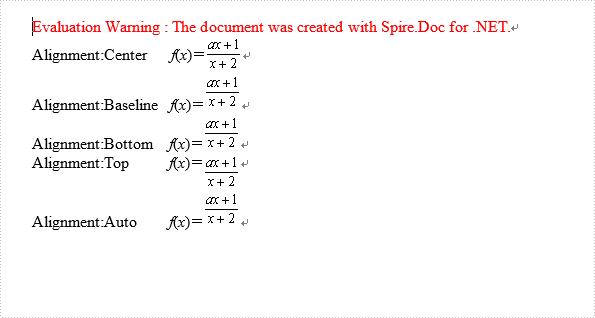
We can set Asian typography for paragraph for .doc files, there are four text alignments: Top, Center, Baseline, Bottom and Auto. In this article let's see how to set alignment when append HTML string code to .doc in C#.
Download Spire.Doc 5.3.83 or upper version, then add reference to your project.
Here are the steps:
Step 1: Create a HTML file contain the following code.
<html>
<body>
<i>f</i>(<i>x</i>)=<img align="middle" src="data:image/png;base64,iVBORw0KGgoAAAANSUhEUgAAACcAAAAlCAYAAADBa/A+AAAAAXNSR0IArs4c6QAAAARnQU1BAACxjwv8YQUAAAAJcEhZcwAADsMAAA7DAcdvqGQAAADvSURBVFhH7ZNbCsUwCES7/03nIkSwRh1rL00+PCCJVaeTPq5xMG2uSpuLuC7fwlZzZOxYc0TZnDwZ76WYzjVRjQnn57oQmdC5x9ses6IHUO7xd3NW8xNzVPPCwrtOLBXdbAlHgpJMX9SzVGQz7fUw55Eo87ZnqVAzh8x5z8jrHpl6pBNPb6bNVWlzVW7m5N+zKyT9Wqu0OYn3fVl8am754IHBz5+cpGxOP3qda9CNLNAMVESmmG3mMjw1lzrwXF0iEap5gUj1zNUlI0Jk+4i05lxNWCR1ysIh0Ixb1SJQCNQJ1pERgRU30uaqHGxujB+eJddCfZBWMwAAAABJRU5ErkJggg==" />
Step 2: Create a new document and add new section.
Document doc2 = new Document();
doc2.AddSection();
Step 3: Create new paragraph p and set its property of TextAlignment as "Center".
p.AppendText("Alignment:Center      ");
p.AppendHTML(File.ReadAllText(@"test.html"));
p.Format.TextAlignment = TextAlignment.Center;
Step 4: Set other options to make a contrast, Auto is Baseline by default.
Paragraph p1 = doc2.Sections[0].AddParagraph();
p1.AppendText("Alignment:Baseline   ");
p1.AppendHTML(File.ReadAllText(@"test.html"));
p1.Format.TextAlignment = TextAlignment.Baseline;

Paragraph p2 = doc2.Sections[0].AddParagraph();
p2.AppendText("Alignment:Bottom    ");
p2.AppendHTML(File.ReadAllText(@"test.html"));
p2.Format.TextAlignment = TextAlignment.Bottom;

Paragraph p3 = doc2.Sections[0].AddParagraph();
p3.AppendText("Alignment:Top          ");
p3.AppendHTML(File.ReadAllText(@"test.html"));
p3.Format.TextAlignment = TextAlignment.Top;

Paragraph p4 = doc2.Sections[0].AddParagraph();
p4.AppendText("Alignment:Auto        ");
p4.AppendHTML(File.ReadAllText(@"test.html"));
p4.Format.TextAlignment = TextAlignment.Auto;
Step 5: Save and review.
doc2.SaveToFile(@"test.doc", FileFormat.Doc);
System.Diagnostics.Process.Start("test.doc");
The screen shot:
Full Code Here:
using Spire.Doc;
using Spire.Doc.Documents;
using System.IO;
namespace SetTextAlignment
{
 class Program
    {

      static void Main(string[] args)
        {
            Document doc2 = new Document();
            doc2.AddSection();
            Paragraph p = doc2.Sections[0].AddParagraph();
            p.AppendText("Alignment:Center      ");
            p.AppendHTML(File.ReadAllText(@"test.html"));
            p.Format.TextAlignment = TextAlignment.Center;

            Paragraph p1 = doc2.Sections[0].AddParagraph();
            p1.AppendText("Alignment:Baseline   ");
            p1.AppendHTML(File.ReadAllText(@"test.html"));
            p1.Format.TextAlignment = TextAlignment.Baseline;

            Paragraph p2 = doc2.Sections[0].AddParagraph();
            p2.AppendText("Alignment:Bottom    ");
            p2.AppendHTML(File.ReadAllText(@"test.html"));
            p2.Format.TextAlignment = TextAlignment.Bottom;

            Paragraph p3 = doc2.Sections[0].AddParagraph();
            p3.AppendText("Alignment:Top          ");
            p3.AppendHTML(File.ReadAllText(@"test.html"));
            p3.Format.TextAlignment = TextAlignment.Top;

            Paragraph p4 = doc2.Sections[0].AddParagraph();
            p4.AppendText("Alignment:Auto        ");
            p4.AppendHTML(File.ReadAllText(@"test.html"));
            p4.Format.TextAlignment = TextAlignment.Auto;

            doc2.SaveToFile(@"test.doc", FileFormat.Doc);
            System.Diagnostics.Process.Start("test.doc");

        }
    }
}
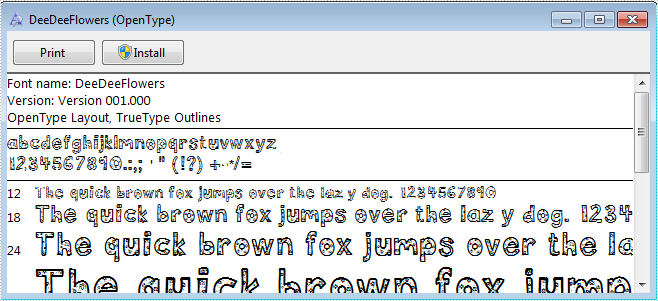
How to use uninstalled font when converting Doc to PDF via Spire.Doc
2015-03-25 03:21:26 Written by KoohjiNow Spire.Doc support using uninstalled font when converting Doc to PDF to diversity text content. In this article, we'll talk about how to realize this function:
Step 1: Download a font uninstalled in system.
Step 2: Create a new blank Word document.
Document document = new Document();
Step 3: Add a section and create a new paragraph.
Section section = document.AddSection();
Paragraph paragraph = section.Paragraphs.Count > 0 ? section.Paragraphs[0] : section.AddParagraph();
Step 4: Append text for a txtRange.
TextRange txtRange = paragraph.AppendText(text);
Step 5: Create an example for class ToPdfParameterList named to pdf, and create a new PrivateFontPathlist for property PrivateFontPaths, instantiate one PrivateFontPath with name and path of downloaded font.
ToPdfParameterList toPdf = new ToPdfParameterList()
{
    PrivateFontPaths = new List()
        {
          new PrivateFontPath("DeeDeeFlowers",@"D:\DeeDeeFlowers.ttf")
        }
};
Step 6: Set the new font for the txtaRange.
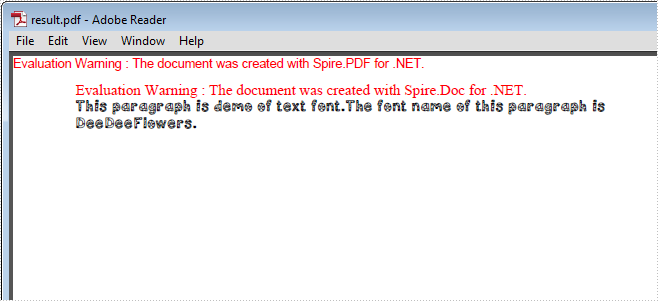
txtRange.CharacterFormat.FontName = "DeeDeeFlowers";
Step 7: Convert the Doc to PDF.
document.SaveToFile("result.pdf", toPdf);
Step 8: Review converted PDF files.
System.Diagnostics.Process.Start("result.pdf");
Result screenshot:
Full Code Below:
Document document = new Document();

//Add the first secition
Section section = document.AddSection();
//Create a new paragraph and get the first paragraph
Paragraph paragraph
    = section.Paragraphs.Count > 0 ? section.Paragraphs[0] : section.AddParagraph();

//Append Text
String text
    = "This paragraph is demo of text font and color. "
    + "The font name of this paragraph is Tahoma. "
    + "The font size of this paragraph is 20. "
    + "The under line style of this paragraph is DotDot. "
    + "The color of this paragraph is Blue. ";
 TextRange txtRange = paragraph.AppendText(text);

//Import the font
 ToPdfParameterList toPdf = new ToPdfParameterList()
 {
     PrivateFontPaths = new List<PrivateFontPath>()
         {
          new PrivateFontPath("DeeDeeFlowers",@"D:\DeeDeeFlowers.ttf")
         }
};
//Make use of the font.
txtRange.CharacterFormat.FontName = "DeeDeeFlowers";

document.SaveToFile("result.pdf", toPdf);

System.Diagnostics.Process.Start("result.pdf");
