
Spire.Doc for .NET (338)
Children categories
Document properties (also known as metadata) are a set of information about a document. All Word documents come with a set of built-in document properties, including title, author name, subject, keywords, etc. In addition to the built-in document properties, Microsoft Word also allows users to add custom document properties to Word documents. In this article, we will explain how to add these document properties to Word documents in C# and VB.NET using Spire.Doc for .NET.
- Add Built-in Document Properties to a Word Document
- Add Custom Document Properties to a Word Document
Install Spire.Doc for .NET
To begin with, you need to add the DLL files included in the Spire.Doc for.NET package as references in your .NET project. The DLL files can be either downloaded from this link or installed via NuGet.
PM> Install-Package Spire.Doc
Add Built-in Document Properties to a Word Document in C# and VB.NET
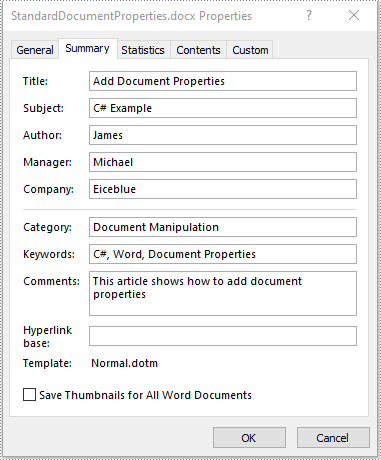
A built-in document property consists of a name and a value. You cannot set or change the name of a built-in document property as it's predefined by Microsoft Word, but you can set or change its value. The following steps demonstrate how to set values for built-in document properties in a Word document:
- Initialize an instance of Document class.
- Load a Word document using Document.LoadFromFile() method.
- Get the built-in document properties of the document through Document.BuiltinDocumentProperties property.
- Set values for specific document properties such as title, subject and author through Title, Subject and Author properties of BuiltinDocumentProperties class.
- Save the result document using Document.SaveToFile() method.
- C#
- VB.NET
using Spire.Doc;

namespace BuiltinDocumentProperties
{
    class Program
    {
        static void Main(string[] args)
        {
            //Create a Document instance
            Document document = new Document();
            //Load a Word document
            document.LoadFromFile("Sample.docx");

            //Add built-in document properties to the document
            BuiltinDocumentProperties standardProperties = document.BuiltinDocumentProperties;
            standardProperties.Title = "Add Document Properties";
            standardProperties.Subject = "C# Example";
            standardProperties.Author = "James";
            standardProperties.Company = "Eiceblue";
            standardProperties.Manager = "Michael";
            standardProperties.Category = "Document Manipulation";
            standardProperties.Keywords = "C#, Word, Document Properties";
            standardProperties.Comments = "This article shows how to add document properties";

            //Save the result document
            document.SaveToFile("StandardDocumentProperties.docx", FileFormat.Docx2013);
        }
    }
}
Add Custom Document Properties to a Word Document in C# and VB.NET
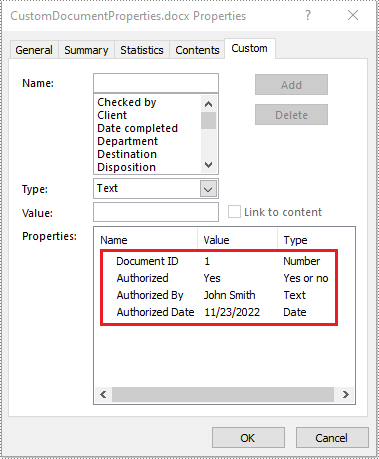
A custom document property can be defined by a document author or user. Each custom document property should contain a name, a value and a data type. The data type can be one of these four types: Text, Date, Number and Yes or No. The following steps demonstrate how to add custom document properties with different data types to a Word document:
- Initialize an instance of Document class.
- Load a Word document using Document.LoadFromFile() method.
- Get the custom document properties of the document through Document.CustomDocumentProperties property.
- Add custom document properties with different data types to the document using CustomDocumentProperties.Add(string, object) method.
- Save the result document using Document.SaveToFile() method.
- C#
- VB.NET
using Spire.Doc;
using System;

namespace CustomDocumentProperties
{
    class Program
    {
        static void Main(string[] args)
        {
            //Create a Document instance
            Document document = new Document();
            //Load a Word document
            document.LoadFromFile("Sample.docx");

            //Add custom document properties to the document
            CustomDocumentProperties customProperties = document.CustomDocumentProperties;
            customProperties.Add("Document ID", 1);
            customProperties.Add("Authorized", true);
            customProperties.Add("Authorized By", "John Smith");
            customProperties.Add("Authorized Date", DateTime.Today);

            //Save the result document
            document.SaveToFile("CustomDocumentProperties.docx", FileFormat.Docx2013);
        }
    }
}
Apply for a Temporary License
If you'd like to remove the evaluation message from the generated documents, or to get rid of the function limitations, please request a 30-day trial license for yourself.
A document can have one or more pages. It is probably easy to add a header for all pages of the document. If you want to add the header only for the first page of the document, Spire.Doc for .NET component can provide you an easy and flexible solution to handle it. The following steps will guide how to add a header into the first page of a document using Spire.Doc for .NET component in C#. In the example, the header is got from an existing document.
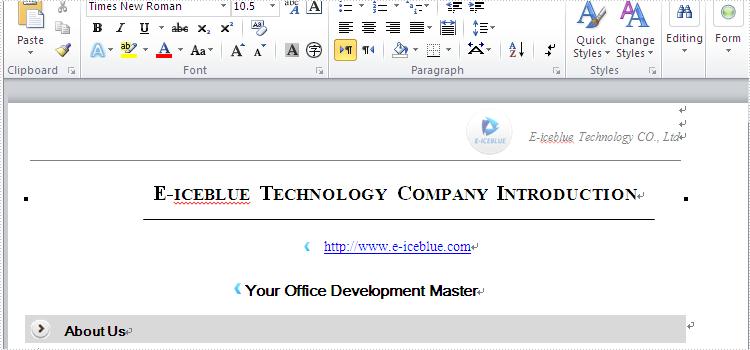
Step 1: Load a word document, documen1.docx.
Document document1 = new Document();
document1.LoadFromFile("D:\\document1.docx");
Step 2: Get the header of document1.docx.
HeaderFooter header = document1.Sections[0].HeadersFooters.Header;
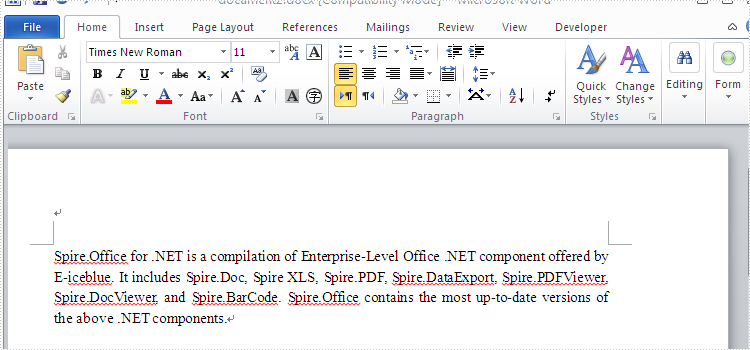
Step 3: Load another word document which will be added the header, document2.docx.
Document document2 = new Document();
document2.LoadFromFile("D:\\document2.docx");
Step 4: Get the first page header of document2.docx.
HeaderFooter firstPageHeader = document2.Sections[0].HeadersFooters.FirstPageHeader;
Step 5: Specify that the current section has a different header/footer for the first page.
foreach (Section section in document2.Sections)
{
section.PageSetup.DifferentFirstPageHeaderFooter = true;
}
Step 6: Removes all child objects in firstPageHeader.
firstPageHeader.Paragraphs.Clear();
Step 7: Add all child objects of the header to firstPageHeader.
foreach (DocumentObject obj in header.ChildObjects)
{
firstPageHeader.ChildObjects.Add(obj.Clone());
}
Step 8: Save document2.docx to a new document, header.docx.
document2.SaveToFile("D:\\Header.docx"", FileFormat.Docx);
Full code:
Document document1 = new Document();
document1.LoadFromFile(@"..\..\document1.docx");
Document document2 = new Document();
document2.LoadFromFile(@"..\..\document2.docx");
HeaderFooter header = document1.Sections[0].HeadersFooters.Header;
HeaderFooter firstPageHeader = document2.Sections[0].HeadersFooters.FirstPageHeader;

foreach (Section section in document2.Sections)
{
section.PageSetup.DifferentFirstPageHeaderFooter = true;
}

firstPageHeader.Paragraphs.Clear();
foreach (DocumentObject obj in header.ChildObjects)
{
firstPageHeader.ChildObjects.Add(obj.Clone());
}

document2.SaveToFile("Header.docx", FileFormat.Docx);
Screenshots:
document1.docx:
document2.docx:
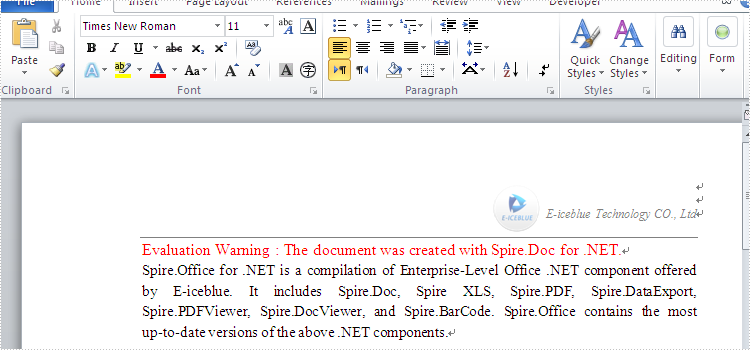
Header.docx:
Textboxes in Microsoft Word are versatile tools that enhance document layout and design. They allow users to position text independently of the main text flow, making it easier to create visually appealing documents. In some cases, you may need to extract text from textboxes for repurposing, or update the text inside a textbox to ensure clarity and relevance.
In this article, you will learn how to extract or update text in a textbox in a Word document using C# with Spire.Doc for .NET.
Install Spire.Doc for .NET
To begin with, you need to add the DLL files included in the Spire.Doc for .NET package as references in your .NET project. The DLL files can be either downloaded from this link or installed via NuGet.
PM> Install-Package Spire.Doc
Extract Text from Textbox in a Word Document
Using Spire.Doc for .NET, you can access a specific text box in a document with the Document.TextBoxes[index] property. Iterate through the text box's child objects to check if each one is a paragraph or a table. For paragraphs, retrieve the text using the Paragraph.Text property. For tables, loop through the cells to extract text from each cell.
The steps to extract text from a textbox in a Word document are as follows:
- Create a Document object.
- Load a Word file using Document.LoadFromFile() method.
- Get a specific textbox using Document.TextBoxes[index] property
- Iterate through the child objects of the textbox.
- Determine if a child object if a paragraph. If yes, get the text from the paragraph using Paragraph.Text property.
- Determine if a child object if a table. If yes, get the text from the table using ExtractTextFromTable() method.
- C#
using Spire.Doc;
using Spire.Doc.Documents;
using Spire.Doc.Fields;

namespace ExtractTextFromTextbox
{
    class Program
    {
        static void Main(string[] args)
        {
            // Create a Document object
            Document document = new Document();

            // Load a Word file
            document.LoadFromFile("C:\\Users\\Administrator\\Desktop\\Input.docx");

            // Get a specific textbox
            TextBox textBox = document.TextBoxes[0];

            // Create a StreamWriter to write extracted text to a txt file
            using (StreamWriter sw = File.CreateText("result.txt"))
            {
                // Iterate though child objects of the textbox
                foreach (DocumentObject objt in textBox.ChildObjects)
                {
                    // Determine if the child object is a paragraph
                    if (objt.DocumentObjectType == DocumentObjectType.Paragraph)
                    {
                        // Write paragraph text to the txt file
                        sw.Write((objt as Paragraph).Text);
                    }

                    // Determine if the child object is a table
                    if (objt.DocumentObjectType == DocumentObjectType.Table)
                    {
                        // Extract text from table to the txt file
                        ExtractTextFromTable(objt as Table, sw);
                    }
                }

            }

        }

        // Extract text from a table
        static void ExtractTextFromTable(Table table, StreamWriter sw)
        {
            for (int i = 0; i < table.Rows.Count; i++)
            {
                TableRow row = table.Rows[i];
                for (int j = 0; j < row.Cells.Count; j++)
                {
                    TableCell cell = row.Cells[j];
                    foreach (Paragraph paragraph in cell.Paragraphs)
                    {
                        sw.Write(paragraph.Text);
                    }
                }
            }
        }
    }
}

Update a Textbox in a Word Document
To update a text box, first clear its existing content using the TextBox.ChildObjects.Clear() method. Then, add a new paragraph and set its text.
The steps to update a textbox in a Word document are as follows:
- Create a Document object.
- Load a Word file using Document.LoadFromFile() method.
- Get a specific textbox using Document.TextBoxes[index] property
- Remove existing content of the textbox using TextBox.ChildObjects.Clear() method.
- Add a paragraph to the textbox using TextBox.Body.AddParagraph() method.
- Add text to the paragraph using Paragraph.AppendText() method.
- Save the document to a different Word file.
- C#
using Spire.Doc;
using Spire.Doc.Documents;
using Spire.Doc.Fields;

namespace UpdateTextbox
{
    class Program
    {
        static void Main(string[] args)
        {
            // Create a Document object
            Document document = new Document();

            // Load a Word file
            document.LoadFromFile("C:\\Users\\Administrator\\Desktop\\Input.docx");

            // Get a specific textbox
            TextBox textBox = document.TextBoxes[0];

            // Remove child objects of the textbox
            textBox.ChildObjects.Clear();

            // Add a new paragraph to the textbox
            Paragraph paragraph = textBox.Body.AddParagraph();

            // Set line spacing
            paragraph.Format.LineSpacing = 15f;

            // Add text to the paragraph
            TextRange textRange = paragraph.AppendText("The text in this textbox has been updated.");

            // Set font size
            textRange.CharacterFormat.FontSize = 15f;

            // Save the document to a different Word file
            document.SaveToFile("UpdateTextbox.docx", FileFormat.Docx2019);

            // Dispose resources
            document.Dispose();
        }

    }

}

Apply for a Temporary License
If you'd like to remove the evaluation message from the generated documents, or to get rid of the function limitations, please request a 30-day trial license for yourself.
