
Spire.Doc for .NET (338)
Children categories
HTML is the standard format for web pages and online content. However, there are many scenarios where you may need to convert HTML documents into other file formats, such as PDF, XPS, and XML. Whether you're looking to generate a printable version of a web page, share HTML content in a more universally accepted format, or extract data from HTML for further processing, being able to reliably convert HTML documents to these alternate formats is an important skill to have. In this article, we will demonstrate how to convert HTML to PDF, XPS, and XML in C# using Spire.Doc for .NET.
- Convert HTML to PDF in C#
- Convert HTML String to PDF in C#
- Convert HTML to XPS in C#
- Convert HTML to XML in C#
Install Spire.Doc for .NET
To begin with, you need to add the DLL files included in the Spire.Doc for .NET package as references in your .NET project. The DLL files can be either downloaded from this link or installed via NuGet.
PM> Install-Package Spire.Doc
Convert HTML to PDF in C#
Converting HTML to PDF offers several advantages, including enhanced portability, consistent formatting, and easy sharing. PDF files retain the original layout, styling, and visual elements of the HTML content, ensuring that the document appears the same across different devices and platforms.
You can use the Document.SaveToFile(string filename, FileFormat.PDF) method to convert an HTML file to PDF format. The detailed steps are as follows.
- Create an instance of the Document object.
- Load an HTML file using the Document.LoadFromFile() method.
- Save the HTML file to PDF format using the Document.SaveToFile(string filename, FileFormat.PDF) method.
- C#
using Spire.Doc;
using Spire.Doc.Documents;

namespace ConvertHtmlToPdf
{
    internal class Program
    {
        static void Main(string[] args)
        {
            // Create an instance of the Document class
            Document doc = new Document();
            // Load an HTML file
            doc.LoadFromFile("Sample.html", FileFormat.Html, XHTMLValidationType.None);

            //Convert the HTML file to PDF format
            doc.SaveToFile("HtmlToPDF.pdf", FileFormat.PDF);
            doc.Close();
        }
    }
}

Convert HTML String to PDF in C#
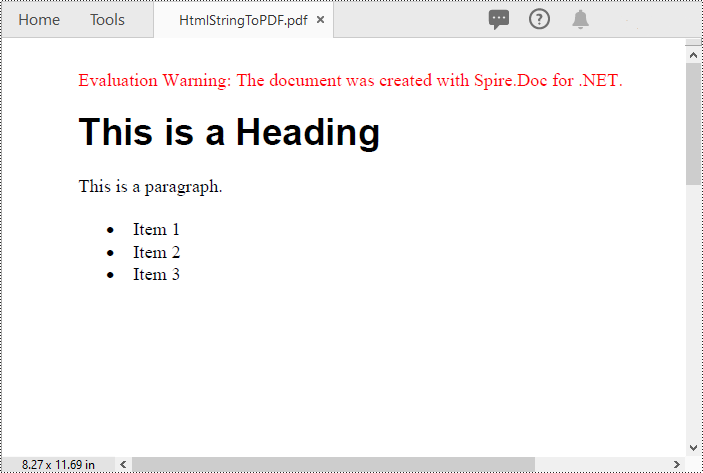
In addition to converting HTML files to PDF, you are also able to convert HTML strings to PDF. Spire.Doc for .NET provides the Paragraph.AppendHTML() method to add an HTML string to a Word document. Once the HTML string has been added, you can convert the result document to PDF using the Document.SaveToFile(string filename, FileFormat.PDF) method. The detailed steps are as follows.
- Create an instance of the Document object.
- Add a paragraph to the document using the Document.AddSection().AddParagraph() method.
- Append an HTML string to the paragraph using the Paragraph.AppendHTML() method.
- Save the document to PDF format using the Document.SaveToFile(string filename, FileFormat.PDF) method.
- C#
using Spire.Doc;
using Spire.Doc.Documents;

namespace ConvertHtmlStringToPdf
{
    internal class Program
    {
        static void Main(string[] args)
        {
            // Create an instance of the Document class
            Document doc = new Document();
            // Add a paragraph to the document
            Paragraph para = doc.AddSection().AddParagraph();
            // Specify the HTML string
            string htmlString = @"<h1>This is a Heading</h1>
                                  <p>This is a paragraph.</p>
                                  <ul>
                                    <li>Item 1</li>
                                    <li>Item 2</li>
                                    <li>Item 3</li>
                                  </ul>";

            // Append the HTML string to the paragraph
            para.AppendHTML(htmlString);

            // Convert the document to PDF format
            doc.SaveToFile("HtmlStringToPDF.pdf", FileFormat.PDF);
            doc.Close();
        }
    }
}
Convert HTML to XPS in C#
XPS, or XML Paper Specification, is an alternative format to PDF that provides similar functionality and advantages. Converting HTML to XPS ensures the preservation of document layout, fonts, and images while maintaining high fidelity. XPS files are optimized for printing and can be viewed using XPS viewers or Windows' built-in XPS Viewer.
By using the Document.SaveToFile(string filename, FileFormat.XPS) method, you can convert HTML files to XPS format with ease. The detailed steps are as follows.
- Create an instance of the Document object.
- Load an HTML file using the Document.LoadFromFile() method.
- Save the HTML file to XPS format using the Document.SaveToFile(string filename, FileFormat.XPS) method.
- C#
using Spire.Doc;
using Spire.Doc.Documents;

namespace ConvertHtmlToXps
{
    internal class Program
    {
        static void Main(string[] args)
        {
            // Create an instance of the Document class
            Document doc = new Document();
            // Load an HTML file
            doc.LoadFromFile("Sample.html", FileFormat.Html, XHTMLValidationType.None);

            //Convert the HTML file to XPS format
            doc.SaveToFile("HtmlToXPS.xps", FileFormat.XPS);
            doc.Close();
        }
    }
}

Convert HTML to XML in C#
Converting HTML to XML unlocks the potential for data extraction, manipulation, and integration with other systems. XML is a flexible and extensible markup language that allows for structured representation of data. By converting HTML to XML, you can extract specific elements, organize data hierarchically, and perform data analysis or integration tasks using XML processing tools and techniques.
To convert HTML files to XML format, you can use the Document.SaveToFile(string filename, FileFormat.Xml) method. The detailed steps are as follows.
- Create an instance of the Document object.
- Load an HTML file using the Document.LoadFromFile() method.
- Save the HTML file to XML format using the Document.SaveToFile(string filename, FileFormat.Xml) method.
- C#
using Spire.Doc;
using Spire.Doc.Documents;

namespace ConvertHtmlToXml
{
    internal class Program
    {
        static void Main(string[] args)
        {
            // Create an instance of the Document class
            Document doc = new Document();
            // Load an HTML file
            doc.LoadFromFile("Sample.html", FileFormat.Html, XHTMLValidationType.None);

            //Convert the HTML file to XML format
            doc.SaveToFile("HtmlToXML.xml", FileFormat.Xml);
            doc.Close();
        }
    }
}

Apply for a Temporary License
If you'd like to remove the evaluation message from the generated documents, or to get rid of the function limitations, please request a 30-day trial license for yourself.
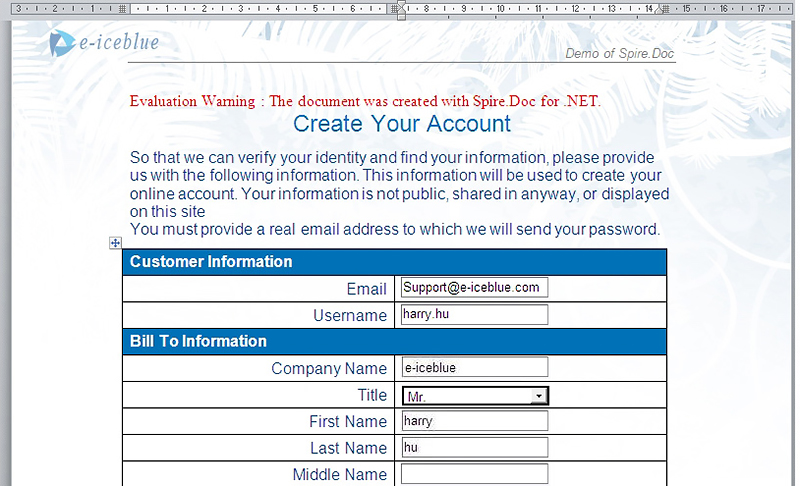
We have already demonstrated how to create form field. This article mainly shows you how developers fill form field in word document in C# only with 4 simple steps by using a standalone .NET Word component Spire.Doc.
Make sure Spire.Doc for .NET has been installed correctly and then add Spire.Doc.dll as reference in the downloaded Bin folder thought the below path: "..\Spire.Doc\Bin\NET4.0\ Spire.Doc.dll". Here comes to the details of how developers Fill Form Field by using Spire.Doc:
Step 1: Open the form that needs to fill the data.
//Create word document
Document document = new Document(@"..\..\..\Data\UserForm.doc");
Step 2: Load data that will fill the form.
//Fill data from XML file
using (Stream stream = File.OpenRead(@"..\..\..\Data\User.xml"))
{
    XPathDocument xpathDoc = new XPathDocument(stream);
    XPathNavigator user = xpathDoc.CreateNavigator().SelectSingleNode("/user");
Step 3: Use the loaded data to fill the form.
//fill data
  foreach (FormField field in document.Sections[0].Body.FormFields)
  {
     String path = String.Format("{0}/text()", field.Name);
     XPathNavigator propertyNode = user.SelectSingleNode(path);
     if (propertyNode != null)
     {
         switch (field.Type)
         {
             case FieldType.FieldFormTextInput:
                  field.Text = propertyNode.Value;
                  break;

             case FieldType.FieldFormDropDown:
                  DropDownFormField combox = field as DropDownFormField;
                  for(int i = 0; i < combox.DropDownItems.Count; i++)
                  {
                      if (combox.DropDownItems[i].Text == propertyNode.Value)
                      {
                         combox.DropDownSelectedIndex = i;
                         break;
                      }
                      if (field.Name == "country" && combox.DropDownItems[i].Text == "Others")
                      {
                         combox.DropDownSelectedIndex = i;
                      }
                  }
                  break;

             case FieldType.FieldFormCheckBox:
                  if (Convert.ToBoolean(propertyNode.Value))
                  {
                      CheckBoxFormField checkBox = field as CheckBoxFormField;
                      checkBox.Checked = true;
                  }
                  break;
            }
       }
   }
 }
Step 4: Save the document to file in XML or Microsoft Word format.
//Save doc file
document.SaveToFile("Sample.doc",FileFormat.Doc);
Effective Screenshot:
Full Source Code for Fill FormField:
namespace FillFormField
{
    public partial class Form1 : Form
    {
        public Form1()
        {
            InitializeComponent();
        }

        private void button1_Click(object sender, EventArgs e)
        {
            //open form
            Document document = new Document(@"..\..\..\..\..\..\Data\UserForm.doc");

            //load data
            using (Stream stream = File.OpenRead(@"..\..\..\..\..\..\Data\User.xml"))
            {
                XPathDocument xpathDoc = new XPathDocument(stream);
                XPathNavigator user = xpathDoc.CreateNavigator().SelectSingleNode("/user");

                //fill data
                foreach (FormField field in document.Sections[0].Body.FormFields)
                {
                    String path = String.Format("{0}/text()", field.Name);
                    XPathNavigator propertyNode = user.SelectSingleNode(path);
                    if (propertyNode != null)
                    {
                        switch (field.Type)
                        {
                            case FieldType.FieldFormTextInput:
                                field.Text = propertyNode.Value;
                                break;

                            case FieldType.FieldFormDropDown:
                                DropDownFormField combox = field as DropDownFormField;
                                for(int i = 0; i < combox.DropDownItems.Count; i++)
                                {
                                    if (combox.DropDownItems[i].Text == propertyNode.Value)
                                    {
                                        combox.DropDownSelectedIndex = i;
                                        break;
                                    }
                                    if (field.Name == "country" && combox.DropDownItems[i].Text == "Others")
                                    {
                                        combox.DropDownSelectedIndex = i;
                                    }
                                }
                                break;

                            case FieldType.FieldFormCheckBox:
                                if (Convert.ToBoolean(propertyNode.Value))
                                {
                                    CheckBoxFormField checkBox = field as CheckBoxFormField;
                                    checkBox.Checked = true;
                                }
                                break;
                        }
                    }
                }
            }

            //Save doc file.
            document.SaveToFile("Sample.doc",FileFormat.Doc);

            //Launching the MS Word file.
            WordDocViewer("Sample.doc");
        }

        private void WordDocViewer(string fileName)
        {
            try
            {
                System.Diagnostics.Process.Start(fileName);
            }
            catch { }
        }

    }
}
A form allows you to create placeholders for different types of information, such as text, dates, images and yes-no questions. This makes it easier for readers to know what type of information to include, and it also helps ensure all of the information is formatted the same way. In order to create a fillable form in Word, you will need to use the following tools.
- Content Controls: The areas where users input information in a form.
- Tables: Tables are used in forms to align text and form fields, and to create borders and boxes.
- Protection: Allows users to populate fields but not to make changes to the rest of the document.
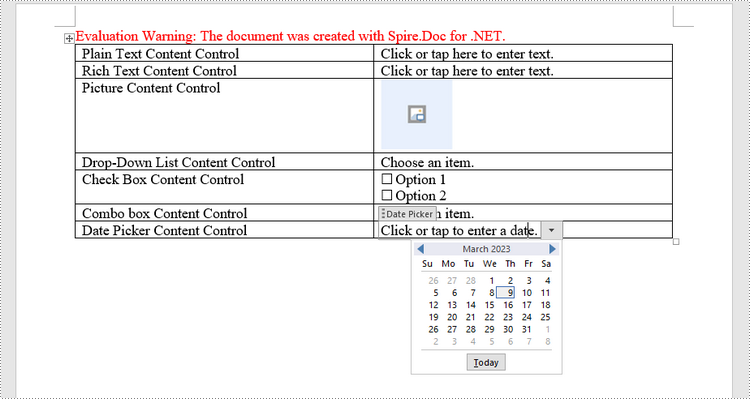
Content controls in Word are containers for content that let users build structured documents. A structured document controls where content appears within the document. There are basically ten types of content controls available in Word 2013. This article focuses on how to create a fillable form in Word consisting of the following seven common content controls using Spire.Doc for .NET.
| Content Control | Description |
| Plain Text | A text field limited to plain text, so no formatting can be included. |
| Rich Text | A text field that can contain formatted text or other items, such as tables, pictures, or other content controls. |
| Picture | Accepts a single picture. |
| Drop-Down List | A drop-down list displays a predefined list of items for the user to choose from. |
| Combo Box | A combo box enables users to select a predefined value in a list or type their own value in the text box of the control. |
| Check Box | A check box provides a graphical widget that allows the user to make a binary choice: yes (checked) or no (not checked). |
| Date Picker | Contains a calendar control from which the user can select a date. |
Install Spire.Doc for .NET
To begin with, you need to add the DLL files included in the Spire.Doc for .NET package as references in your .NET project. The DLL files can be either downloaded from this link or installed via NuGet.
PM> Install-Package Spire.Doc
Create a Fillable Form in Word in C# and VB.NET
The StructureDocumentTagInline class provided by Spire.Doc for .NET is used to create structured document tags for inline-level structures (DrawingML object, fields, etc.) in a paragraph. The SDTProperties property and the SDTContent property under this class shall be used to specify the properties and content of the current structured document tag. The following are the detailed steps to create a fillable form with content controls in Word.
- Create a Document object.
- Add a section using Document.AddSection() method.
- Add a table using Section.AddTable() method.
- Add a paragraph to a specific table cell using TableCell.AddParagraph() method.
- Create an instance of StructureDocumentTagInline class, and add it to the paragraph as a child object using Paragraph.ChildObjects.Add() method.
- Specify the properties and content of the structured document tag though the SDTProperties property and the SDTContent property of the StructureDocumentTagInline object. The type of the structured document tag is set through SDTProperties.SDTType property.
- Prevent users from editing content outside form fields using Document.Protect() method.
- Save the document using Document.SaveToFile() method.
- C#
- VB.NET
using Spire.Doc;
using Spire.Doc.Documents;
using Spire.Doc.Fields;
using System.Drawing;

namespace CreateFormInWord
{
    class Program
    {
        static void Main(string[] args)
        {
            //Create a Document object
            Document doc = new Document();

            //Add a section
            Section section = doc.AddSection();

            //add a table
            Table table = section.AddTable(true);
            table.ResetCells(7, 2);

            //Add text to the cells of the first column
            Paragraph paragraph = table.Rows[0].Cells[0].AddParagraph();
            paragraph.AppendText("Plain Text Content Control");
            paragraph = table.Rows[1].Cells[0].AddParagraph();
            paragraph.AppendText("Rich Text Content Control");
            paragraph = table.Rows[2].Cells[0].AddParagraph();
            paragraph.AppendText("Picture Content Control");
            paragraph = table.Rows[3].Cells[0].AddParagraph();
            paragraph.AppendText("Drop-Down List Content Control");
            paragraph = table.Rows[4].Cells[0].AddParagraph();
            paragraph.AppendText("Check Box Content Control");
            paragraph = table.Rows[5].Cells[0].AddParagraph();
            paragraph.AppendText("Combo box Content Control");
            paragraph = table.Rows[6].Cells[0].AddParagraph();
            paragraph.AppendText("Date Picker Content Control");

            //Add a plain text content control to the cell (0,1)
            paragraph = table.Rows[0].Cells[1].AddParagraph();
            StructureDocumentTagInline sdt = new StructureDocumentTagInline(doc);
            paragraph.ChildObjects.Add(sdt);
            sdt.SDTProperties.SDTType = SdtType.Text;
            sdt.SDTProperties.Alias = "Plain Text";
            sdt.SDTProperties.Tag = "Plain Text";
            sdt.SDTProperties.IsShowingPlaceHolder = true;
            SdtText text = new SdtText(true);
            text.IsMultiline = false;
            sdt.SDTProperties.ControlProperties = text;
            TextRange tr = new TextRange(doc);
            tr.Text = "Click or tap here to enter text.";
            sdt.SDTContent.ChildObjects.Add(tr);

            //Add a rich text content control to the cell (1,1)
            paragraph = table.Rows[1].Cells[1].AddParagraph();
            sdt = new StructureDocumentTagInline(doc);
            paragraph.ChildObjects.Add(sdt);
            sdt.SDTProperties.SDTType = SdtType.RichText;
            sdt.SDTProperties.Alias = "Rich Text";
            sdt.SDTProperties.Tag = "Rich Text";
            sdt.SDTProperties.IsShowingPlaceHolder = true;
            text = new SdtText(true);
            text.IsMultiline = false;
            sdt.SDTProperties.ControlProperties = text;
            tr = new TextRange(doc);
            tr.Text = "Click or tap here to enter text.";
            sdt.SDTContent.ChildObjects.Add(tr);

            //Add a picture content control to the cell (2,1)
            paragraph = table.Rows[2].Cells[1].AddParagraph();
            sdt = new StructureDocumentTagInline(doc);
            paragraph.ChildObjects.Add(sdt);
            sdt.SDTProperties.SDTType = SdtType.Picture;
            sdt.SDTProperties.Alias = "Picture";
            sdt.SDTProperties.Tag = "Picture";
            SdtPicture sdtPicture = new SdtPicture();
            sdt.SDTProperties.ControlProperties = sdtPicture;
            DocPicture pic = new DocPicture(doc);
            pic.LoadImage(Image.FromFile("C:\\Users\\Administrator\\Desktop\\ChooseImage.png"));
            sdt.SDTContent.ChildObjects.Add(pic);

            //Add a dropdown list content control to the cell(3,1)
            paragraph = table.Rows[3].Cells[1].AddParagraph();
            sdt = new StructureDocumentTagInline(doc);
            sdt.SDTProperties.SDTType = SdtType.DropDownList;
            sdt.SDTProperties.Alias = "Dropdown List";
            sdt.SDTProperties.Tag = "Dropdown List";
            paragraph.ChildObjects.Add(sdt);
            SdtDropDownList sddl = new SdtDropDownList();
            sddl.ListItems.Add(new SdtListItem("Choose an item.", "1"));
            sddl.ListItems.Add(new SdtListItem("Item 2", "2"));
            sddl.ListItems.Add(new SdtListItem("Item 3", "3"));
            sddl.ListItems.Add(new SdtListItem("Item 4", "4"));
            sdt.SDTProperties.ControlProperties = sddl;
            tr = new TextRange(doc);
            tr.Text = sddl.ListItems[0].DisplayText;
            sdt.SDTContent.ChildObjects.Add(tr);

            //Add two check box content controls to the cell (4,1)
            paragraph = table.Rows[4].Cells[1].AddParagraph();
            sdt = new StructureDocumentTagInline(doc);
            paragraph.ChildObjects.Add(sdt);
            sdt.SDTProperties.SDTType = SdtType.CheckBox;
            SdtCheckBox scb = new SdtCheckBox();
            sdt.SDTProperties.ControlProperties = scb;
            tr = new TextRange(doc);
            sdt.ChildObjects.Add(tr);
            scb.Checked = false;
            paragraph.AppendText(" Option 1");

            paragraph = table.Rows[4].Cells[1].AddParagraph();
            sdt = new StructureDocumentTagInline(doc);
            paragraph.ChildObjects.Add(sdt);
            sdt.SDTProperties.SDTType = SdtType.CheckBox;
            scb = new SdtCheckBox();
            sdt.SDTProperties.ControlProperties = scb;
            tr = new TextRange(doc);
            sdt.ChildObjects.Add(tr);
            scb.Checked = false;
            paragraph.AppendText(" Option 2");

            //Add a combo box content control to the cell (5,1)
            paragraph = table.Rows[5].Cells[1].AddParagraph();
            sdt = new StructureDocumentTagInline(doc);
            paragraph.ChildObjects.Add(sdt);
            sdt.SDTProperties.SDTType = SdtType.ComboBox;
            sdt.SDTProperties.Alias = "Combo Box";
            sdt.SDTProperties.Tag = "Combo Box";
            SdtComboBox cb = new SdtComboBox();
            cb.ListItems.Add(new SdtListItem("Choose an item."));
            cb.ListItems.Add(new SdtListItem("Item 2"));
            cb.ListItems.Add(new SdtListItem("Item 3"));
            sdt.SDTProperties.ControlProperties = cb;
            tr = new TextRange(doc);
            tr.Text = cb.ListItems[0].DisplayText;
            sdt.SDTContent.ChildObjects.Add(tr);

            //Add a date picker content control to the cell (6,1)
            paragraph = table.Rows[6].Cells[1].AddParagraph();
            sdt = new StructureDocumentTagInline(doc);
            paragraph.ChildObjects.Add(sdt);
            sdt.SDTProperties.SDTType = SdtType.DatePicker;
            sdt.SDTProperties.Alias = "Date Picker";
            sdt.SDTProperties.Tag = "Date Picker";
            SdtDate date = new SdtDate();
            date.CalendarType = CalendarType.Default;
            date.DateFormat = "yyyy.MM.dd";
            date.FullDate = DateTime.Now;
            sdt.SDTProperties.ControlProperties = date;
            tr = new TextRange(doc);
            tr.Text = "Click or tap to enter a date.";
            sdt.SDTContent.ChildObjects.Add(tr);

            //Allow users to edit the form fields only
            doc.Protect(ProtectionType.AllowOnlyFormFields, "permission-psd");

            //Save to file
            doc.SaveToFile("WordForm.docx", FileFormat.Docx2013);
        }
    }
}
Apply for a Temporary License
If you'd like to remove the evaluation message from the generated documents, or to get rid of the function limitations, please request a 30-day trial license for yourself.
