
Spire.Doc for .NET (338)
Children categories
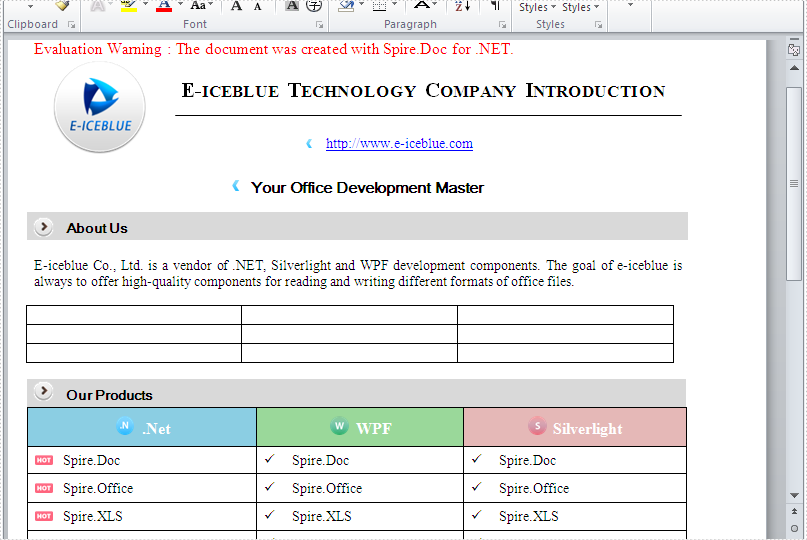
Spire.Doc has a powerful function of processing word table such as create and remove word table, set the table column width, style and so on. Spire.Doc also supports to add the table in the middle of the word document. This article will show you how to replace text with table by finding the key text in the word document.
Download and install Spire.Doc for .NET and then add Spire.Doc.dll as reference in the downloaded Bin folder though the below path: "..\Spire.Doc\Bin\NET4.0\ Spire.Doc.dll". Here comes to the details of how to finding the text and then replace it with table in C#.
Check the original word document at first:

Step 1: Create a new document and load from file.
Document doc = new Document();
doc.LoadFromFile("sample.docx");
Step 2: Find the place where you want to replace with table.
Section section = doc.Sections[0];
//"Fortune" as a "key text"
TextSelection selection = doc.FindString("Fortune", true, true);
TextRange range = selection.GetAsOneRange();
Paragraph paragraph = range.OwnerParagraph;
Body body = paragraph.OwnerTextBody;
int index = body.ChildObjects.IndexOf(paragraph);
Step 3: Add a table and set its style.
Table table = section.AddTable(true);
table.ResetCells(3,3);
Step 4: Remove the paragraph and insert the table.
body.ChildObjects.Remove(paragraph);
body.ChildObjects.Insert(index, table);
Step 5: Save the document to file.
doc.SaveToFile("Result.docx", FileFormat.Docx);
Effective screenshot of add a table in the middle of the word document by replacing the text.
Full codes:
namespace replaceTextwithTable
{
    class Program
    {
        static void Main(string[] args)
        {

            Document doc = new Document();
            doc.LoadFromFile("sample.docx");
            Section section = doc.Sections[0];
            TextSelection selection = doc.FindString("Fortune", true, true);
            TextRange range = selection.GetAsOneRange();
            Paragraph paragraph = range.OwnerParagraph;
            Body body = paragraph.OwnerTextBody;
            int index = body.ChildObjects.IndexOf(paragraph);
            Table table = section.AddTable(true);
            table.ResetCells(3,3);
            body.ChildObjects.Remove(paragraph);
             body.ChildObjects.Insert(index, table);
            doc.SaveToFile("Result.docx", FileFormat.Docx);
        }
    }
}
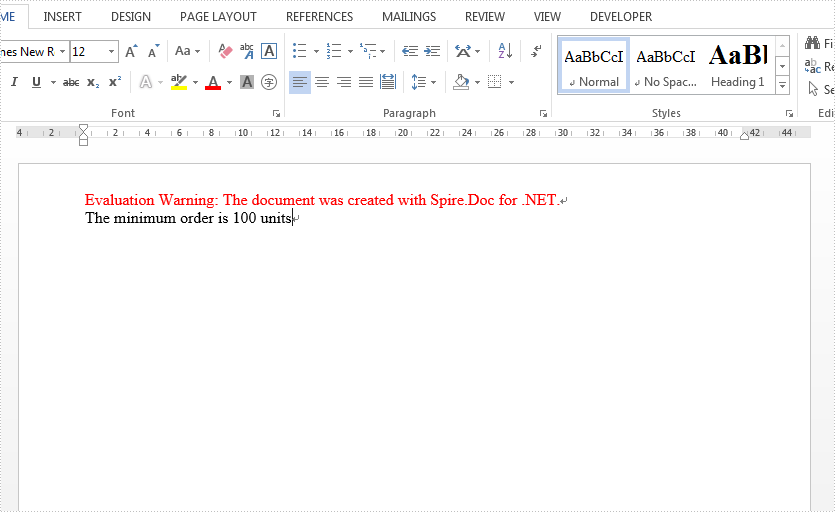
Usually we need to display different text and message to our readers based on the different conditions. In such situation, we need to create if field to decide which result to be displayed to readers. This article focuses on show you how to create an IF Field in C# with the help of Spire.Doc for .NET. We use the IF field and MERGEFIELD field together.
{IF { MERGEFIELD Count } > "100" "Thanks" "The minimum order is 100 units"}
Step 1: Create a new word document.
Document document = new Document();
Step 2: Add a new section for the document.
Section section = document.AddSection();
Step 3: Add a new paragraph for the section.
Paragraph paragraph = section.AddParagraph();
Step 4: Define a method of creating an IF Field.
CreateIfField(document, paragraph);
Step 5: Define merged data.
string[] fieldName = {"Count"};
string[] fieldValue = { "2" };
Step 6: Merge data into the IF Field.
document.MailMerge.Execute(fieldName, fieldValue);
Step 7: Update all fields in the document.
document.IsUpdateFields = true;
Step 8: Save the document to file.
document.SaveToFile("sample.docx", FileFormat.Docx);
The following CreateIfField() method shows how to create the IF Field like:
{IF { MERGEFIELD Count } > "100" "Thanks" " The minimum order is 100 units "}
static void CreateIfField(Document document, Paragraph paragraph)
{
IfField ifField = new IfField(document);
ifField.Type = FieldType.FieldIf;
ifField.Code = "IF ";
paragraph.Items.Add(ifField);

paragraph.AppendField("Count",FieldType.FieldMergeField);
paragraph.AppendText(" > ");
paragraph.AppendText("\"100\" ");
paragraph.AppendText("\"Thanks\" ");
paragraph.AppendText("\"The minimum order is 100 units\"");

IParagraphBase end = document.CreateParagraphItem(ParagraphItemType.FieldMark);
(end as FieldMark).Type = FieldMarkType.FieldEnd;
paragraph.Items.Add(end);
ifField.End = end as FieldMark;
}
Check the effective screenshot as below:
Full Code:
using Spire.Doc;
using Spire.Doc.Documents;
using Spire.Doc.Fields;
using Spire.Doc.Interface;
namespace CreatIF
{
    class Program
    {
        static void Main(string[] args)
        {
            Document document = new Document();
            Section section = document.AddSection();
            Paragraph paragraph = section.AddParagraph();
            CreateIfField(document, paragraph);
            string[] fieldName = { "Count" };
            string[] fieldValue = { "2" };

            document.MailMerge.Execute(fieldName, fieldValue);
            document.IsUpdateFields = true;
            document.SaveToFile("sample.docx", FileFormat.Docx);
        }

        static void CreateIfField(Document document, Paragraph paragraph)
        {
            IfField ifField = new IfField(document);
            ifField.Type = FieldType.FieldIf;
            ifField.Code = "IF ";
            paragraph.Items.Add(ifField);
            paragraph.AppendField("Count", FieldType.FieldMergeField);
            paragraph.AppendText(" > ");
            paragraph.AppendText("\"100\" ");
            paragraph.AppendText("\"Thanks\" ");
            paragraph.AppendText("\"The minimum order is 100 units\"");
            IParagraphBase end = document.CreateParagraphItem(ParagraphItemType.FieldMark);
            (end as FieldMark).Type = FieldMarkType.FieldEnd;
            paragraph.Items.Add(end);
            ifField.End = end as FieldMark;
        }

    }
}
This topic is just another request from one of our users on Spire.Doc Forum. In order to let more people know about this function, we’re going to present the whole procedure through a sample demo in the article. Additionally, we would like to remind you that we offer free customized demo for both pay users and test users.
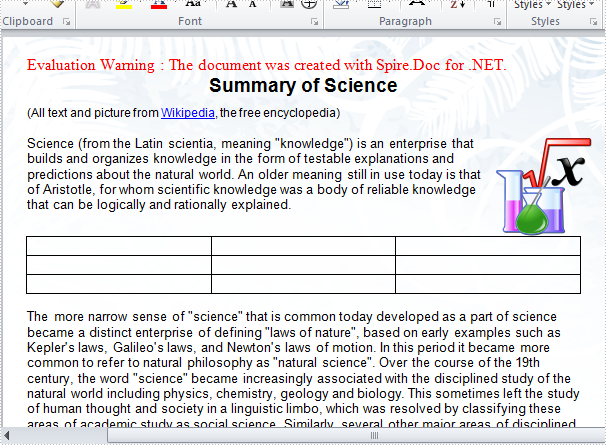
As a professional .NET Word component, Spire.Doc enables developers to replace specified paragraph with a newly created table or an existing table. In this example, the paragraph 3 in main body of the sample word file will be replaced by a newly-built table.
Test file:

Code snippets for replacing text with table:
Step 1: Create a new word document and load the test file.
Document doc = new Document();
doc.LoadFromFile(@"..\..\test.docx");
Step 2: Return TextSection by finding the key text string "classical antiquity science".
Section section = doc.Sections[0];
TextSelection selection = doc.FindString("classical antiquity science", true, true);
Step 3: Return TextRange from TextSection, then get OwnerParagraph through TextRange.
TextRange range = selection.GetAsOneRange();
Paragraph paragraph = range.OwnerParagraph;
Step 4: Return the zero-based index of the specified paragraph.
Body body = paragraph.OwnerTextBody;
int index = body.ChildObjects.IndexOf(paragraph);
Step 5: Create a new table.
Table table = section.AddTable(true);
table.ResetCells(3, 3);
Step 6: Remove the paragraph and insert table into the collection at the specified index.
body.ChildObjects.Remove(paragraph);
body.ChildObjects.Insert(index, table);
Step 7: Save and launch the file.
doc.SaveToFile("result.doc", FileFormat.Doc);
System.Diagnostics.Process.Start("result.doc");
Result:
Full C# code:
using Spire.Doc;
using Spire.Doc.Documents;
using Spire.Doc.Fields;
namespace ReplaceText
{

    class Program
    {
        static void Main(string[] args)
        {
            Document doc = new Document();
            doc.LoadFromFile(@"..\..\test.docx");
            Section section = doc.Sections[0];
            TextSelection selection = doc.FindString("classical antiquity science", true, true);
            TextRange range = selection.GetAsOneRange();
            Paragraph paragraph = range.OwnerParagraph;
            Body body = paragraph.OwnerTextBody;
            int index = body.ChildObjects.IndexOf(paragraph);

            Table table = section.AddTable(true);
            table.ResetCells(3, 3);
            body.ChildObjects.Remove(paragraph);
            body.ChildObjects.Insert(index, table);

            doc.SaveToFile("result.doc", FileFormat.Doc);
            System.Diagnostics.Process.Start("result.doc");

        }
    }
}
