Spire.Doc for .NET (338)
Children categories
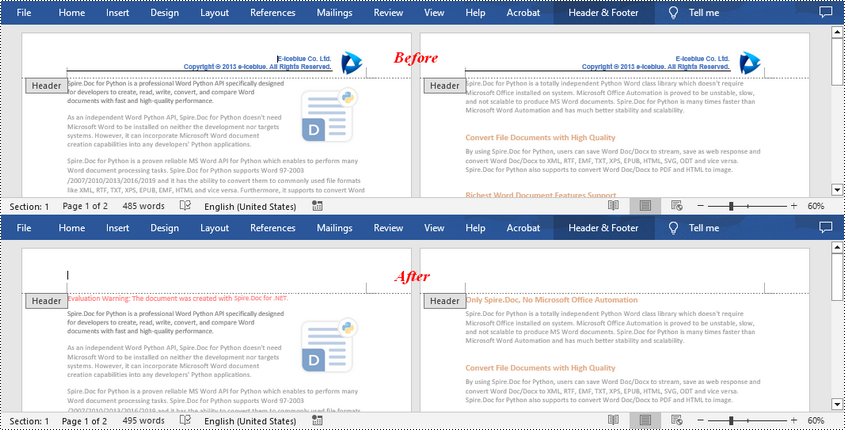
If the headers or footers in a Word document contains unnecessary information, such as outdated version numbers, redundant company logos, or incorrect author names, removing them can make the document look more professional and concise. In this article, you will learn how to remove headers or footers in Word in C# using Spire.Doc for .NET.
Install Spire.Doc for .NET
To begin with, you need to add the DLL files included in the Spire.Doc for.NET package as references in your .NET project. The DLL files can be either downloaded from this link or installed via NuGet.
PM> Install-Package Spire.Doc
Remove Headers in Word in C#
Spire.Doc for .NET supports getting different headers in the first pages, odd pages, and even pages, and then delete all of them through the HeaderFooter.ChildObjects.Clear() method. The following are the detailed steps:
- Create a Document instance.
- Load a Word document using Document.LoadFromFile() method.
- Get a specified section using Document.Sections[] property.
- Iterate through all paragraphs in the section, and then all child objects in each paragraph.
- Get the headers for the first, odd, and even pages using Section.HeadersFooters[HeaderFooterType hfType] property, and then delete them using HeaderFooter.ChildObjects.Clear() method.
- Save the result document using Document.SaveToFile() method.
- C#
using Spire.Doc;
using Spire.Doc.Documents;

namespace RemoveHeader
{
    class Program
    {
        static void Main(string[] args)
        {
            //Create a Document instance
            Document doc = new Document();

            //Load a Word document
            doc.LoadFromFile("HeaderFooter.docx");

            //Get the first section
            Section section = doc.Sections[0];

            //Iterate through all paragraphs in the section
            foreach (Paragraph para in section.Paragraphs)
            {
                //Iterate through all child objects in each paragraph
                foreach (DocumentObject obj in para.ChildObjects)
                {
                    //Delete header in the first page
                    HeaderFooter header;
                    header = section.HeadersFooters[HeaderFooterType.HeaderFirstPage];
                    if (header != null)
                        header.ChildObjects.Clear();

                    //Delete headers in the odd pages
                    header = section.HeadersFooters[HeaderFooterType.HeaderOdd];
                    if (header != null)
                        header.ChildObjects.Clear();

                    //Delete headers in the even pages
                    header = section.HeadersFooters[HeaderFooterType.HeaderEven];
                    if (header != null)
                        header.ChildObjects.Clear();
                }
            }

            //Save the result document
            doc.SaveToFile("RemoveHeader.docx", FileFormat.Docx);
        }
    }
}
Remove Footers in Word in C#
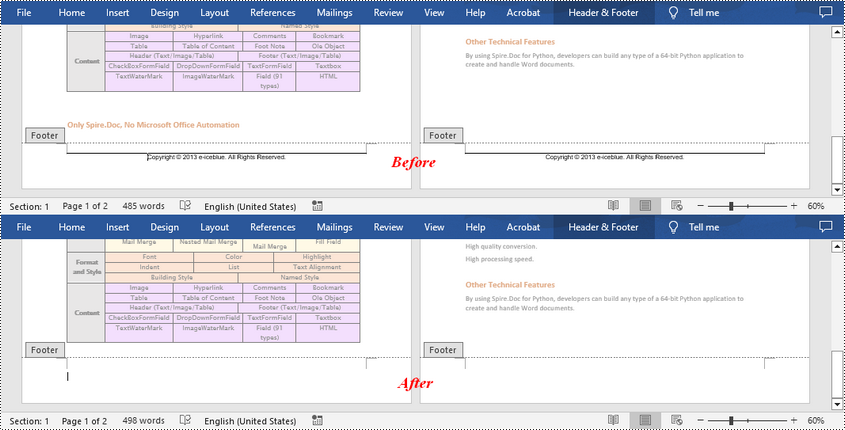
Deleting footers is similar to that of deleting headers, you can also get the footers on different pages first and then delete them at once. The following are the detailed steps:
- Create a Document instance.
- Load a Word document using Document.LoadFromFile() method.
- Get a specified section using Document.Sections[] property.
- Iterate through all paragraphs in the section, and then all child objects in each paragraph.
- Get the footers for the first, odd, and even pages using Section.HeadersFooters[HeaderFooterType hfType] property, and then delete them using HeaderFooter.ChildObjects.Clear() method.
- Save the result document using Document.SaveToFile() method.
- C#
using Spire.Doc;
using Spire.Doc.Documents;

namespace RemoveHeader
{
    class Program
    {
        static void Main(string[] args)
        {
            //Create a Document instance
            Document doc = new Document();

            //Load a Word document
            doc.LoadFromFile("HeaderFooter.docx");

            //Get the first section
            Section section = doc.Sections[0];

            //Iterate through all paragraphs in the section
            foreach (Paragraph para in section.Paragraphs)
            {
                //Iterate through all child objects in each paragraph
                foreach (DocumentObject obj in para.ChildObjects)
                {
                    //Delete footer in the first page
                    HeaderFooter footer;
                    footer = section.HeadersFooters[HeaderFooterType.FooterFirstPage];
                    if (footer != null)
                        footer.ChildObjects.Clear();

                    //Delete footer in the odd page
                    footer = section.HeadersFooters[HeaderFooterType.FooterOdd];
                    if (footer != null)
                        footer.ChildObjects.Clear();

                    //Delete footer in the even page
                    footer = section.HeadersFooters[HeaderFooterType.FooterEven];
                    if (footer != null)
                        footer.ChildObjects.Clear();
                }
            }

            //Save the result document
            doc.SaveToFile("RemoveFooter.docx", FileFormat.Docx);
        }
    }
}
Apply for a Temporary License
If you'd like to remove the evaluation message from the generated documents, or to get rid of the function limitations, please request a 30-day trial license for yourself.
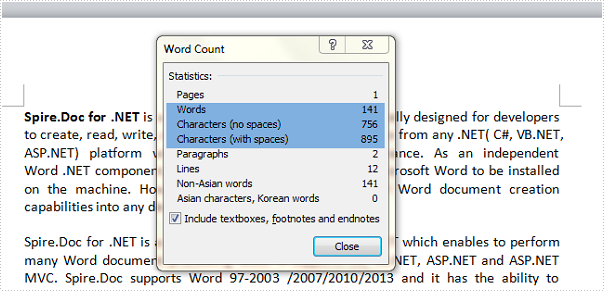
When you type in a document, Word automatically counts the number of pages and words in your document and displays them on the status bar – Word Count, at the bottom of the workspace. But how can we get the number of words, characters in an existing Word document through programming? This article aims to give you a simple solution offered by Spire.Doc.
Test file:
Detailed Steps for Getting the Number of Words and Characters
Step 1: Create a new instance of Spire.Doc.Document class and load the test file.
Document doc = new Document();
doc.LoadFromFile("test.docx", FileFormat.Docx2010);
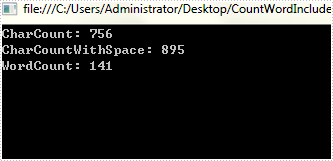
Step 2: Display the number of words, characters including or excluding spaces on console.
Console.WriteLine("CharCount: " + doc.BuiltinDocumentProperties.CharCount);
Console.WriteLine("CharCountWithSpace: " + doc.BuiltinDocumentProperties.CharCountWithSpace);
Console.WriteLine("WordCount: " + doc.BuiltinDocumentProperties.WordCount);
Output:
Full Code:
using Spire.Doc;
using System;
namespace CountNumber
{
    class Program
    {
        static void Main(string[] args)
        {
            Document doc = new Document();
            doc.LoadFromFile("test.docx", FileFormat.Docx2010);
            Console.WriteLine("CharCount: " + doc.BuiltinDocumentProperties.CharCount);
            Console.WriteLine("CharCountWithSpace: " + doc.BuiltinDocumentProperties.CharCountWithSpace);
            Console.WriteLine("WordCount: " + doc.BuiltinDocumentProperties.WordCount);
            Console.ReadKey();
        }
    }
}
Imports Spire.Doc
Namespace CountNumber
	Class Program
		Private Shared Sub Main(args As String())
			Dim doc As New Document()
			doc.LoadFromFile("test.docx", FileFormat.Docx2010)
			Console.WriteLine("CharCount: " + doc.BuiltinDocumentProperties.CharCount)
			Console.WriteLine("CharCountWithSpace: " + doc.BuiltinDocumentProperties.CharCountWithSpace)
			Console.WriteLine("WordCount: " + doc.BuiltinDocumentProperties.WordCount)
			Console.ReadKey()
		End Sub
	End Class
End Namespace
Get alias, tag and id of content controls in a Word document in C#
2014-10-11 06:28:55 Written by AdministratorContent controls provide a way for you to design documents. When you add a content control to a document, the control is identified by a border, a title, and temporary text that can provide instructions to the user. According to Microsoft, content controls mainly benefit from two features:
- Prevent users from editing or deleting protected sections of a document.
- Bind parts of a document or template to data. You can bind content controls to database fields, managed objects in the .NET Framework, XML elements that are stored in the document, and other data sources.
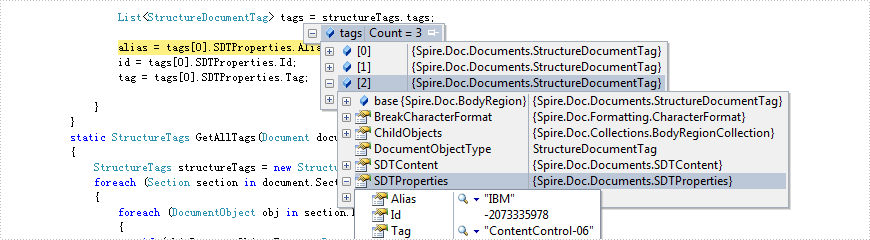
Therefore, it is necessary for developers to get the properties of content controls when dealing content controls at run time. This article illustrates how to get all controls and their properties including alias, id and tag via Spire.Doc.
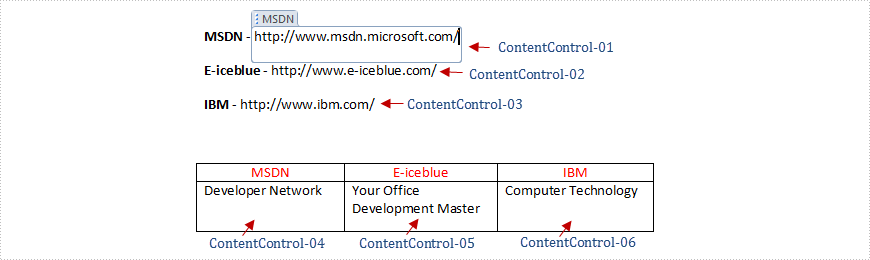
Firstly, check the test file that contains six content controls distributed in lines and a table. By default, the border and the title of the control do not appear if we don't click the protected section.
Test File:
Main Steps:
Step 1: Create a new Word document and load the test file.
Step 2: Create two lists to store tags which are distributed in lines and a table separately. Here, each content control will be identified by tag.
Step 3: Use foreach sentence to get all tags in the Word document.
Full Code:
static void Main(string[] args)
        {
            using (Document document = new Document(@"..\..\TestData\test.docx"))
            {
                StructureTags structureTags = GetAllTags(document);
                List<StructureDocumentTagInline> tagInlines = structureTags.tagInlines;

                string alias = tagInlines[0].SDTProperties.Alias;
                decimal id = tagInlines[0].SDTProperties.Id;
                string tag = tagInlines[0].SDTProperties.Tag;

                List<StructureDocumentTag> tags = structureTags.tags;
                alias = tags[0].SDTProperties.Alias;
                id = tags[0].SDTProperties.Id;
                tag = tags[0].SDTProperties.Tag;

            }
        }
       static StructureTags GetAllTags(Document document)
        {
            StructureTags structureTags = new StructureTags();
            foreach (Section section in document.Sections)
            {
                foreach (DocumentObject obj in section.Body.ChildObjects)
                {
                    if (obj.DocumentObjectType == DocumentObjectType.Paragraph)
                    {
                        foreach (DocumentObject pobj in (obj as Paragraph).ChildObjects)
                        {
                            if (pobj.DocumentObjectType == DocumentObjectType.StructureDocumentTagInline)
                            {
                                structureTags.tagInlines.Add(pobj as StructureDocumentTagInline);
                            }
                        }
                    }
                    else if (obj.DocumentObjectType == DocumentObjectType.Table)
                    {
                        foreach (TableRow row in (obj as Table).Rows)
                        {
                            foreach (TableCell cell in row.Cells)
                            {
                                foreach (DocumentObject cellChild in cell.ChildObjects)
                                {
                                    if (cellChild.DocumentObjectType == DocumentObjectType.StructureDocumentTag)
                                    {
                                        structureTags.tags.Add(cellChild as StructureDocumentTag);
                                    }
                                    else if (cellChild.DocumentObjectType == DocumentObjectType.Paragraph)
                                    {
                                        foreach (DocumentObject pobj in (cellChild as Paragraph).ChildObjects)
                                        {
                                            if (pobj.DocumentObjectType == DocumentObjectType.StructureDocumentTagInline)
                                            {
                                                structureTags.tagInlines.Add(pobj as StructureDocumentTagInline);
                                            }
                                        }
                                    }
                                }
                            }
                        }
                    }
                }
            }
            return structureTags;
        }
        public class StructureTags
           {
               List<StructureDocumentTagInline> m_tagInlines;
               public List<StructureDocumentTagInline> tagInlines
               {
                   get
                   {
                       if (m_tagInlines == null)
                           m_tagInlines = new List<StructureDocumentTagInline>();
                       return m_tagInlines;
                   }
                   set
                   {
                       m_tagInlines = value;
                   }
               }
               List<StructureDocumentTag> m_tags;
               public List<StructureDocumentTag> tags
               {
                   get
                   {
                       if (m_tags == null)
                           m_tags = new List<StructureDocumentTag>();
                       return m_tags;
                   }
                   set
                   {
                       m_tags = value;
                   }
               }
           }
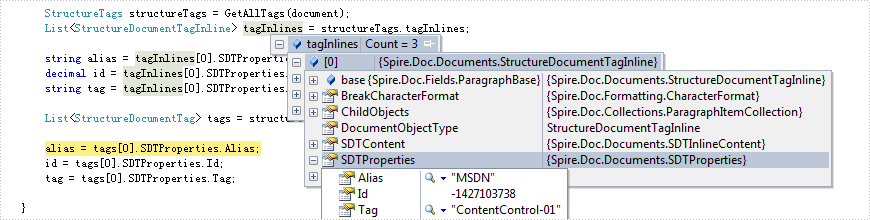
Effect Screenshot:
Content controls in lines
Content controls in table